Best Hard Drive for Plex Server 2026: Top Picks for Smooth Streaming

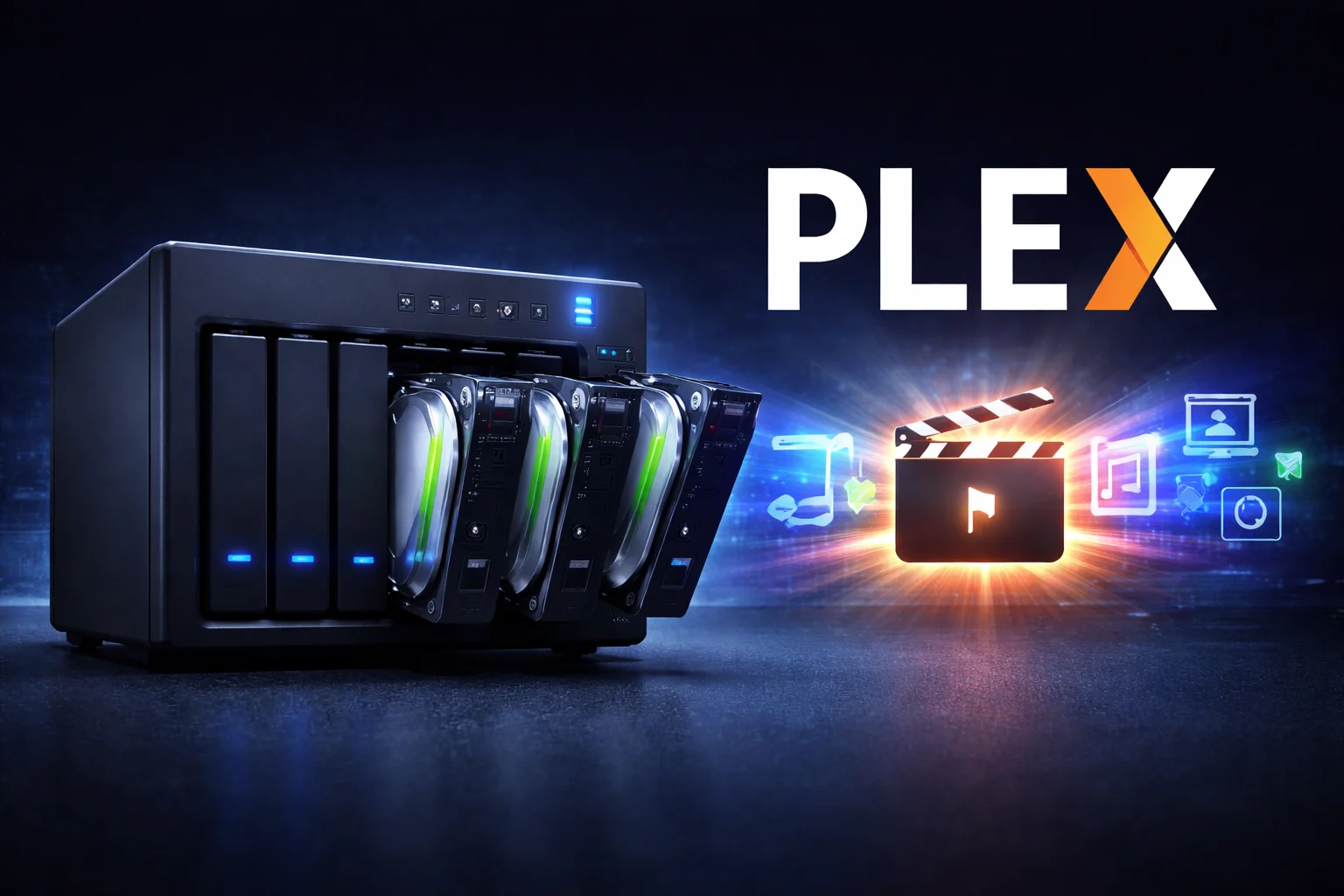
You’ve finally decided to build your own Plex server—congratulations! But now comes the critical question that trips up most beginners: which hard drive should you actually buy?
The wrong choice can mean buffering during movie night, failed drives that take your entire media library with them, or spending way more than necessary. The right choice means smooth 4K streaming, years of reliable service, and room to grow your collection.
After testing dozens of drives and analyzing real-world failure data, here are the best hard drives for Plex servers in 2026.
Quick Recommendations
| Use Case | Recommended Drive | Price | Best For |
|---|---|---|---|
| Best Overall | Seagate IronWolf 8TB | $199.99 | Most Plex users |
| Best Value | WD Red Plus 8TB | $227.99 | Budget-conscious builds |
| Budget Option | Seagate BarraCuda 8TB | $169.99 | Single-user, light use |
| High Capacity | Seagate Exos X18 16TB | $364.45 | Large media libraries |
| Enterprise Grade | Seagate IronWolf Pro 8TB | $389.34 | Heavy workloads, RAID |
| Cache Drive | WD Red SN700 1TB NVMe | $335.59 | Plex metadata, thumbnails |
What Makes a Drive “Good” for Plex?
Before diving into specific recommendations, let’s understand what actually matters for a Plex server drive.
Streaming from Plex doesn’t require fast drives. Even a 4K HDR movie at maximum quality needs only about 100-150 Mbps (roughly 12-18 MB/s). The slowest hard drive on the market can sustain 150+ MB/s sequential reads. Speed isn’t your bottleneck—reliability is.
What Actually Matters
24/7 Operation: Your Plex server runs constantly, even when you’re not watching. Standard desktop drives aren’t designed for this workload and will fail prematurely.
Vibration Tolerance: If you’re running multiple drives in a NAS, they create vibration that can damage neighboring drives. NAS-rated drives include sensors and firmware to handle this.
CMR vs SMR Recording: Conventional Magnetic Recording (CMR) drives offer consistent performance. Shingled Magnetic Recording (SMR) drives are cheaper but slow down dramatically during writes—problematic if you’re adding content while someone is streaming. For more details, see our CMR vs SMR comparison.
Workload Rating: Measured in TB/year, this tells you how much data the drive is designed to read/write annually. Desktop drives typically rate 55TB/year while NAS drives handle 180-300TB/year.
Warranty Length: NAS drives come with 3-5 year warranties versus 2 years for desktop drives—a good indicator of expected lifespan.
Best NAS Drives for Plex Server
Seagate IronWolf 8TB — Best Overall
Seagate IronWolf 8TB
7,200 RPM | 256MB Cache | CMR | 180TB/yr Workload
The gold standard for home NAS and Plex servers. Purpose-built for 24/7 operation with IronWolf Health Management and 3-year Rescue Data Recovery included.
The Seagate IronWolf has become the default recommendation for Plex servers, and for good reason. It delivers the perfect balance of reliability, performance, and price that most home media servers need.
Why it’s great for Plex:
The IronWolf is purpose-built for NAS environments with AgileArray technology that optimizes performance in multi-drive systems. The 7,200 RPM speed provides fast access times, though as mentioned, this matters more for Plex’s database operations than actual streaming.
What really sets the IronWolf apart is IronWolf Health Management (IHM), which integrates with Synology, QNAP, and other major NAS brands to monitor drive health and predict failures before they happen. For a media library you’ve spent years building, this early warning system is invaluable.
The included Rescue Data Recovery service is genuine insurance—if your drive fails within 3 years, Seagate will attempt to recover your data at no additional cost. Their facilities have a 95% success rate.
Considerations:
At ~$170 for 8TB, you’re paying a premium over desktop drives. If you’re building a single-drive setup for light personal use, this might be overkill. But for any multi-drive configuration or shared family use, the reliability premium is worth it.
WD Red Plus 8TB — Best Value
WD Red Plus 8TB
5,640 RPM | 256MB Cache | CMR | 180TB/yr Workload
Nearly identical specs to IronWolf at a lower price. NASware 3.0 firmware optimized for NAS environments. Runs cooler and quieter than 7,200 RPM drives.
The WD Red Plus offers nearly identical specifications to the IronWolf at a lower price point, making it the value champion for Plex storage.
Why it’s great for Plex:
WD’s NASware 3.0 firmware is specifically tuned for NAS environments, improving compatibility with various NAS brands and optimizing power consumption. The lower 5,640 RPM speed actually benefits home servers by running cooler and quieter—you won’t hear this drive spinning from across the room.
The Red Plus uses CMR recording technology, which is critical for RAID and ZFS arrays. During rebuild operations (when a drive fails and you’re reconstructing data), SMR drives can take days instead of hours. The WD Red Plus won’t have this problem.
WD Red vs Red Plus vs Red Pro:
The base WD Red line uses SMR technology, which can cause severe performance issues in RAID arrays. Always choose Red Plus (CMR) or Red Pro for Plex servers.
| Model | RPM | Recording | Workload | Best For |
|---|---|---|---|---|
| WD Red | 5,400 | SMR | 180TB/yr | Single drive, backup only |
| WD Red Plus | 5,640-7,200 | CMR | 180TB/yr | Home NAS, Plex servers |
| WD Red Pro | 7,200 | CMR | 300TB/yr | Heavy workloads, 8+ bays |
For more comparisons, see our IronWolf vs WD Red guide.
Toshiba N300 8TB — Budget NAS Alternative
Toshiba N300 8TB
7,200 RPM | 256MB Cache | CMR | 180TB/yr Workload
Often overlooked but legitimate contender. 7,200 RPM performance with class-leading 240 MB/s transfer speeds. 1.2 million hour MTBF rating.
The Toshiba N300 often gets overlooked in the Seagate vs Western Digital debate, but it’s a legitimate contender for Plex storage.
Why it’s great for Plex:
The N300 offers 7,200 RPM performance at a price between the IronWolf and Red Plus. It includes rotational vibration sensors for multi-drive environments and a 1.2 million hour MTBF (Mean Time Between Failures) rating—slightly better than competitors.
Toshiba’s sequential performance is actually class-leading, hitting 240 MB/s sustained transfers. While this doesn’t matter for streaming, it does speed up initial media library imports significantly.
Considerations:
Toshiba has less brand recognition in the NAS space, which means fewer NAS compatibility certifications and less integration with health monitoring systems. The drives work fine, but you won’t get the same ecosystem benefits as Seagate or WD.
High-Capacity Drives for Large Libraries
If you’ve got a serious media collection—think hundreds of 4K Blu-ray rips—you’ll want to maximize capacity per drive bay.
Seagate Exos X18 16TB — Best High-Capacity
Seagate Exos X18 16TB
7,200 RPM | 256MB Cache | CMR | Helium-Sealed | 550TB/yr
Enterprise-grade storage for serious collectors. Helium-sealed design runs cooler and quieter. 5-year warranty with 2.5M hour MTBF rating.
The Seagate Exos line is enterprise-grade storage that’s found its way into enthusiast Plex builds. The X18 16TB delivers massive capacity with datacenter-level reliability.
Why it’s great for Plex:
At 16TB per drive, you can store approximately 800 4K movies or 3,200 1080p movies on a single drive. For a 4-bay NAS, that’s 48TB usable with one drive for parity (RAID 5)—enough for virtually any personal collection.
The helium-sealed design runs significantly cooler and quieter than air-filled drives, with lower power consumption. The 550TB/year workload rating is overkill for Plex, but it means these drives can handle absolutely anything you throw at them.
The 5-year warranty provides peace of mind for your data.
Considerations:
Enterprise drives are designed for datacenter environments where noise isn’t a concern. While quieter than older enterprise drives, the Exos can still be audible in a quiet room. The higher price point also means more to lose if a drive fails—make sure you have proper backups.
Seagate sells manufacturer-recertified Exos drives at significant discounts. These come with the same 5-year warranty and are thoroughly tested. Check ServerPartDeals.com and similar retailers for deals.
Seagate IronWolf Pro 8TB — Heavy Workload Champion
Seagate IronWolf Pro 8TB
7,200 RPM | 256MB Cache | CMR | 300TB/yr Workload
Enterprise-class reliability for demanding deployments. 300TB/year workload rating. 5-year warranty with 2-year Rescue Data Recovery included.
The IronWolf Pro steps up from the standard IronWolf with enterprise-class reliability for demanding Plex deployments.
Why it’s great for Plex:
If you’re running a Plex server for extended family or friends—multiple concurrent streams, frequent transcoding, continuous usage—the Pro handles the workload. The 300TB/year rating is 67% higher than standard NAS drives.
The Pro also includes enhanced rotational vibration tolerance for systems up to 24 bays (versus 8 for standard IronWolf). More importantly, the 5-year warranty reflects Seagate’s confidence in the drive’s longevity.
Considerations:
For most home Plex servers with 1-3 concurrent users, the standard IronWolf provides identical real-world performance at a lower cost. The Pro makes sense when you’re serving many users or need the extended warranty period.
Budget Options for Light Use
Not everyone needs enterprise-grade storage. If you’re the only user and primarily direct-play content to a capable client, budget drives can work.
Seagate BarraCuda 8TB — Budget Pick
Seagate BarraCuda 8TB
5,400 RPM | 256MB Cache | SMR | 2-Year Warranty
The most affordable 8TB option. Best for single-user setups with direct play. Not recommended for RAID or heavy write workloads due to SMR technology.
The Seagate BarraCuda is the best-selling 8TB drive on Amazon for a reason—it’s incredibly affordable.
Why it can work for Plex:
For simple setups—one user, direct play to modern clients, no transcoding—the BarraCuda handles streaming just fine. The 190 MB/s transfer rate far exceeds what any video stream requires.
At $110, you can buy two BarraCudas for the price of one IronWolf, potentially allowing for a backup drive.
- Uses SMR recording—avoid for RAID arrays or heavy writing
- Not rated for 24/7 operation
- 2-year warranty suggests shorter expected lifespan
- No NAS optimization features
Considerations:
The BarraCuda is a calculated risk. You’re trading reliability for cost savings. For critical data or multi-user setups, invest in proper NAS drives. But for a casual single-user server where you maintain backups of original media, it can be a reasonable choice.
External Drives for Simple Setups
If you’re running Plex on a regular PC, Mac, or even a Raspberry Pi, external drives offer simplicity.
WD My Book 8TB — Best External Option
WD My Book 8TB
USB 3.0 | Hardware Encryption | 3-Year Warranty
Simple plug-and-play setup for Plex on PC or Mac. Includes hardware encryption and WD Backup software. Can be “shucked” for internal use.
For the simplest possible Plex setup, external USB drives eliminate any need to open your computer.
Why it works for Plex:
USB 3.0 provides up to 5 Gbps throughput—far more than any single hard drive can utilize. You simply plug in the drive, format it, and point Plex to your media folder.
The My Book includes hardware encryption and WD Backup software, though these features aren’t particularly useful for Plex. What matters is the reliable Western Digital drive inside and the 3-year warranty.
Considerations:
External drives add a potential failure point (the USB controller and enclosure). They also can’t be used in RAID configurations. For serious builds, internal NAS drives in a proper enclosure offer better reliability and expandability.
Some advanced users buy external drives specifically to “shuck” them—removing the internal drive for use in a NAS. This can offer significant savings, but voids the warranty and requires research to confirm the internal drive model.
Adding an SSD Cache Drive
For Plex servers with large libraries, an NVMe cache drive can dramatically improve performance—not for streaming, but for the Plex interface itself.
WD Red SN700 1TB — Best Plex Cache Drive
WD Red SN700 1TB NVMe
3,430 MB/s Read | 3,000 MB/s Write | 2,000 TBW Endurance
Purpose-built for NAS caching with exceptional endurance. Makes Plex interface dramatically snappier on large libraries. 5-year warranty.
Why it’s great for Plex:
Plex stores metadata, thumbnails, and its database separately from your media files. On a large library (10,000+ items), this database can exceed 50GB and is accessed constantly as you browse.
Moving Plex’s data folder to an NVMe SSD makes the interface dramatically snappier. Library scans complete faster, thumbnails load instantly, and searches return immediately.
The WD Red SN700 is specifically designed for NAS environments with high endurance (2,000 TBW) to handle constant read/write operations. For more on NVMe SSDs, see our dedicated guide.
How much cache do you need?
- Under 5,000 items: 250GB is plenty
- 5,000-20,000 items: 500GB recommended
- 20,000+ items: 1TB provides headroom
Many NAS units have dedicated NVMe slots for caching. If yours doesn’t, you can use an M.2 to PCIe adapter card or simply install Plex on a computer with an NVMe boot drive.
How Much Storage Do You Actually Need?
Before buying drives, calculate your actual requirements based on your media quality preferences.
Storage Per Movie/Show
| Quality | Average Size | Per 8TB Drive |
|---|---|---|
| 4K HDR Remux | 50-80GB | 100-160 movies |
| 4K Compressed | 15-25GB | 320-530 movies |
| 1080p Remux | 25-40GB | 200-320 movies |
| 1080p Compressed | 5-10GB | 800-1,600 movies |
| 720p | 2-4GB | 2,000-4,000 movies |
Real-World Library Examples
Casual User (500 movies, 20 TV series):
- 1080p compressed: ~3-5TB needed
- Recommendation: Single 8TB drive with external backup
Movie Enthusiast (1,500 movies, 50 TV series):
- Mix of 1080p/4K: ~10-15TB needed
- Recommendation: 2-bay NAS with 8TB drives
4K Collector (500 4K movies, 200 1080p, 100 TV series):
- Heavy 4K content: ~30-40TB needed
- Recommendation: 4-bay NAS with 12-16TB drives
Data Hoarder (Everything in maximum quality):
- Remux everything: 50TB+ needed
- Recommendation: 8-bay NAS, enterprise drives, proper RAID
For a detailed breakdown, see our guide on how much storage costs.
RAID Considerations for Plex
Running multiple drives introduces the question of RAID configuration.
Quick RAID Guide
| RAID Level | Drives Needed | Capacity Lost | Drive Failures Tolerated |
|---|---|---|---|
| RAID 0 | 2+ | None | 0 (any failure = total loss) |
| RAID 1 | 2 | 50% | 1 |
| RAID 5 | 3+ | 1 drive | 1 |
| RAID 6 | 4+ | 2 drives | 2 |
| RAID 10 | 4+ | 50% | 1 per mirror |
For Plex servers, RAID 5 offers the best balance of usable capacity and protection. With four 8TB drives, you get 24TB usable with single-drive failure protection.
If you accidentally delete files, get hit by ransomware, or experience multiple drive failures, RAID won’t save you. Always maintain separate backups of irreplaceable content.
Why CMR Drives Matter for RAID
When a drive fails in a RAID array, the system must rebuild data from parity information. This process reads every sector of every remaining drive.
SMR drives handle this terribly—rebuild times can extend from hours to days, during which you’re vulnerable to additional failures. CMR drives like the IronWolf, Red Plus, and N300 rebuild quickly and predictably.
For more on storage reliability, see our Seagate vs WD comparison.
Frequently Asked Questions
For single-drive setups with light personal use, desktop drives can work. However, NAS drives offer better reliability for 24/7 operation, vibration tolerance for multi-drive setups, and CMR recording for predictable performance. The price premium provides real peace of mind.
For main media storage, no. Hard drives provide the best cost per terabyte, and streaming performance isn’t bottlenecked by HDD speeds. However, an SSD for Plex’s metadata and database noticeably improves interface responsiveness on large libraries.
A single modern HDD can easily handle 10+ concurrent HD streams or 5+ 4K streams. The limiting factor is typically your server’s transcoding capability (if needed) and network bandwidth, not drive performance.
Both 5,400 and 7,200 RPM drives stream media perfectly. Higher RPM drives offer faster random access (better for many small files) but run hotter and louder. For pure media storage, the difference is negligible.
Staggering purchases from different batches reduces the risk of simultaneous failures from manufacturing defects. However, this complicates RAID expansion. For most users, buying matching drives simultaneously is fine—just maintain proper backups.
Yes, many users extract drives from external enclosures for NAS use. This often provides white-label NAS-class drives at significant discounts. However, it voids warranties and requires research to identify the internal drive model.
The Bottom Line
For most Plex server builds, the Seagate IronWolf 8TB (~$170) offers the ideal combination of reliability, performance, and price. It’s specifically designed for the 24/7 NAS workloads that Plex servers demand.
If budget is the primary concern, the WD Red Plus 8TB (~$150) provides nearly identical performance with excellent value.
For serious media collectors, scaling up to 16-20TB enterprise drives maximizes capacity per bay, while adding an NVMe cache drive transforms the Plex browsing experience.
Whatever you choose, remember: drives will eventually fail. The question isn’t if, but when. Maintain backups of irreplaceable media and monitor drive health regularly. Your movie collection will thank you.
Ready to build your Plex server storage? Compare current HDD prices across all capacities, or explore our NAS drives buying guide for enclosure recommendations.
Last Updated: February 2026