Quick Answer+
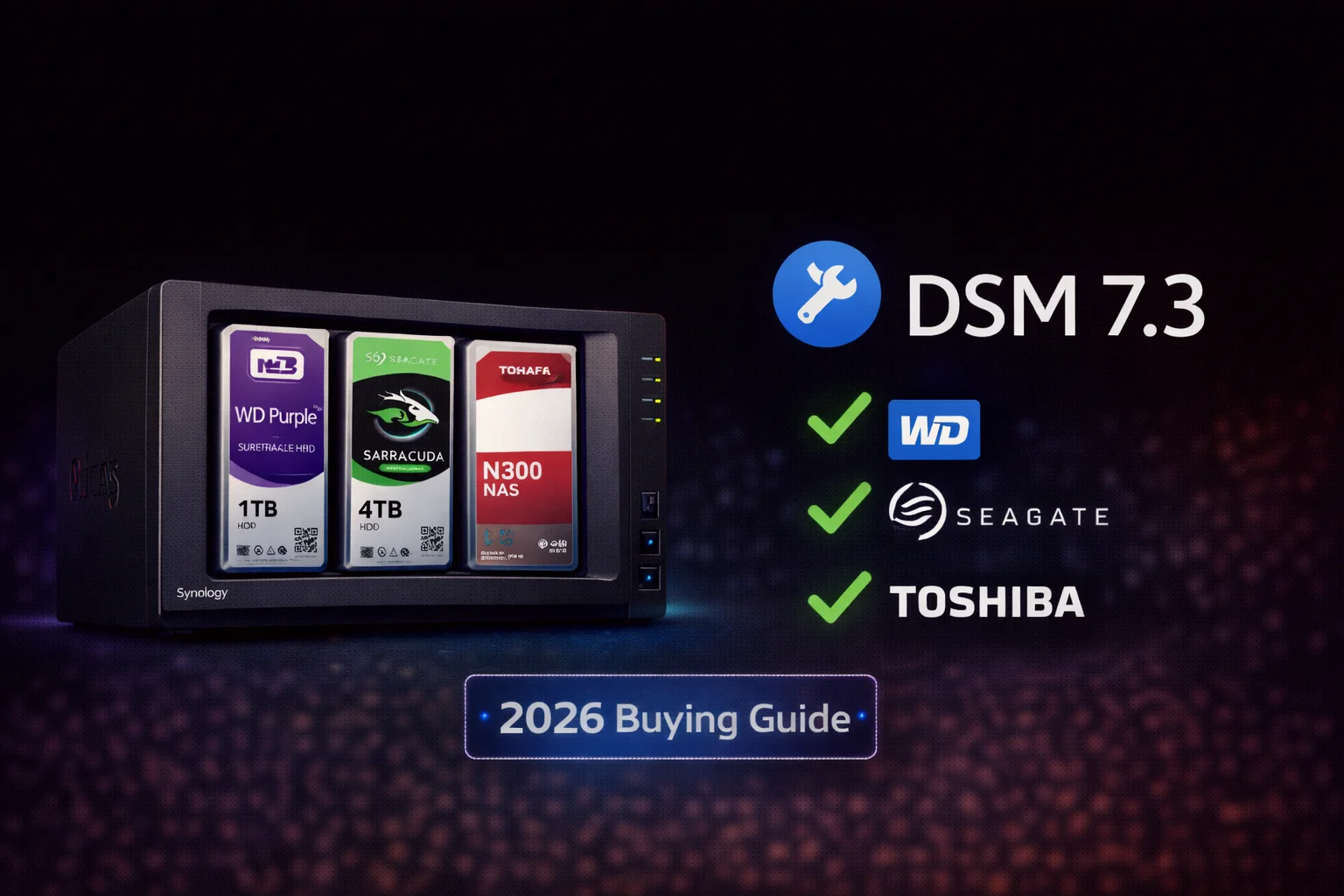
Quick Answer: After the DSM 7.3 update (October 2025), all major third-party drives work with Synology NAS - including WD Red Plus, Seagate IronWolf, Toshiba N300, WD Purple, and Seagate SkyHawk. The controversial 2025 drive restrictions have been reversed. You no longer need Synology-branded HAT drives. For best results, use NAS-optimized drives like WD Red Plus 8TB (~$149) or Seagate IronWolf 8TB (~$159).
If you've been confused about which drives work with Synology NAS in 2026, you're not alone. The 2025 drive compatibility controversy created massive uncertainty, but the good news is that Synology reversed course. This guide explains exactly what happened, which drives work today, and our recommendations for every Synology model.
Table of Contents
- What Happened: The 2025 Drive Policy Saga
- Current Status: DSM 7.3 Compatibility
- Complete Compatible Drives List
- Best NAS Drives for Synology
- Surveillance Drives for Synology
- Synology-Branded Drives (HAT Series)
- Drives to Avoid
- Troubleshooting Drive Issues
- Frequently Asked Questions
What Happened: The 2025 Drive Policy Saga
Understanding the background helps you make informed decisions about Synology and drives going forward.
Timeline of the Controversy
| Date | Event | Impact |
|---|---|---|
| April 16, 2025 | Synology announces 2025 Plus series will require Synology-branded drives | Shock and confusion in NAS community |
| May 2025 | DS925+, DS1525+, DS725+ launch with restrictions | Users couldn't initialize DSM with third-party drives |
| May-Sept 2025 | Community backlash, workarounds emerge, poor sales | Major tech outlets criticize Synology |
| October 7, 2025 | Synology releases DSM 7.3 with HCL 5.0 framework | Third-party drive support restored |
| February 2026 | Policy reversal fully in effect | All drives work without warnings |
What the 2025 Policy Actually Did
During the restricted period (April-October 2025), the 2025 Plus series models:
- Blocked DSM installation if only third-party drives were present
- Showed constant warnings about "unverified" or "at risk" drives
- Prevented storage pool creation with non-approved drives
- Displayed alarming messages to users migrating from older systems
Affected models included: DS925+, DS1525+, DS725+, DS425+, DS225+, DS1825+
Why Synology Reversed Course
The reversal came after:
- Massive community backlash on Reddit, forums, and social media
- Poor sales of 2025 models compared to expectations
- Negative coverage from major tech publications
- Competition advantage as users explored QNAP, UGREEN, and TrueNAS alternatives
- Regional availability issues with Synology-branded drives
Current Status: DSM 7.3 Compatibility (February 2026)
The bottom line: Third-party drives work again on ALL Synology models, including 2025 series.
What DSM 7.3 Changed
The DSM 7.3 update (released October 2025) introduced the HCL 5.0 framework:
- Third-party drives accepted without warnings or restrictions
- DSM installation proceeds normally with any compatible drive
- Storage pool creation works without compatibility errors
- No "unverified" warnings in Storage Manager
- All standard DSM features available including snapshots, encryption, and Hyper Backup
The Only Remaining Caveat
Support limitations: Synology's technical support may limit assistance for issues proven to be caused by non-listed hardware.
In practice: This rarely matters. NAS drives from WD, Seagate, and Toshiba work flawlessly, and drive-related issues are typically hardware failures rather than compatibility problems.
Compatibility by Model Generation
| Model Series | Third-Party Drive Support | Notes |
|---|---|---|
| 2025 Plus Series (DS925+, DS1525+, etc.) | ✓ Full support (DSM 7.3+) | Must update to DSM 7.3 |
| 2023-2024 Plus Series (DS923+, DS423+, etc.) | ✓ Full support | Always worked with third-party |
| J Series (DS223j, DS423j, etc.) | ✓ Full support | Budget line, always compatible |
| XS/XS+ Series (Enterprise) | ✓ Full support | Enterprise drives recommended |
| Older Models (Pre-2023) | ✓ Full support | No restrictions ever applied |
Complete Compatible Drives List (2026)
Here's our comprehensive compatibility matrix for Synology NAS drives.
NAS Drives - Fully Compatible ✓
| Drive | Capacities | Price (8TB) | Synology Compatible | Best For |
|---|---|---|---|---|
| WD Red Plus | 2-14TB | ~$149 | ✓ Yes | Home/SMB NAS |
| WD Red Pro | 2-24TB | ~$210 | ✓ Yes | Business NAS (8+ bays) |
| Seagate IronWolf | 1-18TB | ~$159 | ✓ Yes | Home/SMB NAS |
| Seagate IronWolf Pro | 4-24TB | ~$220 | ✓ Yes | Business NAS |
| Toshiba N300 | 4-18TB | ~$175 | ✓ Yes | Value NAS |
| Toshiba N300 Pro | 8-20TB | ~$200 | ✓ Yes | Business NAS |
| Synology HAT3310 | 4-16TB | ~$200 | ✓ Yes (Official) | Premium support |
| Synology HAT5300 | 4-16TB | ~$320 | ✓ Yes (Official) | Enterprise |
Surveillance Drives - Fully Compatible ✓
For Synology Surveillance Station, use surveillance-optimized drives:
| Drive | Capacities | Price (8TB) | Synology Compatible | Best For |
|---|---|---|---|---|
| WD Purple | 1-22TB | ~$145 | ✓ Yes | Home surveillance |
| WD Purple Pro | 8-22TB | ~$270 | ✓ Yes | AI/Enterprise surveillance |
| Seagate SkyHawk | 1-18TB | ~$139 | ✓ Yes | Budget surveillance |
| Seagate SkyHawk AI | 8-24TB | ~$285 | ✓ Yes | AI surveillance |
| Toshiba S300 | 1-10TB | ~$160 | ✓ Yes | Value surveillance |
Enterprise Drives - Fully Compatible ✓
| Drive | Capacities | Synology Compatible | Best For |
|---|---|---|---|
| WD Gold | 1-24TB | ✓ Yes | Enterprise NAS |
| WD Ultrastar | 8-26TB | ✓ Yes | Data center |
| Seagate Exos | 1-24TB | ✓ Yes | Enterprise NAS |
| Toshiba MG Series | 1-22TB | ✓ Yes | Enterprise |
Best NAS Drives for Synology (2026)
Here are our top recommendations with current pricing.
Best Overall: WD Red Plus
Why WD Red Plus:
- CMR technology - Consistent write speeds, no SMR slowdowns
- NASware 3.0 - Firmware optimized for NAS and RAID
- 3D Active Balance Plus - Vibration protection in multi-bay systems
- Proven Synology compatibility - Works perfectly with all models
- 180TB/year workload - Sufficient for home and SMB use
Available capacities: 2TB, 3TB, 4TB, 6TB, 8TB, 10TB, 12TB, 14TB
Best Value: Seagate IronWolf
Why Seagate IronWolf:
- Rescue Data Recovery included - 3-year in-house recovery service
- IronWolf Health Management - Integrates directly with Synology DSM
- AgileArray - Dual-plane balancing for multi-bay vibration tolerance
- 7200 RPM - Faster than WD Red Plus (5640 RPM)
- Competitive pricing - Often matches or beats WD Red Plus
Best Budget: Toshiba N300
Best for Business: WD Red Pro
Capacity Recommendations by Use Case
| Use Case | Recommended Capacity | Recommended Drive |
|---|---|---|
| Basic home backup | 4TB per drive | WD Red Plus 4TB |
| Family photos/documents | 8TB per drive | WD Red Plus 8TB |
| Plex media server | 8-12TB per drive | Seagate IronWolf 12TB |
| Small business | 8-16TB per drive | WD Red Pro 12TB |
| Surveillance (8 cameras) | 8TB per drive | WD Purple 8TB |
| Large media collection | 16-20TB per drive | Seagate IronWolf Pro 16TB |
Surveillance Drives for Synology Surveillance Station
Running Surveillance Station? You need surveillance-optimized drives for best results.
Why Surveillance Drives for Surveillance Station?
- AllFrame/ImagePerfect firmware - Prevents dropped frames during recording
- Higher workload ratings - Handle constant 24/7 write operations
- Optimized for sequential writes - Video recording is sequential
- Lower cost per TB - Often cheaper than NAS drives
- Longer 24/7 design life - Built for continuous operation
Best Surveillance Drives for Synology
Related Guides:
Synology-Branded Drives: HAT3300 vs HAT5300
Synology sells their own rebranded drives. Here's an honest comparison.
Synology Drive Options
| Drive | Origin | Price (8TB) | vs Third-Party | Best For |
|---|---|---|---|---|
| HAT3310 Plus | Rebranded Toshiba | ~$200 | +33% vs WD Red Plus | Guaranteed support |
| HAT5300 Enterprise | Rebranded Toshiba Enterprise | ~$320 | +113% vs WD Red Plus | Enterprise compliance |
When Synology Drives Make Sense
- Enterprise compliance - Need single-vendor accountability
- Guaranteed support - No potential limitations on tech support
- Reseller bundles - Discounted when purchased with NAS
- Peace of mind - If budget isn't a concern
When Third-Party Drives Make Sense (Most Users)
- Home and SMB use - 99% of users fit this category
- Budget-conscious - Save 25-50% vs Synology drives
- Drive availability - Easier to find locally
- Flexibility - Mix and match brands as needed
Our recommendation: For most users, third-party NAS drives from WD, Seagate, or Toshiba provide identical performance at significantly lower cost.
Drives to Avoid in Synology NAS
Not all drives are suitable for NAS use. Avoid these:
Desktop Drives - Not Recommended
| Drive | Why Avoid | Use Instead |
|---|---|---|
| WD Blue (2TB+) | SMR technology, not 24/7 rated | WD Red Plus |
| Seagate Barracuda (2-8TB) | SMR technology, not 24/7 rated | Seagate IronWolf |
| Toshiba P300 (3TB+) | SMR technology, desktop workload | Toshiba N300 |
| WD Green | Power-saving features interfere with NAS | WD Red Plus |
Why Desktop Drives Fail in NAS
- SMR technology - Causes severe write slowdowns under NAS workloads
- Not rated for 24/7 - Designed for 8-12 hour daily use
- No vibration protection - Fail faster in multi-bay systems
- Aggressive head parking - Wears out drives prematurely in NAS
- Lower workload ratings - 55TB/year vs 180TB/year for NAS drives
Related: CMR vs SMR: Why It Matters for NAS
Troubleshooting Drive Compatibility Issues
Problem: Drive Not Detected
Solutions:
- Update to DSM 7.3+ - Essential for 2025 models
- Check SATA connections - Reseat drive in bay
- Try different bay - Rule out bay issues
- Test drive in PC - Verify drive works
- Check max capacity - Some older models have limits
Problem: "Unsupported Drive" Warning (Pre-DSM 7.3)
Solution: Update to DSM 7.3 or later. This completely resolves the issue for 2025 models.
Problem: Initialization Failed
Solutions:
- Verify DSM version - Must be 7.3+ for 2025 models
- Check drive health - Test S.M.A.R.T. status in PC
- Try single drive first - Initialize with one drive, add others
- Contact Synology support - If issue persists after DSM 7.3
Problem: Slow Performance
Possible causes:
- SMR drive - Replace with CMR NAS drive
- Network bottleneck - Check switch and cables
- Failing drive - Check S.M.A.R.T. in Storage Manager
- Background tasks - Wait for indexing/parity checks to complete
Related: Synology NAS Troubleshooting Guide
Frequently Asked Questions
Can I use WD Red Plus in a Synology NAS?
Yes, absolutely. WD Red Plus is one of the most popular and reliable drives for Synology NAS. After the DSM 7.3 update, it works perfectly on all models including the 2025 series (DS925+, DS1525+, etc.) with no warnings or restrictions.
Does Synology still require proprietary drives in 2026?
No. Synology reversed their controversial 2025 drive policy with the DSM 7.3 update (October 2025). Third-party drives from WD, Seagate, and Toshiba now work on all models, including the 2025 Plus series, without any restrictions or warnings.
Can I use WD Purple surveillance drives in a Synology NAS?
Yes. WD Purple drives work perfectly in Synology NAS and are actually recommended for Surveillance Station. They're optimized for 24/7 recording with AllFrame technology that prevents dropped frames.
Are Synology HAT drives worth the extra cost?
For most users, no . Synology HAT drives are rebranded Toshiba drives with a 25-100% markup. Third-party drives like WD Red Plus and Seagate IronWolf provide identical performance. HAT drives only make sense for enterprise environments requiring single-vendor accountability.
Can I use a regular desktop hard drive in Synology?
Technically yes, but it's not recommended . Desktop drives (WD Blue, Seagate Barracuda) often use SMR technology that causes slowdowns in NAS, aren't rated for 24/7 operation, and lack vibration protection. Use proper NAS drives like WD Red Plus or Seagate IronWolf for reliability.
What is DSM 7.3 and why does it matter for drive compatibility?
DSM 7.3 is Synology's October 2025 software update that reversed the controversial drive restrictions on 2025 models. Before this update, 2025 Plus series NAS units (DS925+, DS1525+, etc.) blocked third-party drives. After DSM 7.3, all drives work normally again.
Related Guides
Drive Installation Best Practices
Getting the best performance and lifespan from your drives requires proper installation and configuration.
Physical Installation
- Power off the NAS completely before installing drives
- Ground yourself - Touch the metal chassis to discharge static
- Insert drives firmly - Push until you hear/feel the click
- Lock the drive trays - Use the included key on Plus models
- Verify all drives appear in Storage Manager after boot
Initial Configuration Checklist
- ☐ Update DSM to latest version (7.3+ for 2025 models)
- ☐ Create Storage Pool with SHR (recommended) or RAID 5/6
- ☐ Choose Btrfs file system (enables snapshots)
- ☐ Enable S.M.A.R.T. monitoring and alerts
- ☐ Configure email notifications for drive warnings
- ☐ Schedule regular data scrubbing (monthly)
SHR vs RAID: Quick Decision Guide
| Choose SHR If | Choose RAID 5/6 If |
|---|---|
| You have mixed drive sizes | All drives are the same size |
| You want easy expansion | You need drive portability |
| You're new to NAS | You're migrating from another RAID system |
| Home/SMB use | Enterprise requirements |
Model-Specific Drive Recommendations
Different Synology models have different needs. Here are optimized configurations:
2-Bay Models (DS224+, DS225+, DS723+, DS725+)
| Use Case | Configuration | Total Cost |
|---|---|---|
| Basic backup | 2x WD Red Plus 4TB (SHR = 4TB usable) | ~$200 |
| Home NAS | 2x Seagate IronWolf 8TB (SHR = 8TB usable) | ~$320 |
| Media server | 2x WD Red Plus 12TB (SHR = 12TB usable) | ~$400 |
| Small surveillance | 2x WD Purple 8TB (RAID 1 = 8TB usable) | ~$290 |
4-Bay Models (DS423+, DS425+, DS923+, DS925+)
| Use Case | Configuration | Total Cost |
|---|---|---|
| Home NAS | 4x WD Red Plus 8TB (SHR = 24TB usable) | ~$600 |
| Plex server | 4x Seagate IronWolf 12TB (SHR = 36TB usable) | ~$800 |
| Small business | 4x WD Red Pro 12TB (SHR-2 = 24TB usable) | ~$1,080 |
| Surveillance (8-16 cams) | 4x WD Purple 8TB (SHR = 24TB usable) | ~$580 |
5+ Bay Models (DS1522+, DS1525+, DS1621+)
| Use Case | Configuration | Total Cost |
|---|---|---|
| Business NAS | 5x WD Red Pro 12TB (SHR-2 = 36TB usable) | ~$1,350 |
| Large media | 5x Seagate IronWolf Pro 16TB (SHR = 64TB usable) | ~$1,750 |
| Enterprise surveillance | 5x WD Purple Pro 12TB (SHR-2 = 36TB usable) | ~$1,350 |
Mixing Drive Brands and Sizes
One of the most common questions: Can you mix different drives?
Mixing Brands (WD + Seagate + Toshiba)
Verdict: Yes, this works fine.
- All major NAS drives use standard SATA interface
- SHR handles mixed brands seamlessly
- No compatibility issues between brands
- May have slight performance variations (negligible in practice)
Best practice: Buy the same model for initial setup, but don't worry about matching brands when expanding or replacing.
Mixing Capacities (4TB + 8TB + 12TB)
Verdict: Yes, if using SHR.
- SHR maximizes mixed capacities - Uses all available space efficiently
- RAID 5/6 wastes space - Limited to smallest drive × (n-1)
- Example: 4TB + 8TB + 8TB + 12TB = 24TB usable in SHR, only 12TB in RAID 5
Best practice: Use SHR for mixed sizes. Use RAID only with identical drives.
Mixing NAS and Surveillance Drives
Verdict: Possible, but not recommended.
- Different firmware optimizations may cause minor issues
- Better to use surveillance drives for surveillance, NAS drives for general use
- If you must mix, it will generally work in SHR
Drive Health Monitoring
Synology DSM includes excellent tools for monitoring drive health.
S.M.A.R.T. Monitoring
Key attributes to watch:
| S.M.A.R.T. Attribute | What It Means | Warning Threshold |
|---|---|---|
| Reallocated Sector Count | Bad sectors replaced with spares | Any value > 0 |
| Current Pending Sector | Sectors awaiting reallocation | Any value > 0 |
| Uncorrectable Sector Count | Failed read/write operations | Any value > 0 |
| Temperature | Drive operating temperature | > 50°C sustained |
| Power-On Hours | Total hours of operation | > 35,000 hours (4 years) |
IronWolf Health Management (IHM)
Seagate IronWolf drives include IronWolf Health Management, which integrates directly with Synology DSM:
- Prevention: Monitors drive health indicators
- Intervention: Suggests actions when problems detected
- Recovery: Integrates with Seagate Rescue service
To enable: Storage Manager > HDD/SSD > Health Info > IronWolf Health Management
Setting Up Notifications
- Go to Control Panel > Notification > Email
- Configure SMTP server (Gmail, Outlook, etc.)
- Enable notifications for: Drive warnings, S.M.A.R.T. errors, Volume degraded
- Test notification to confirm delivery
Expected Drive Lifespan in Synology NAS
| Drive Type | Expected Lifespan | Replacement Strategy |
|---|---|---|
| WD Red Plus | 3-5 years | Replace proactively at 4 years |
| Seagate IronWolf | 3-5 years | Replace proactively at 4 years |
| WD Red Pro | 4-6 years | Replace proactively at 5 years |
| Seagate IronWolf Pro | 4-6 years | Replace proactively at 5 years |
| WD Purple | 3-5 years | Replace at first signs of issues |
| Desktop drives | 1-2 years (in 24/7 use) | Not recommended for NAS |
Factors affecting lifespan:
- Temperature: Keep below 45°C for optimal life
- Workload: Stay within rated TB/year
- Power stability: Use a UPS
- Vibration: Proper mounting in multi-bay systems
Cost Comparison: Third-Party vs Synology Drives
Here's the real cost difference for a typical 4-bay setup:
4-Bay Configuration Cost Comparison
| Configuration | Third-Party (WD Red Plus) | Synology HAT3310 | Savings |
|---|---|---|---|
| 4x 8TB drives | $600 ($150 × 4) | $800 ($200 × 4) | $200 (25%) |
| 4x 12TB drives | $840 ($210 × 4) | $1,120 ($280 × 4) | $280 (25%) |
| 4x 16TB drives | $1,160 ($290 × 4) | $1,600 ($400 × 4) | $440 (28%) |
Bottom line: Third-party NAS drives save 25-30% with identical performance. The savings can go toward more capacity or a better NAS model.
NVMe SSD Compatibility for Cache
Synology Plus models include M.2 NVMe slots for SSD caching. Here's what works:
Compatible NVMe SSDs
| SSD | Capacity | Synology Compatible | Notes |
|---|---|---|---|
| Synology SNV3410 | 400GB-800GB | ✓ Official | M.2 2280, enterprise endurance |
| WD Red SN700 | 250GB-4TB | ✓ Yes | NAS-optimized endurance |
| Seagate IronWolf 525 | 500GB-2TB | ✓ Yes | NAS-optimized |
| Samsung 980 Pro | 250GB-2TB | ✓ Yes | Consumer, works well |
| WD Black SN850X | 1TB-4TB | ✓ Yes | Gaming SSD, works for cache |
Cache Configuration Tips
- Read-only cache (1 SSD): Improves read performance, no redundancy needed
- Read-write cache (2 SSDs): RAID 1 for redundancy, improves both read/write
- Size recommendation: 10-20% of your total HDD capacity
- Skip cache for: Surveillance (sequential writes don't benefit)
Synology Guides
- Synology NAS Storage Guide (Main Hub)
- Best Synology NAS 2026
- Synology RAID Guide: SHR vs RAID
- Synology Surveillance NAS Guide
Drive Guides
- WD Purple Complete Guide
- Seagate SkyHawk Complete Guide
- CMR vs SMR: Why It Matters
- Complete Surveillance Drives Guide
Last updated: February 2026. Prices and compatibility verified against current Synology DSM 7.3+ requirements.