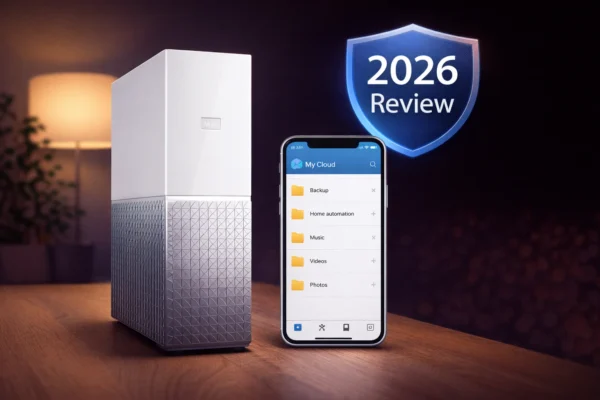
Best NAS for WD My Cloud Users: Complete Migration Guide (2026)


Quick Answer+
Quick Answer: For My Cloud Home users, get the Synology DS223j ($190). For EX2 Ultra users needing Plex, get the DS225+ ($350). For PR4100 users wanting 4 bays, get the QNAP TS-464 ($550). Migration takes a weekend: back up data first, set up new NAS, transfer via network, verify everything works. Your existing WD drives can be reused but will be reformatted.
If you’re migrating from a WD My Cloud to a new NAS, choosing the right replacement can feel overwhelming. Synology has over 20 consumer models. QNAP has even more. How do you know which one matches your needs?
This guide cuts through the confusion. We’ll match your specific My Cloud model to the ideal Synology or QNAP replacement, explain exactly what features you’ll gain, and walk you through the complete migration process step by step.
Quick Match: Find Your Replacement NAS
| Your Current My Cloud | Best Synology Match | Best QNAP Match | Budget |
|---|---|---|---|
| My Cloud Home (Single) | DS124 or DS223j | TS-233 | $150-200 |
| My Cloud Home Duo | DS223j or DS225+ | TS-233 or TS-264 | $190-400 |
| My Cloud EX2 Ultra | DS225+ | TS-264 | $350-400 |
| My Cloud PR2100 | DS225+ or DS423 | TS-264 or TS-464 | $350-550 |
| My Cloud PR4100 | DS423 or DS923+ | TS-464 or TS-473A | $450-650 |
| My Cloud Mirror | DS223j | TS-233 | $180-200 |
Synology vs QNAP: Which Brand for My Cloud Users?
Before diving into specific models, let’s address the fundamental question: Synology or QNAP? Both are excellent choices, but they have different strengths that matter for My Cloud migrants.
Choose Synology if you want: Easiest setup and daily use, best mobile apps (DS File, Photos), most polished user interface, simpler remote access (QuickConnect), best first-party backup solutions, and experience closest to My Cloud simplicity.
Choose QNAP if you want: More hardware for the money, HDMI output for direct TV playback, more expansion options (PCIe slots), faster networking (2.5GbE standard), more technical customization, and better virtualization support.
Our recommendation for most My Cloud users: Synology. The transition will feel more natural because Synology’s design philosophy is similar to what WD was trying to achieve—simple, consumer-friendly NAS that “just works.”
Detailed Migration Paths by My Cloud Model
My Cloud Home → Synology DS223j
Synology DS223j
2-Bay | Realtek RTD1619B | 1GB RAM | 1GbE | USB 3.2
Perfect for My Cloud Home users. 2 bays for RAID 1 protection (something My Cloud Home couldn’t do), Synology Photos with AI face recognition, QuickConnect for easy remote access, and DS File app that’s more reliable than WD’s ever was.
What you’ll gain: Data redundancy with RAID 1 (if one drive fails, your data survives), far better mobile apps, 5+ years of software support, and dozens of additional apps (media server, surveillance, etc.).
My Cloud EX2 Ultra → Synology DS225+
Synology DS225+
2-Bay | Intel Celeron | 2GB RAM (expandable) | 2x 2.5GbE | NVMe slots
The upgrade EX2 Ultra users deserve. Intel CPU enables hardware transcoding for Plex (multiple 4K streams vs EX2’s 1 stream max), full Docker support, NVMe cache slots, and 2.5GbE networking (vs 1GbE on EX2 Ultra).
| Feature | My Cloud EX2 Ultra | Synology DS225+ |
|---|---|---|
| CPU | Marvell ARM (no transcoding) | Intel Celeron (hardware transcoding) |
| Network | 1x 1GbE | 2x 2.5GbE |
| Docker | Not supported | Full support |
| NVMe Cache | No | Yes (2 slots) |
| Plex 4K Transcoding | No | Yes |
My Cloud PR4100 → QNAP TS-464
QNAP TS-464-8G
4-Bay | Intel N5095 | 8GB RAM | 2x 2.5GbE | HDMI 2.0 | 2x M.2 NVMe
The most direct PR4100 replacement. Everything PR4100 couldn’t do: hardware 4K transcoding, NVMe caching, HDMI direct playback, 8GB RAM (PR4100 had 4GB). Mini server in a NAS form factor.
The TS-464 is essentially a mini server in a NAS form factor. It handles multiple simultaneous 4K Plex transcodes, Docker containers (Home Assistant, Pi-hole), Windows/Linux virtual machines, surveillance with AI detection, and NVMe SSD caching for dramatically faster file access.
What About Your Existing Drives?
One of the most common questions: “Can I use my My Cloud drives in my new NAS?” Yes, you can physically install your My Cloud drives in a Synology or QNAP. However, the new NAS will format them, erasing all data. Synology uses Btrfs or ext4; QNAP uses ext4. Neither can read WD’s proprietary format without wiping it first. Always back up your data before any migration attempt.
| Drive Age | Recommendation |
|---|---|
| Less than 2 years | Reuse the drives. Plenty of life left, works fine in Synology/QNAP. |
| 2-4 years | Consider reusing but plan for replacement within 1-2 years. |
| More than 4 years | Buy new drives. Failure risk increases significantly. Fresh start is safer. |
If buying new drives, we recommend WD Red Plus or Seagate IronWolf for home NAS use. Both are designed for 24/7 NAS operation with vibration tolerance and optimized firmware.
WD Red Plus 4TB
CMR | 5400 RPM | 256MB Cache | 3-Year Warranty
Designed for 24/7 NAS operation in 1-8 bay systems. CMR technology (not SMR) ensures consistent write performance. The sweet spot for most home users upgrading from My Cloud.
Step-by-Step Migration Process
Phase 1: Preparation (Before You Unbox)
1. Create a complete backup of your My Cloud to an external USB drive or computer. This is your safety net.
2. Document your current setup: List all shared folders and their purposes, note which users have access to which folders, record any special permissions or settings, and list all apps/services you use (Plex, backup jobs, etc.).
3. Check your network: Ensure you have an available ethernet port on your router/switch for the new NAS.
4. Download NAS tools: Get Synology Assistant or QNAP Qfinder Pro on your computer.
Phase 2: New NAS Setup
Install drives in the new NAS (tool-less installation on most models). Connect to network and power—keep your My Cloud connected too. Run initial setup using the web interface or setup assistant. Create storage pool and volume (setup wizard guides you through RAID selection). Create shared folders matching your My Cloud structure. Set up user accounts with appropriate permissions. Enable remote access (QuickConnect for Synology, myQNAPcloud for QNAP). Test everything before migrating data.
Phase 3: Data Migration
With both NAS devices on your network, you have several transfer options:
Method A: Computer-Based Transfer (Best for under 2TB) – Map both NAS devices as network drives on your computer. Copy files using File Explorer (Windows) or Finder (Mac). For reliability, use robocopy (Windows) or rsync (Mac/Linux).
Method B: NAS-to-NAS Transfer (Best for 2TB+) – On your new Synology/QNAP, use File Station. Add My Cloud as a remote connection (SMB). Copy files directly between NAS devices—bypasses your computer and is often faster.
Method C: USB Intermediate (Extra safety) – Back up My Cloud to external USB drive. Connect USB drive to new NAS. Copy from USB to internal storage. Creates intermediate backup automatically.
| Data Size | 1GbE (~100MB/s) | 2.5GbE (~280MB/s) |
|---|---|---|
| 500GB | ~1.5 hours | ~30 minutes |
| 2TB | ~6 hours | ~2 hours |
| 8TB | ~24 hours | ~8 hours |
| 16TB | ~48 hours | ~16 hours |
Pro tip: Start large transfers in the evening and let them run overnight. Use robocopy or rsync with logging to track progress and automatically retry failed files.
Phase 4: App Migration
| My Cloud Feature | Synology Equivalent | QNAP Equivalent |
|---|---|---|
| Photo Backup | Synology Photos | QuMagie |
| Mobile File Access | DS File | Qfile |
| Remote Access | QuickConnect | myQNAPcloud |
| PC Backup | Active Backup for Business | NetBak Replicator |
| Time Machine | Built-in (Control Panel) | Built-in (HBS 3) |
| Plex | Plex Media Server (Package Center) | Plex Media Server (App Center) |
| DLNA Streaming | Media Server package | Media Streaming Add-on |
Phase 5: Verification and Cutover
1. Verify all data transferred: Spot-check important folders and files. Compare total storage used between old and new NAS.
2. Test all features: Access files from each computer on your network, test mobile app access (both local and remote), verify Plex library is working (if applicable), confirm backup jobs are running.
3. Run parallel for 2-4 weeks: Keep both NAS devices running. This lets you catch anything you missed.
4. Update client configurations: Update mapped network drives on computers, reconfigure Time Machine to point to new NAS, update any scripts or automations.
5. Decommission My Cloud: Once confident, disconnect My Cloud from network. Keep it as cold backup for 30-60 days before wiping.
Feature-Specific Migration Tips
Migrating Photos
If you used My Cloud for photo backup, Synology Photos or QNAP QuMagie will be a significant upgrade. Both offer AI-powered face recognition and automatic organization that My Cloud never had. Transfer your photo folders to the new NAS. Install Synology Photos or QuMagie from the package manager. Point the photo app to your photo folders. Let AI indexing run (can take several hours for large libraries). Install the mobile app on your phone. Enable automatic photo backup in app settings.
Migrating Plex
If you ran Plex on My Cloud (particularly PR2100/PR4100), your new NAS will handle it better thanks to hardware transcoding. Transfer all media files first. Install Plex Media Server from Package Center / App Center. Sign in to your Plex account. Add your media libraries. Let Plex scan and match your media (metadata re-downloads automatically). Watch history syncs via your Plex account, but custom posters may need re-adding.
Migrating Time Machine Backups
Unfortunately, Time Machine backup histories cannot be migrated between different NAS brands. You’ll need to start fresh: Create Time Machine shared folder on new NAS. Enable Time Machine support in NAS settings. On Mac, go to System Preferences → Time Machine. Select “Change Disk” and choose the new NAS. Mac starts new backup set. Keep old Time Machine backup accessible until new backup completes at least one full cycle.
Troubleshooting Common Migration Issues
Transfer speeds extremely slow: Ensure both NAS devices are connected via wired ethernet to same switch/router. Check switch supports at least 1GbE. If transferring through computer, make sure it’s also wired.
Some files failed to copy: Usually special characters in filenames, very long paths, or permission issues. Use robocopy with /LOG to identify failed files. Manually copy after renaming or shortening paths.
Can’t access My Cloud from new NAS: SMB version mismatch or incorrect credentials. Try accessing with IP address instead of hostname. Some older My Cloud units use SMB1, which may need enabling on new NAS (security risk).
Remote access not working: Complete remote access setup wizard. Ensure NAS can reach internet. Check router firewall. Try local access first to confirm NAS itself works.
Recommended Drive Pairings
| Use Case | Recommended Drive | Capacity | Est. Cost (×2) |
|---|---|---|---|
| Basic home backup | WD Red Plus | 4TB | ~$190 |
| Photos + documents | Seagate IronWolf | 6TB | ~$260 |
| Media library (Plex) | Seagate IronWolf | 8TB | ~$320 |
| Large media + business | Seagate IronWolf | 12TB | ~$420 |
Plan for a weekend project. NAS setup takes 1-2 hours. Data transfer depends on how much you have—1TB takes about 3 hours over 1GbE. App configuration and testing adds another few hours. Most users complete everything in 1-2 days of casual work.
No—you’ll gain functionality. Both Synology and QNAP offer more features, better apps, and longer support than WD My Cloud ever did. The only ‘loss’ is the specific WD apps, which are replaced by superior alternatives.
Yes, but we don’t recommend it. Using identical drives ensures consistent performance and makes RAID management simpler. If you must mix, use drives of the same capacity.
For most home users, Synology Hybrid RAID (SHR) is the best choice—it offers flexibility to mix drive sizes. For QNAP, standard RAID 1 (2 drives) or RAID 5 (4+ drives) works well. The setup wizard recommends appropriate options.
Both Synology and QNAP have extensive online documentation and active user communities. Reddit’s r/synology and r/qnap are excellent resources. Both companies also offer paid support options if needed.
Related Resources
- WD My Cloud Alternatives 2026
- WD My Cloud End of Life: What Owners Need to Know
- Synology vs QNAP: Complete Comparison
- Synology Setup Guide for Beginners
- RAID Calculator
Last Updated: February 2026