What Is a CPU Bottleneck? How to Identify & Fix It (2026 Guide)

Quick Answer+
Quick Answer: A CPU bottleneck occurs when your processor can’t send data to your GPU fast enough, leaving your graphics card underutilized. Symptoms include CPU usage at 90-100% while GPU stays below 80%, lower FPS than expected, and stuttering during CPU-heavy scenes. Fix it by increasing resolution, upgrading your CPU, or closing background apps. Use our Bottleneck Calculator to check if your system is affected.
You just installed a brand new RTX 4070 Super, expecting buttery-smooth gameplay. Instead, you’re getting the same FPS as your old card. You check your monitoring software and see something strange: your GPU is barely breaking a sweat at 50% usage while your CPU is pegged at 100%.
Congratulations—you’ve discovered a CPU bottleneck. And you’re not alone. It’s one of the most common performance issues in gaming PCs, especially when pairing older processors with newer graphics cards.
The good news? CPU bottlenecks are identifiable, often fixable, and sometimes even avoidable with the right component choices. This guide covers everything you need to know about CPU bottlenecks: what causes them, how to confirm you have one, and seven proven methods to fix the problem.
What Is a CPU Bottleneck?
A CPU bottleneck happens when your processor becomes the limiting factor in your system’s performance. Your GPU has the capability to render more frames, but it’s stuck waiting for your CPU to finish its tasks first.
Think of it like a highway with a toll booth. Your GPU is a six-lane highway capable of handling massive traffic. Your CPU is the toll booth. No matter how wide the highway is, traffic can only move as fast as the toll booth can process vehicles.
How CPUs and GPUs Work Together
In gaming, your CPU and GPU have different responsibilities:
CPU Tasks (Game Logic):
- Processing game physics and AI calculations
- Handling player input and game state
- Managing network code in multiplayer games
- Preparing draw calls (instructions for the GPU)
- Running background processes and the operating system
GPU Tasks (Rendering):
- Rendering 3D geometry and textures
- Applying lighting, shadows, and effects
- Processing ray tracing calculations
- Running DLSS/FSR upscaling
- Outputting the final frame to your monitor
Every frame you see on screen requires both components to complete their work. The GPU can’t start rendering until the CPU tells it what to render. When the CPU takes too long to prepare these instructions, your GPU sits idle waiting—that’s a bottleneck.
The Frame Pipeline Explained
Here’s what happens for every single frame in a game:
Step 1: CPU processes game logic (physics, AI, player position)
Step 2: CPU prepares draw calls based on what needs to be rendered
Step 3: CPU sends draw calls to GPU
Step 4: GPU renders the frame
Step 5: Frame displays on monitor
If Step 1-3 takes longer than Step 4, your GPU finishes early and waits. That waiting time is wasted performance potential.
What Causes CPU Bottlenecks?
CPU bottlenecks don’t happen randomly. Specific conditions make them more likely:
1. Mismatched Components
The most common cause is pairing a powerful GPU with a weaker CPU. An RTX 4080 paired with an Intel i3-12100F will bottleneck severely at 1080p. The GPU has the horsepower to push 200+ FPS, but the CPU can only prepare enough frames for 100-120 FPS.
This often happens when gamers upgrade their graphics card without upgrading their CPU—or when building a new PC with an unbalanced budget.
2. Low Resolution Gaming
Resolution dramatically affects where your bottleneck occurs. At 1080p, your GPU can render frames extremely quickly, putting more pressure on the CPU to keep up. At 4K, each frame takes the GPU much longer to render, giving the CPU more breathing room.
This is why CPU bottlenecks are primarily a 1080p problem. The same CPU that bottlenecks at 1080p might be perfectly balanced at 1440p or 4K.
3. CPU-Intensive Games
Some games are simply harder on CPUs than others:
| CPU-Heavy Games | Why They Stress CPUs |
|---|---|
| Counter-Strike 2 | High tick rate, competitive FPS demands |
| Minecraft | Single-threaded world generation |
| Cities: Skylines II | Simulating thousands of citizens |
| Total War: Warhammer III | Massive unit counts and AI |
| Flight Simulator 2024 | Complex physics and world streaming |
| Starfield | Heavy scripting and NPC processing |
In these titles, even high-end CPUs can become the limiting factor, especially at lower resolutions.
4. High Refresh Rate Targets
Targeting 144Hz, 240Hz, or 360Hz multiplies your CPU workload. At 60 FPS, your CPU needs to prepare 60 frames per second. At 360 FPS, it needs to prepare six times as many frames in the same time period.
Competitive gamers pushing for maximum frame rates at 1080p are the most likely to encounter CPU bottlenecks, even with current-generation processors.
5. Background Processes
Your CPU doesn’t only run your game. It also handles:
- Windows operating system
- Discord, Spotify, web browsers
- Antivirus scans
- Streaming software (OBS)
- RGB software, hardware monitoring
Each background process steals CPU cycles from your game. A system that’s balanced with a clean Windows installation might bottleneck when loaded with startup programs.
CPU Bottleneck Symptoms: How to Tell If You Have One
Suspecting a bottleneck is one thing. Confirming it requires checking specific metrics. Here are the definitive signs:
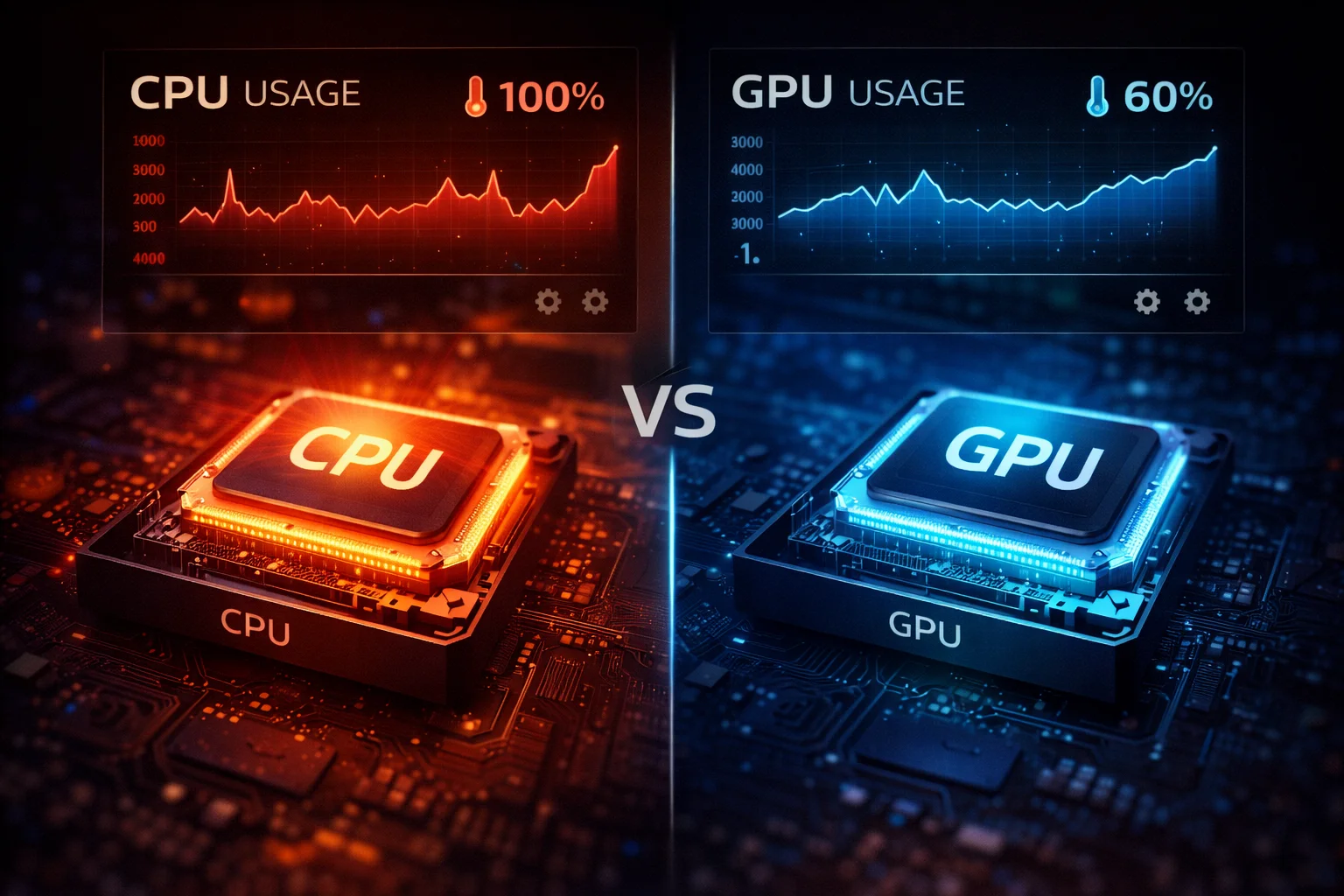
Symptom 1: High CPU Usage, Low GPU Usage
This is the primary indicator. Use monitoring software like MSI Afterburner, HWiNFO, or the in-game overlay to check:
| Metric | Healthy System | CPU Bottleneck |
|---|---|---|
| CPU Usage | 50-80% | 90-100% |
| GPU Usage | 95-100% | 50-80% |
| CPU Temperature | 60-75°C | 75-90°C |
| GPU Temperature | 70-85°C | 50-70°C (underutilized) |
Important: Check per-core CPU usage, not just overall usage. Games often stress only a few cores. You might see 60% total CPU usage but have cores 0-3 at 100% while cores 4-7 sit idle. That’s still a bottleneck.
Symptom 2: FPS Doesn’t Change with Graphics Settings
A classic bottleneck test: lower your graphics settings from Ultra to Low. In a GPU-limited scenario, your FPS should increase significantly. In a CPU-limited scenario, FPS stays roughly the same because the CPU is still the limiting factor.
Try this test:
Ultra settings: 85 FPS
Low settings: 90 FPS
If you only gained 5 FPS by massively reducing GPU load, your CPU is the bottleneck.
Symptom 3: FPS Increases When Raising Resolution
Wait, what? Raising resolution increases FPS? This counterintuitive result confirms a CPU bottleneck.
At higher resolutions, each frame takes longer for the GPU to render. This gives the CPU more time to prepare the next frame’s data, resulting in smoother frame pacing and sometimes higher minimum FPS.
Symptom 4: Stuttering in Specific Scenarios
CPU bottlenecks often cause stuttering in situations that stress the processor:
- Entering new areas (world streaming)
- Large explosions or physics events
- Many NPCs or enemies on screen
- Multiplayer with many players
- Quick camera movements
If your FPS is fine in simple scenes but tanks during action, the CPU likely can’t keep up with the increased game logic demands.
Symptom 5: Poor 1% Low FPS
Your average FPS might look acceptable, but check your 1% lows. This metric shows the FPS during the worst-performing 1% of frames.
A CPU bottleneck often shows as:
Average FPS: 120
1% Low FPS: 45
That massive gap indicates the CPU is occasionally failing to keep up, causing severe frame time spikes that feel like stuttering.
How to Check for CPU Bottleneck: Step-by-Step
Follow this process to definitively identify a CPU bottleneck:
Method 1: Use Monitoring Software
Step 1: Download and install MSI Afterburner (free) with RivaTuner Statistics Server.
Step 2: Enable on-screen display for CPU usage (per-core), GPU usage, and frame rate.
Step 3: Run a demanding game for at least 10 minutes, noting usage percentages during gameplay.
Step 4: If any CPU core consistently hits 95-100% while GPU stays below 90%, you have a CPU bottleneck.
Method 2: The Resolution Test
Step 1: Run a benchmark or consistent game section at 1080p. Record FPS.
Step 2: Increase to 1440p with the same settings. Record FPS.
Step 3: Increase to 4K with the same settings. Record FPS.
Interpretation:
- FPS drops proportionally with resolution = GPU limited (healthy)
- FPS stays similar across all resolutions = CPU limited (bottleneck)
Method 3: Use Our Bottleneck Calculator
The fastest method is using a bottleneck calculator that compares your specific CPU and GPU combination. Our Bottleneck Calculator analyzes your components and tells you the estimated bottleneck percentage at different resolutions.
Simply select your CPU, GPU, and target resolution. The calculator shows whether your system is balanced, CPU-limited, or GPU-limited—plus recommendations for fixing any imbalance.
How to Fix CPU Bottleneck: 7 Proven Methods
Once you’ve confirmed a CPU bottleneck, here are your options, ordered from free to expensive:
Fix 1: Increase Your Resolution (Free)
The simplest fix costs nothing. Raising your resolution shifts workload from CPU to GPU, potentially eliminating the bottleneck entirely.
If you’re playing at 1080p with a CPU bottleneck, try 1440p. Your FPS might not change much (or could even improve due to better frame pacing), and your GPU will finally be fully utilized.
This solution works best if you have a capable GPU and a monitor that supports higher resolutions. It’s not ideal if you’re specifically trying to maximize FPS for competitive gaming.
Fix 2: Close Background Applications (Free)
Every program running consumes CPU resources. Before gaming:
- Close web browsers (Chrome is notorious for CPU usage)
- Exit Discord or switch to browser version
- Disable RGB software
- Close hardware monitoring tools (ironic, but they use resources)
- Disable Windows Game Bar and overlays
Check Task Manager’s Startup tab and disable programs you don’t need launching automatically. This won’t eliminate a severe bottleneck, but can recover 5-10% performance.
Fix 3: Enable Game Mode and Disable Core Parking (Free)
Windows 11 Game Mode prioritizes game processes and prevents Windows Update from interrupting gameplay. Enable it in Settings > Gaming > Game Mode.
Also check your power plan. “Balanced” mode parks CPU cores to save power. Switch to “High Performance” for gaming to ensure all cores remain active.
Fix 4: Overclock Your CPU (Free-ish)
If you have an unlocked CPU (Intel K-series or AMD Ryzen), overclocking can squeeze out extra performance. Even a modest 5-10% overclock directly translates to reduced bottleneck.
Requirements:
- Unlocked CPU (i5-13600K, i7-14700K, Ryzen 7 7800X3D, etc.)
- Motherboard with overclocking support
- Adequate CPU cooler
- Time for stability testing
AMD users can also enable Precision Boost Overdrive (PBO) for automatic overclocking that’s safer than manual tuning.
Fix 5: Upgrade Your RAM (Moderate Cost)
RAM speed significantly impacts CPU performance, especially on AMD Ryzen systems. If you’re running slow RAM (DDR4-2400 or DDR4-2666), upgrading to faster memory can help.
Recommended speeds:
- DDR4: 3200MHz CL16 minimum, 3600MHz CL16 ideal
- DDR5: 5600MHz CL36 minimum, 6000MHz CL30 ideal
Also ensure you have enough RAM. 16GB is the minimum for modern gaming. If you’re frequently hitting 14-15GB usage, upgrading to 32GB eliminates that constraint.
Fix 6: Adjust In-Game Settings (Free)
Some graphics settings are processed by the CPU, not GPU. Reducing these can help:
| Setting | CPU Impact | Recommendation |
|---|---|---|
| Draw Distance | High | Reduce if bottlenecked |
| NPC/Crowd Density | High | Lower in open-world games |
| Physics Quality | High | Reduce or disable PhysX |
| Simulation Quality | High | Lower in strategy games |
| Shadow Quality | Medium | Can help in some engines |
| Texture Quality | Low | GPU-bound, won’t help |
| Resolution | Low | GPU-bound, increase if anything |
Fix 7: Upgrade Your CPU (Expensive but Definitive)
If none of the above solutions work, the bottleneck is too severe for software fixes. You need a faster CPU.
Before buying, use our Bottleneck Calculator to verify your new CPU won’t create a GPU bottleneck instead. The goal is balance, not swinging to the opposite extreme.
Current recommendations for eliminating CPU bottlenecks:
| Budget | CPU | Best For |
|---|---|---|
| Budget ($180) | AMD Ryzen 5 9600X | Mid-range GPUs up to RTX 4070 |
| Mid-Range ($380) | AMD Ryzen 7 7800X3D | High-end GPUs, best gaming value |
| High-End ($450) | AMD Ryzen 7 9800X3D | Flagship GPUs, maximum gaming FPS |
| Productivity ($450) | Intel Core i7-14700K | Gaming + streaming/content creation |
Note that upgrading your CPU may also require a new motherboard and potentially new RAM if switching platforms (e.g., Intel to AMD or DDR4 to DDR5).
CPU Bottleneck by Resolution: What to Expect
The severity of CPU bottlenecks varies dramatically by resolution. Here’s what typically happens:
1080p (Most Likely to Bottleneck)
At 1080p, modern GPUs render frames extremely quickly. This puts maximum pressure on the CPU to keep up. Even mid-range GPUs like the RTX 4060 can bottleneck older quad-core CPUs at this resolution.
CPU bottleneck likelihood: High
Who’s affected: Anyone pairing a GTX 1660 or better with a CPU older than 10th gen Intel or Ryzen 3000 series
1440p (Balanced for Most Systems)
1440p is the sweet spot for most gaming PCs. The increased pixel count gives GPUs more work, reducing CPU pressure. Many systems that bottleneck at 1080p become balanced at 1440p.
CPU bottleneck likelihood: Moderate
Who’s affected: High-end GPUs (RTX 4080+) paired with mid-range CPUs, or older CPUs in CPU-heavy games
4K (Rarely CPU Bottlenecked)
At 4K, even flagship GPUs struggle to maintain high frame rates. The GPU becomes the bottleneck in almost every scenario, giving CPUs plenty of headroom.
CPU bottleneck likelihood: Low
Who’s affected: Only users with RTX 4090/5090 paired with very old CPUs, or in extremely CPU-heavy titles like Cities: Skylines II
Common CPU + GPU Combinations and Bottleneck Status
Here’s how popular component pairings perform at 1080p:
| CPU | GPU | 1080p Status |
|---|---|---|
| Ryzen 5 5600 | RTX 4060 | ✅ Balanced |
| Ryzen 5 5600 | RTX 4070 | ⚠️ Slight bottleneck |
| Ryzen 5 5600 | RTX 4070 Ti Super | ❌ Significant bottleneck |
| i5-12400F | RTX 4060 Ti | ✅ Balanced |
| i5-12400F | RTX 4070 Super | ⚠️ Moderate bottleneck |
| Ryzen 7 7800X3D | RTX 4080 Super | ✅ Balanced |
| Ryzen 7 7800X3D | RTX 4090 | ⚠️ Slight bottleneck in some games |
| i3-12100F | RTX 4060 | ⚠️ Moderate bottleneck |
| i3-12100F | RTX 4070 | ❌ Severe bottleneck |
For your specific combination, use our Bottleneck Calculator to get accurate estimates at your target resolution.
Frequently Asked Questions
No. A 5-10% CPU bottleneck is perfectly acceptable and often unavoidable. You’ll lose minimal FPS and the system remains well-balanced. Only bottlenecks exceeding 15-20% significantly impact gaming experience. Don’t overspend on a CPU to eliminate a minor bottleneck.
Indirectly, yes. Slow RAM limits how quickly your CPU can access data, effectively reducing its performance. Upgrading from DDR4-2400 to DDR4-3600 can improve CPU-limited scenarios by 10-15%, especially on AMD Ryzen systems which are particularly sensitive to memory speed.
No. DLSS and FSR reduce GPU workload by rendering at lower resolution then upscaling. They don’t reduce CPU workload. In fact, by making the GPU faster, they can actually worsen a CPU bottleneck since the GPU finishes even quicker while the CPU speed remains unchanged.
No. A bottleneck doesn’t damage any components—it simply means one part is limiting overall performance. Your CPU running at 100% during gaming is working as designed. The only concern is heat, so ensure adequate cooling.
Generally no. If your current GPU is already underutilized due to a CPU bottleneck, a better GPU will be even more underutilized. Fix the CPU bottleneck first, then consider a GPU upgrade. Exception: if you plan to upgrade the CPU soon anyway, buying the GPU first is fine.
Games have vastly different CPU demands. Esports titles like CS2 and Valorant stress CPUs heavily for maximum FPS, while cinematic games like Red Dead Redemption 2 are more GPU-bound. It’s normal to be CPU-limited in one game and GPU-limited in another with the same hardware.
GPU bottleneck is generally preferable. When GPU-limited, you can lower graphics settings to improve FPS. When CPU-limited, graphics settings barely help. Also, GPUs are easier and cheaper to upgrade than CPUs, which often require new motherboards.
Bottom Line
A CPU bottleneck means your processor can’t keep up with your graphics card, leaving GPU performance on the table. It’s characterized by high CPU usage (90-100%) combined with low GPU usage (below 85%), and it’s most common at 1080p with mismatched components.
To identify a CPU bottleneck: Monitor per-core CPU usage while gaming. If any core consistently maxes out while your GPU stays below 90%, you’re CPU-limited.
To fix a CPU bottleneck: Start with free solutions—raise resolution, close background apps, enable Game Mode. If those don’t help, consider overclocking, RAM upgrades, or ultimately a CPU upgrade.
For balanced builds: Use our Bottleneck Calculator before buying components to ensure your CPU and GPU are well-matched for your target resolution. Prevention is easier than fixing a bottleneck after purchase.
Related Guides
- Bottleneck Calculator – Check Your CPU & GPU Pairing
- FPS Calculator – Estimate Gaming Frame Rates
- What Is a GPU Bottleneck? Signs & Solutions
- CPU vs GPU Bottleneck: Which Is Worse?
- Best SSD for Gaming 2026
- Best NVMe SSD 2026
Last Updated: February 2026