CS2 FPS Boost Guide 2026 | Best Settings & Optimization

Quick Answer+
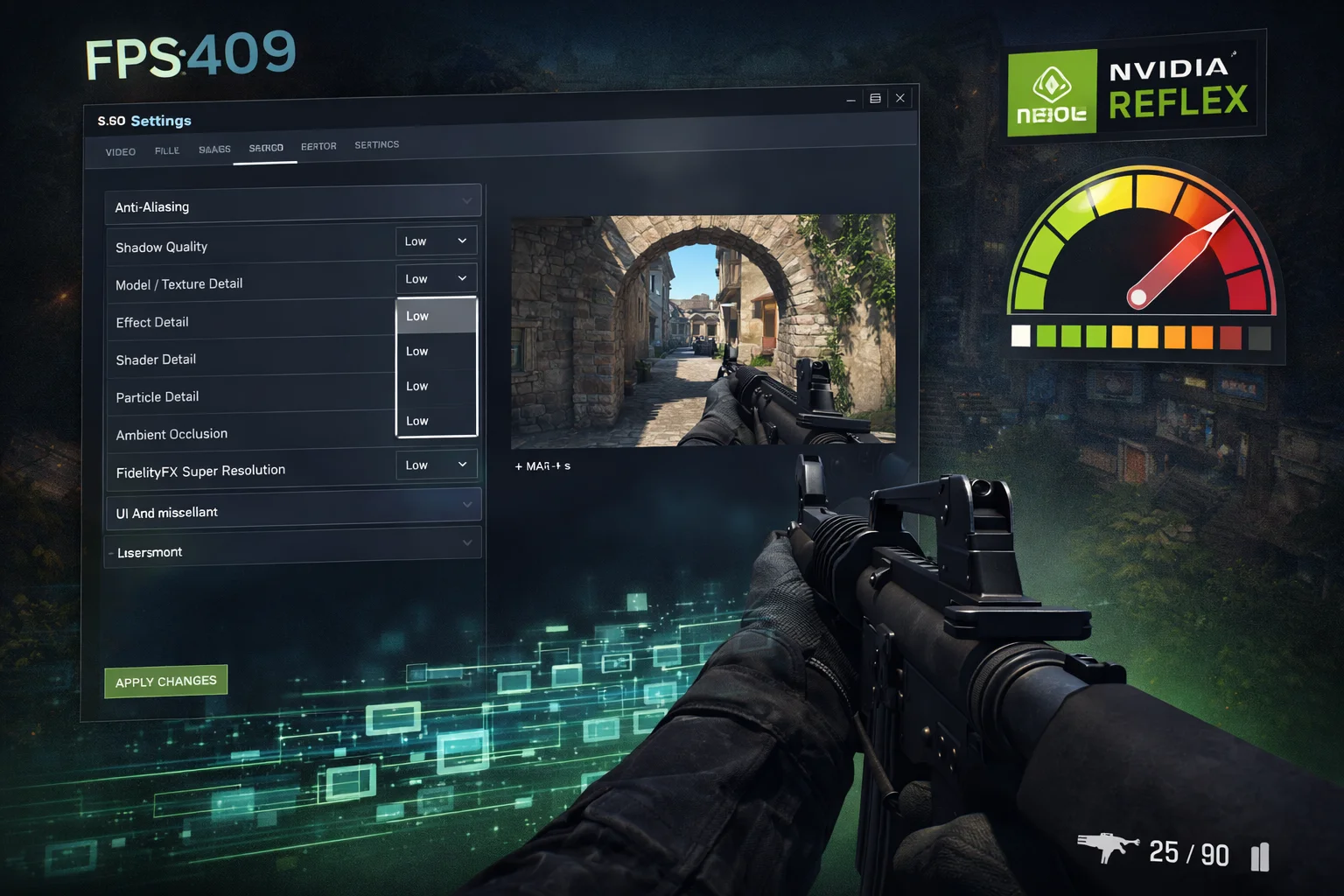
Quick Answer: For maximum CS2 FPS, set Global Shadow Quality to Low, Model/Texture Detail to Low-Medium, Shader Detail to Low, and disable Ambient Occlusion. Enable NVIDIA Reflex (On+Boost), use launch options -high -novid, and consider 4:3 stretched resolution. CS2 is 30-40% more demanding than CS:GO.
Counter-Strike 2 represents a massive technical leap from CS:GO, running on the Source 2 engine with modern rendering, improved lighting, and revamped smoke grenades. While the visual upgrade is impressive, it comes at a significant performance cost that has frustrated many veteran players. Hardware that delivered 400+ FPS in CS:GO now struggles to maintain 250 FPS in CS2.
This comprehensive guide covers every optimization technique to maximize your CS2 frame rate—from in-game settings to system configuration, launch options, and resolution choices. Whether you’re pushing for Global Elite in matchmaking or competing in FACEIT leagues, these optimizations will help you achieve the consistent, high frame rates needed for competitive play. Use our FPS Calculator to estimate your specific hardware’s performance, or check our Bottleneck Calculator to ensure your system is properly balanced.
Recommended Hardware for CS2
CS2 benefits significantly from both strong CPUs and capable GPUs. Here are the best value options for competitive play:
AMD Ryzen 7 7800X3D
8 Cores | 16 Threads | 96MB L3 Cache | 5.0 GHz Boost | 120W TDP
The ultimate CPU for CS2 and esports. The massive 96MB 3D V-Cache provides exceptional performance in CPU-limited scenarios, delivering 15-20% higher FPS than competing processors.
ASUS Dual RTX 4070 Super EVO OC
12GB GDDR6X | 192-bit | DLSS 3 | PCIe 4.0 | 220W TDP
Excellent balance of price and performance for high-refresh CS2 gaming. Delivers 350-450+ FPS at 1080p competitive settings with NVIDIA Reflex support.
Intel Arc B580
12GB GDDR6 | 192-bit | XeSS | PCIe 4.0 | 190W TDP
Outstanding budget option for CS2. The 12GB VRAM and strong 1080p performance deliver 260+ FPS at competitive settings, perfect for 165Hz gaming.
CS2 vs CS:GO: Understanding the Performance Gap
Before diving into optimizations, it’s important to understand why CS2 runs slower than CS:GO—and to set realistic expectations for your hardware.
Why CS2 Is More Demanding
Source 2 Engine: CS2 runs on Valve’s modern Source 2 engine, replacing the 20+ year old Source engine. While Source 2 brings massive visual improvements, it’s significantly more GPU and CPU intensive.
Volumetric Smokes: CS2’s revolutionary smoke grenades are fully volumetric—they react to lighting, can be dispersed by grenades, and render in true 3D. This looks incredible but costs substantial FPS compared to CS:GO’s simple sprite-based smokes.
Improved Lighting: CS2 features physically-based rendering with improved global illumination, more realistic shadows, and better light bouncing. Every surface reflects and absorbs light more accurately—at a performance cost.
Higher Resolution Textures: Map textures and player models are significantly higher resolution than CS:GO, requiring more VRAM and memory bandwidth.
Realistic Performance Expectations
Plan for approximately 30-40% lower FPS in CS2 compared to CS:GO with equivalent settings:
| CS:GO FPS | Expected CS2 FPS | Target Monitor |
|---|---|---|
| 400+ FPS | 260-300 FPS | 240Hz viable |
| 300 FPS | 190-220 FPS | 165Hz comfortable |
| 200 FPS | 130-150 FPS | 144Hz possible |
| 144 FPS | 90-110 FPS | Need optimization |
This guide will help you close the gap through proper optimization, but some performance loss compared to CS:GO is unavoidable.
CS2 FPS by Hardware Tier
Here’s what FPS you can realistically expect at 1080p with Low-Medium competitive settings:
| GPU + CPU Combo | Average FPS | 1% Low FPS | Recommended Monitor |
|---|---|---|---|
| RTX 5080 + 9800X3D | 650+ FPS | 500+ FPS | 500Hz competitive |
| RTX 5070 + 7800X3D | 520+ FPS | 400+ FPS | 360Hz competitive |
| RTX 4070 Super + 7800X3D | 450+ FPS | 350+ FPS | 360Hz gaming |
| RTX 4070 Super + 7600X | 380+ FPS | 290+ FPS | 240Hz gaming |
| RTX 4060 Ti + 7600X | 320+ FPS | 240+ FPS | 240Hz gaming |
| RTX 4060 + i5-12400F | 260+ FPS | 190+ FPS | 165Hz gaming |
| RX 7800 XT + 7600X | 400+ FPS | 300+ FPS | 240Hz competitive |
| RX 7600 + 5600 | 240+ FPS | 170+ FPS | 144Hz gaming |
| Arc B580 + i5-12400F | 260+ FPS | 185+ FPS | 165Hz gaming |
| RTX 3060 + 5600 | 220+ FPS | 160+ FPS | 144Hz gaming |
| GTX 1660 Super + i5-10400 | 160+ FPS | 110+ FPS | 144Hz budget |
Note that CPU matters significantly in CS2—the X3D processors with large L3 cache excel at high frame rates. A great GPU paired with a budget CPU will bottleneck severely.
Best CS2 Video Settings
These settings maximize FPS while maintaining the visual clarity essential for competitive play.
Basic Video Settings
| Setting | Recommended | Explanation |
|---|---|---|
| Display Mode | Fullscreen | Lowest input lag, best performance |
| Resolution | 1920×1080 or 4:3 | Native or stretched (see section below) |
| Refresh Rate | Maximum available | Match your monitor’s highest rate |
| Boost Player Contrast | Enabled | Makes enemies easier to spot—essential |
| V-Sync | Disabled | Adds 16-50ms input lag—never enable |
| NVIDIA Reflex Low Latency | Enabled + Boost | Critical for competitive play |
| Maximum FPS (Unfocused) | 30 | Saves GPU when alt-tabbed |
| Maximum FPS (Menus) | 60 | Reduces power in menus |
| Maximum FPS (In Game) | 0 (Unlimited) | Or cap 3 below monitor refresh |
Advanced Video Settings
| Setting | Competitive | Balanced | FPS Impact |
|---|---|---|---|
| Global Shadow Quality | Low | Medium | Very High (15-25%) |
| Model / Texture Detail | Low | Medium | Medium (8-15%) |
| Texture Filtering Mode | Bilinear | Trilinear | Low (2-5%) |
| Shader Detail | Low | Low | High (10-18%) |
| Particle Detail | Low | Low | Medium (5-10%) |
| Ambient Occlusion | Disabled | Disabled | High (8-15%) |
| High Dynamic Range | Performance | Quality | Medium (5-10%) |
| FidelityFX Super Resolution | Disabled | Disabled | Varies |
| Anti-Aliasing Mode | None or CMAA2 | CMAA2 | Medium (5-12%) |
Settings Explained in Detail
Global Shadow Quality (Low – CRITICAL): Shadows are the single biggest FPS drain in CS2. Low quality reduces shadow resolution and draw distance dramatically while maintaining enough visual information to see player shadows when relevant. The difference between Low and High can be 50+ FPS on mid-range hardware. Every professional player uses Low.
Model / Texture Detail (Low-Medium): Controls the resolution of player models and world textures. Low provides maximum FPS with slightly blurrier surfaces. Medium is acceptable if you have 8GB+ VRAM and prefer clearer player models. The FPS difference is meaningful but less dramatic than shadows.
Texture Filtering Mode (Bilinear): Determines how textures are filtered when viewed at angles. Bilinear provides the sharpest textures at steep angles while using minimal GPU resources. Trilinear and Anisotropic look marginally better but cost FPS without competitive benefit.
Shader Detail (Low): Controls the complexity of lighting calculations. Low provides consistent, flat lighting that can actually improve visibility by reducing distracting light variations. Higher settings add visual complexity without helping you spot enemies.
Particle Detail (Low): Affects smoke, explosion, and muzzle flash quality. Low maintains all gameplay-relevant visual information while boosting FPS during utility-heavy situations like executes and retakes.
Ambient Occlusion (Disabled): Adds shadow depth to corners and surfaces where objects meet. While visually appealing, it provides zero competitive advantage and costs 8-15% FPS. Always disable for competitive play.
HDR (Performance): Performance mode provides basic tone mapping without the full HDR pipeline. Quality mode offers better color depth but costs FPS without improving visibility.
FidelityFX Super Resolution (Disabled): FSR upscales a lower internal resolution to your target resolution. It adds input lag and reduces image clarity—particularly problematic for identifying distant enemies. Only use if you absolutely cannot maintain stable FPS at native resolution.
Anti-Aliasing (None or CMAA2): None provides maximum FPS with some visible jagged edges. CMAA2 (Conservative Morphological AA) smooths edges with minimal performance cost—a good compromise if jagged edges bother you. Avoid MSAA—it’s too expensive for competitive play.
Resolution and Aspect Ratio
Resolution choice in CS2 is deeply personal and significantly affects both FPS and gameplay feel. Unlike some games, there’s no objectively “correct” choice—it depends on your preferences and hardware.
Native 16:9 (1920×1080)
Advantages:
- Widest field of view (106.26° horizontal)
- Clearest, sharpest image quality
- No stretching or distortion
- See more of the map peripherally
Disadvantages:
- Player models appear smaller
- Higher GPU load than 4:3
- More visual information can be distracting
Best for: Players who prioritize maximum visibility and spatial awareness, or those who find stretched resolutions disorienting.
4:3 Stretched (1280×960, 1024×768)
Advantages:
- Player models appear wider (easier to hit)
- Significantly higher FPS (fewer pixels rendered)
- Faster perceived horizontal player movement
- Less peripheral distraction
Disadvantages:
- Reduced field of view (90° horizontal)
- Stretched, distorted image
- Enemies move faster across screen horizontally
- Requires GPU/monitor configuration
Best for: Players who prefer larger targets and are comfortable tracking faster horizontal movement, or those who need the FPS boost.
4:3 Black Bars (1280×960, 1024×768)
Advantages:
- Higher FPS (fewer pixels rendered)
- Smaller area to focus on
- No distortion or stretching
- Consistent aspect ratio with correct proportions
Disadvantages:
- Reduced field of view
- Wasted screen real estate
- Black bars can be distracting for some
Best for: Players who want 4:3 FOV benefits without the stretched distortion.
Pro Player Resolution Statistics
| Resolution | Aspect Ratio | % of Pros |
|---|---|---|
| 1920×1080 | 16:9 Native | ~35% |
| 1280×960 Stretched | 4:3 | ~30% |
| 1024×768 Stretched | 4:3 | ~15% |
| 1280×1024 Stretched | 5:4 | ~10% |
| Other (1440×1080, etc.) | Various | ~10% |
Professional player preferences are nearly split between native 16:9 and stretched 4:3. This confirms there’s no objectively superior choice—it’s genuinely personal preference.
How to Set Up Stretched Resolution
NVIDIA Graphics Cards:
- Open NVIDIA Control Panel
- Navigate to Display → Adjust desktop size and position
- Select your monitor
- Under “Scaling,” choose “Full-screen”
- Under “Perform scaling on,” select “GPU”
- Check “Override the scaling mode set by games and programs”
- Apply settings and set your 4:3 resolution in CS2
AMD Graphics Cards:
- Open AMD Radeon Software
- Go to Gaming → Display settings
- Enable “GPU Scaling”
- Set “Scaling Mode” to “Full panel”
- Apply and set your resolution in CS2
NVIDIA Reflex: Essential for Competitive Play
NVIDIA Reflex is one of the most impactful settings for CS2 competitive performance. It reduces system latency by synchronizing CPU and GPU work, making the game feel significantly more responsive.
Reflex Settings Explained
Disabled: No latency optimization. GPU renders frames as fast as possible, potentially building up a frame queue that adds input lag.
Enabled: Reflex synchronizes CPU and GPU work to minimize the render queue. Reduces latency by 10-25ms depending on system configuration.
Enabled + Boost: Same as Enabled, plus keeps GPU clocks at maximum even during CPU-bound scenarios. Provides the absolute lowest latency at the cost of slightly higher power consumption.
Recommendation: Always use Enabled + Boost for competitive play. The latency reduction is more valuable than any power savings, and the “Boost” component ensures consistent responsiveness.
Measuring Your Latency
To see Reflex’s impact, enable latency statistics:
- In CS2: Settings → Game → Enable Developer Console → Yes
- Open console (~) and type:
cl_showfps 2
For detailed latency breakdown, use the NVIDIA performance overlay (Alt+R with GeForce Experience) which shows render latency, PC latency, and total system latency.
AMD Anti-Lag Configuration
AMD users should configure Radeon Anti-Lag as their latency reduction solution:
| Setting | Value | Notes |
|---|---|---|
| Radeon Anti-Lag | Enabled | Core latency reduction |
| Anti-Lag Next | Disabled for CS2 | Has caused VAC issues |
| Radeon Chill | Disabled | Limits FPS—never use |
| Radeon Boost | Disabled | Reduces resolution dynamically |
| Wait for Vertical Refresh | Always Off | Prevents V-Sync |
| Surface Format Optimization | Enabled | Minor performance boost |
Critical Warning: Use standard Anti-Lag, NOT Anti-Lag Next (also called Anti-Lag 2) in CS2. Anti-Lag Next operates at a deeper driver level that has triggered VAC authentication issues in some cases. Standard Anti-Lag is safe.
CS2 Launch Options
Launch options in CS2 are more limited than in CS:GO—many beloved commands no longer function. Here’s what actually works:
Recommended Launch Options
-high -novid -nojoyOption Explanations:
- -high: Sets CS2’s process priority to High in Windows, giving it more CPU scheduling priority over background applications
- -novid: Skips the Valve intro video, reducing load time by several seconds
- -nojoy: Disables joystick/controller support, freeing minor system resources
Optional Launch Options
- -refresh [rate]: Forces specific refresh rate (e.g.,
-refresh 240). Use if Windows isn’t defaulting correctly. - -fullscreen: Forces fullscreen mode on launch
- -vulkan: Forces Vulkan renderer instead of DirectX 11. May improve FPS on AMD GPUs (5-15% in some cases) but can cause stability issues. Test before competitive play.
Deprecated Launch Options (No Longer Work)
These popular CS:GO launch options do NOT work in CS2:
- -tickrate 128: Tick rate is server-determined in CS2’s sub-tick system
- -threads [number]: Source 2 manages threading automatically and optimally
- -d3d9ex: CS2 uses DirectX 11 or Vulkan, not DirectX 9
- +fps_max [value]: Use the in-game setting instead
- -lv: Low violence mode was removed
- +cl_forcepreload 1: No longer exists in CS2
Using deprecated options won’t break anything—they’re simply ignored—but don’t expect them to help.
How to Set Launch Options
- Open Steam Library
- Right-click Counter-Strike 2 → Properties
- In the General tab, find “Launch Options”
- Enter your options:
-high -novid -nojoy
Console Commands for Performance
These console commands can help optimize CS2 performance and provide useful information.
Performance Monitoring Commands
// Display FPS counter cl_showfps 1 // Simple FPS counter cl_showfps 2 // Detailed with frame time // Network information net_graph 1 // Shows network stats and FPS net_graphheight 0 // Moves graph to bottom of screenPerformance Optimization Commands
// FPS limits (also accessible in settings) fps_max 0 // Unlimited FPS fps_max 300 // Cap at 300 FPS // Disable first-person tracers (minor FPS gain) r_drawtracers_firstperson 0 // Network optimization for competitive play rate 786432 // Maximum bandwidth cl_updaterate 128 // Match server tick cl_interp_ratio 1 // Minimum interpolation cl_interp 0 // Let game calculateCreating an Autoexec File
To automatically apply commands on every launch, create an autoexec.cfg file:
File Location:
Steam\steamapps\common\Counter-Strike Global Offensive\game\csgo\cfg\autoexec.cfgExample autoexec.cfg:
// CS2 Autoexec - Performance Settings cl_showfps 0 fps_max 0 fps_max_ui 60 // Network rate 786432 cl_updaterate 128 cl_interp_ratio 1 // Misc r_drawtracers_firstperson 0 // Save settings host_writeconfig echo "Autoexec loaded successfully"NVIDIA Control Panel Optimization
Configure NVIDIA settings specifically for CS2:
Manage 3D Settings (CS2 Profile)
| Setting | Value | Reason |
|---|---|---|
| Image Sharpening | Off (or 0.50 for clarity) | In-game is cleaner |
| Low Latency Mode | Off | Reflex handles this |
| Max Frame Rate | Off | Use in-game setting |
| Power Management Mode | Prefer Maximum Performance | Prevents clock throttling |
| Preferred Refresh Rate | Highest Available | Maximum refresh rate |
| Texture Filtering – Quality | High Performance | Slight FPS gain |
| Threaded Optimization | On | Better CPU utilization |
| Triple Buffering | Off | Adds latency |
| Vertical Sync | Off | Significant lag |
Critical: Set Low Latency Mode to Off when using NVIDIA Reflex in-game. Having both enabled creates conflicts and can actually increase latency.
Windows Optimization
Essential Windows Settings
- Game Mode: On (prevents background task interruptions)
- Hardware-accelerated GPU scheduling: On (reduces latency on RTX 20-series and newer)
- Variable Refresh Rate: On (if you have G-Sync/FreeSync)
- Game DVR / Captures: Off (adds background overhead)
Power Plan Configuration
Use High Performance or Ultimate Performance power plan:
// Enable Ultimate Performance (run in Command Prompt as Admin) powercfg -duplicatescheme e9a42b02-d5df-448d-aa00-03f14749eb61Then select “Ultimate Performance” in Control Panel → Power Options.
Background Application Management
Close these applications before competitive matches:
- Web browsers (Chrome, Firefox, Edge consume significant RAM/CPU)
- Discord hardware acceleration (disable in Settings → Voice & Video)
- RGB software (iCUE, Synapse, Armoury Crate, OpenRGB)
- Spotify and music streaming applications
- Antivirus real-time scanning (add CS2 folder to exclusions)
- Streaming software (OBS, Streamlabs) when not streaming
Disable Fullscreen Optimizations
- Navigate to CS2 installation folder
- Find cs2.exe
- Right-click → Properties → Compatibility
- Check “Disable fullscreen optimizations”
- Click “Change high DPI settings”
- Check “Override high DPI scaling behavior”
- Set “Scaling performed by” to “Application”
Pro Player Settings
Here are the video settings used by top CS2 professionals in 2026:
| Player | Team | Resolution | Graphics Settings |
|---|---|---|---|
| s1mple | NAVI | 1280×960 Stretched | All Low, Shadows Low |
| ZywOo | Vitality | 1920×1080 | All Low, CMAA2 |
| m0NESY | G2 | 1280×960 Stretched | All Low |
| NiKo | G2 | 1920×1080 | Low Shadows, Medium Models |
| donk | Spirit | 1280×960 Stretched | All Low |
| ropz | FaZe | 1920×1080 | All Low, Bilinear |
| Twistzz | FaZe | 1920×1080 | Low-Medium mix |
| electronic | NAVI | 1280×960 Stretched | All Low |
| b1t | NAVI | 1280×960 Stretched | All Low |
| dev1ce | Astralis | 1920×1080 | All Low |
The universal pattern: every professional uses Low settings for shadows and shaders. Resolution choice is split between native 1080p and 4:3 stretched based purely on personal preference—there’s no “pro standard.”
DirectX 11 vs Vulkan
CS2 supports both DirectX 11 and Vulkan rendering APIs. Here’s how they compare:
DirectX 11 (Default)
- More stable and widely tested
- Works reliably on all systems
- Better driver support and optimization
- Recommended for most players
Vulkan (-vulkan launch option)
- Can provide 5-15% higher FPS on some systems
- Often performs better on AMD GPUs
- May cause crashes or graphical glitches on older hardware
- Worth testing, but not universally better
Recommendation: Try Vulkan with the -vulkan launch option. Play several casual games to test stability. If you experience crashes, graphical issues, or no performance improvement, remove the launch option and stick with DirectX 11.
Troubleshooting Common Issues
FPS Much Lower Than CS:GO
This is expected—CS2 is 30-40% more demanding. To mitigate:
- Apply all Low settings from this guide
- Disable Ambient Occlusion
- Consider lower resolution (1600×900 or 4:3)
- Close all background applications
- Update GPU drivers to latest version
- Try Vulkan renderer if on AMD
Stuttering During Matches
- Let shaders compile after updates (play casual for 10 minutes)
- Verify game files through Steam
- Disable Steam overlay (can cause micro-stutters)
- Check RAM usage (CS2 can use 12GB+)
- Ensure XMP/EXPO is enabled for RAM in BIOS
- Move game to SSD if on HDD
- Update GPU drivers with clean installation
High Input Lag / Sluggish Feel
- Enable NVIDIA Reflex (On + Boost)
- Use true Fullscreen, not Windowed or Borderless
- Disable V-Sync in game and NVIDIA Control Panel
- Cap FPS 3 below monitor refresh rate if not using Reflex
- Check monitor is set to maximum refresh rate in Windows
- Set monitor to “Game” or low-latency mode in OSD
- Disable mouse acceleration in Windows
Crashes After Alt-Tab
- Try Vulkan renderer (
-vulkanlaunch option) - Disable Hardware-accelerated GPU scheduling in Windows
- Update to latest GPU drivers
- Run Steam as administrator
- Verify game files
Stuttering After Updates
CS2 recompiles shaders after updates. This causes stuttering the first time you encounter each effect. Solution:
- After updates, sit in menu for 5-10 minutes
- Play a casual or deathmatch game to compile shaders
- Visit different maps to trigger all shader compilations
- Only then play competitive matches
Hardware Upgrade Priorities
If you’re not hitting your FPS targets after optimization, consider upgrades in this order:
- 1. GPU: CS2 is more GPU-demanding than CS:GO. Most impactful upgrade for raw FPS.
- 2. CPU: Critical for high FPS (300+). X3D processors excel due to large L3 cache.
- 3. RAM Speed: Fast DDR5 (6000+) helps at extreme FPS levels.
- 4. Monitor: 240Hz/360Hz displays show the benefit of high FPS.
- 5. Storage: NVMe SSD helps load times, not FPS.
Frequently Asked Questions
Set all graphics to Low, disable Ambient Occlusion, enable NVIDIA Reflex On+Boost, use -high -novid launch options, and close background applications. Consider 4:3 stretched resolution for additional 20-40% FPS gain.
CS2 runs on Source 2 engine with modern rendering, volumetric smokes, improved lighting, and higher-resolution assets. It’s approximately 30-40% more demanding than CS:GO. This is expected behavior, not a bug.
Use -high -novid -nojoy for most systems. Add -vulkan if you have an AMD GPU and want to test Vulkan performance (may be unstable). Avoid deprecated CS:GO launch options like -threads or -tickrate.
Personal preference. 4:3 stretched makes player models wider (easier to hit) and provides 20-40% more FPS, but reduces FOV. About 55% of pros use 4:3. Try both for a week each and use what feels natural.
Yes, significantly. NVIDIA Reflex reduces system latency by 15-30ms in CS2, making the game feel more responsive. Always use Enabled + Boost for competitive play. This is one of the most impactful settings available.
Most CS2 pros aim for 300-500+ FPS on 360Hz monitors. They use all Low settings and NVIDIA Reflex to maximize frame rate and minimize input lag. Hardware typically includes RTX 4080+ GPUs with high-end CPUs like 7800X3D.
Vulkan can provide 5-15% higher FPS on some systems, especially AMD GPUs. However, it may cause stability issues or crashes. Test with -vulkan launch option; remove if you experience problems.
CS2 recompiles shaders after every update. Play casual games or wait in menu for 5-10 minutes after updates to let shaders compile. Stuttering should resolve after this initial compilation completes.
Conclusion
Maximizing CS2 FPS requires a comprehensive approach: optimized in-game settings, proper launch options, driver configuration, and Windows optimization. The most impactful changes are using Low shadow/shader settings, enabling NVIDIA Reflex, applying correct launch options, and ensuring your system isn’t throttling due to power or thermal limits.
Remember that CS2 is inherently more demanding than CS:GO—expect 30-40% lower frame rates even with optimal settings. Use our FPS Calculator to estimate your specific hardware’s performance. Consider resolution trade-offs between native 16:9 and 4:3 stretched based on your personal preferences, and don’t hesitate to experiment to find what works best for your playstyle.
Related Resources
- FPS Calculator
- Bottleneck Calculator
- Valorant Best Settings Guide
- Fortnite Best Settings Guide
- NVIDIA Control Panel Best Settings
- Best GPU for 1080p 240Hz
Last Updated: February 2026