Cyberpunk 2077 Best Settings 2026 | FPS Optimization Guide

Quick Answer+
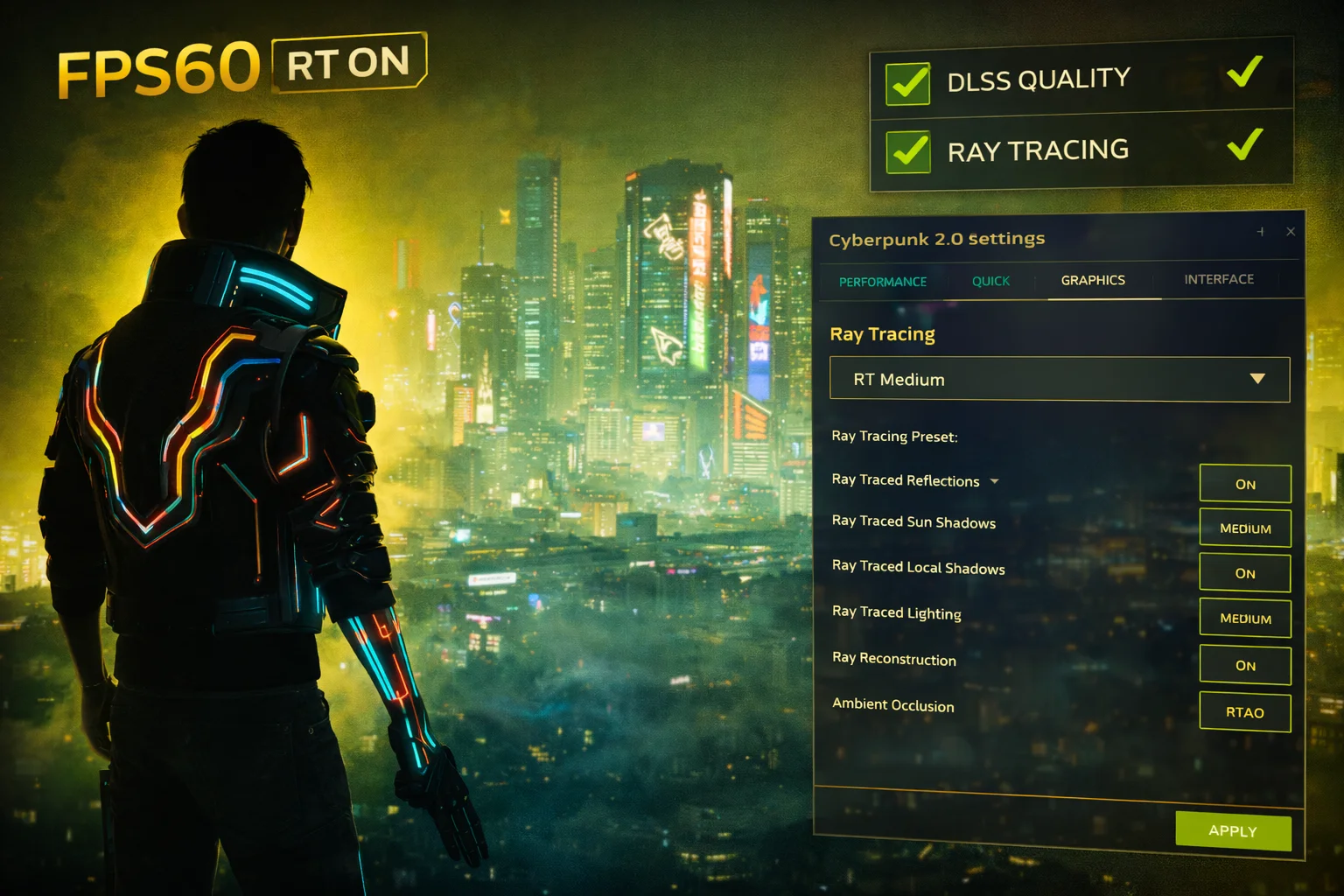
Quick Answer: For balanced Cyberpunk 2077 performance, use DLSS Quality (or FSR Quality), set Crowd Density to Medium, Volumetric Fog to Medium, and Screen Space Reflections to Medium. For ray tracing, start with RT Medium preset. Enable DLSS Frame Generation if you have an RTX 40/50 series GPU for 40-80% more FPS.
Cyberpunk 2077 remains one of the most visually stunning and demanding games in 2026. With the 2.0 update, Phantom Liberty expansion, and path tracing support, Night City has never looked better—or been harder to run. Finding the perfect balance between gorgeous visuals and smooth gameplay requires careful optimization.
This comprehensive guide covers optimal settings for every hardware tier, from budget builds to RTX 5090 powerhouses. We’ll explore ray tracing configurations, DLSS 3/FSR 3 settings, and the specific tweaks that provide the best FPS gains. Use our FPS Calculator to estimate your frame rates, or check our Bottleneck Calculator to ensure your system is balanced.
Recommended Hardware for Cyberpunk 2077
Cyberpunk 2077 demands serious GPU power, especially with ray tracing enabled. Here are our top recommendations for the best experience in Night City:
NVIDIA GeForce RTX 5080 Founders Edition
16GB GDDR7, DLSS 4, Path Tracing Ready
The RTX 5080 delivers 100+ FPS at 1440p with RT Medium and 55+ FPS with full path tracing (RT Overdrive). DLSS 4 Multi Frame Generation makes this the definitive Cyberpunk 2077 GPU for enthusiasts who want maximum visual fidelity.
ASUS Dual RTX 4070 Super EVO OC
12GB GDDR6X, DLSS 3, Ray Tracing
The RTX 4070 Super handles Cyberpunk at 60+ FPS with RT Medium at 1440p, or 85+ FPS without ray tracing. DLSS 3 Frame Generation pushes performance even higher. Excellent balance of price and ray tracing capability.
XFX Speedster QICK319 RX 7800 XT
16GB GDDR6, FSR 3, 1440p Gaming
For players who don’t prioritize ray tracing, the RX 7800 XT delivers 75+ FPS at 1440p Ultra without RT. The 16GB VRAM handles Cyberpunk’s high-res textures effortlessly. FSR 3 provides additional performance when needed.
Cyberpunk 2077 FPS by Hardware Tier
Here’s what FPS you can expect at 1440p with optimized settings:
| GPU | Rasterization (No RT) | RT Medium | RT Overdrive (Path Tracing) |
|---|---|---|---|
| RTX 5090 | 160+ FPS | 130+ FPS | 80+ FPS |
| RTX 5080 | 130+ FPS | 100+ FPS | 55+ FPS |
| RTX 5070 Ti | 110+ FPS | 85+ FPS | 45+ FPS |
| RTX 5070 | 95+ FPS | 70+ FPS | 35+ FPS |
| RTX 4080 Super | 110+ FPS | 85+ FPS | 45+ FPS |
| RTX 4070 Super | 85+ FPS | 60+ FPS | 30+ FPS |
| RTX 4060 Ti | 65+ FPS | 45+ FPS | 20+ FPS* |
| RX 7900 XTX | 100+ FPS | 55+ FPS | N/A |
| RX 7800 XT | 75+ FPS | 40+ FPS | N/A |
| RX 7600 | 50+ FPS | 25+ FPS* | N/A |
*With DLSS/FSR upscaling. RT Overdrive (path tracing) is only available on RTX GPUs and requires DLSS for playable frame rates.
Quick Preset Recommendations
Based on your GPU, start with these presets then fine-tune:
| GPU Tier | Recommended Preset | Ray Tracing | Upscaling |
|---|---|---|---|
| RTX 5080/5090 | Ultra + RT | RT Overdrive or Ultra | DLSS Quality + FG |
| RTX 4080/5070 Ti | High + RT | RT Ultra or Medium | DLSS Quality + FG |
| RTX 4070/5070 | High + RT | RT Medium | DLSS Balanced + FG |
| RTX 4060 Ti | High | RT Low or Off | DLSS Balanced + FG |
| RTX 4060/3060 | Medium-High | Off | DLSS Performance |
| RX 7900 XTX | Ultra | RT Medium | FSR Quality |
| RX 7800 XT | High | RT Low or Off | FSR Balanced |
| RX 7600 | Medium | Off | FSR Performance |
Graphics Settings Deep Dive
Let’s examine each setting’s visual impact and performance cost.
High-Impact Settings (Adjust First)
These settings have the largest effect on FPS. Optimize these before touching others.
| Setting | Performance | Balanced | Quality | FPS Impact |
|---|---|---|---|---|
| Ray Tracing Preset | Off | Medium | Ultra/Overdrive | 30-60% |
| Crowd Density | Low | Medium | High | 15-25% |
| Volumetric Fog Resolution | Low | Medium | Ultra | 10-20% |
| Screen Space Reflections | Off | Medium | Psycho | 10-15% |
| Ambient Occlusion | Low | Medium | High | 8-12% |
| Shadow Quality | Medium | High | Ultra | 8-12% |
Setting Explanations
Ray Tracing Preset: The biggest performance factor. Off provides maximum FPS; RT Medium offers excellent visuals with reasonable cost; RT Ultra/Overdrive delivers stunning path-traced lighting but requires high-end hardware and DLSS.
Crowd Density: Controls how many NPCs populate Night City. High creates a bustling metropolis but tanks FPS in dense areas like Jig-Jig Street. Medium provides good atmosphere without crippling performance.
Volumetric Fog Resolution: Night City’s atmospheric haze and neon-lit fog. Ultra looks stunning but is expensive. Medium maintains the atmosphere at much lower cost.
Screen Space Reflections: Reflections on surfaces without ray tracing. Psycho quality enables reflections on more surfaces but is very demanding. Medium provides good reflections efficiently.
Ambient Occlusion: Adds shadow depth to corners and crevices. High/Insane provides subtle but noticeable improvements. Medium is the sweet spot.
Shadow Quality: Resolution and filtering of shadows. Ultra provides crisp shadows but Medium/High are visually close at significant performance savings.
Medium-Impact Settings
| Setting | Performance | Balanced | Quality | FPS Impact |
|---|---|---|---|---|
| Local Shadow Quality | Medium | High | Ultra | 5-10% |
| Cascaded Shadow Range | Medium | High | Ultra | 5-8% |
| Level of Detail | Medium | High | Ultra | 5-8% |
| Volumetric Cloud Quality | Medium | High | Ultra | 3-6% |
| Mirror Quality | Medium | High | Ultra | 2-5%* |
*Mirror Quality only affects performance when viewing mirrors.
Low-Impact Settings (Safe to Max)
These settings have minimal performance impact—keep them high for visual quality:
- Texture Quality: Ultra (if you have 8GB+ VRAM)
- Anisotropic Filtering: 16x
- Color Precision: High
- Contact Shadows: On
- Improved Facial Lighting: On
- Subsurface Scattering: High
Ray Tracing Settings Explained
Cyberpunk 2077 offers some of the most impressive ray tracing implementation in gaming. Here’s how the presets break down:
RT Presets Comparison
| Preset | Features | Performance Cost | Recommended GPU |
|---|---|---|---|
| RT Off | No ray tracing | Baseline | Any GPU |
| RT Low | RT Reflections only | -15-20% | RTX 3060+, RX 7700 XT+ |
| RT Medium | RT Reflections + Shadows | -25-35% | RTX 4060+, RX 7800 XT+ |
| RT Ultra | RT Reflections + Shadows + Lighting | -40-50% | RTX 4070 Super+ |
| RT Overdrive | Full Path Tracing | -60-70% | RTX 4080+, requires DLSS |
RT Overdrive (Path Tracing)
RT Overdrive replaces traditional rasterized lighting with full path tracing. Every light source, reflection, and shadow is physically accurate. The visual improvement is dramatic—especially in interiors and night scenes—but the performance cost is extreme.
RT Overdrive Requirements:
- RTX 40/50-series GPU (RTX 30-series not recommended)
- DLSS Super Resolution (Quality or Balanced)
- DLSS Frame Generation strongly recommended
- RTX 4070 minimum for 30+ FPS at 1080p
- RTX 4080+ recommended for 1440p
DLSS and FSR Settings
Upscaling technology is essential for smooth Cyberpunk 2077 performance, especially with ray tracing.
DLSS 3.5 Settings (NVIDIA RTX)
| Mode | Internal Resolution (1440p target) | FPS Boost | Quality |
|---|---|---|---|
| Quality | 1706p | +40-50% | Near-native |
| Balanced | 1279p | +60-70% | Good |
| Performance | 960p | +90-110% | Acceptable |
| Ultra Performance | 640p | +150%+ | Noticeable blur |
DLSS Recommendations:
- No RT: Quality or Native
- RT Medium: Quality
- RT Ultra: Quality or Balanced
- RT Overdrive: Balanced (Quality if GPU permits)
DLSS Frame Generation (RTX 40/50 Only)
Frame Generation creates interpolated frames between rendered frames, effectively doubling perceived FPS. The trade-off is slightly increased input latency (mitigated by Reflex).
When to Use Frame Generation:
- Single-player exploration: Always (cinematic experience)
- Combat: Personal preference (latency vs smoothness)
- Base FPS below 40: May introduce artifacts
- Base FPS 50+: Excellent results
FSR 3 Settings (AMD/All GPUs)
| Mode | Internal Resolution (1440p target) | FPS Boost | Quality |
|---|---|---|---|
| Quality | 1706p | +35-45% | Good |
| Balanced | 1279p | +50-60% | Acceptable |
| Performance | 960p | +80-100% | Noticeable softness |
FSR provides good upscaling but DLSS produces cleaner images. AMD users should use FSR Quality when possible.
FSR 3 Frame Generation
FSR 3 Frame Generation works on any GPU (including NVIDIA). It provides similar benefits to DLSS FG with slightly higher latency. Enable if your base FPS is 45+.
Optimized Settings by Hardware Tier
High-End (RTX 5080/4080 Super, RX 7900 XTX)
Target: 1440p 60+ FPS with RT Ultra, or 4K 60+ FPS without RT
| Setting | Value |
|---|---|
| Ray Tracing | Ultra (or Overdrive with DLSS FG) |
| DLSS/FSR | Quality + Frame Generation |
| Texture Quality | Ultra |
| Crowd Density | High |
| Volumetric Fog | High |
| Screen Space Reflections | High (or off with RT) |
| Shadow Quality | Ultra |
| Ambient Occlusion | High |
Mid-Range (RTX 4070 Super, RX 7800 XT)
Target: 1440p 60+ FPS with RT Medium
| Setting | Value |
|---|---|
| Ray Tracing | Medium |
| DLSS/FSR | Quality + Frame Generation |
| Texture Quality | Ultra |
| Crowd Density | Medium |
| Volumetric Fog | Medium |
| Screen Space Reflections | Medium |
| Shadow Quality | High |
| Ambient Occlusion | Medium |
Budget (RTX 4060, RX 7600)
Target: 1080p 60+ FPS without RT
| Setting | Value |
|---|---|
| Ray Tracing | Off |
| DLSS/FSR | Balanced |
| Texture Quality | High |
| Crowd Density | Low |
| Volumetric Fog | Low |
| Screen Space Reflections | Low |
| Shadow Quality | Medium |
| Ambient Occlusion | Low |
NVIDIA Reflex
NVIDIA Reflex reduces input latency, making the game feel more responsive. Always enable it.
- Off: No latency reduction
- On: Reduces latency by 10-20ms
- On + Boost: Maximum latency reduction
Recommendation: Use On + Boost, especially when using Frame Generation.
Additional Optimization Tips
Memory Pool Budget
This setting determines how much VRAM the game attempts to use. Set based on your GPU’s VRAM:
- 8GB VRAM: High
- 12GB VRAM: High
- 16GB+ VRAM: Ultra
Slow HDD Mode
Enable only if installed on HDD. Reduces texture streaming quality to prevent stuttering. SSD users should disable this.
Motion Blur
Personal preference. Disable if you find it disorienting or want clearer visuals during fast movement. Has minimal performance impact.
Film Grain and Chromatic Aberration
These post-processing effects add cinematic style but some players find them distracting. Disable for cleaner visuals with no performance cost.
Troubleshooting Performance Issues
Stuttering in Dense Areas
- Lower Crowd Density to Medium or Low
- Reduce Volumetric Fog Resolution
- Ensure game is on SSD
- Enable Slow HDD Mode if on hard drive
- Update GPU drivers
Low FPS Despite Good Hardware
- Enable DLSS/FSR upscaling
- Check if Ray Tracing is accidentally enabled
- Verify GPU is not thermal throttling
- Ensure Windows power plan is High Performance
- Close background applications
VRAM Issues
- Lower Texture Quality to High
- Reduce Memory Pool Budget
- Lower resolution or use more aggressive upscaling
- Close VRAM-heavy background apps
Frequently Asked Questions
Use DLSS/FSR Quality, Crowd Density Medium, Volumetric Fog Medium, and Screen Space Reflections Medium. For ray tracing, start with RT Medium. Enable Frame Generation if you have RTX 40/50 series.
RT Low/Medium is playable on RTX 3060+ and RX 7700 XT+ with upscaling. RT Ultra requires RTX 4070+. RT Overdrive (path tracing) requires RTX 4070+ with DLSS and is best on RTX 4080+.
If you have an NVIDIA GPU, use DLSS—it produces cleaner images. AMD users should use FSR. Both are excellent; DLSS has a slight quality advantage.
Yes, especially for single-player games like Cyberpunk. It provides 40-80% more perceived FPS with manageable latency increase. Enable NVIDIA Reflex to minimize latency.
Ray Tracing, followed by Crowd Density and Volumetric Fog. RT Overdrive (path tracing) is extremely demanding and requires high-end GPUs with DLSS.
8GB minimum for 1080p Medium. 12GB recommended for 1440p High. 16GB+ ideal for 4K Ultra or path tracing.
Dense areas stress CPU and cause streaming issues. Lower Crowd Density, ensure game is on SSD, and update GPU drivers. The 2.0 update improved this significantly.
RT Overdrive is full path tracing—every light is ray traced. RT Ultra uses hybrid rendering. Overdrive looks better but requires roughly double the performance. Choose based on GPU capability.
Conclusion
Cyberpunk 2077 rewards careful optimization. The key settings to adjust are Ray Tracing mode, Crowd Density, Volumetric Fog, and your DLSS/FSR configuration. Most players will find RT Medium with DLSS Quality + Frame Generation provides an excellent balance of stunning visuals and smooth gameplay.
Use our FPS Calculator to estimate your specific hardware’s performance, and don’t be afraid to experiment—Night City is worth exploring at whatever settings your hardware can handle.
Related Resources
- FPS Calculator
- Bottleneck Calculator
- NVIDIA Control Panel Best Settings
- Best GPU for 1440p 144Hz
- Best GPU for 4K 60Hz
Last Updated: February 2026