Fortnite Best Settings for FPS 2026 | Max FPS Guide

Quick Answer+
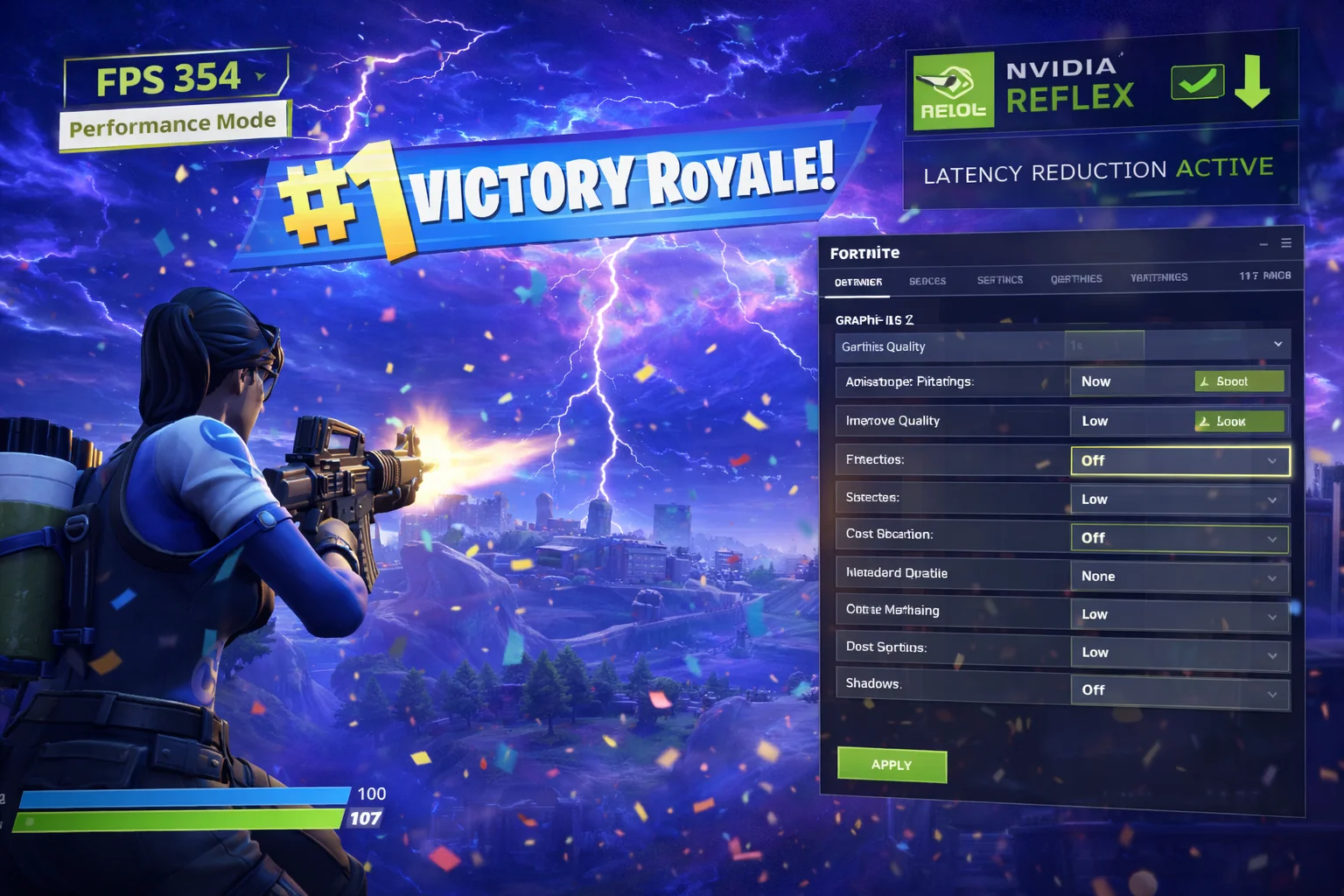
Quick Answer: For maximum Fortnite FPS, set Rendering Mode to Performance, 3D Resolution to 100%, and all graphics settings to Low/Off except View Distance (Medium) and Textures (Low-Medium). Enable NVIDIA Reflex (On+Boost) and cap FPS slightly below your monitor’s refresh rate. These settings maximize competitive advantage while maintaining visual clarity.
Fortnite remains one of the most competitive battle royale games in 2026, and every frame matters when you’re fighting for Victory Royale. Whether you’re pushing for Champion League in ranked or competing in tournaments, optimized settings can mean the difference between hitting your shots and getting eliminated.
This guide covers the absolute best Fortnite settings for maximum FPS, including pro player configurations, hardware-specific optimizations, and the exact settings used by top competitive players. Use our FPS Calculator to estimate your frame rates with specific hardware, or check our Bottleneck Calculator to ensure your system is balanced.
Recommended Hardware for Fortnite
Fortnite is GPU-intensive, especially in Performance Mode where high frame rates are achievable. Here are the best value options for competitive play:
ASUS Dual RTX 4070 Super EVO OC
12GB GDDR6X | 192-bit | DLSS 3 | PCIe 4.0 | 220W TDP
Excellent choice for competitive Fortnite at 1080p 240Hz or 1440p 144Hz. Delivers 450+ FPS in Performance Mode with NVIDIA Reflex support for minimal input lag.
Intel Arc B580
12GB GDDR6 | 192-bit | XeSS | PCIe 4.0 | 190W TDP
Outstanding budget option for Fortnite. The 12GB VRAM handles all competitive settings, delivering 340+ FPS in Performance Mode. Best value under $300.
AMD Ryzen 7 7800X3D
8 Cores | 16 Threads | 96MB L3 Cache | 5.0 GHz Boost | 120W TDP
The ultimate CPU for high-FPS Fortnite gaming. The massive 96MB 3D V-Cache delivers exceptional frame rates in CPU-limited scenarios like crowded endgames.
Fortnite FPS by Hardware Tier
Before diving into settings, here’s what FPS you can expect at 1080p with optimized competitive settings:
| GPU | Performance Mode | DirectX 12 | Recommended For |
|---|---|---|---|
| RTX 5080 | 600+ FPS | 450+ FPS | 360Hz competitive |
| RTX 5070 | 500+ FPS | 380+ FPS | 360Hz competitive |
| RTX 4070 Super | 450+ FPS | 320+ FPS | 240Hz competitive |
| RTX 4060 Ti | 380+ FPS | 260+ FPS | 240Hz gaming |
| RTX 4060 | 320+ FPS | 220+ FPS | 165Hz gaming |
| RX 7800 XT | 420+ FPS | 300+ FPS | 240Hz competitive |
| RX 7600 | 300+ FPS | 200+ FPS | 144Hz gaming |
| Arc B580 | 340+ FPS | 230+ FPS | 165Hz gaming |
| RTX 3060 | 280+ FPS | 180+ FPS | 144Hz gaming |
| GTX 1660 Super | 200+ FPS | 130+ FPS | 144Hz gaming |
Performance Mode delivers 40-60% higher FPS than DirectX 12 mode. For competitive play, Performance Mode is strongly recommended unless you prioritize visuals over frame rate.
Best Fortnite Video Settings
These are the optimal video settings for maximum FPS while maintaining competitive visibility.
Display Settings
| Setting | Recommended | Explanation |
|---|---|---|
| Window Mode | Fullscreen | Lowest input lag, best performance |
| Resolution | 1920×1080 | Native for most; 1600×900 for low-end |
| Frame Rate Limit | Monitor Hz – 3 | Prevents screen tearing, reduces input lag |
| Rendering Mode | Performance | 40-60% more FPS than DirectX 12 |
| NVIDIA Reflex Low Latency | On + Boost | Reduces input lag significantly |
| GPU Crash Debugging | Off | Slight performance overhead when on |
Rendering Mode: Performance vs DirectX 12
Performance Mode is the competitive standard. It uses a simplified renderer that dramatically increases FPS while making players easier to spot against simplified backgrounds. Almost all pro players use Performance Mode.
DirectX 12 looks better with enhanced lighting, shadows, and effects. Use this if you have GPU headroom and prioritize visual experience over maximum competitive advantage.
DirectX 11 is legacy—avoid it. Performance Mode or DX12 are both superior options in 2026.
Graphics Quality Settings
| Setting | Competitive | Balanced | FPS Impact |
|---|---|---|---|
| Quality Presets | Custom | Custom | – |
| Anti-Aliasing | Off | Medium | High |
| 3D Resolution | 100% | 100% | Very High |
| View Distance | Medium | Far | Low |
| Shadows | Off | Off | Very High |
| Textures | Low | Medium | Medium |
| Effects | Low | Low | High |
| Post Processing | Low | Low | Medium |
| Hardware Ray Tracing | Off | Off | Very High |
Settings Explained in Detail
Anti-Aliasing (Off): Smooths jagged edges but costs significant FPS—typically 10-20% depending on hardware. In Performance Mode, the simplified visuals make AA less necessary as edges are already cleaner. Turn off for maximum FPS; only enable if edge shimmer bothers you and you have FPS headroom.
3D Resolution (100%): Never lower this below 100%—it makes enemies blurry and harder to spot at distance. If you need more FPS, lower other settings first or reduce your output resolution from 1920×1080 to 1600×900 instead. Maintaining 3D resolution at 100% ensures enemy outlines remain crisp.
View Distance (Medium): Affects terrain and object rendering distance, but importantly, players always render at the same distance regardless of this setting. Medium is sufficient—Far or Epic wastes FPS on distant scenery you’ll never fight at. The rendering distance for players is hardcoded, so higher view distance only shows more trees and buildings.
Shadows (Off – CRITICAL): The single biggest FPS drain in Fortnite. Shadows can cost 30-50% of your frame rate depending on scene complexity. They provide minimal competitive advantage—you’re not tracking enemy shadows in fast-paced build fights. Every professional player disables shadows without exception.
Textures (Low-Medium): Low textures load faster and use less VRAM, helping with stuttering on lower-VRAM cards. Medium is acceptable if you have 8GB+ VRAM and want slightly better visual fidelity without major FPS loss. High and above are unnecessary for competitive play.
Effects (Low): Controls explosion particles, storm effects, and environmental particles. Low maintains visibility during chaotic fights while providing a meaningful FPS boost. Higher settings create more visual noise that can obscure enemy positions.
Post Processing (Low): Affects color grading, bloom, lens flares, and visual filters. Low removes visual clutter that can obscure enemies and provides cleaner, more readable gameplay. Higher settings are purely aesthetic and provide no competitive benefit.
Hardware Ray Tracing (Off – ALWAYS): RT lighting looks beautiful but cuts FPS by 30-50% or more. Never use for competitive play—even if you have an RTX 5090. The visual improvement is irrelevant when you’re focused on winning, not sightseeing.
Advanced Performance Settings
NVIDIA Reflex Low Latency
NVIDIA Reflex reduces system latency by synchronizing CPU and GPU work. This is one of the most impactful settings for competitive play.
- Off: No latency reduction
- On: Reduces latency by 20-30ms typically
- On + Boost: Further reduces latency, may slightly increase power consumption
Recommendation: Always use On + Boost for competitive play. The latency reduction is more valuable than the minimal power increase.
Frame Rate Limiting Strategy
Optimal FPS cap depends on your monitor refresh rate:
| Monitor | Recommended Cap | Reasoning |
|---|---|---|
| 360Hz | 357 FPS | Prevents tearing, stable frames |
| 240Hz | 237 FPS | Consistent frame pacing |
| 165Hz | 162 FPS | Smooth gameplay |
| 144Hz | 141 FPS | Eliminates stutters |
| 60Hz | Unlimited or 60 | Use V-Sync or uncapped |
Capping 3 FPS below your refresh rate prevents the GPU from generating frames faster than the monitor can display, reducing input lag from frame queue buildup.
Multithreaded Rendering
Enable Multithreaded Rendering if you have a CPU with 6+ cores. This distributes rendering work across multiple CPU cores, significantly improving performance on modern processors.
Pro Player Settings
Understanding what professional players use provides insight into optimal competitive configurations. Here are the settings used by top Fortnite professionals in 2026:
| Player | Resolution | Mode | Key Settings |
|---|---|---|---|
| Bugha | 1920×1080 | Performance | All Low, View Distance Medium |
| Clix | 1920×1080 | Performance | All Low, Textures Medium |
| Mongraal | 1920×1080 | Performance | All Low/Off |
| Benjyfishy | 1920×1080 | Performance | All Low, View Distance Far |
| EpikWhale | 1920×1080 | Performance | All Low/Off |
| Mero | 1920×1080 | Performance | All Low, AA Off |
| Tayson | 1920×1080 | Performance | All Low/Off |
The pattern is clear: every pro uses Performance Mode with minimal graphics settings. The focus is on maximum FPS and minimum input lag—visual quality is irrelevant at the competitive level where split-second reactions determine outcomes.
Why Performance Mode Dominates
Professional players universally choose Performance Mode for several reasons beyond raw FPS. The simplified visuals make player models stand out more clearly against backgrounds. Build pieces render more quickly and consistently. Storm effects and explosions are less visually overwhelming, maintaining clarity during chaotic endgames.
Additionally, Performance Mode provides more stable frame times. DirectX 12 can exhibit micro-stutters during intense build fights or when many players are visible. Performance Mode’s simpler rendering pipeline delivers smoother, more predictable frame delivery—crucial when muscle memory depends on consistent timing.
Pro Hardware Specifications
Most professional Fortnite players use high-end hardware to ensure maximum frame rates:
- CPU: AMD Ryzen 9 9800X3D, Ryzen 7 7800X3D, or Intel Core i9-14900K
- GPU: NVIDIA RTX 4080 Super, RTX 4090, or RTX 5080
- RAM: 32GB DDR5-6000+ with tight timings
- Monitor: 240Hz or 360Hz displays for competitive advantage
- Mouse: Lightweight gaming mice (under 60g) with high polling rates
NVIDIA Control Panel Optimization
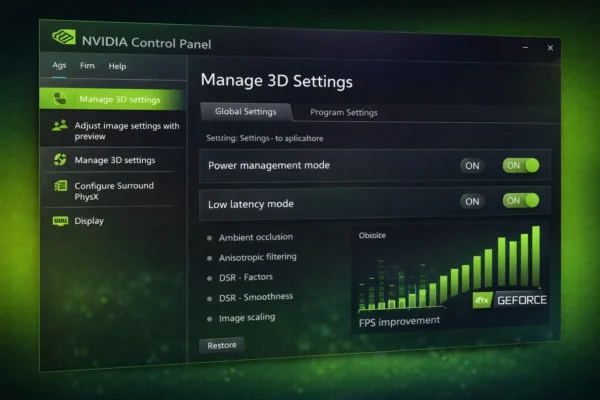
These NVIDIA Control Panel settings complement your in-game configuration for maximum performance.
Manage 3D Settings (Fortnite Profile)
| Setting | Value |
|---|---|
| Image Sharpening | Off |
| Low Latency Mode | Ultra (if not using Reflex) |
| Max Frame Rate | Off (use in-game cap) |
| Power Management Mode | Prefer Maximum Performance |
| Texture Filtering – Quality | High Performance |
| Threaded Optimization | On |
| Triple Buffering | Off |
| Vertical Sync | Off |
Note: If using NVIDIA Reflex in-game (recommended), set Low Latency Mode to Off in NVIDIA Control Panel to avoid conflicts.
AMD Radeon Software Optimization
For AMD GPU users, optimize Radeon Software for Fortnite:
| Setting | Value |
|---|---|
| Radeon Anti-Lag | Enabled |
| Radeon Chill | Disabled |
| Radeon Boost | Disabled |
| Image Sharpening | Off |
| Wait for Vertical Refresh | Off |
| Anti-Aliasing | Use Application Settings |
| Texture Filtering Quality | Performance |
AMD Anti-Lag provides similar latency reduction to NVIDIA Reflex—always enable it for competitive games.
Windows Optimization
Windows settings play a crucial role in achieving stable, high frame rates. These optimizations ensure your system dedicates maximum resources to Fortnite.
Game Mode and Settings
| Setting | Value | Location |
|---|---|---|
| Game Mode | On | Settings > Gaming > Game Mode |
| Hardware-accelerated GPU scheduling | On | Settings > Graphics Settings |
| Variable Refresh Rate | On | Settings > Graphics Settings |
| Game DVR/Captures | Off | Settings > Gaming > Captures |
| Xbox Game Bar | Off | Settings > Gaming > Xbox Game Bar |
Power Plan
Use Windows “High Performance” or “Ultimate Performance” power plan. This prevents CPU throttling and ensures maximum clock speeds during gaming. The difference can be 5-15% FPS on some systems.
To enable Ultimate Performance (hidden by default), open PowerShell as administrator and run:
powercfg -duplicatescheme e9a42b02-d5df-448d-aa00-03f14749eb61Then select “Ultimate Performance” in Control Panel > Power Options.
Background Applications
Close unnecessary background applications before playing competitive matches:
- Web browsers: Chrome especially uses significant RAM and CPU resources
- Discord: Disable hardware acceleration if experiencing FPS drops
- RGB software: iCUE, Synapse, and similar programs constantly poll USB devices
- Streaming software: OBS/Streamlabs when not actively streaming
- Antivirus: Add Fortnite folder to exclusions to prevent real-time scanning
- Wallpaper engines: Animated desktop backgrounds consume GPU resources
Resolution and Stretched Res
Native 1920×1080
Standard 1080p is the recommended resolution for most players. It provides the clearest image and is what pros compete on. If your GPU can maintain your target FPS at 1080p, don’t change resolution.
Lower Resolutions for FPS
If you need more FPS on older hardware:
- 1600×900: 30% more FPS, slightly blurrier
- 1280×720: 60% more FPS, noticeably blurrier
Lower resolutions are acceptable if they help you reach your monitor’s refresh rate. A stable 144 FPS at 900p is better than an unstable 100 FPS at 1080p.
1440p and 4K
Higher resolutions are viable for casual play but not recommended for competitive. The FPS cost outweighs the visual benefit in a game where reaction time matters.
Performance Mode Deep Dive
Performance Mode deserves special attention as the competitive standard.
Performance Mode Benefits
- 40-60% higher FPS than DirectX 12
- Lower input latency
- Players stand out against simplified backgrounds
- Faster loading times
- More consistent frame times
Performance Mode Settings
When using Performance Mode, additional settings become available:
| Setting | Recommended |
|---|---|
| Mesh Quality | Low |
| Mesh LOD Distance | Low |
| High Quality Materials | Off |
| High Quality Meshes | Off |
Troubleshooting Common Issues
FPS Drops During Fights
If your FPS drops during build fights or busy areas:
- Lower Effects to Low
- Ensure Shadows are Off
- Use Performance Mode instead of DirectX 12
- Cap FPS below your average to prevent spikes
- Check CPU temperatures for thermal throttling
Stuttering and Hitching
Microstutters often indicate shader compilation or VRAM issues:
- Play a few matches after updates to compile shaders
- Lower Textures if you have 6GB VRAM or less
- Verify game files in Epic Games Launcher
- Update GPU drivers
- Disable Windows Game DVR/captures
Input Lag Feeling High
If the game feels sluggish or delayed:
- Enable NVIDIA Reflex On + Boost
- Use Fullscreen (not Windowed Fullscreen)
- Disable V-Sync everywhere
- Cap FPS to monitor refresh rate – 3
- Check monitor is running at correct refresh rate
Chapter-Specific Optimizations
Fortnite updates frequently, and performance can vary by chapter/season. As of Chapter 6 (2026):
- Performance Mode remains the best option
- NVIDIA Reflex works reliably
- FSR 3 is available but adds latency—avoid for competitive
- Unreal Engine 5 features are optional—disable Nanite/Lumen in settings
Hardware Upgrade Priorities
If you’re not hitting your FPS targets, upgrade in this order:
- 1. GPU: Biggest impact on FPS
- 2. Monitor: 240Hz/360Hz makes FPS gains visible
- 3. CPU: Matters for high-FPS scenarios (400+ FPS)
- 4. RAM Speed: Fast DDR5 helps at extreme FPS
- 5. Storage: NVMe helps load times, not FPS
Frequently Asked Questions
Use Performance Mode, set all graphics to Low/Off except View Distance (Medium), enable NVIDIA Reflex On+Boost, and cap FPS 3 below your monitor’s refresh rate. These settings maximize frame rate while maintaining competitive visibility.
For competitive play, yes. Performance Mode provides 40-60% higher FPS and lower input latency. DirectX 12 looks better but sacrifices performance. All pro players use Performance Mode.
Absolutely. Shadows are the biggest FPS drain and provide minimal competitive advantage. Every professional player disables shadows. Turn them off for maximum performance.
Match your monitor’s refresh rate. For 144Hz, aim for stable 144+ FPS. For 240Hz, aim for 240+ FPS. Higher FPS provides smoother gameplay and lower input lag, but only matters if your monitor can display it.
Yes, significantly. NVIDIA Reflex reduces system latency by 20-30ms, making the game feel more responsive. Use On+Boost for maximum benefit. This is one of the most impactful settings for competitive play.
All pros use Performance Mode at 1920×1080 with all settings on Low/Off. They prioritize maximum FPS and minimum input lag over visual quality. NVIDIA Reflex is always enabled.
No. V-Sync adds significant input lag (16-50ms). Disable V-Sync and use an FPS cap instead. If you experience screen tearing, enable G-Sync/FreeSync on your monitor rather than V-Sync.
Common causes: Shadows enabled, DirectX 12 instead of Performance Mode, background applications, outdated drivers, or thermal throttling. Apply the settings in this guide and close unnecessary programs.
Conclusion
Optimizing Fortnite for maximum FPS comes down to a few key principles: use Performance Mode, disable shadows and unnecessary effects, enable NVIDIA Reflex, and cap your frame rate appropriately. These settings are used by every professional player for good reason—they provide the competitive edge that matters in high-stakes games.
Remember that consistency matters more than peak FPS. A stable 240 FPS is better than fluctuating between 200-350 FPS. Frame time consistency affects muscle memory, aim smoothness, and overall game feel. If you’re experiencing frame drops during build fights or crowded endgames, lower settings further rather than chasing higher averages.
Use our FPS Calculator to estimate your performance with specific hardware, and don’t hesitate to lower settings further if you’re not hitting your monitor’s refresh rate consistently. The goal is smooth, predictable performance—not impressive benchmark numbers.
Key takeaways for Fortnite optimization:
- Use Performance Mode (40-60% FPS boost over DirectX 12)
- Disable shadows (biggest single FPS drain)
- Enable NVIDIA Reflex On+Boost for lowest latency
- Keep 3D Resolution at 100% for clarity
- Cap FPS 3 below monitor refresh rate
- Close background applications before competitive matches
- Prioritize GPU upgrades for Fortnite performance
Troubleshooting Common Issues
Low FPS Despite Good Settings
- Verify you’re in Performance Mode: Check Rendering Mode in Video settings
- Check GPU utilization: If below 90%, you have a CPU bottleneck
- Monitor thermals: Throttling due to heat dramatically reduces FPS
- Update GPU drivers: Use latest Game Ready or Adrenalin drivers
- Close browser tabs: Chrome with many tabs steals RAM and CPU
Stuttering and Hitching
- Disable Game DVR: Windows game recording causes micro-stutters
- Enable XMP/EXPO: RAM running at stock speed hurts performance
- Check disk space: Fortnite needs space for shader caching
- Reinstall GPU drivers with DDU: Removes corrupted driver remnants
- Verify game files: Through Epic Games Launcher
High Input Lag
- Enable NVIDIA Reflex: On+Boost for lowest latency
- Use Fullscreen mode: Not Windowed Fullscreen
- Disable V-Sync everywhere: In-game, NVIDIA Control Panel, and monitor
- Check monitor settings: Enable “Game Mode” or “Instant Mode” on monitor
- Reduce USB polling delay: High polling rate mice (1000Hz+) help
Related Resources
- FPS Calculator
- Bottleneck Calculator
- Valorant Best Settings Guide
- CS2 FPS Boost Guide
- NVIDIA Control Panel Best Settings
- Best GPU for 1080p 240Hz
Last Updated: February 2026