What Is a GPU Bottleneck? Signs, Causes & How to Fix It (2026)

Quick Answer+
Quick Answer: A GPU bottleneck occurs when your graphics card is the limiting factor in system performance—it’s working at 95-100% capacity while your CPU has headroom. Unlike CPU bottlenecks, a GPU bottleneck is often desirable because it means you’re fully utilizing your graphics card. Fix it only if you want higher FPS by lowering settings, enabling DLSS/FSR, or upgrading your GPU. Check your setup with our Bottleneck Calculator.
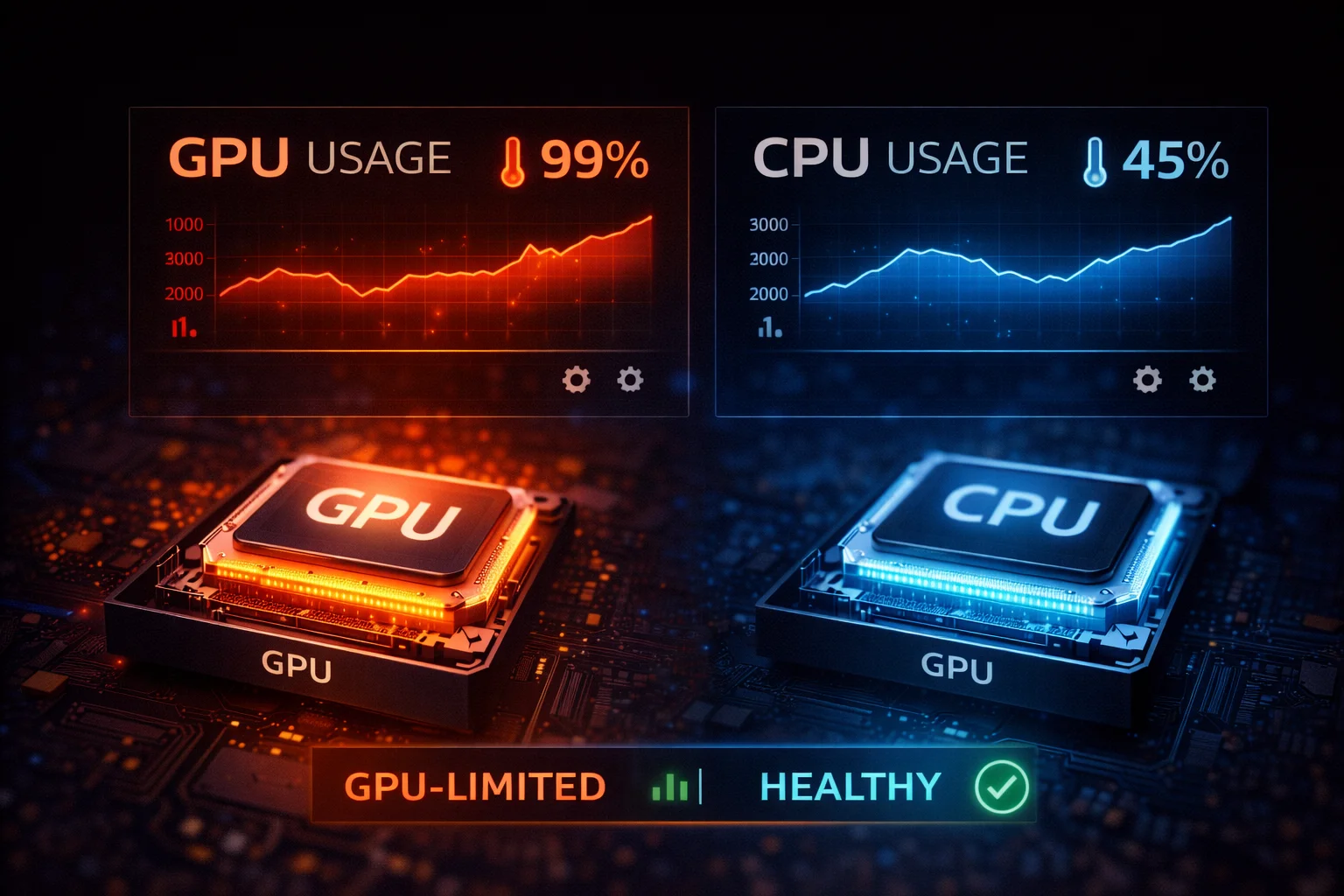
You check your performance overlay mid-game and see your GPU pinned at 99% while your CPU hovers around 50%. Your immediate reaction might be concern—is something wrong?
Actually, this is exactly what you want to see. A GPU bottleneck means your system is working as intended, with your graphics card as the performance-limiting factor. It’s the ideal scenario for most gaming setups.
But there’s nuance here. While GPU bottlenecks are generally healthy, there are situations where they indicate a problem—and plenty of ways to address them if you want more FPS. This guide explains everything about GPU bottlenecks: what they mean, when they’re good, when they’re bad, and how to fix them when needed.
What Is a GPU Bottleneck?
A GPU bottleneck happens when your graphics card is the component limiting your system’s frame rate. Your GPU is working at maximum capacity to render frames, while your CPU has processing power to spare.
Think of it this way: if your CPU can prepare 200 frames per second worth of game data, but your GPU can only render 100 frames per second, the GPU is the bottleneck. No amount of CPU performance improvement would increase your FPS—only GPU improvements would help.
GPU Bottleneck vs CPU Bottleneck
| Characteristic | GPU Bottleneck | CPU Bottleneck |
|---|---|---|
| GPU Usage | 95-100% | 50-80% |
| CPU Usage | 30-70% | 90-100% (or single core maxed) |
| Lowering graphics helps? | Yes, significantly | Minimal improvement |
| Raising resolution helps? | No, reduces FPS | Yes, often improves stability |
| Is this desirable? | Usually yes | Usually no |
| Fix by upgrading… | GPU or lower settings | CPU |
The key insight: GPU bottlenecks give you control. You can adjust graphics settings to trade visuals for FPS. CPU bottlenecks leave you stuck—graphics settings barely help when the CPU is the limit.
Why GPU Bottlenecks Are Often Ideal
When building or buying a gaming PC, you actually want the GPU to be the limiting factor for several reasons:
1. You paid for it: If your GPU isn’t at 95%+ usage, you’re not getting full value from your graphics card purchase. An underutilized GPU is wasted money.
2. Settings flexibility: GPU-limited scenarios let you choose your FPS/quality balance. Want more FPS? Lower settings. Want prettier graphics? Accept lower FPS. This choice disappears when CPU-limited.
3. Easier upgrades: GPUs are simpler to upgrade than CPUs. Slot in a new card and you’re done. CPU upgrades often require new motherboards, RAM, and reinstalling Windows.
4. Future-proofing: A slightly overpowered CPU with a GPU bottleneck means you can upgrade graphics cards for years without touching the rest of your system.
What Causes GPU Bottlenecks?
Several factors determine whether your GPU becomes the performance limit:
1. High Resolution Gaming
Resolution is the biggest factor in GPU workload. Each step up dramatically increases the number of pixels your GPU must render:
| Resolution | Total Pixels | Relative GPU Load |
|---|---|---|
| 1080p (1920×1080) | 2.07 million | 1.0x (baseline) |
| 1440p (2560×1440) | 3.69 million | 1.78x |
| 4K (3840×2160) | 8.29 million | 4.0x |
| Ultrawide 1440p | 4.95 million | 2.4x |
At 4K, your GPU works four times harder than at 1080p. This is why even flagship GPUs like the RTX 4090 become bottlenecked at 4K with max settings, while they might be waiting on the CPU at 1080p.
2. High Graphics Settings
Graphics presets exist on a spectrum of GPU intensity:
- Low: Minimal GPU load, maximum FPS
- Medium: Moderate load, balanced
- High: Heavy load, good visuals
- Ultra: Maximum load, diminishing returns on visuals
- Ray Tracing: Extreme load, adds 30-60% GPU demand
The jump from High to Ultra often costs 30-40% FPS while providing minimal visual improvement. Ray tracing can cut frame rates in half on demanding titles.
3. GPU-Intensive Games
Some games are simply harder on graphics cards than others:
| GPU-Heavy Games | Why They Stress GPUs |
|---|---|
| Cyberpunk 2077 | Path tracing, dense environments |
| Alan Wake 2 | Demanding RT implementation |
| Hogwarts Legacy | Complex lighting, large world |
| Red Dead Redemption 2 | Massive draw distances, volumetric effects |
| Microsoft Flight Simulator | Photogrammetry, global streaming |
| A Plague Tale: Requiem | Millions of simulated rats |
In these titles, even high-end GPUs will be the bottleneck at reasonable settings.
4. Having a Powerful CPU
A strong CPU paired with a mid-range GPU naturally creates a GPU bottleneck. This is actually a smart buying strategy—purchase more CPU than you need now so you can upgrade GPUs later without changing your platform.
Example: An AMD Ryzen 7 7800X3D paired with an RTX 4060 will be heavily GPU-bottlenecked. But that same CPU can handle an RTX 5080 down the road without missing a beat.
5. Older or Entry-Level GPU
Budget graphics cards naturally become bottlenecks in demanding games. Cards like the GTX 1650, RTX 3050, or RX 6500 XT simply lack the processing power for modern AAA titles at high settings.
This isn’t a flaw—it’s the expected behavior for entry-level hardware. You trade visual quality or resolution for lower cost.
GPU Bottleneck Symptoms: How to Identify One
Confirming a GPU bottleneck is straightforward with the right monitoring tools:
Symptom 1: GPU Usage at 95-100%
The definitive sign. Use MSI Afterburner, HWiNFO, or in-game overlays to monitor GPU utilization. Consistent 95-100% GPU usage during gameplay confirms your graphics card is the limiting factor.
| GPU Usage | Status | Meaning |
|---|---|---|
| 95-100% | ✅ Ideal | GPU is fully utilized (GPU bottleneck) |
| 80-95% | ✅ Good | Near full utilization |
| 60-80% | ⚠️ Investigate | Possible CPU bottleneck or issue |
| Below 60% | ❌ Problem | Likely CPU bottleneck or cap |
Symptom 2: CPU Usage Is Moderate
While your GPU maxes out, your CPU should have headroom. Total CPU usage of 30-70% alongside 99% GPU usage is the signature of a healthy GPU bottleneck.
Check per-core usage too. As long as no individual core is consistently at 100%, you’re GPU-limited, not CPU-limited.
Symptom 3: Lowering Settings Increases FPS
The litmus test for a GPU bottleneck: reduce graphics settings from Ultra to Medium. In a GPU-limited scenario, FPS should increase significantly—often 40-80%.
Example GPU-limited system:
- Ultra settings: 55 FPS
- High settings: 75 FPS
- Medium settings: 110 FPS
If changing settings barely affects FPS, you have a CPU bottleneck instead.
Symptom 4: FPS Drops at Higher Resolutions
Increasing resolution should proportionally reduce FPS in a GPU-limited scenario:
- 1080p: 120 FPS
- 1440p: 80 FPS
- 4K: 45 FPS
This proportional scaling confirms the GPU is doing the heavy lifting. If FPS stays roughly the same across resolutions, you’re CPU-bottlenecked.
Symptom 5: GPU Temperature Is High
A fully-utilized GPU generates significant heat. Temperatures of 75-85°C during gaming indicate the card is working hard—exactly what you’d expect during a GPU bottleneck.
Conversely, if your GPU stays unusually cool (below 65°C) during gaming, it’s not being fully utilized—suggesting a CPU bottleneck or frame rate cap.
When Is a GPU Bottleneck Actually a Problem?
Most GPU bottlenecks are fine. But there are situations where they indicate an issue worth addressing:
Problem 1: You Can’t Hit Your Target Frame Rate
If you have a 144Hz monitor but your GPU-limited system only manages 80 FPS, you’re not getting full value from your display. You have options: lower settings, enable DLSS/FSR, or upgrade your GPU.
Problem 2: Unacceptable Visual Quality
If achieving playable FPS requires settings so low that the game looks bad, your GPU isn’t capable enough for that title. This is common with entry-level cards in demanding games.
Problem 3: GPU Usage Drops Unexpectedly
If GPU usage fluctuates wildly—99% one moment, 60% the next—something is wrong. This could indicate:
- Thermal throttling (GPU overheating)
- Power limit throttling
- Driver issues
- Game-specific bugs
- Intermittent CPU bottleneck during heavy scenes
Stable 99% GPU usage is ideal. Unstable usage suggests investigation is needed.
Problem 4: You Expected Better Performance
If benchmarks show your GPU should hit 100 FPS but you’re only getting 70, something is limiting performance beyond normal GPU capacity. Check for thermal throttling, driver issues, or background processes.
How to Fix GPU Bottleneck: 8 Methods
If your GPU bottleneck is preventing you from hitting performance targets, here’s how to address it:
Fix 1: Lower Graphics Settings (Free)
The most obvious solution. Reduce GPU-intensive settings for the biggest gains:
| Setting | FPS Impact | Visual Impact |
|---|---|---|
| Ray Tracing | 30-60% gain when disabled | Noticeable but acceptable |
| Shadows | 15-25% gain on Low | Moderate |
| Volumetric Effects | 10-20% gain when reduced | Minimal in most games |
| Ambient Occlusion | 5-15% gain when disabled | Subtle difference |
| Post-Processing | 5-10% gain on Low | Usually minimal |
| Anti-Aliasing | 10-20% gain on lower setting | Depends on resolution |
Pro tip: Start by disabling ray tracing and reducing shadows. These two settings alone often recover 40-50% FPS with acceptable visual tradeoffs.
Fix 2: Enable DLSS or FSR (Free)
Upscaling technologies are game-changers for GPU-limited systems:
DLSS (NVIDIA RTX cards): Uses AI to render at lower resolution then upscale. Quality mode typically provides 30-50% FPS boost with minimal quality loss. DLSS 3 adds Frame Generation for even higher gains on RTX 40/50 series.
FSR (All GPUs): AMD’s open solution works on any graphics card. FSR 2.0+ offers similar benefits to DLSS, while FSR 3 includes frame generation.
XeSS (Intel Arc): Intel’s upscaling solution, also works on other GPUs with reduced effectiveness.
These technologies effectively multiply your GPU’s capability without hardware changes. In many games, DLSS Quality mode at 4K looks better than native 1440p while performing similarly.
Fix 3: Lower Resolution (Free)
If you’re GPU-limited at 4K, dropping to 1440p nearly doubles your FPS. From 1440p to 1080p provides another major boost.
This isn’t ideal—you bought a high-res monitor for a reason—but it’s effective when you need frames for competitive gaming or smoother gameplay.
Consider using DLSS/FSR at lower render resolution while maintaining your native output resolution. This preserves UI sharpness and is less jarring than true resolution reduction.
Fix 4: Overclock Your GPU (Free-ish)
Most GPUs have headroom for 5-15% performance improvements through overclocking:
Step 1: Download MSI Afterburner (works with all GPU brands)
Step 2: Increase power limit to maximum
Step 3: Gradually increase core clock (+50MHz at a time)
Step 4: Test stability with gaming or benchmarks
Step 5: Increase memory clock (+100MHz at a time)
Step 6: Find the stable maximum and save the profile
A 10% overclock directly translates to roughly 10% more FPS in GPU-limited scenarios. Ensure adequate cooling before overclocking.
Fix 5: Improve GPU Cooling (Low Cost)
If your GPU is thermal throttling (reducing performance due to heat), improving cooling restores full performance:
- Improve case airflow with additional fans
- Replace dried thermal paste on older cards
- Undervolt your GPU (reduces heat while maintaining performance)
- Set a more aggressive fan curve in MSI Afterburner
- Add a GPU support bracket if the card sags
Fix 6: Update GPU Drivers (Free)
Driver updates frequently include game-specific optimizations that improve FPS by 5-15% in new titles. Always keep drivers current:
- NVIDIA: GeForce Experience or nvidia.com
- AMD: AMD Software or amd.com
- Intel: Intel Arc Control or intel.com
For problematic drivers, use DDU (Display Driver Uninstaller) to clean install.
Fix 7: Check for Frame Rate Caps (Free)
Sometimes low GPU usage isn’t a bottleneck—it’s an artificial cap. Check for:
- V-Sync limiting FPS to monitor refresh rate
- In-game frame rate limiters
- NVIDIA Control Panel frame rate limit
- RTSS (RivaTuner) frame rate cap
- Game-specific caps (some games cap at 60 or 30 FPS)
Disable these caps to see your true GPU-limited performance.
Fix 8: Upgrade Your GPU (Expensive)
When other methods aren’t enough, a GPU upgrade is the definitive solution. Before buying:
- Use our Bottleneck Calculator to ensure the new GPU won’t be bottlenecked by your CPU
- Check that your PSU has adequate wattage and connectors
- Verify the card physically fits in your case
- Consider whether your monitor resolution justifies the upgrade
Current GPU recommendations by resolution:
| Resolution | Target FPS | Recommended GPU |
|---|---|---|
| 1080p 60Hz | 60 FPS | RTX 4060, RX 7600 |
| 1080p 144Hz | 144 FPS | RTX 4070, RX 7800 XT |
| 1440p 60Hz | 60 FPS | RTX 4060 Ti, RX 7700 XT |
| 1440p 144Hz | 144 FPS | RTX 4070 Ti Super, RX 7900 GRE |
| 4K 60Hz | 60 FPS | RTX 4070 Ti Super, RX 7900 XT |
| 4K 120Hz | 120 FPS | RTX 4090, RTX 5080 |
GPU Bottleneck by Game Type
Different game genres stress GPUs differently:
AAA Single-Player Games (Heavy GPU Load)
Games like Cyberpunk 2077, Hogwarts Legacy, and Red Dead Redemption 2 are GPU-limited for almost everyone. Even flagship cards struggle at 4K with max settings. GPU bottlenecks are expected and normal here.
Competitive Esports (Lighter GPU Load)
CS2, Valorant, and League of Legends are optimized for high frame rates on modest hardware. These games often become CPU-limited because GPUs can push frames faster than CPUs can prepare them. Getting a GPU bottleneck in esports titles actually requires deliberately increasing settings.
Open World Games (Variable)
Games like GTA V, Elden Ring, and Starfield vary by scene. Dense cities with many NPCs might CPU bottleneck while scenic vistas GPU bottleneck. This variation is normal.
Strategy Games (Often CPU-Limited)
Civilization, Total War, and Cities: Skylines are notoriously CPU-heavy. Achieving a GPU bottleneck in these games requires lowering unit counts or simulation quality, which defeats the purpose. Accept that these genres stress CPUs more than GPUs.
Ideal GPU Utilization: What to Aim For
Here’s a framework for understanding your GPU usage numbers:
| GPU Usage | Status | Action |
|---|---|---|
| 98-100% | ✅ Perfect | Maximum efficiency, no changes needed |
| 90-97% | ✅ Excellent | Nearly optimal, minor headroom for spikes |
| 80-89% | ⚠️ Acceptable | Slight CPU limitation or consider raising settings |
| 60-79% | ⚠️ Investigate | Check for CPU bottleneck, driver issues, or caps |
| Below 60% | ❌ Problem | CPU bottleneck, thermal throttling, or major issue |
Aim for 95%+ GPU usage in demanding games. This confirms you’re getting full value from your graphics card.
Frequently Asked Questions
No. A GPU bottleneck simply means your graphics card is the performance-limiting component, which is the ideal scenario for gaming. It doesn’t cause any hardware damage or wear. Your GPU running at 99% utilization is working as designed.
GPU bottleneck is preferable for gaming. When GPU-limited, you can lower settings for more FPS. When CPU-limited, settings changes barely help. GPUs are also easier to upgrade than CPUs. Build systems with slightly more CPU power than needed to ensure the GPU is always the limit.
This is normal GPU-limited behavior—your card is working at maximum capacity. The FPS you’re seeing IS the maximum your GPU can produce at current settings. To increase FPS, lower graphics settings, enable DLSS/FSR, reduce resolution, or upgrade your GPU.
GPU bottlenecks typically cause consistent, stable low FPS rather than stuttering. If you’re experiencing stutters with high GPU usage, check for VRAM limitations (running out of video memory), driver issues, or thermal throttling causing momentary performance drops.
Not directly. RAM speed primarily affects CPU performance. However, insufficient RAM (below 16GB for modern games) can cause stuttering as data swaps to your SSD. Having enough RAM eliminates this variable but won’t change a GPU bottleneck situation.
For demanding games at appropriate settings, 95-100% GPU usage is ideal and expected. Lower usage (70-90%) might indicate a slight CPU bottleneck or that the game isn’t very demanding. Usage below 60% typically indicates a CPU bottleneck or frame rate cap.
Yes, DLSS directly addresses GPU bottlenecks. By rendering at lower resolution and using AI upscaling, DLSS reduces GPU workload by 30-50% while maintaining image quality. This is exactly what you want when GPU-limited. FSR provides similar benefits for non-NVIDIA cards.
Bottom Line
A GPU bottleneck means your graphics card is working at full capacity while your CPU has headroom—and that’s usually exactly what you want. It indicates your system is properly balanced for gaming, with the GPU doing the heavy lifting.
To identify a GPU bottleneck: Monitor GPU usage during gameplay. Consistent 95-100% usage with CPU below 80% confirms you’re GPU-limited.
To fix a GPU bottleneck (if desired): Enable DLSS/FSR for 30-50% FPS gains, lower graphics settings (especially shadows and ray tracing), or upgrade to a more powerful GPU.
For balanced builds: Check your component pairing with our Bottleneck Calculator before buying. The ideal setup has the GPU as the limiting factor at your target resolution, with enough CPU headroom for future GPU upgrades.
Related Guides
- Bottleneck Calculator – Check Your CPU & GPU Pairing
- FPS Calculator – Estimate Gaming Frame Rates
- What Is a CPU Bottleneck? How to Identify & Fix It
- CPU vs GPU Bottleneck: Which Is Worse?
- Best SSD for Gaming 2026
- Best NVMe SSD 2026
Last Updated: February 2026