How Much Storage Do I Need? The Complete Guide for Every Use Case

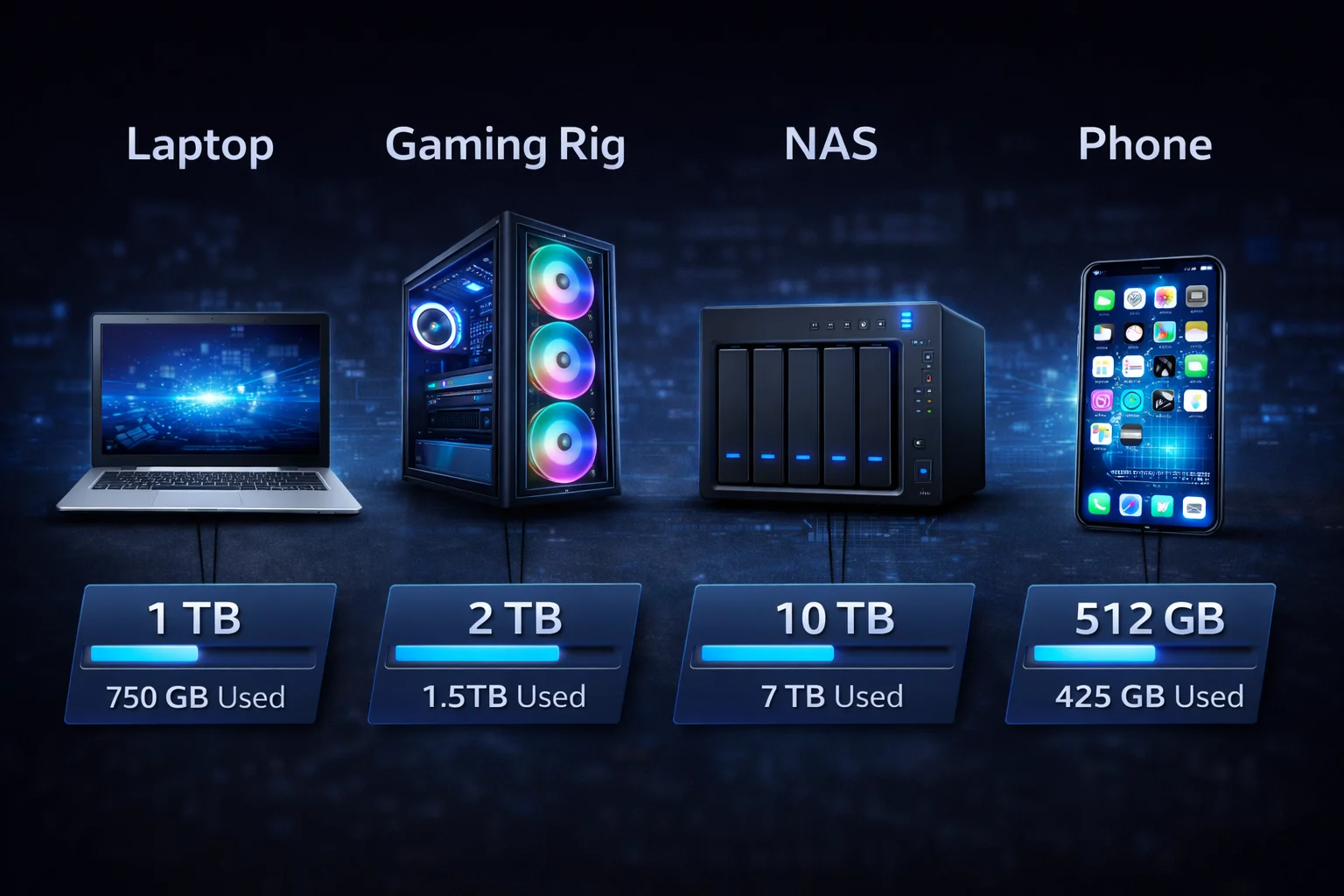
“Low disk space” might be the most frustrating notification in computing. It always seems to appear right when you’re trying to download something important, install a game, or save a critical file.
The solution isn’t just “buy the biggest drive available.” Storage costs money, and paying for capacity you’ll never use is wasteful. The real answer depends on how you actually use your computer—and that varies wildly from person to person.
This guide breaks down storage needs by use case, helping you figure out exactly how much capacity you need without overspending or running out of space six months from now.
Quick Recommendations by User Type
If you’re in a hurry, here’s the short version:
| User Type | Recommended Storage | Why |
|---|---|---|
| Basic user | 256GB SSD | Web browsing, documents, light apps |
| Student/Professional | 512GB SSD | Office apps, moderate file storage |
| Gamer | 1TB–2TB NVMe SSD | Modern games are 50–150GB each |
| Content Creator | 2TB+ NVMe + external storage | Video projects consume massive space |
| Home Server/NAS | 8TB–16TB+ (HDD) | Media libraries, backups, redundancy |
| Data Hoarder | 20TB+ across multiple drives | Massive collections, long-term archiving |
Now let’s dig into the details.
Understanding Your Actual Storage Usage
Before buying storage, figure out what you’re actually storing. Here’s how much space common file types consume:
Documents and Work Files
| File Type | Typical Size | How Many Fit in 100GB |
|---|---|---|
| Word document | 50KB–500KB | 200,000+ |
| Excel spreadsheet | 100KB–5MB | 20,000+ |
| PDF document | 500KB–10MB | 10,000+ |
| PowerPoint presentation | 5MB–50MB | 2,000+ |
| Email (with attachments) | 100KB–5MB | 20,000+ |
Bottom line: Documents alone rarely demand much storage. Even a massive document library fits comfortably in 10–20GB.
Photos
| Photo Type | Typical Size | How Many Fit in 100GB |
|---|---|---|
| Smartphone JPEG | 3–5MB | 20,000–33,000 |
| High-res JPEG | 8–15MB | 6,600–12,500 |
| RAW photo | 25–50MB | 2,000–4,000 |
| ProRAW (iPhone) | 25–35MB | 2,800–4,000 |
Bottom line: Casual photographers can store years of photos in 50GB. Serious photographers shooting RAW need significantly more—hundreds of gigabytes or multiple terabytes for professional work.
Video
| Video Type | Size per Hour | How Many Hours in 1TB |
|---|---|---|
| 1080p compressed (streaming) | 2–4GB | 250–500 hours |
| 1080p high quality | 8–15GB | 65–125 hours |
| 4K compressed | 7–10GB | 100–140 hours |
| 4K high quality | 20–40GB | 25–50 hours |
| 4K RAW footage | 100–200GB | 5–10 hours |
Bottom line: Video is the biggest storage hog. A single hour of uncompressed 4K footage can exceed 100GB. Video editors and content creators need terabytes of fast storage.
Music
| Format | Typical Size | Songs per 100GB |
|---|---|---|
| MP3 (320kbps) | 8–10MB | 10,000–12,500 |
| FLAC (lossless) | 25–50MB | 2,000–4,000 |
| Hi-Res audio | 100–200MB | 500–1,000 |
Bottom line: Even large music libraries fit easily on modern drives. 10,000 songs in high-quality MP3 takes about 100GB.
Games
This is where storage demands have exploded. Modern games are enormous:
| Game | Install Size |
|---|---|
| Call of Duty: MW3 + Warzone | 150–200GB |
| Baldur’s Gate 3 | 150GB |
| GTA V | 100–120GB |
| Cyberpunk 2077 | 70GB |
| Elden Ring | 50GB |
| Fortnite | 90GB |
| FIFA/EA Sports FC | 50GB |
| Average AAA title | 50–100GB |
| Average indie game | 1–10GB |
Game file sizes increase roughly 6–8GB per year on average. A 500GB drive that felt spacious in 2020 struggles to hold five modern AAA titles today. Plan for future growth when choosing storage.
Storage Recommendations by Use Case
Basic Home/Office Use
Recommended: 256GB–512GB SSD
If you primarily browse the web, check email, use office applications, and store some documents and photos, you don’t need massive storage. The operating system consumes about 30–50GB, leaving plenty of room for applications and files.
This capacity works for:
- Web browsing and email
- Microsoft Office or Google Workspace
- Light photo storage (with cloud backup)
- Streaming media (Netflix, Spotify—no local storage needed)
- Video calls and basic productivity
Upgrade to 512GB if you:
- Keep many photos locally
- Install several large applications
- Prefer not to rely heavily on cloud storage
If you use Google Drive, iCloud, or OneDrive, you can offload photos, documents, and less-frequently accessed files to the cloud. This lets you get by with less local storage while maintaining access to everything. Learn more about terabyte storage costs to compare cloud vs. local options.
Students
Recommended: 256GB–512GB SSD
Most students do fine with 256GB, especially if using cloud storage for assignments and backups. The main storage demands are:
- Operating system: 30–50GB
- Office/productivity apps: 5–10GB
- Course materials and notes: 5–20GB
- Personal photos and files: 20–50GB
Upgrade to 512GB or 1TB if you’re studying:
- Engineering (CAD software is large)
- Video production or film
- Computer science (development tools, virtual machines)
- Architecture or 3D design
- Any field requiring specialized software
Professionals (General Office Work)
Recommended: 512GB–1TB SSD
Business users typically need more breathing room than basic home users. Large email archives, extensive document libraries, and multiple business applications add up.
512GB handles:
- Substantial document libraries
- Multiple business applications
- Moderate email archives
- Presentation files with embedded media
1TB handles:
- Very large email archives
- Extensive project files
- Multiple virtual machines
- Local copies of shared drive content
Gaming
Recommended: 1TB–2TB NVMe SSD (minimum)
Gaming has the most aggressive storage demands of any common use case. Here’s the math:
- Operating system: 50GB
- Essential apps (Discord, browsers, etc.): 10GB
- Game launcher clients: 5GB
- Games: Everything else
With a 1TB drive, you have roughly 900GB for games after system overhead. That’s:
- 9 large AAA games (at 100GB average), or
- 18 medium games (at 50GB average), or
- A mix of both with some room to spare
Samsung 990 Pro 2TB
7,450 MB/s Read | PCIe 4.0 NVMe
Fast enough for any game, reliable enough for daily use. The sweet spot for most gaming builds.
The 2TB sweet spot: For serious gamers with large libraries, 2TB drives provide the best balance. You can keep 15–25 games installed without constant management, and prices have dropped significantly.
4TB and beyond: If you have a massive Steam library, play lots of different games, or hate deleting anything, consider 4TB drives or a tiered storage approach (fast SSD for current games + large HDD for cold storage).
Console gaming: The PS5 and Xbox Series X face similar constraints. Their internal storage fills quickly, making expansion almost essential for anyone with more than a handful of games.
Content Creation (Video/Photo/Audio)
Recommended: 2TB NVMe SSD minimum + external/NAS storage
Content creators face unique storage challenges. You need both speed (for active projects) and capacity (for archives). A tiered approach works best:
Fast working storage (NVMe SSD):
- Active video projects
- Photos being edited
- Audio sessions in progress
- Applications and plugins
Archive storage (HDD or NAS):
- Completed projects
- Raw footage archives
- Backup copies
- Client deliverables
Video editing specifically:
- 1 hour of 1080p footage: 50–150GB
- 1 hour of 4K footage: 150–400GB
- 1 hour of 4K RAW: 500GB–1TB+
A single documentary project can easily consume 2TB. Professional video editors often work with 4TB+ of fast SSD storage plus 20TB+ of archive space.
For irreplaceable content, follow the 3-2-1 rule: 3 copies of your data, on 2 different types of storage, with 1 copy offsite. For creators, this typically means working SSD + local backup + cloud or offsite backup.
Home Server / NAS
Recommended: 8TB–32TB+ depending on use
NAS (Network Attached Storage) serves different purposes than a regular computer, which changes storage calculations significantly.
Light home use (4TB–8TB):
- Family photo backup
- Document storage
- Light media streaming
- Computer backups
Media-focused home (16TB–32TB):
- Large movie and TV libraries (4K content)
- Music collections (lossless)
- Security camera footage
- Multiple computer backups
Power user / Prosumer (32TB–100TB+):
- Professional media archives
- Video production storage
- Home lab / virtualization
- Business data
RAID considerations: NAS systems typically use RAID for redundancy, which reduces usable capacity. With RAID 1 (mirroring), you get half the raw capacity. RAID 5 loses one drive’s worth of capacity. Plan accordingly.
For NAS storage, enterprise drives like Seagate IronWolf, WD Red Plus, or Seagate Exos provide the reliability needed for 24/7 operation.
Data Archiving / Long-term Storage
Recommended: Large HDDs (8TB–20TB+)
For pure archival storage—family photo collections, video archives, music libraries, backups—HDDs still make the most economic sense.
The price per terabyte is lowest in the 8TB–12TB range, making these the sweet spot for bulk storage.
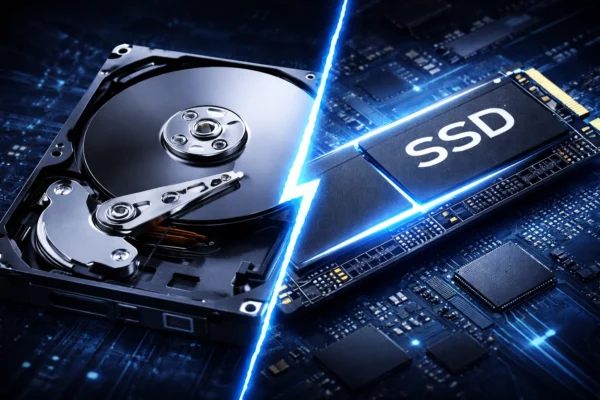
SSD vs HDD: Choosing the Right Type
Storage type matters as much as capacity. Here’s when to choose each:
Choose NVMe SSD When:
- It’s your primary/boot drive
- You’re gaming (load times matter)
- You’re editing video or photos
- You want fast application launches
- You need the best performance
Choose SATA SSD When:
- You want SSD speed on a budget
- Your system doesn’t support NVMe
- You’re upgrading an older laptop
- Speed matters but not maximum speed
Choose HDD When:
- You need maximum capacity for the money
- It’s for backup/archive storage
- Speed isn’t critical
- You’re building a NAS
For most users, the ideal setup combines a fast NVMe SSD for the operating system and active files with a larger HDD for archives and backups. This gives you the best of both worlds without breaking the bank.
Learn more about the differences in our SSD vs HDD comparison and NVMe vs SATA guide.
How to Calculate Your Personal Storage Needs
Here’s a practical formula for estimating your storage requirements:
Step 1: Start with the baseline
- Operating system: 50GB (Windows/macOS)
- Applications you use: 20–100GB depending on type
- Subtotal: 70–150GB (always allocated)
Step 2: Add your data
- Documents: Estimate your library size
- Photos: Count photos × average size (3–5MB for phone, 25–50MB for RAW)
- Videos: Hours × quality (2–200GB per hour)
- Music: Songs × format size
- Games: Count installed games × average size
Step 3: Add breathing room
- Never fill an SSD beyond 80–85% capacity (performance degrades)
- Add 20–30% buffer for system files, updates, and growth
Step 4: Plan for growth
- How much data do you add monthly?
- How long do you plan to keep this drive?
- Multiply monthly additions × months of expected use
Example calculation (Gamer):
- Base system: 75GB
- Applications: 25GB
- 10 AAA games @ 80GB average: 800GB
- Personal files: 50GB
- Total needed: 950GB
- Add 20% buffer: 1,140GB
- Recommendation: 2TB drive (leaves room for growth)
Frequently Asked Questions
For basic users who rely on cloud storage and primarily browse the web, yes. For anyone who installs many applications, games, or keeps large local file libraries, 512GB is a safer minimum.
Not anymore. 1TB has become the sweet spot for most users who don’t want to think about storage. Prices have dropped enough that the peace of mind is worth the modest extra cost versus 512GB.
Minimum 1TB, ideally 2TB. A single modern game like Call of Duty can exceed 150GB. With a 2TB drive, you can keep 15–25 games installed without constant management.
For most users, one adequately-sized drive is simpler. For power users, a tiered approach (fast SSD for active work + large HDD for archives) offers better value and performance.
Microsoft lists 64GB as the minimum, but that’s barely functional. A comfortable Windows 11 installation with updates and system files takes 40–50GB. Always plan for at least 100GB beyond your data needs.
Desktop PCs: Almost always yes, easily. Laptops: Many allow M.2 SSD upgrades; check your specific model. Phones/Tablets: Usually no—buy the right capacity upfront.
The Bottom Line
Here are the practical recommendations for 2026:
Absolute minimum: 256GB SSD (basic users only) Comfortable for most: 512GB SSD
Recommended for flexibility: 1TB SSD Gamers and creators: 2TB+ SSD NAS/Home server: 8TB+ HDD (with redundancy)
Storage is one area where buying slightly more than you need today prevents headaches tomorrow. The price difference between 512GB and 1TB is often just $30–50—cheap insurance against “low disk space” warnings.
When in doubt, go one tier up from what you think you need. Your future self will thank you.
Compare current storage prices →
Related:How Much Does a Terabyte Cost? | SSD vs HDD: Which to Choose | NVMe vs SATA Explained | Best PS5 SSDs
Last Updated: February 2026