Kingston NV2 Setup Guide: Clone, Install & Optimize

Quick Answer+
Kingston NV2 Setup in 4 Steps: (1) Install the NV2 in your M.2 slot at a 30° angle, secure with screw, (2) Download Acronis True Image for Kingston (free) from acronis.com/kingston to clone your old drive, (3) Install Kingston SSD Manager to update firmware and monitor health, (4) Verify TRIM is enabled and disable scheduled defragmentation. The NV2 delivers excellent value at up to 3,500 MB/s — perfect for budget builds and laptop upgrades.
Kingston NV2 Overview
The Kingston NV2 is a budget-friendly PCIe 4.0 NVMe SSD offering excellent value for everyday computing, gaming, and laptop upgrades. While it doesn’t match flagship speeds, its price-to-performance ratio makes it one of the best budget NVMe options available.
| Spec | Kingston NV2 |
|---|---|
| Interface | PCIe 4.0 x4 NVMe |
| Sequential Read | Up to 3,500 MB/s |
| Sequential Write | Up to 2,800 MB/s |
| Capacities | 250GB, 500GB, 1TB, 2TB, 4TB |
| Form Factor | M.2 2280 |
| NAND Type | QLC (varies by batch) |
| DRAM Cache | No (DRAM-less) |
| Warranty | 3 years |
| Product | Capacity | Price | $ / TB | Price Drop | Brand | Interface |
|---|
Step 1: Physical Installation
Desktop Installation
- Power off your PC completely and unplug the power cable
- Ground yourself by touching the metal case to discharge static
- Locate the M.2 slot on your motherboard (check manual if unsure)
- Remove the M.2 screw and heatsink (if present)
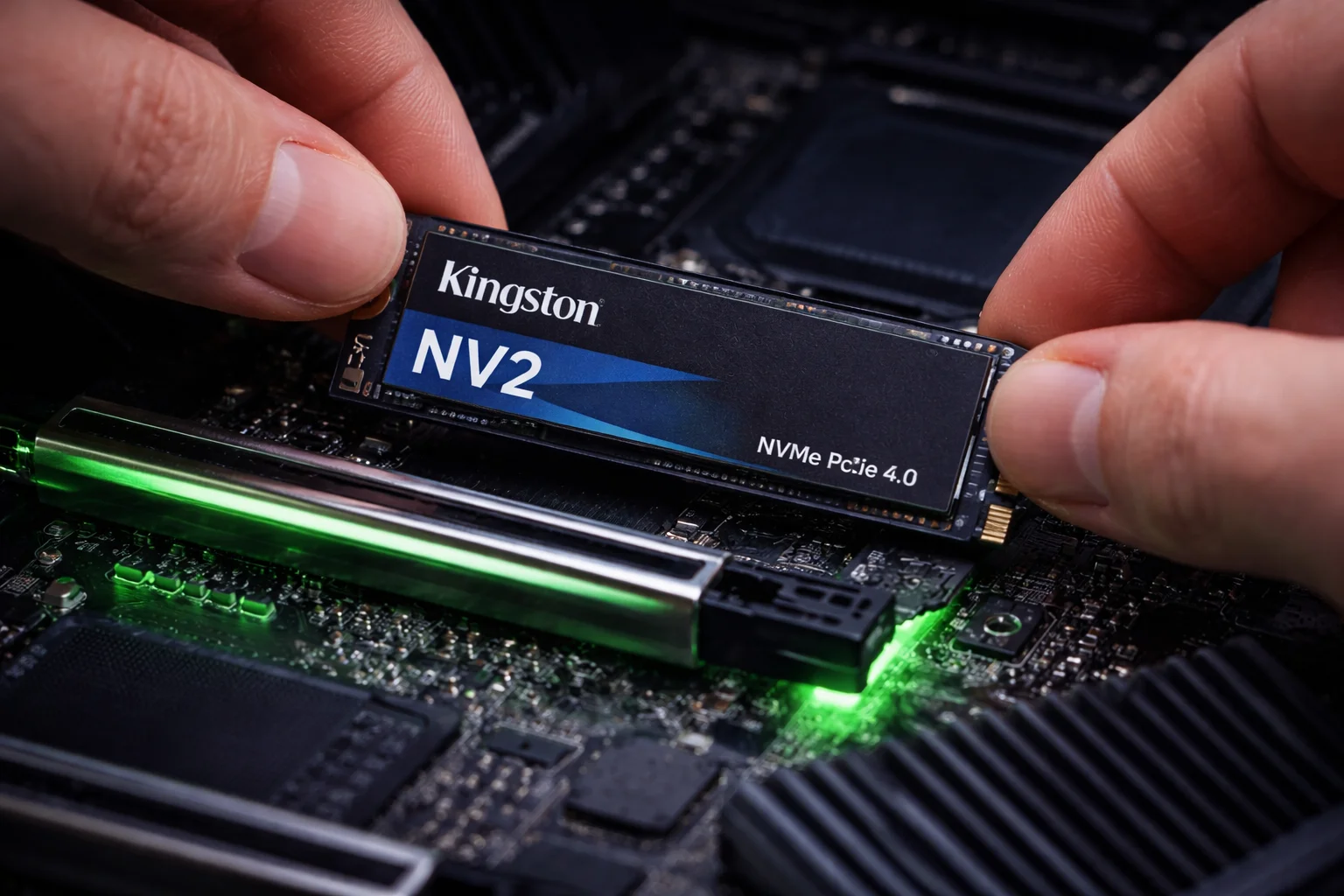
- Insert the NV2 at a 30-degree angle into the slot
- Press down gently and secure with the M.2 screw
- Replace heatsink if your motherboard has one (recommended for sustained performance)
Laptop Installation
- Power off and unplug your laptop
- Remove the battery if possible (or ensure laptop is fully off)
- Remove the back panel (usually 6-10 screws)
- Locate the M.2 slot — often near the battery or under a metal shield
- Install the NV2 at 30° angle, secure with screw
- Reassemble the laptop
Important: The Kingston NV2 uses the M.2 2280 form factor (22mm wide, 80mm long). Verify your laptop supports this size — some ultrabooks use shorter 2242 or 2230 drives.
Step 2: Clone Your Old Drive (Optional)
If you’re migrating from an existing drive, clone it to avoid reinstalling Windows.
Download Acronis True Image for Kingston
Download:acronis.com/kingston (free, no activation key needed)
Clone Process
- Connect both drives (old drive + NV2) simultaneously
- Launch Acronis True Image for Kingston
- Click Tools → Clone Disk
- Select Automatic mode
- Choose source drive (your old drive)
- Choose destination drive (Kingston NV2)
- Click Proceed and wait for completion
- Shut down, remove old drive, boot from NV2
For detailed cloning instructions, see our Kingston Clone Guide.
Step 3: Fresh Windows Installation (Alternative)
If you prefer a clean install instead of cloning:
- Create Windows installation USB using Microsoft’s Media Creation Tool
- Boot from USB (press F12, F2, or DEL during startup for boot menu)
- Select the Kingston NV2 as the installation destination
- Complete Windows setup
- Install drivers from your motherboard manufacturer’s website
Step 4: Firmware Update
Always update firmware after installing a new SSD.
Install Kingston SSD Manager
Download:kingston.com/ssdmanager
- Install and launch Kingston SSD Manager
- Select your NV2 from the drive list
- Click Firmware tab
- If an update is available, click Update Firmware
- Do not power off during the update process
- Reboot when complete
Step 5: Optimization Settings
Verify TRIM is Enabled
TRIM helps maintain SSD performance over time. To verify it’s enabled:
- Open Command Prompt as Administrator
- Run:
fsutil behavior query DisableDeleteNotify - If the result is 0, TRIM is enabled (good)
- If the result is 1, enable TRIM with:
fsutil behavior set DisableDeleteNotify 0
Check Defragmentation Settings
SSDs should NOT be defragmented — it’s unnecessary and can reduce lifespan.
- Search for “Defragment and Optimize Drives” in Windows
- Select your Kingston NV2
- It should show as “Solid state drive” with optimization type as “TRIM”
- Windows 10/11 automatically handles this correctly for SSDs
Power Settings (Laptops)
For laptops, ensure NVMe power management is balanced:
- Open Power Options
- Click Change plan settings → Change advanced power settings
- Expand PCI Express → Link State Power Management
- Set to Moderate power savings for balance between performance and battery life
Performance Expectations
The Kingston NV2 is a budget drive — here’s what to realistically expect:
| Benchmark | Typical Results |
|---|---|
| Sequential Read | 3,200 – 3,500 MB/s |
| Sequential Write | 2,500 – 2,800 MB/s |
| Random Read (4K) | ~300,000 IOPS |
| Random Write (4K) | ~250,000 IOPS |
| Windows Boot Time | 10-15 seconds |
| Game Load Times | Similar to flagship SSDs |
Note: The NV2 uses QLC NAND and lacks DRAM cache, so sustained write performance drops after the SLC cache fills (typically after 10-30GB of continuous writing). For everyday use, you won’t notice this limitation.
Kingston NV2 vs KC3000: Which to Choose?
| Feature | Kingston NV2 | Kingston KC3000 |
|---|---|---|
| Price (1TB) | ~$50-60 | ~$80-100 |
| Sequential Read | 3,500 MB/s | 7,000 MB/s |
| Sequential Write | 2,800 MB/s | 7,000 MB/s |
| NAND Type | QLC | TLC |
| DRAM Cache | No | Yes |
| Warranty | 3 years | 5 years |
| Best For | Budget builds, laptops | Gaming PCs, workstations |
Choose NV2 if: Budget is priority, everyday computing, web browsing, light gaming, laptop upgrade from HDD.
Choose KC3000 if: Maximum performance matters, heavy gaming, content creation, professional work, longer warranty needed.
Troubleshooting Common Issues
Drive Not Detected in BIOS
- Reseat the NV2 — remove and reinstall
- Try a different M.2 slot if available
- Update motherboard BIOS
- Check if M.2 slot is disabled in BIOS settings
Drive Not Showing in Windows
- Open Disk Management (right-click Start button)
- The NV2 may appear as “Not Initialized”
- Right-click and select Initialize Disk (choose GPT)
- Right-click unallocated space and Create New Simple Volume
Slow Performance After Installation
- Verify you’re using a PCIe 4.0 or 3.0 x4 slot (not SATA M.2)
- Update firmware via Kingston SSD Manager
- Check that TRIM is enabled
- Verify Windows is in AHCI mode (not IDE) in BIOS
Frequently Asked Questions
Yes, the NV2 is excellent for gaming. Game load times depend more on random read performance than sequential speeds, and the NV2 performs well here. You won’t notice a meaningful difference in game loads between the NV2 and drives costing twice as much.
Not required, but recommended for sustained workloads. The NV2 runs relatively cool for light use. If your motherboard includes an M.2 heatsink, use it. For heavy file transfers or sustained gaming sessions, a heatsink prevents thermal throttling.
Yes, the NV2 is backward compatible. It will work in PCIe 3.0 slots but at reduced speeds (approximately 3,500 MB/s max). You’ll still see a massive improvement over SATA SSDs or HDDs.
Technically yes, but not recommended. The PS5 requires minimum 5,500 MB/s read speed. The NV2 maxes out at 3,500 MB/s, which doesn’t meet Sony’s requirements. Games may not load properly. Use the Kingston KC3000 or other PS5-compatible SSDs instead.
The NV2 is rated for 160-640 TBW depending on capacity (1TB = 320 TBW). For typical consumer use of 20-40 TB written per year, this translates to 8-16 years of lifespan. The 3-year warranty covers defects during normal use.
Kingston uses different controller and NAND configurations across NV2 production runs — a practice common with budget SSDs. While specs remain within advertised ranges, exact components may vary. For guaranteed consistent components, consider the KC3000 instead.
Related Kingston Guides
- Kingston KC3000 Clone Guide — Premium SSD migration
- Kingston SSD Manager vs Acronis — Which tool to use
- Kingston Acronis True Image Guide — Free cloning software
- All Kingston SSDs — Compare Kingston prices
- Best Budget SSDs 2026 — Top affordable picks
- NVMe vs SATA SSD — Interface comparison
Last Updated: February 2026 | Tested with Kingston NV2 1TB