NVIDIA Control Panel Best Settings 2026 | Gaming Optimization Guide

Quick Answer+
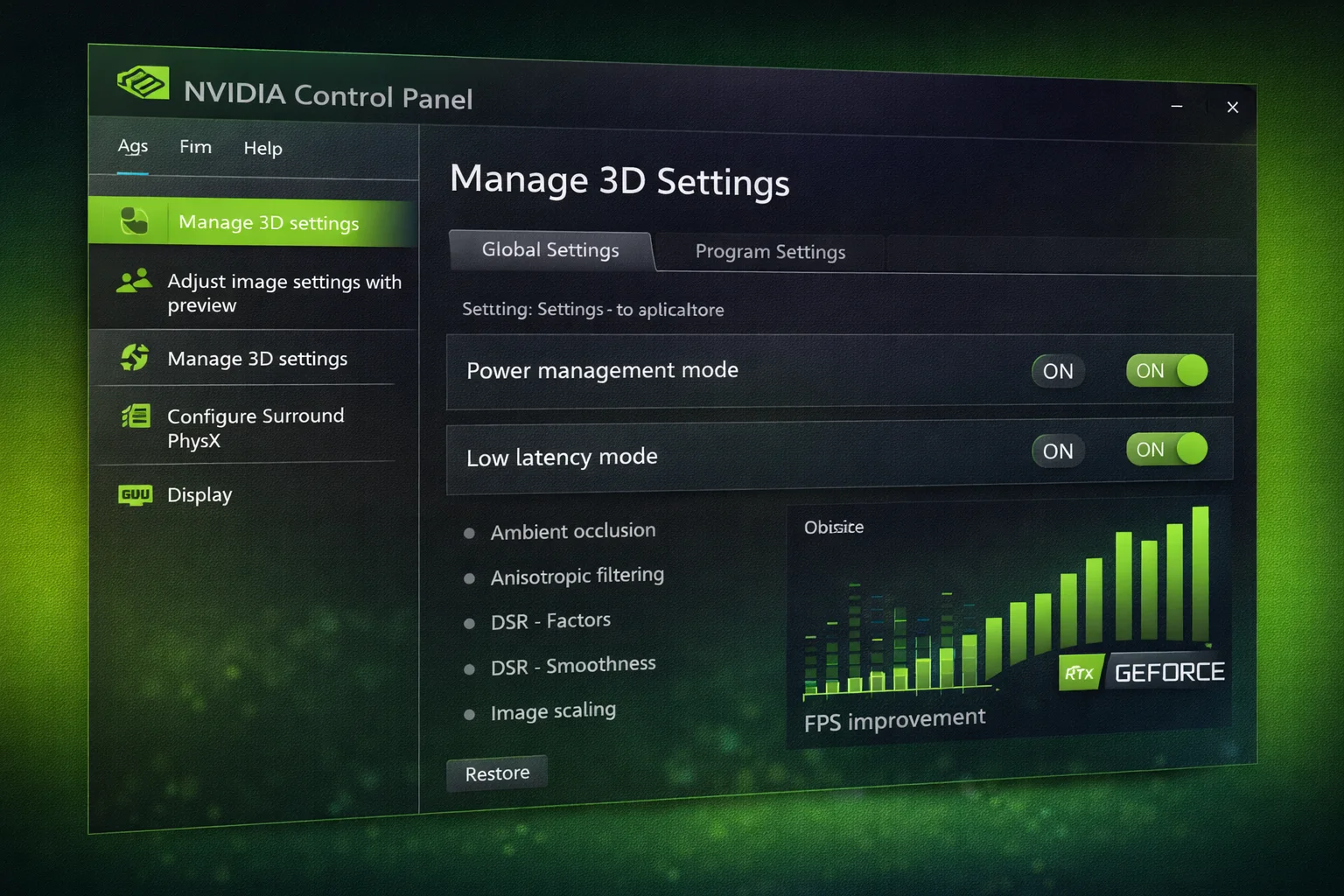
Quick Answer: For optimal gaming, set Power Management to Prefer Maximum Performance, Texture Filtering Quality to High Performance, Low Latency Mode to On (or Off if using in-game Reflex), and V-Sync to Off globally. Create game-specific profiles for titles requiring special settings.
The NVIDIA Control Panel is a powerful tool for optimizing your gaming experience, but its dozens of settings can be overwhelming. Many options have minimal impact, while others can dramatically affect performance and visual quality. This guide cuts through the confusion with clear, tested recommendations.
We’ll cover global settings for all games, game-specific profiles, display configuration, and troubleshooting common issues. Whether you’re maximizing FPS for esports or optimizing quality for cinematic games, this guide has you covered. Use our FPS Calculator to estimate your performance gains, or check our Bottleneck Calculator to ensure your system is balanced.
Recommended NVIDIA GPUs for Gaming
Before optimizing your NVIDIA Control Panel settings, make sure you have a capable GPU to get the most out of these tweaks:
NVIDIA GeForce RTX 5080 Founders Edition
16GB GDDR7, DLSS 4, 4th Gen RT Cores
The RTX 5080 delivers flagship-class performance with DLSS 4 Multi Frame Generation. Exceptional for 1440p 144Hz+ and 4K gaming. These Control Panel settings help maximize every frame this powerful GPU can deliver.
ASUS Dual RTX 4070 Super EVO OC
12GB GDDR6X, DLSS 3, NVIDIA Reflex
The RTX 4070 Super is the sweet spot for 1440p gaming. Optimizing Control Panel settings can squeeze an extra 5-15% performance from this card while reducing input latency with NVIDIA Reflex.
ASUS Dual RTX 4060 EVO OC
8GB GDDR6, DLSS 3, Efficient
For 1080p gaming, the RTX 4060 benefits significantly from proper Control Panel optimization. These settings help maintain stable frame rates in demanding titles while enabling ray tracing.
Accessing NVIDIA Control Panel
There are several ways to open NVIDIA Control Panel:
- Right-click desktop → NVIDIA Control Panel
- Search “NVIDIA Control Panel” in Windows Start menu
- System tray → Right-click NVIDIA icon → NVIDIA Control Panel
Note: If you don’t see NVIDIA Control Panel, ensure you have the full driver installed (not just DCH/UWP driver from Windows Update). Download the complete driver from nvidia.com.
Manage 3D Settings: Global Settings
Global settings apply to all applications. Set these first, then create game-specific profiles for exceptions.
Optimal Global Settings
| Setting | Recommended Value | Explanation |
|---|---|---|
| Image Sharpening | Off | Use in-game sharpening instead |
| Ambient Occlusion | Off | Let games control this |
| Anisotropic Filtering | Application-controlled | Modern games handle this well |
| Antialiasing – FXAA | Off | Causes blur; use in-game AA |
| Antialiasing – Gamma Correction | Off | Rarely needed |
| Antialiasing – Mode | Application-controlled | Let games manage AA |
| Antialiasing – Transparency | Off | Performance cost not worth it |
| Background Application Max Frame Rate | 30 | Saves power when alt-tabbed |
| CUDA – GPUs | All | Use all available GPUs |
| DSR – Factors | Off | Use only if specifically needed |
| Low Latency Mode | On | Reduces input lag |
| Max Frame Rate | Off | Use in-game limiter instead |
| Monitor Technology | G-SYNC Compatible | If you have compatible monitor |
| Multi-Frame Sampled AA | Off | Very demanding; rarely needed |
| OpenGL Rendering GPU | Your GPU | Select primary GPU |
| Power Management Mode | Prefer Maximum Performance | Prevents clock throttling |
| Preferred Refresh Rate | Highest Available | Use monitor’s max refresh |
| Shader Cache Size | Unlimited | Reduces shader compilation stutter |
| Texture Filtering – Anisotropic Sample | On | Improves texture quality |
| Texture Filtering – Negative LOD Bias | Allow | Standard behavior |
| Texture Filtering – Quality | High Performance | Minor quality loss, FPS gain |
| Texture Filtering – Trilinear Optimization | On | Performance improvement |
| Threaded Optimization | On | Better CPU utilization |
| Triple Buffering | Off | Only useful with V-Sync |
| Vertical Sync | Off | Use G-SYNC or in-game cap instead |
| Virtual Reality Pre-Rendered Frames | 1 | Lower latency for VR |
Critical Settings Explained
Power Management Mode (Prefer Maximum Performance): This is the most important performance setting. “Optimal Power” and “Adaptive” allow the GPU to downclock, causing stuttering and reduced FPS. Maximum Performance keeps clocks high for consistent frame rates.
Low Latency Mode (On): Reduces the render queue, decreasing input lag by 10-20ms. Use “On” rather than “Ultra”—Ultra can reduce FPS in CPU-limited scenarios. If a game has NVIDIA Reflex, set this to “Off” to avoid conflicts.
Texture Filtering – Quality (High Performance): Provides slightly less precise texture filtering for meaningful FPS gains. The visual difference is negligible in most games.
Shader Cache Size (Unlimited): Allows the driver to cache more compiled shaders, reducing stuttering when revisiting areas or restarting games. Uses disk space but improves experience.
Threaded Optimization (On): Enables multi-threaded rendering, improving performance on multi-core CPUs. Leave on unless troubleshooting specific game issues.
Vertical Sync (Off): V-Sync adds significant input lag (16-50ms). Disable globally and use G-SYNC, FreeSync, or in-game frame caps instead.
Game-Specific Profiles
Create profiles for games that need different settings than your global defaults.
Creating a Game Profile
- Go to Manage 3D Settings → Program Settings
- Click “Add” and select the game executable
- Adjust settings for that specific game
Esports Games (Valorant, CS2, Fortnite)
For competitive games where input lag and FPS matter most:
| Setting | Value |
|---|---|
| Low Latency Mode | Off (use in-game Reflex) |
| Max Frame Rate | Off |
| Power Management Mode | Prefer Maximum Performance |
| Texture Filtering – Quality | High Performance |
| Vertical Sync | Off |
| Triple Buffering | Off |
| Threaded Optimization | On |
AAA Single-Player Games (Cyberpunk, Hogwarts, Spider-Man)
For cinematic games where visual quality matters more:
| Setting | Value |
|---|---|
| Low Latency Mode | Off (if using DLSS Frame Gen) |
| Max Frame Rate | Off or Monitor Hz |
| Power Management Mode | Prefer Maximum Performance |
| Texture Filtering – Quality | Quality |
| Anisotropic Filtering | 16x |
| Vertical Sync | Off (use G-SYNC) |
Older/Problematic Games
For games with compatibility issues:
| Setting | Value |
|---|---|
| Threaded Optimization | Off (if crashing) |
| Power Management Mode | Adaptive (if overheating) |
| Max Frame Rate | 60 (if physics tied to FPS) |
| Antialiasing – Mode | Override (for old games) |
Display Configuration
Change Resolution
Configure your monitor’s resolution and refresh rate:
- Select your monitor
- Choose highest native resolution
- Select highest refresh rate available
- Use “NVIDIA color settings” for output color format
Adjust Desktop Color Settings
For accurate colors:
- Digital Vibrance: 50% default (increase for more saturated colors in competitive games)
- Gamma: 1.00 (default)
- Color Accuracy: Use defaults unless calibrating monitor
Adjust Desktop Size and Position
Critical for proper scaling:
| Setting | Recommended | Use Case |
|---|---|---|
| Scaling Mode | No Scaling | Native resolution gaming |
| Scaling Mode | Full-screen | 4:3 stretched resolution |
| Scaling Mode | Aspect Ratio | Black bars for non-native |
| Perform Scaling On | GPU | Lower latency than display |
| Override scaling | Check if needed | For stretched resolutions |
G-SYNC Configuration
If you have a G-SYNC or G-SYNC Compatible monitor, proper configuration is essential.
Set Up G-SYNC
- Display → Set up G-SYNC
- Enable “G-SYNC, G-SYNC Compatible”
- Select “Enable for full screen mode” (or windowed if needed)
- Select your monitor
Optimal G-SYNC Settings
For best results with G-SYNC:
- In-Game V-Sync: Off
- NVIDIA Control Panel V-Sync: On (prevents tearing above refresh rate)
- In-Game FPS Cap: 3 FPS below refresh rate (prevents V-Sync kicking in)
- Low Latency Mode: On
This configuration provides tear-free gameplay with minimal input lag. The FPS cap ensures you stay in G-SYNC range without triggering V-Sync latency.
Video Settings
Adjust Video Color Settings
For HDR and video playback:
- Color Range: Full (0-255) for PC monitors
- Color Range: Limited (16-235) for TVs
- Dynamic Range: Full for HDR content
Adjust Video Image Settings
Leave at defaults unless experiencing video playback issues. Edge enhancement should typically be off to avoid artifacts.
Advanced Settings
DSR (Dynamic Super Resolution)
DSR renders games at higher resolution then downsamples. Useful for:
- 1080p monitors wanting better AA
- Games without good in-game AA
- Screenshot capture
Recommended DSR Factors:
- 1.78x (1440p on 1080p): Good balance
- 4x (4K on 1080p): Maximum quality, high performance cost
Set DSR Smoothness to 33% to reduce shimmering.
Image Sharpening
NVIDIA’s sharpening filter can improve clarity, especially with upscaling:
- Sharpen: 0.50 is a good starting point
- Ignore Film Grain: 0.17 reduces over-sharpening noise
However, in-game sharpening (when available) or DLSS sharpening often produces better results. Use NVIDIA sharpening only when games lack these options.
Performance Tips
Maximum FPS Configuration
For absolute maximum FPS in esports titles:
- Power Management: Prefer Maximum Performance
- Texture Filtering Quality: High Performance
- Threaded Optimization: On
- Low Latency Mode: On (or Off with in-game Reflex)
- V-Sync: Off
- All AA options: Off or Application-controlled
- Shader Cache: Unlimited
Minimum Latency Configuration
For lowest possible input lag:
- Low Latency Mode: Ultra (or Off with Reflex)
- V-Sync: Off everywhere
- Max Frame Rate: Off or set to prevent GPU saturation
- Power Management: Prefer Maximum Performance
- Pre-Rendered Frames: 1 (in older drivers)
Maximum Quality Configuration
For best visuals in single-player games:
- Texture Filtering Quality: Quality
- Anisotropic Filtering: 16x
- Antialiasing: Override if game AA is poor
- DSR: Enable desired factors
- Shader Cache: Unlimited
Troubleshooting
Settings Not Applying
- Click “Apply” after making changes
- Ensure correct game executable is selected in profile
- Restart game after changing settings
- Run game in true fullscreen (not borderless)
Control Panel Missing Options
- Install full Game Ready driver from nvidia.com
- Don’t use Windows Update for GPU drivers
- Perform clean driver installation with DDU
Game Crashes After Changes
- Try disabling Threaded Optimization
- Set Antialiasing to Application-controlled
- Reset profile to defaults
- Update or rollback GPU drivers
Stuttering Issues
- Set Shader Cache to Unlimited
- Enable Threaded Optimization
- Set Power Management to Maximum Performance
- Check CPU/GPU temperatures
Frequently Asked Questions
Power Management to Maximum Performance, Low Latency Mode On, V-Sync Off, Texture Filtering Quality to High Performance, and Shader Cache to Unlimited. Create game-specific profiles for exceptions.
Use ‘On’ rather than ‘Ultra’. Ultra can reduce FPS in CPU-limited scenarios. If a game has NVIDIA Reflex, set Low Latency Mode to Off and use Reflex instead.
V-Sync adds 16-50ms of input lag. Use G-SYNC/FreeSync for tear-free gaming, or cap FPS in-game. Only enable V-Sync if you have no other option for screen tearing.
It controls GPU clock speeds. ‘Optimal Power’ lets GPU downclock, causing stutters. ‘Maximum Performance’ keeps clocks high for consistent FPS. Always use Maximum Performance for gaming.
Prefer in-game settings when available—they’re optimized for that specific game. Use NVIDIA Control Panel for global defaults and games lacking certain options.
Enable G-SYNC (if available), cap FPS 3 below refresh rate, or use NVIDIA Reflex. These methods reduce tearing without V-Sync’s input lag penalty.
Shader Cache stores compiled shaders to reduce stuttering. Set to ‘Unlimited’ for best results—it uses disk space but significantly improves performance consistency.
Enable G-SYNC in Control Panel, set V-Sync to On in Control Panel, disable V-Sync in-game, and cap FPS 3 below your refresh rate in-game. This provides tear-free, low-latency gaming.
Conclusion
Proper NVIDIA Control Panel configuration can meaningfully improve your gaming experience. The most impactful changes are Power Management Mode, Low Latency Mode, V-Sync settings, and Shader Cache. Set these correctly as global defaults, then create game-specific profiles for titles that need different configurations.
Remember that in-game settings generally take priority—NVIDIA Control Panel is for defaults and games lacking certain options. Use our FPS Calculator to estimate your performance with different configurations.
Related Resources
- FPS Calculator
- Bottleneck Calculator
- Cyberpunk 2077 Best Settings
- Valorant Best Settings
- Fortnite Best Settings
- Best GPU for 1440p 144Hz
Last Updated: February 2026