NVMe SSD Temperature Guide for NAS: Safe Ranges, Monitoring & Optimization

Quick Answer+
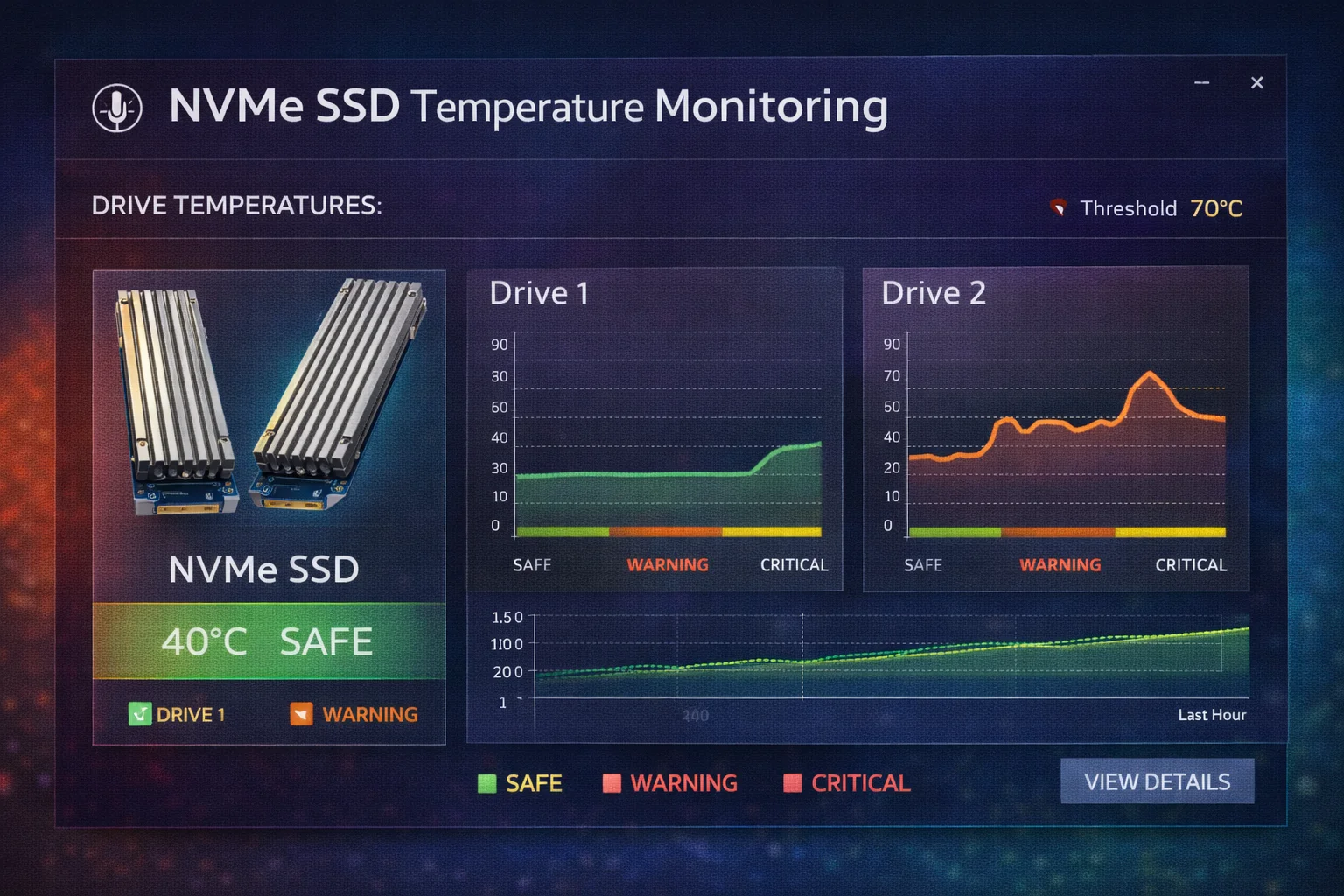
Quick Answer: Ideal NVMe SSD temperatures in NAS devices are 30-50°C at idle and 50-70°C under load. Most NAS operating systems trigger warnings at 70°C and may disable drives at 75-80°C. Consumer NVMe drives like the Samsung 990 Pro often hit 75°C+ in NAS enclosures without heatsinks—a $7 heatsink typically drops temperatures 15-20°C into safe ranges.
Understanding NVMe SSD temperatures in your NAS isn’t just about avoiding scary warning messages—it’s about protecting your data, maintaining performance, and extending drive lifespan. NAS environments present unique thermal challenges that desktop PC users never face.
This guide covers everything you need to know about NVMe temperatures in NAS devices: safe operating ranges, how to monitor temperatures, what causes overheating, and how to keep your drives running cool.
NVMe SSD Temperature Ranges Explained
Operating Temperature Classifications
| Temperature Range | Classification | Performance Impact | Action Needed |
|---|---|---|---|
| 25-40°C | ✅ Excellent | Optimal performance | None—ideal range |
| 40-50°C | ✅ Good | Normal performance | None—acceptable |
| 50-60°C | ✅ Acceptable | Normal performance | Monitor periodically |
| 60-70°C | ⚠️ Warm | May begin throttling | Consider cooling |
| 70-80°C | ⚠️ Hot | Throttling likely | Add heatsink urgently |
| 80°C+ | 🔴 Critical | Severe throttling/shutdown | Immediate action required |
NAS Operating System Thermal Thresholds
Different NAS operating systems handle thermal management differently:
| NAS OS | Warning Threshold | Critical/Shutdown | Behavior |
|---|---|---|---|
| Synology DSM | ~70°C | ~80°C | Warning → Cache disable → Shutdown |
| QNAP QTS | ~70°C | ~80°C | Warning → Throttle → Cache disable |
| ASUSTOR ADM | ~70°C | ~80°C | Warning → Performance reduction |
| TerraMaster TOS | ~70°C | ~80°C | Warning → Throttle |
| UGREEN UGOS | ~70°C | ~80°C | Warning → Cache disable |
Key insight: Most NAS operating systems use 70°C as the warning threshold and 80°C as the critical point. This is more conservative than SSD manufacturer specifications because NAS devices run 24/7 and thermal damage accumulates over time.
Temperature by PCIe Generation
Faster drives run hotter—each PCIe generation increases both performance and thermal output:
| Generation | Max Speed | Typical Idle (NAS) | Typical Load (NAS) | Heatsink Priority |
|---|---|---|---|---|
| PCIe Gen3 | ~3,500 MB/s | 35-45°C | 55-65°C | Recommended |
| PCIe Gen4 | ~7,500 MB/s | 40-55°C | 65-80°C | Strongly recommended |
| PCIe Gen5 | ~14,000 MB/s | 50-60°C | 75-95°C | Essential |
Why NAS Environments Run Hotter
NVMe drives in NAS devices face thermal challenges that desktop users don’t encounter:
NAS-Specific Thermal Challenges
- Limited airflow: M.2 slots are typically in enclosed areas with minimal air movement
- Compact enclosures: NAS devices prioritize space efficiency over thermal headroom
- 24/7 operation: Continuous runtime means heat accumulates without cool-down periods
- Bottom/rear mounting: M.2 slots often placed away from primary airflow paths
- HDD heat radiation: Nearby spinning drives add ambient heat to the enclosure
- SSD cache workloads: Cache drives experience continuous read/write operations
- No dedicated SSD cooling: Unlike gaming PCs, NAS devices lack M.2 heatsink provisions
Temperature Comparison: NAS vs Desktop
| Scenario | Desktop PC | NAS Device | Difference |
|---|---|---|---|
| Samsung 990 Pro Idle | 38-42°C | 48-55°C | +10-13°C |
| Samsung 990 Pro Load | 62-68°C | 72-82°C | +10-14°C |
| WD Red SN700 Idle | 32-36°C | 40-46°C | +8-10°C |
| WD Red SN700 Load | 52-58°C | 60-68°C | +8-10°C |
The data shows NAS environments add 8-14°C to typical SSD operating temperatures. This pushes drives that run fine in desktop PCs into warning territory in NAS enclosures.
How to Monitor NVMe Temperatures
Synology DSM
- Open Storage Manager from the main menu
- Navigate to HDD/SSD section
- Select your M.2 drive from the list
- Click Health Info to view temperature
- For continuous monitoring, use Resource Monitor widget
QNAP QTS
- Open Storage & Snapshots
- Navigate to Disks/VJBOD
- Click on your M.2 drive
- Temperature displays in the disk details panel
- Enable notifications in Control Panel → Notification Center
ASUSTOR ADM
- Open Storage Manager
- Select your volume containing M.2 drives
- View disk information including temperature
- Configure alerts in Settings → Notification
What Happens When SSDs Overheat
Thermal Throttling
When NVMe drives exceed safe temperatures, the controller implements thermal throttling:
- Performance reduction: Sequential speeds can drop from 7,000 MB/s to under 1,000 MB/s
- Increased latency: Response times spike significantly
- Cache effectiveness drops: SSD cache can’t accelerate HDD access when throttled
- Write operations delayed: Sustained writes queue up waiting for cooling
Long-Term Effects of High Temperatures
- Accelerated NAND wear: High temperatures increase write amplification and cell degradation
- Reduced data retention: Hot NAND cells lose charge faster
- Shorter lifespan: Drives running 80°C+ may fail years earlier than cooled drives
- Firmware instability: Some controllers behave erratically at thermal extremes
NVMe Drives by Thermal Profile
Hot-Running Drives (Heatsink Essential)
| Drive | Idle (NAS) | Load (NAS) | Heatsink Priority |
|---|---|---|---|
| Samsung 990 Pro | 48-55°C | 72-82°C | 🔴 Critical |
| WD Black SN850X | 45-52°C | 68-78°C | 🔴 Critical |
| Samsung 980 Pro | 46-53°C | 70-80°C | 🔴 Critical |
| SK hynix Platinum P41 | 44-50°C | 66-76°C | ⚠️ High |
Cooler-Running Drives (NAS-Optimized)
| Drive | Idle (NAS) | Load (NAS) | Heatsink Priority |
|---|---|---|---|
| WD Red SN700 | 38-44°C | 56-66°C | ✅ Recommended |
| Seagate IronWolf 525 | 40-46°C | 58-68°C | ✅ Recommended |
| Synology SNV3410 | 36-42°C | 52-62°C | ✅ Recommended |
Cooling Solutions and Temperature Impact
Heatsink Effectiveness
| Solution | Price | Typical Reduction | Best For |
|---|---|---|---|
| Thermalright TR-M.2 2280 | $6.99 | 15-18°C | Tight clearance (Synology) |
| ARCTIC M2 Pro | $7.99 | 17-20°C | Standard clearance |
| be quiet! MC1 Pro | $19.90 | 20-25°C | Maximum cooling |
| JEYI Copper Q80 | $16.90 | 18-22°C | Sustained workloads |
Before and After Heatsink Installation
| Drive + NAS | Without Heatsink | With Heatsink | Result |
|---|---|---|---|
| 990 Pro + DS923+ | 78°C (throttled) | 58°C | ✅ No throttling |
| SN850X + TS-464 | 74°C (warning) | 54°C | ✅ Safe range |
| T500 + AS6704T | 71°C (warning) | 52°C | ✅ Safe range |
| SN700 + DS1522+ | 62°C | 46°C | ✅ Optimal |
Temperature Optimization Tips
Hardware Improvements
- Install quality heatsinks: $7 investment provides 15-25°C reduction
- Use NAS-optimized drives: WD Red SN700 runs 10-15°C cooler than consumer drives
- Improve NAS placement: Ensure adequate ventilation around the unit
- Clean dust filters: Blocked filters reduce airflow significantly
- Consider ambient temperature: Room temperature directly affects drive temps
Software Optimization
- Use read-only cache: Less intensive than read-write cache
- Reduce cache aggressiveness: Some NAS OS allow cache policy tuning
- Schedule intensive tasks: Run backups during cooler nighttime hours
- Enable fan speed optimization: Allow fans to run faster when needed
Temperature Monitoring Best Practices
Regular Monitoring Schedule
- Weekly check: Quick glance at temperatures during normal operation
- After changes: Monitor after installing new drives, heatsinks, or firmware updates
- Seasonal adjustment: Check more frequently during summer months when ambient temps rise
- After intensive tasks: Verify temps return to baseline after large file transfers or backups
Setting Up Temperature Alerts
Most NAS operating systems support email or push notifications for temperature events:
- Warning threshold: Set at 65°C to catch issues before critical levels
- Critical threshold: Set at 75°C for immediate attention
- Notification method: Email plus mobile push for fastest response
- Test alerts: Verify notifications work before relying on them
Frequently Asked Questions
30-50°C at idle and 50-65°C under load. This provides comfortable margin below the 70°C warning threshold while ensuring optimal performance and longevity. With a quality heatsink, most drives achieve these temperatures.
Most consumer NVMe drives begin throttling between 70-80°C, though exact thresholds vary by model. Samsung drives typically throttle around 75°C, while WD drives may throttle closer to 80°C. NAS operating systems often trigger warnings before drive-level throttling begins.
NAS devices have limited airflow, compact enclosures, and M.2 slots in poor thermal locations. They also run 24/7 without cool-down periods. Expect NAS drives to run 8-15°C hotter than the same drive in a well-ventilated desktop PC.
Yes. 4TB drives typically run 7-11°C hotter than 1TB variants because they have more NAND chips generating heat. High-capacity drives are also usually double-sided, concentrating heat on both PCB surfaces. Heatsinks are especially important for 2TB+ drives.
Gen3 drives are often sufficient for NAS use and run significantly cooler. Gen4 drives provide more speed than most NAS workloads utilize while generating more heat. Choose Gen4 only if you need maximum cache performance and commit to proper cooling.
Recommended Heatsinks for Temperature Control
Thermalright TR-M.2 2280
Aluminum | ~3mm Height | 15-18°C Reduction | Universal Fit
The best value heatsink for NAS temperature control. Slim profile fits Synology’s tight clearance while providing meaningful cooling. Drops most drives from warning territory (70°C+) into safe operating range (50-55°C).
ARCTIC M2 Pro
Aluminum | ~4mm Height | 17-20°C Reduction | Premium TP-3 Pads
Premium thermal pad quality for superior sustained cooling. ARCTIC’s TP-3 pads (6 W/mK) transfer heat more efficiently than generic alternatives. Best for QNAP, ASUSTOR, and TerraMaster with adequate clearance.
Bottom Line
Maintaining proper NVMe temperatures in your NAS is critical for performance, reliability, and drive longevity. Target 30-50°C at idle and 50-65°C under load for optimal operation. Most drives achieve these temperatures with a quality $7 heatsink that drops temps 15-20°C.
Monitor temperatures regularly through your NAS OS, and don’t ignore warning notifications. A few minutes installing a heatsink today prevents data loss, service interruptions, and premature drive failure tomorrow.
Related Guides
- Best NVMe Heatsinks for NAS
- NAS M.2 SSD Overheating: Causes & Fixes
- How to Install M.2 Heatsink in NAS
- Best Low-Profile Heatsinks (Under 3mm)
- Best Heatsinks for Synology NAS
Last Updated: February 2026
NAS is in an unconditioned space (garage, attic, closet), ambient temperature management becomes critical during summer months. Consider relocating the NAS or improving ventilation if ambient temps regularly exceed 30°C.Interpreting Temperature Fluctuations
Normal temperature behavior patterns:
- Gradual rise over hours: Normal during sustained workloads—heat accumulates
- Spikes during backups: Expected—intensive I/O generates heat
- Higher temps at night: May indicate scheduled tasks running (backups, scrubs)
- Seasonal variation: 5-10°C higher in summer is normal
Concerning temperature patterns:
- Sudden 20°C+ jump: May indicate heatsink detachment or fan failure
- Temps not returning to baseline: Check for runaway processes or dust buildup
- Consistently higher than before: Thermal pad may need replacement
- Different temps between identical drives: One heatsink may have poor contact