QNAP Plex Setup Guide: Complete Installation & Configuration

Quick Answer+
Quick Answer: Install Plex from QNAP App Center, enable hardware transcoding in Plex settings (requires Plex Pass), and add your media libraries. For optimal performance: store Plex metadata on SSD cache, use 2.5GbE/10GbE for multiple 4K streams, and keep both QTS and Plex updated. Intel-based QNAP models (TS-264, TS-464, TS-664) handle 3-4 simultaneous 4K transcodes effortlessly.
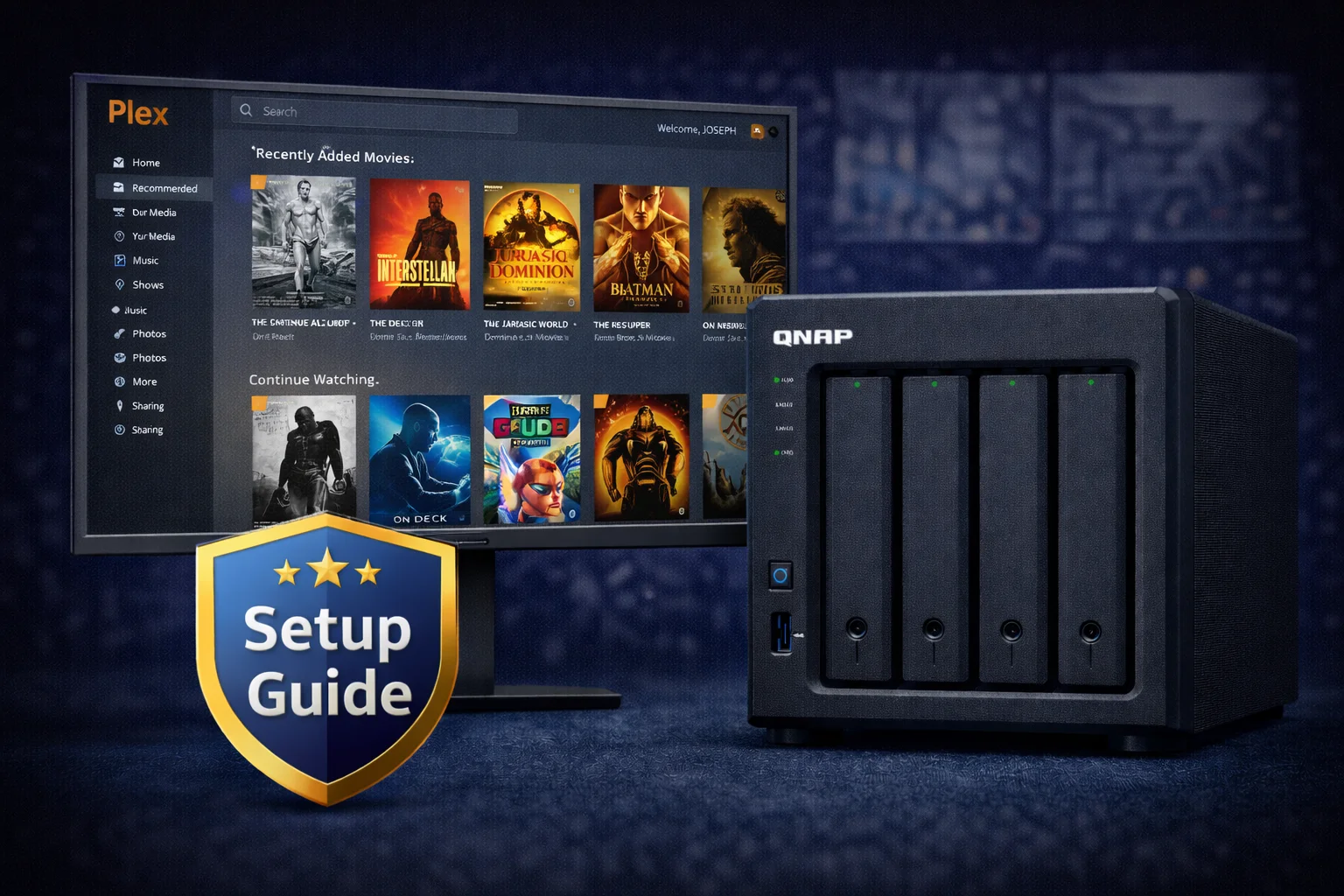
QNAP NAS devices make excellent Plex servers, especially Intel-based models with Quick Sync hardware transcoding. This guide walks through installation, configuration, performance optimization, and troubleshooting.
Requirements
Recommended QNAP Models
- TS-464 ($636) — Best overall, 3-4x 4K transcodes
- TS-264 ($489) — Best 2-bay, same transcoding power
- TS-664 ($738) — Best for large libraries
- HS-264 ($727) — Best silent/HTPC
Software Requirements
- QTS 5.0+ (latest recommended)
- Plex Pass ($120 lifetime) — Required for hardware transcoding
- Plex account (free)
Step 1: Install Plex Media Server
Option A: Install from App Center (Easiest)
- Open App Center from QTS desktop
- Search for “Plex Media Server“
- Click Install
- Wait for installation to complete
- Click Open to launch Plex
Option B: Manual Installation (Latest Version)
- Go to plex.tv/media-server-downloads
- Select QNAP from the dropdown
- Download the .qpkg file for your architecture
- In QTS, open App Center → Install Manually
- Select the downloaded .qpkg file and install
Step 2: Initial Configuration
- Open Plex — Go to
http://NAS-IP:32400/web - Sign in with your Plex account
- Name your server (e.g., “QNAP Media Server”)
- Allow remote access — Check “Allow me to access my media outside my home”
Step 3: Add Media Libraries
- Click Add Library
- Select library type (Movies, TV Shows, Music, Photos)
- Click Browse for media folder
- Navigate to your shared folder (e.g.,
/share/Media/Movies) - Click Add Library
Recommended folder structure:
/share/Media/ ├── Movies/ │ └── Movie Name (2024)/ │ └── Movie Name (2024).mkv ├── TV Shows/ │ └── Show Name/ │ └── Season 01/ │ └── Show Name - S01E01.mkvStep 4: Enable Hardware Transcoding
Critical for 4K performance. Hardware transcoding uses Intel Quick Sync instead of CPU.
Requirements
- Plex Pass subscription ($120 lifetime)
- Intel-based QNAP (TS-x64, TS-x53E, TVS series)
Enable It
- In Plex, click Settings (wrench icon)
- Go to Transcoder
- Enable “Use hardware acceleration when available”
- Enable “Use hardware-accelerated video encoding”
- Click Save Changes
Verify It’s Working
- Play a video that requires transcoding
- Go to Dashboard
- Look for “(hw)” next to the transcode — confirms hardware acceleration
Step 5: Optimize Performance
Transcoder Settings
- Transcoder quality: “Prefer higher speed encoding”
- Temporary directory: Set to SSD if available
- Background transcoding: Disable if not using Sync
Library Settings
- Generate video preview thumbnails: “Never” (saves CPU/storage)
- Generate chapter thumbnails: “Never”
Network Optimization
| Network | 4K Remux Streams |
|---|---|
| 1GbE | 1-2 |
| 2.5GbE | 3-4 |
| 10GbE | 10+ |
Step 6: Remote Access
- Go to Settings → Remote Access
- Plex typically auto-configures via UPnP
- Green checkmark = working
- If manual needed: forward port 32400 TCP
Transcoding Performance
| Model | CPU | 4K Transcodes | Price |
|---|---|---|---|
| TS-264 | Intel N5105 | 3-4 | $489 |
| TS-464 | Intel N5105 | 3-4 | $636 |
| TS-664 | Intel N5095 | 3-4 | $738 |
| TS-473A | AMD (no iGPU) | 1-2 (software) | $699 |
| TVS-h674 | Intel i5-12400 | 8-10+ | $2,199 |
| TS-233 | ARM | 0 (direct play only) | $199 |
Troubleshooting
No Hardware Transcoding
- Verify Plex Pass is active and linked
- Confirm Intel CPU (not ARM or AMD)
- Update Plex and QTS
- Restart Plex app
Buffering/Stuttering
- Use wired connection
- Lower remote streaming quality
- Enable Direct Play when possible
- Add SSD caching
Remote Access Failed
- Check router UPnP settings
- Manually forward port 32400
- Check firewall settings
Frequently Asked Questions
For hardware transcoding, yes. Plex Pass ($120 lifetime) unlocks Intel Quick Sync, enabling 3-4x 4K transcodes. Without it, you’re limited to software transcoding.
The TS-464 ($636) is best overall. For 2 bays, get the TS-264 ($489). Both have Intel N5105 with Quick Sync for 3-4 simultaneous 4K transcodes.
Yes, but direct play only. ARM models (TS-233, TS-433) cannot transcode. They work if your clients support your file formats natively.
Intel models handle 3-4 simultaneous 4K transcodes with hardware acceleration. Direct play streams are limited only by network bandwidth.
For metadata, yes. SSD dramatically improves library browsing speed. Media files can stay on HDDs. Use M.2 SSD caching for best results.
Recommended Accessories
Plex Pass Lifetime
Hardware transcoding, HDR tone mapping, Skip Intro
Essential for hardware transcoding on Intel QNAP. One-time purchase covers all devices.
Seagate IronWolf 8TB
7200RPM, 3-Year Warranty
Perfect for Plex media storage. 4x in RAID 5 = 24TB usable.
Related Resources
Last Updated: February 2026