
Quick Answer+
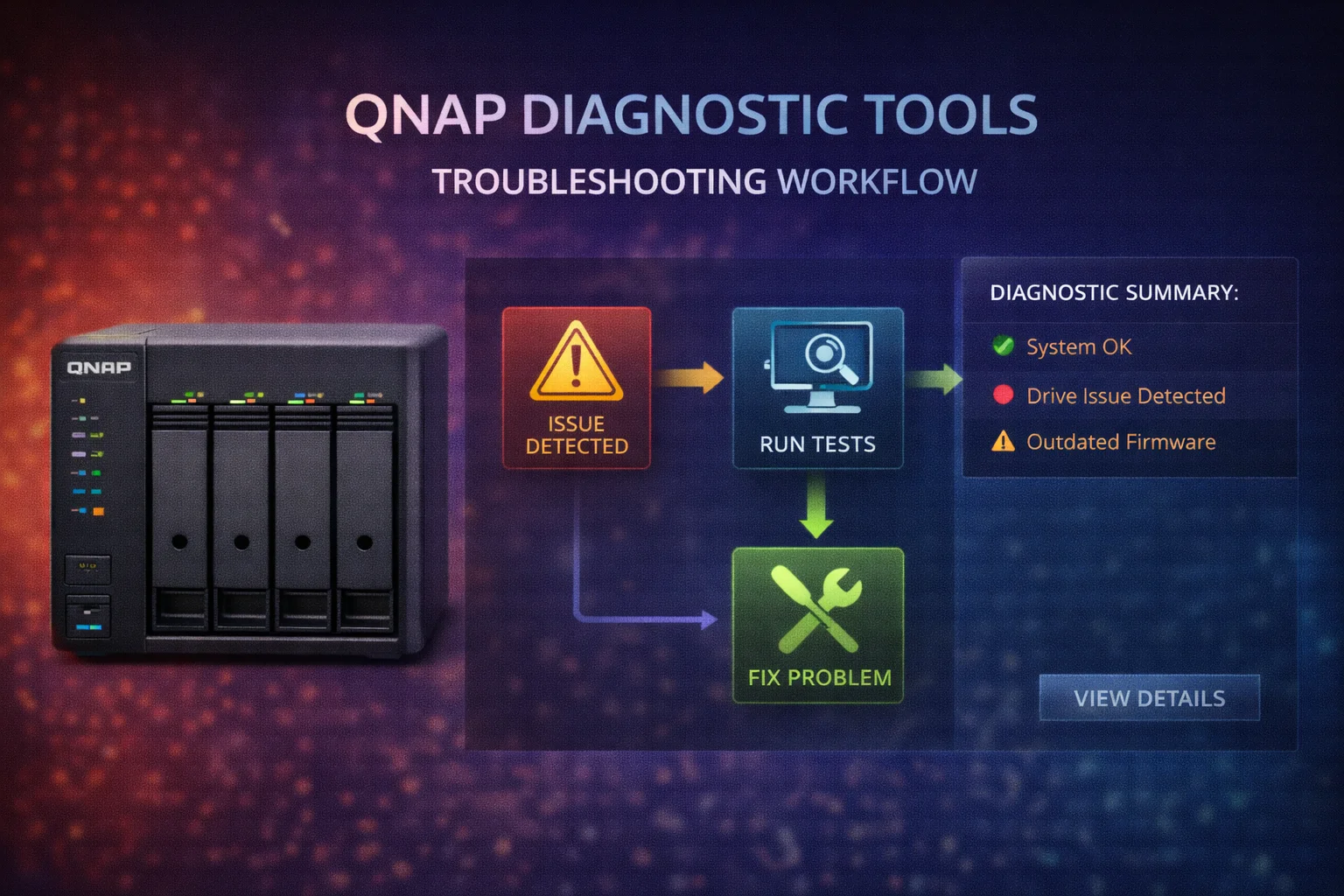
Quick Answer: Most QNAP problems fall into three categories: connection issues (check network, firewall, Qfinder), performance problems (check RAM usage, disk health, running apps), or drive failures (check Storage & Snapshots for RAID status). For urgent issues, access your NAS at http://[NAS-IP]:8080 or use QNAP Qfinder Pro to locate it. Always check System Logs first for error messages.
When your QNAP NAS has problems, you need answers fast. This troubleshooting guide covers the most common issues with step-by-step solutions — from connection problems and slow performance to drive failures and security concerns. Bookmark this page for quick reference when things go wrong.
Need help choosing a NAS? Check our Best QNAP NAS for Home guide. Want to protect your data? See our QNAP Backup Guide.
Quick Diagnostic Steps
Before diving into specific problems, run through these basic checks: Check LED status (Green = healthy, Red = error, Blinking = activity), access QTS at http://[NAS-IP]:8080 in browser, use Qfinder Pro (download from QNAP and scan for your NAS), check System Logs (Control Panel → System Logs), and check Resource Monitor for real-time CPU, RAM, disk usage.
Connection Problems
Cannot Find NAS on Network
Symptoms: Qfinder doesn’t find NAS, can’t access web interface, mapped drives disconnected
Solutions: Check physical connections (verify Ethernet cable is plugged in, LED on NAS network port is lit), restart NAS (press power button briefly, don’t hold, to gracefully restart), check router (verify NAS appears in router’s DHCP client list), try direct connection (connect laptop directly to NAS with Ethernet cable), use Qfinder Pro (download latest version from QNAP website), check firewall (temporarily disable computer firewall to test), reset network settings (hold reset button 3 seconds to reset network only, not data).
Can’t Access Shared Folders
Symptoms: Web interface works but can’t browse shares, “Access Denied” errors
Solutions: Check SMB is enabled (Control Panel → Network & File Services → Win/Mac/NFS → Microsoft Networking Enable), verify permissions (Control Panel → Privilege → Shared Folders → Edit permissions for your user), clear Windows credentials (Control Panel → Credential Manager → Remove old QNAP entries), check SMB version (some old devices need SMB1 or SMB2), restart network services (in QTS, restart Microsoft Networking service).
Remote Access Not Working (myQNAPcloud)
Symptoms: Can’t access NAS from outside home network
Solutions: Check myQNAPcloud status (open myQNAPcloud app in QTS, verify connection is “Connected”), enable auto router configuration (myQNAPcloud → Auto Router Configuration → Enable UPnP), use CloudLink (enable CloudLink relay if direct connection fails), check router firewall (may need to manually forward ports 8080, 443), use VPN as alternative (more secure than port forwarding).
Performance Problems
NAS Running Slow
Symptoms: File transfers slow, web interface laggy, apps unresponsive
Diagnostic steps: Check Resource Monitor (Main Menu → Resource Monitor) and identify bottleneck (is it CPU, RAM, disk, or network?).
High CPU usage (>80%): Check which process is consuming CPU in Resource Monitor, stop unnecessary apps (Plex transcoding, QuMagie indexing), wait for background tasks to complete (antivirus scan, RAID rebuild), reduce Docker containers if running many.
High RAM usage (>90%): Reduce running apps and containers, upgrade RAM if consistently maxed out, check for memory leaks (restart NAS if RAM doesn’t free up), disable apps you don’t actively use.
High disk I/O: Check for background tasks (backup, indexing, scrubbing), add SSD cache to improve random I/O, check drive health (failing drives cause slowdowns), defragment thick volumes if heavily fragmented.
Network bottleneck: Check connection speed (should be 1Gbps or 2.5Gbps), replace Ethernet cable (bad cables cause speed drops), check switch/router isn’t the bottleneck, enable jumbo frames if network supports it.
Slow File Transfers
| Connection | Max Speed | Realistic Speed |
|---|---|---|
| 1GbE | 125 MB/s | 110-115 MB/s |
| 2.5GbE | 312 MB/s | 280-295 MB/s |
| 10GbE | 1,250 MB/s | 800-1,100 MB/s |
| USB 3.0 | 625 MB/s | 200-400 MB/s |
If speeds are lower than expected: Test with large files (small files are always slower), disable antivirus scanning during transfer, check SMB settings (SMB3 multichannel can help), verify full-duplex connection (not half-duplex), test different client computer to isolate issue.
Plex Buffering or Transcoding Issues
Symptoms: Video buffering, playback stuttering, transcoding errors
Solutions: Verify hardware transcoding (in Plex settings, ensure “Use hardware acceleration” is enabled), check Intel Quick Sync (only Intel-based QNAP models support transcoding like TS-x64 series), reduce quality (lower remote streaming quality in Plex settings), check CPU usage (if CPU maxed, too many simultaneous transcodes), use direct play (configure clients to direct play when possible), move transcode directory (set to SSD cache or RAM disk for faster performance).
Related:QNAP TS-464 Review (best for Plex)
Drive and Storage Issues
Drive Failure Warning
Symptoms: Warning notification, red LED on drive bay, RAID degraded status
Immediate steps: Don’t panic (if RAID is degraded, your data is still accessible), check drive status (Storage & Snapshots → Disks → Check SMART data), verify backup (ensure recent backup exists before proceeding), order replacement drive (same or larger capacity, NAS-rated preferred), replace failed drive (hot-swap if supported, rebuild will start automatically).
| Drive Size | Estimated Rebuild Time |
|---|---|
| 4TB | 8-12 hours |
| 8TB | 16-24 hours |
| 12TB | 24-36 hours |
| 16TB | 36-48 hours |
| 20TB+ | 48-72+ hours |
Important: Don’t turn off NAS during rebuild. Minimize usage to speed up rebuild.
RAID Degraded Status
What it means: One or more drives have failed, but data is still accessible due to RAID redundancy.
| RAID Type | Drives Failed | Risk Level | Action |
|---|---|---|---|
| RAID 1 | 1 of 2 | HIGH | Replace immediately |
| RAID 5 | 1 | HIGH | Replace immediately |
| RAID 6 | 1 | MEDIUM | Replace soon |
| RAID 6 | 2 | CRITICAL | Replace immediately |
Related:RAID Calculator
Storage Pool Full
Symptoms: Can’t write new files, apps failing, warning notifications
Solutions: Delete unnecessary files (empty recycle bins, remove old backups), delete old snapshots (Storage & Snapshots → Snapshot Manager → Delete old snapshots), check thick vs thin volumes (thick volumes pre-allocate space), remove unused apps (some apps consume significant space), add drives (expand storage pool with additional drives), replace with larger drives (one at a time, RAID rebuild between each).
Related:QNAP Compatible Hard Drives
QTS and Software Issues
QTS Won’t Boot / Stuck at Boot Screen
Symptoms: NAS powers on but never becomes accessible, stuck at loading screen
Solutions: Wait longer (boot can take 5-10 minutes after firmware update), check system drive (if using M.2 for system, it may have failed), try safe mode (hold reset button during boot for recovery mode), reinstall QTS (download firmware from QNAP, use Qfinder to reinstall with data preserved), check RAM (faulty RAM can prevent boot — try reseating or removing added RAM).
App Won’t Install or Start
Solutions: Check requirements (some apps need Intel CPU or minimum RAM), check storage space (apps need space on system volume), update QTS (app may require newer QTS version), clear app cache (remove and reinstall the app), check app logs (App Center → [App] → View Logs).
Security Issues
Suspected Ransomware or Breach
Symptoms: Files encrypted with strange extensions, ransom notes, unknown processes running
Immediate actions: Disconnect from network (unplug Ethernet immediately to prevent spread), don’t turn off (evidence in RAM may help identify the attack), check snapshots (they may contain clean versions of your files), check backup (verify offsite backup wasn’t affected), document everything (screenshot ransom notes, file extensions), check QNAP security advisories (may be known vulnerability with fix).
Recovery options: Restore from snapshots (if not encrypted), restore from offline backup, restore from cloud backup (with versioning), check nomoreransom.org for decryption tools.
Security Hardening Checklist
Prevent future security issues: ☐ Update QTS to latest version, ☐ Disable default admin account (create new admin), ☐ Enable 2-factor authentication, ☐ Use strong passwords (12+ characters), ☐ Disable unused services (SSH, Telnet, FTP), ☐ Use VPN instead of port forwarding, ☐ Enable IP access protection (auto-block failed logins), ☐ Regular backup with offsite copy, ☐ Enable snapshots for ransomware protection.
Hardware Issues
NAS Won’t Power On
Solutions: Check power (verify outlet works, try different power cable), check power adapter (LED on adapter should be lit), remove drives (try booting without drives installed), reset CMOS (consult QNAP manual for CMOS reset procedure), check for physical damage (burnt smell, swollen capacitors).
Loud Fan Noise
Solutions: Check temperature (high temps cause fans to speed up), clean dust (use compressed air to clean vents and fans), improve airflow (don’t place in enclosed cabinet), adjust fan settings (Control Panel → Hardware → Smart Fan), replace fan (fans wear out after 3-5 years).
Beeping Sounds
| Beep Pattern | Meaning | Action |
|---|---|---|
| 1 short beep | System startup | Normal |
| 1 long, 2 short | Drive error | Check drive status |
| 3 short beeps | System ready | Normal |
| Continuous beeping | Hardware failure | Check logs, contact support |
| 1 beep every 5 min | Warning alert | Check notification center |
Disable beeping: Control Panel → Hardware → Buzzer
Reset and Recovery Options
| Duration | Action | Data Affected |
|---|---|---|
| 3 seconds | Reset network settings | Network config only |
| 10 seconds | Reset admin password | Admin password only |
| 30+ seconds | Factory reset | All settings (data preserved) |
Reinstall QTS
If QTS is corrupted but you want to preserve data: Download correct firmware from QNAP website, install Qfinder Pro on computer, put NAS in recovery mode (reset button during boot), use Qfinder to push firmware to NAS, follow setup wizard (select “Existing data” to preserve data).
Frequently Asked Questions
Use Qfinder Pro (download from QNAP website) to scan your network and find your NAS. Alternatively, check your router’s DHCP client list or connected devices page.
Hold the reset button on the back of the NAS for 10 seconds while the NAS is running. This resets the admin password to the default (usually ‘admin’ or MAC address) without affecting data.
Check Resource Monitor to identify the bottleneck: CPU (too many apps/transcoding), RAM (need upgrade or fewer containers), Disk (failing drive or heavy I/O), or Network (bad cable, switch issue). See performance section above for detailed solutions.
RAID rebuild time depends on drive size: 4TB takes 8-12 hours, 8TB takes 16-24 hours, 16TB takes 36-48 hours. Don’t turn off the NAS during rebuild, and minimize usage to speed up the process.
Usually yes. If drives are healthy, they can be mounted in a new QNAP or read on Linux (for ext4/Btrfs). RAID configurations can be imported to a replacement NAS. For severe failures, professional data recovery may be needed.
Check: 1) myQNAPcloud is configured and shows ‘Connected’, 2) Router allows required ports (or use CloudLink relay), 3) Your ISP doesn’t block incoming connections, 4) Try using QNAP’s mobile apps which often work when browser access doesn’t.
Visit qnap.com/support to submit a ticket or find regional phone numbers. Before contacting support, gather: model number, firmware version, error messages, and system logs (download from Control Panel → System Logs).
When to Contact QNAP Support
Contact QNAP support if: Multiple drives fail simultaneously (may indicate controller issue), NAS won’t boot after trying all recovery options, hardware failure (power supply, motherboard, fan), security breach that requires forensic analysis, or warranty claim needed.
Before contacting support, gather: NAS model number and serial number, QTS firmware version, description of the problem and when it started, steps you’ve already tried, system logs (export from QTS).
Conclusion
Most QNAP problems can be solved with systematic troubleshooting. Start with the basics — check connections, review logs, and identify the specific component that’s failing. Use Resource Monitor to pinpoint performance bottlenecks, and always verify your backups are current before making major changes.
For persistent issues, QNAP’s support resources and community forums can provide additional guidance. And remember — the best troubleshooting is prevention: keep your firmware updated, monitor drive health, and maintain proper backups.
Related Resources
Last Updated: February 2026