Roblox FPS Boost: How to Get 200+ FPS on Any PC (2026 Guide)

Quick Answer+
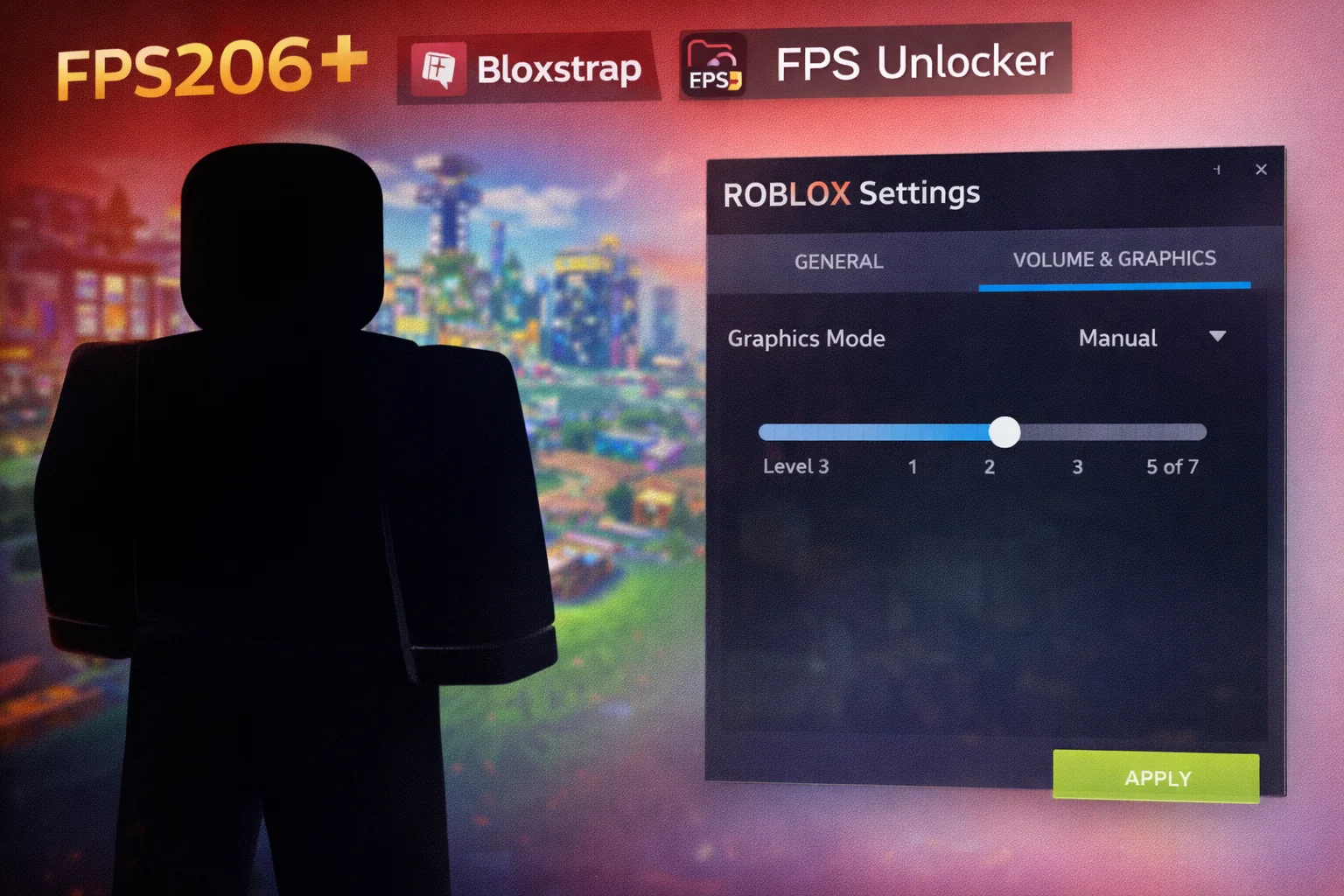
Quick Answer: Use the Roblox FPS Unlocker to remove the 60 FPS cap, then install Bloxstrap for advanced optimization flags. Set Graphics Mode to Manual and lower Graphics Quality to 3-5. Enable Fullscreen mode and close background apps. These optimizations can boost Roblox from 60 FPS to 200+ FPS on most gaming PCs.
Roblox may look simple with its blocky aesthetic, but the game’s physics engine, user-generated content, and networking demands can bring even powerful PCs to their knees. Many players find themselves stuck at 30-60 FPS, experiencing stuttering during intense gameplay, and suffering lag in popular games like Blox Fruits, Arsenal, and Adopt Me.
The good news? With the right optimizations, you can unlock 200+ FPS in Roblox—even on budget hardware with integrated graphics. This comprehensive guide covers everything from removing the 60 FPS cap to advanced Bloxstrap flags, helping you achieve smooth, responsive gameplay in any Roblox experience.
Use our FPS Calculator to estimate your performance, or check our Bottleneck Calculator to ensure your system is optimized for Roblox.
Recommended Hardware for Roblox
While Roblox runs on almost anything, these components ensure smooth high-FPS gameplay:
ASUS Dual RTX 4060 EVO OC
8GB GDDR6, DLSS 3, Low Power
The RTX 4060 delivers 300+ FPS in Roblox at maximum settings. Excellent efficiency at 115W means cool, quiet operation. Perfect for gaming PCs that also play more demanding titles.
Intel Arc A580 Challenger
8GB GDDR6, XeSS, Budget Gaming
Excellent budget option for Roblox with 200+ FPS capability. The 8GB VRAM handles all Roblox experiences smoothly. Great entry-level discrete GPU for younger gamers.
AMD Ryzen 7 7800X3D
8-Core, 3D V-Cache, AM5
Roblox is CPU-intensive, making the 7800X3D’s massive cache a major advantage. Delivers the highest minimum FPS and smoothest gameplay in crowded servers with 50+ players.
Understanding Roblox Performance Issues
Before diving into fixes, understanding why Roblox struggles helps you apply the right solutions.
The 60 FPS Cap
By default, Roblox limits FPS to 60, regardless of your hardware capabilities. This artificial cap exists for consistency across devices, but wastes performance on gaming PCs. The FPS Unlocker removes this limitation, allowing your hardware to deliver its full potential.
CPU-Intensive Workload
Unlike most modern games that stress your GPU, Roblox is heavily CPU-dependent. The game’s physics calculations, networking, and Lua script execution all run on your processor. A powerful GPU with a weak CPU will still deliver poor performance.
User-Generated Content Variability
Roblox experiences are created by users with varying optimization skills. Some games run beautifully on any hardware; others are poorly optimized and lag on even powerful systems. Performance varies dramatically between experiences.
How to Remove the 60 FPS Cap
The single biggest performance improvement for Roblox is removing the 60 FPS cap.
Method 1: Roblox FPS Unlocker
The RBX FPS Unlocker by axstin is the most trusted tool for removing the FPS cap. It’s open-source, verified safe, and used by millions of players without any bans.
- Download from the official GitHub: github.com/axstin/rbxfpsunlocker
- Extract the ZIP file to any folder
- Run rbxfpsunlocker.exe (ignore Windows SmartScreen warning)
- The unlocker runs in your system tray
- Launch Roblox normally—FPS cap is now removed
Important: FPS unlockers are NOT banned by Roblox as of 2026. The tool only modifies frame limiting, not gameplay. Over 2 million players use it safely.
Method 2: Bloxstrap (All-in-One Solution)
Bloxstrap is a custom Roblox launcher that includes FPS unlocking plus additional optimization features.
- Download from bloxstrapper.com
- Run the installer (it replaces standard Roblox launcher)
- Launch Bloxstrap and go to “FastFlags” section
- Enable the FPS unlocker preset
- Launch Roblox through Bloxstrap
Best Roblox Graphics Settings for FPS
Optimize your in-game settings before using external tools.
Optimal Settings by Hardware Tier
| Setting | Low-End PC | Mid-Range PC | High-End PC |
|---|---|---|---|
| Graphics Mode | Manual | Manual | Manual |
| Graphics Quality | 1-2 | 4-6 | 8-10 |
| Fullscreen | On | On | On |
Graphics Quality Breakdown
| Quality Level | Effects | FPS Impact |
|---|---|---|
| 1-2 | No shadows, low textures, no effects | Maximum FPS |
| 3-4 | Basic shadows, medium textures | Good FPS |
| 5-6 | Soft shadows, better textures, some effects | Balanced |
| 7-8 | High-quality shadows, full textures, most effects | Lower FPS |
| 9-10 | Maximum quality, all effects enabled | Demanding |
For competitive games like Arsenal, use level 3-4 for maximum FPS. For exploration and roleplay games, 6-7 provides a good visual experience.
Bloxstrap FastFlags for Maximum FPS
FastFlags are hidden Roblox settings that control rendering, physics, and performance. Bloxstrap makes them accessible.
Recommended FPS Optimization Flags
Copy this JSON into Bloxstrap’s FastFlag editor:
{ "DFIntTaskSchedulerTargetFps": 240, "FFlagDebugDisableTelemetryV2Counter": true, "FFlagDebugDisableTelemetryV2Event": true, "FIntRenderingGpuPriority": 10, "DFFlagTextureQualityOverrideEnabled": true, "DFIntTextureQualityOverride": 0 }What these flags do:
- TaskSchedulerTargetFps: Sets target FPS to 240
- Telemetry flags: Disable background data collection
- RenderingGpuPriority: Increases GPU priority
- TextureQuality: Forces lower texture quality
Rendering Mode Flags
Force DirectX 11 for best performance on most systems:
{ "FFlagDebugGraphicsPreferD3D11": true, "FFlagDebugGraphicsDisableMetal": true, "FFlagDebugGraphicsPreferVulkan": false }Windows Optimization for Roblox
System-level optimizations provide additional FPS gains beyond in-game settings.
Essential Windows Settings
| Setting | Location | Recommendation |
|---|---|---|
| Game Mode | Settings → Gaming | Enable |
| Xbox Game Bar | Settings → Gaming | Disable |
| Hardware-Accelerated GPU Scheduling | Settings → Display → Graphics | Enable |
| Power Plan | Control Panel → Power Options | High Performance |
Set Roblox to High Performance GPU
If you have a dedicated GPU, ensure Roblox uses it instead of integrated graphics:
- Open Settings → System → Display → Graphics
- Click “Browse” and add RobloxPlayerBeta.exe
- Click Options → High Performance
- Save and restart Roblox
Close Background Applications
- Close Chrome/Edge (browsers consume massive RAM)
- Quit Discord or disable overlay
- Close Spotify/music players
- Disable OneDrive sync temporarily
Clear Roblox Cache
- Close Roblox completely
- Press Windows+R, type %localappdata%\Temp\Roblox
- Delete all files in this folder
- Also clear %localappdata%\Roblox\logs
- Restart Roblox
GPU Driver Optimization
NVIDIA Control Panel Settings
| Setting | Value |
|---|---|
| Power Management Mode | Prefer Maximum Performance |
| Low Latency Mode | On |
| Threaded Optimization | On |
| Vertical Sync | Off |
| Shader Cache Size | Unlimited |
AMD Radeon Software Settings
| Setting | Value |
|---|---|
| Radeon Anti-Lag | Enabled |
| Radeon Chill | Disabled |
| Radeon Boost | Disabled |
| Wait for Vertical Refresh | Off |
Mobile and Low-End PC Optimization
Low-End PC Settings
- Graphics Quality: 1-2
- Resolution: Lower to 1280×720 if needed
- Fullscreen: Always enabled
- Close all background apps
FPS Targets by Device
| Device Type | Realistic FPS Target | Notes |
|---|---|---|
| Low-End Phones | 30 FPS stable | Consistency over peak FPS |
| Mid-Range Phones/Laptops | 45-60 FPS | Smooth for most games |
| Gaming Laptops | 90-144 FPS | Depends on thermals |
| Gaming PCs | 144-240+ FPS | Monitor refresh is the limit |
Android and iOS Optimization
- Clear recent apps before playing
- Lower in-game graphics quality
- Enable Game Mode in phone settings
- Keep at least 20% storage free
- Avoid playing while charging
Fixing Network Lag vs FPS Lag
Players often confuse network lag with FPS issues. Press Shift+F5 in-game to display stats.
Network Lag Symptoms
- Rubber-banding (teleporting backward)
- Delayed actions
- Other players freezing then jumping ahead
- High ping (100+ ms)
Network Fixes: Use Ethernet instead of WiFi, close bandwidth-heavy apps, choose servers closer to your location.
FPS Lag Symptoms
- Choppy, stuttering visuals
- Everything lags simultaneously
- Low FPS counter (below 30)
FPS Fixes: Apply the optimization steps in this guide.
Game-Specific Optimization Tips
Blox Fruits
Large maps with many players cause FPS drops. Lower graphics to 3-4, avoid crowded servers during peak times, and disable shadows via FastFlags for best performance in raids.
Arsenal
Competitive FPS requires every advantage. Use graphics level 2-3, enable FPS unlocker for 144+ FPS, and disable particle effects. Low latency is more important than visuals.
Adopt Me
High player counts and many pets cause lag. Lower graphics when in busy areas, consider private servers for smoother gameplay with friends.
Murder Mystery 2
Smooth gameplay helps identify murderers quickly. Use medium graphics (4-5) for balance between visibility and FPS. Dark maps benefit from slightly higher brightness.
FPS Expectations by Hardware
| Hardware | Expected FPS (Optimized) | Notes |
|---|---|---|
| Intel UHD 620 | 60-90 FPS | Integrated graphics, quality 1-2 |
| AMD Vega 8 | 80-120 FPS | Ryzen APU, quality 2-3 |
| GTX 1650 | 150-200 FPS | Entry gaming GPU |
| RTX 3060 | 200-300 FPS | Mid-range gaming |
| RTX 4060/4070 | 300+ FPS | Monitor becomes the limit |
Tested with FPS Unlocker at graphics quality 5, 1080p resolution.
Troubleshooting Common Issues
FPS Unlocker Not Working
Solution: Run as administrator. Ensure antivirus isn’t blocking it. Re-download from official GitHub if corrupted. Make sure Roblox is fully closed before starting the unlocker.
Still Capped at 60 FPS
Solution: Check if VSync is enabled in GPU driver settings. Disable frame limiting in NVIDIA/AMD control panel. Verify the FPS unlocker is running in system tray.
Game Crashes After Optimization
Solution: Remove FastFlags one by one to find the problematic flag. Some flags conflict with certain Roblox experiences. Clear Roblox cache and restart.
High FPS but Still Stuttering
Solution: This is often a 1% low FPS issue. Close background apps, especially Chrome. Check for thermal throttling on laptops. Consider enabling G-Sync/FreeSync if your monitor supports it.
Bloxstrap Won’t Install
Solution: Uninstall Roblox completely first, including leftover files in %localappdata%. Disable antivirus temporarily during installation. Run installer as administrator.
Frequently Asked Questions
Will I get banned for using FPS Unlocker?
No. Roblox has never banned anyone for using the FPS Unlocker. It only modifies frame rate limiting, not gameplay. Millions of players use it daily without issues. However, only download from the official GitHub source to avoid malware.
Is Bloxstrap safe to use?
Yes. Bloxstrap is open-source, community-verified, and doesn’t modify game files. It’s a custom launcher that works with Roblox’s official client. It’s trusted by the Roblox optimization community and actively maintained.
Why is my FPS high but gameplay still laggy?
This is likely network lag, not FPS lag. Check your ping with Shift+F5. High ping (100+ ms) causes delayed actions and rubber-banding regardless of frame rate. Use Ethernet, close bandwidth-heavy apps, and choose closer servers.
Does lowering resolution help FPS?
Yes, but less than you might expect. Roblox is CPU-bound, so resolution (which affects GPU) has less impact than in GPU-heavy games. Lowering graphics quality helps more. However, on very weak GPUs, lower resolution can provide noticeable gains.
How do I check my current FPS in Roblox?
Press Shift+F5 while in-game to display the performance stats overlay. This shows FPS, ping, and memory usage. Higher FPS is better; ping should be under 100ms for smooth gameplay.
Why does Roblox run worse than other games?
Roblox’s engine is CPU-intensive and relies heavily on single-thread performance. User-generated games vary wildly in optimization quality. The default 60 FPS cap also makes the game feel sluggish compared to 144+ FPS titles.
Can I use FPS Unlocker on Mac?
The Windows FPS Unlocker doesn’t work on Mac. However, Bloxstrap has Mac support that includes FPS unlocking. Check the Bloxstrap GitHub for Mac installation instructions.
Do FastFlags work on all Roblox games?
Most FastFlags work across all experiences, but some game developers can override certain flags. If a specific game ignores your settings, the developer may have locked those options. Performance flags like FPS target typically work everywhere.
Conclusion
Roblox’s default 60 FPS cap and lack of optimization options don’t mean you’re stuck with poor performance. With the FPS Unlocker or Bloxstrap, proper graphics settings, FastFlags, and system optimization, you can achieve 200+ FPS on most gaming hardware.
The key steps are: remove the FPS cap with a trusted unlocker, set graphics mode to Manual with appropriate quality for your hardware, apply performance-focused FastFlags through Bloxstrap, and optimize your Windows and GPU settings. For competitive games like Arsenal, prioritize low latency and high FPS over visual quality.
Remember that some lag is network-related, not FPS-related. If your FPS is high but gameplay feels delayed, focus on improving your internet connection rather than further optimization.
For more gaming optimization guides, check our Minecraft FPS Boost and Fortnite Best Settings guides to maximize performance across all your favorite games.
Advanced Performance Techniques
For users who want to squeeze every possible frame from their hardware, these advanced techniques provide additional optimization.
Process Priority Optimization
Setting Roblox to high priority in Task Manager tells Windows to allocate more CPU resources to the game:
- Launch Roblox and join any game
- Open Task Manager (Ctrl+Shift+Esc)
- Find RobloxPlayerBeta.exe in Details tab
- Right-click → Set Priority → High
- Repeat each time you launch Roblox
This provides modest FPS gains, particularly on systems with many background processes competing for CPU time.
Disable Fullscreen Optimizations
Windows’ fullscreen optimizations can cause input lag and FPS issues:
- Find RobloxPlayerBeta.exe (usually in %localappdata%\Roblox\Versions)
- Right-click → Properties → Compatibility
- Check “Disable fullscreen optimizations”
- Click Apply
Memory Optimization
Roblox can develop memory leaks during long sessions. Periodically restarting the game clears accumulated memory usage. For extended play sessions, restart Roblox every 2-3 hours to maintain optimal performance.
If you have less than 8GB RAM, close all background applications. Chrome alone can use 2-4GB of memory. Use Task Manager to identify memory-hungry processes before launching Roblox.
Storage Optimization
Roblox loads game assets from your storage drive. SSD users experience faster loading and smoother texture streaming. If Roblox is on an HDD, consider moving it to an SSD:
- Uninstall Roblox from current location
- Change your Windows default install drive to SSD
- Reinstall Roblox fresh
This reduces loading times and eliminates stuttering caused by slow asset streaming from mechanical drives.
Comparing Optimization Methods
Here’s how different optimization methods compare in terms of FPS improvement:
| Optimization Method | FPS Improvement | Difficulty | Risk Level |
|---|---|---|---|
| FPS Unlocker | 60 → 200+ FPS | Easy | None |
| Lower Graphics Quality | 20-50% | Easy | None |
| Bloxstrap FastFlags | 10-30% | Medium | Low |
| Windows Optimization | 5-15% | Easy | None |
| GPU Driver Settings | 5-10% | Medium | None |
| Close Background Apps | 10-20% | Easy | None |
| Process Priority | 5-10% | Easy | None |
The FPS Unlocker provides the largest improvement by removing the artificial cap. Graphics quality adjustments and FastFlags offer the next biggest gains. System-level optimizations provide smaller but cumulative benefits.
Benchmarking Your Performance
Track your optimization progress with proper benchmarking:
Creating a Consistent Test
- Choose a game you play regularly
- Find a consistent location in the game
- Note the player count (more players = lower FPS)
- Record average FPS over 60 seconds
- Apply one optimization at a time
- Re-test in the same conditions
Key Metrics to Monitor
- Average FPS: Overall smoothness indicator
- 1% Low FPS: Identifies stuttering (watch for dips)
- Ping: Network latency (aim for under 100ms)
- Memory: Watch for increasing usage over time
Use Shift+F5 to monitor these metrics during gameplay. A stable, high average FPS with minimal dips indicates successful optimization.
When to Upgrade Hardware
Sometimes optimization isn’t enough. Consider hardware upgrades if:
- You can’t maintain stable 60 FPS even at lowest settings
- Your CPU is constantly at 100% during gameplay
- You have less than 8GB RAM and experience constant stuttering
- Loading times exceed 30+ seconds regularly
For Roblox specifically, CPU upgrades provide more benefit than GPU upgrades. A modern Ryzen 5 or Intel i5 with integrated graphics outperforms an old quad-core with a dedicated GPU. If you have an older system, prioritize CPU upgrade over graphics card.
Adding RAM from 8GB to 16GB also significantly helps if you run multiple applications while gaming. This allows you to keep Discord, browsers, and Roblox running simultaneously without performance degradation.
Staying Updated
Roblox updates frequently, which can affect optimization tools and settings:
- FPS Unlocker: Updates within days of Roblox updates. Check GitHub regularly.
- Bloxstrap: Actively maintained with quick compatibility updates.
- FastFlags: Some flags may break or change behavior with updates. Monitor Roblox forums for changes.
- GPU Drivers: Update monthly for best game compatibility.
Bookmark the official GitHub repositories for both FPS Unlocker and Bloxstrap to ensure you’re always using the latest, safest versions. Outdated tools may not work correctly or could cause issues after Roblox updates.
Understanding Roblox’s Rendering Pipeline
To optimize effectively, it helps to understand how Roblox renders graphics. The game uses a custom engine that handles graphics differently than most modern games.
Graphics API Options
Roblox supports multiple rendering backends. DirectX 11 is the default and most stable option for Windows users. Vulkan can provide better performance on some AMD systems but may cause compatibility issues. Through FastFlags, you can force a specific renderer to test which works best for your hardware.
Metal is used on Mac and provides good performance on Apple Silicon. OpenGL is legacy and should be avoided unless other options cause crashes.
Why CPU Matters More Than GPU
Roblox’s Lua scripting engine, physics calculations, and network synchronization all run on your CPU. The GPU handles rendering, but the CPU determines how quickly frames can be prepared for rendering. This is why players with powerful GPUs but older CPUs still experience poor performance. A bottlenecked CPU cannot prepare frames fast enough, regardless of GPU capability.
Single-thread performance matters most for Roblox. Intel and AMD processors with high single-core speeds provide better Roblox performance than multi-core monsters with lower per-core speeds. This makes the Ryzen 7 7800X3D with its massive cache particularly effective for Roblox.
The Role of User-Created Content
Unlike traditional games, Roblox experiences are created by users with varying levels of optimization knowledge. A professional game studio optimizes every asset and script. A 14-year-old making their first game might use inefficient scripts, unoptimized meshes, and excessive particle effects. This explains why performance varies so dramatically between games—it’s not your hardware, it’s the game’s optimization.
When evaluating your performance, test multiple games. If one game runs poorly but others run fine, the issue is game-specific, not hardware-related. Popular, well-maintained games like Jailbreak, Blox Fruits, and Murder Mystery 2 generally run better than obscure, unmaintained experiences.
Community Resources
The Roblox optimization community actively shares tools, tips, and solutions:
- RBX FPS Unlocker GitHub: Official source for the FPS unlocker, updated regularly
- Bloxstrap GitHub: Documentation, FastFlag presets, and troubleshooting
- Roblox DevForum: Technical discussions about performance optimization
- r/roblox Subreddit: Community tips and troubleshooting help
- YouTube Optimization Guides: Visual walkthroughs for each optimization step
Always verify information from community sources against official documentation. Some outdated guides recommend settings or tools that no longer work or could cause issues with current Roblox versions.
With these optimizations applied, most players see dramatic improvements—from the default 60 FPS cap to 144, 200, or even 300+ FPS depending on hardware. Smoother gameplay translates directly to better competitive performance, more responsive controls, and a more enjoyable Roblox experience overall.