SMR Drive ZFS Performance: Why Shingled Drives Destroy Your Pool

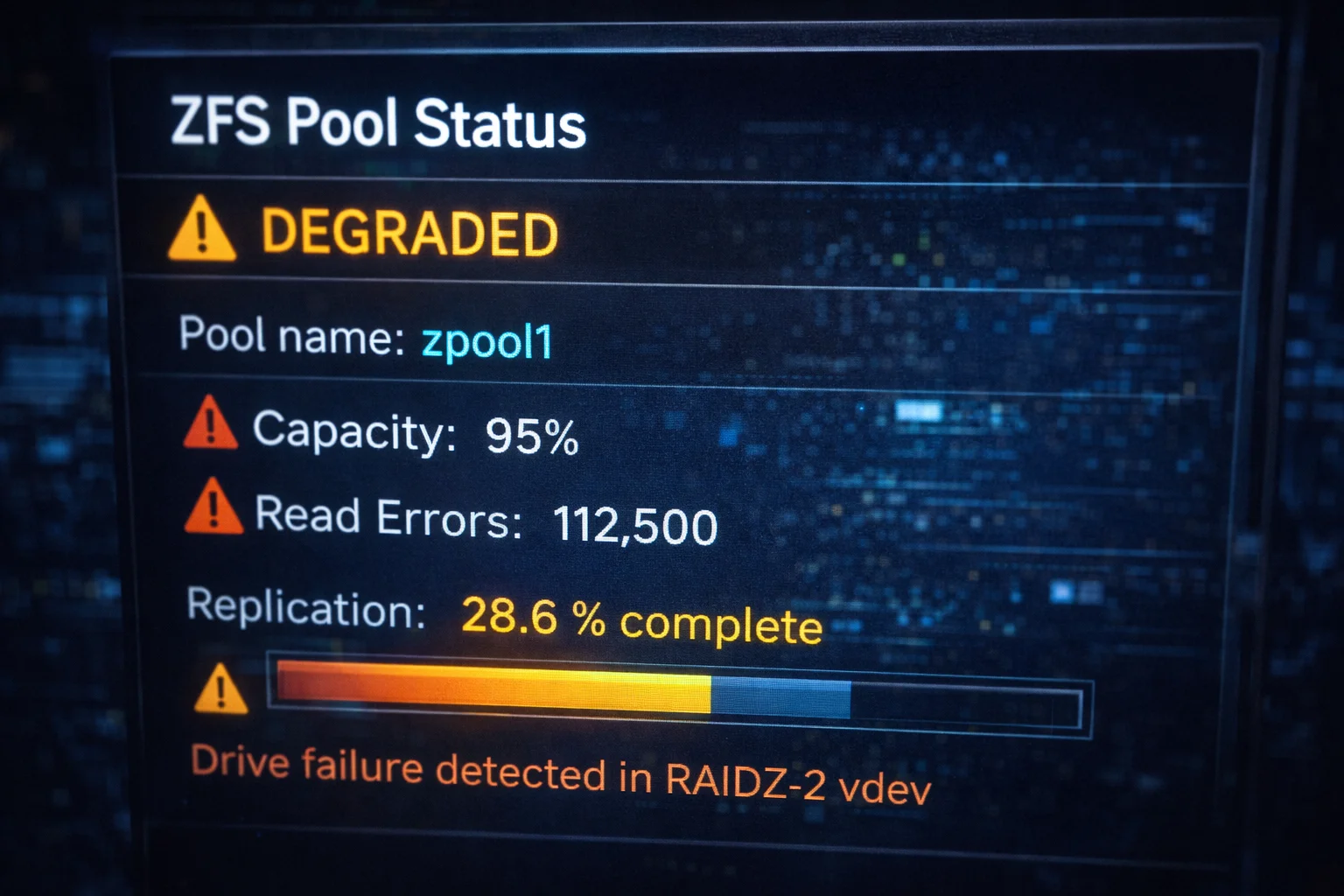
You built a ZFS pool, chose drives that seemed adequate, and everything worked fine — until it didn’t. Resilvers taking days instead of hours. Write speeds dropping to USB 2.0 levels. The pool grinding to a halt during scrubs.
If this sounds familiar, you might have SMR drives in your ZFS pool. It’s one of the most common mistakes in home server builds, and it can turn a perfectly good ZFS setup into a frustrating nightmare.
Here’s everything you need to know about SMR drives and ZFS — why they’re incompatible, how to identify them, and what to use instead.
What Is SMR?
SMR (Shingled Magnetic Recording) is a hard drive technology that increases storage density by overlapping tracks like roof shingles.
How Traditional (CMR) Recording Works
In CMR (Conventional Magnetic Recording), each track is independent:
Track 1: [============] Track 2: [============] Track 3: [============] Writing to Track 2 doesn’t affect Tracks 1 or 3.
How SMR Recording Works
In SMR, tracks overlap to fit more data:
Track 1: [============] Track 2: [============] Track 3: [============] Writing to Track 2 partially overwrites Track 3, which requires rewriting Track 3, which affects Track 4…
SMR’s Fundamental Problem
Reading: SMR reads data just as fast as CMR — no issues.
Sequential writing: SMR handles sequential writes reasonably well using a CMR cache zone.
Random writing: This is where SMR falls apart. Any random write can trigger a cascade of rewrites across multiple tracks. Performance drops from 150+ MB/s to 10-30 MB/s.
Writing a single 4KB block on an SMR drive can require rewriting several megabytes of adjacent tracks. This “write amplification” is why SMR drives become catastrophically slow during random write workloads — exactly what ZFS generates during resilvers and scrubs.
Why SMR Destroys ZFS Performance
ZFS is particularly hostile to SMR drives due to its fundamental design principles.
Copy-on-Write Architecture
ZFS never overwrites existing data — it always writes to new locations and updates pointers. This design provides:
- Atomic transactions (no partial writes)
- Snapshots without copying data
- Self-healing capabilities
The SMR problem: Copy-on-write generates constant random writes across the entire drive. Every file modification, every metadata update, every snapshot creates new blocks in unpredictable locations.
Resilver Operations
When a ZFS drive fails and you replace it, the pool “resilvers” — reconstructing data on the new drive.
CMR resilver: Sequential-ish writes at 150+ MB/s. An 8TB drive resilvers in 10-15 hours.
SMR resilver: Random writes at 10-30 MB/s. An 8TB SMR drive can take 3-7+ DAYS.
During a resilver, your pool has reduced redundancy. A second drive failure could mean total data loss. A 7-day SMR resilver versus a 12-hour CMR resilver dramatically increases your risk exposure.
Scrub Operations
ZFS scrubs read and verify all data, correcting errors through redundancy. The verification process generates writes for any corrections.
CMR scrub: Reads at full speed, occasional writes are fine. 8TB drive scrubs in 8-12 hours.
SMR scrub: Reads are fine, but any error correction triggers write cascades. Scrubs can take 2-4x longer with SMR.
SLOG and Special vdevs
If you use SMR drives for ZFS Intent Log (SLOG) or metadata special vdevs — don’t. These components receive constant random writes and will be absolutely destroyed by SMR performance characteristics.
Real-World Performance Comparison
| Operation | CMR Drive | SMR Drive | Impact |
|---|---|---|---|
| Sequential read | 200 MB/s | 200 MB/s | Same |
| Sequential write | 180 MB/s | 150 MB/s | Slight difference |
| Random write (sustained) | 150 MB/s | 10-30 MB/s | 5-15x slower |
| Resilver time (8TB) | 10-15 hours | 3-7 days | 5-10x slower |
| Scrub (with repairs) | 8-12 hours | 24-48 hours | 2-4x slower |
Identifying SMR Drives
Manufacturers don’t always clearly label SMR drives, making identification crucial before purchase.
Known SMR Drives (Avoid for ZFS)
Seagate:
- Barracuda 2TB and smaller (some models)
- Barracuda Compute (many models)
- Archive drives
- Some Expansion external drives
Western Digital:
- WD Red (non-Plus, non-Pro) — DMSMR
- WD Blue 2TB and smaller (some models)
- WD Elements (some models)
- Some EasyStore models
Toshiba:
- P300 (some capacities)
- DT01ACA series (some models)
Confirmed CMR Drives (Safe for ZFS)
Seagate:
- IronWolf (all capacities) ✅
- IronWolf Pro (all capacities) ✅
- Exos (all models) ✅
- Barracuda 8TB+ (verify model) ✅
Western Digital:
- WD Red Plus (all capacities) ✅
- WD Red Pro (all capacities) ✅
- WD Ultrastar (all models) ✅
- WD Gold (all capacities) ✅
Toshiba:
- N300 (all capacities) ✅
- MG series (all capacities) ✅
How to Check Your Current Drives
Method 1: Check manufacturer specifications
Look up the exact model number on the manufacturer’s website. Recording technology should be listed in specs.
Method 2: Use hdparm (Linux)
sudo hdparm -I /dev/sdX | grep -i "trim\|rotation" SMR drives often report as having TRIM support despite being HDDs — a potential indicator.
Method 3: Check the Shingled Drives Database
The community maintains lists of known SMR/CMR drives:
- Reddit r/DataHoarder SMR list
- TrueNAS forums compatibility lists
Method 4: Write performance test
# Sustained random write test fio --name=random-write --ioengine=libaio --iodepth=32 --rw=randwrite \ --bs=4k --direct=1 --size=10G --numjobs=4 --runtime=300 --filename=/dev/sdX CMR: 100-200+ IOPS sustained SMR: Drops to 20-50 IOPS after cache fills
If you’re unsure about drives you already own, run a sustained random write test BEFORE adding them to your ZFS pool. It’s much easier to identify SMR drives outside a pool than after you’ve built your storage system around them.
The WD Red SMR Controversy
In 2020, Western Digital faced backlash when it was revealed that WD Red drives (marketed for NAS use) had been quietly switched to SMR technology.
What Happened
- WD Red drives were marketed as NAS drives suitable for RAID/ZFS
- Without clear disclosure, some models used DMSMR (Device-Managed SMR)
- Users experienced severe performance issues in RAID/ZFS arrays
- Class-action lawsuits followed
The Aftermath
WD responded by:
- Creating the “WD Red Plus” line (confirmed CMR)
- “WD Red” became the SMR line
- “WD Red Pro” remained CMR
How to Tell WD Reds Apart
| Model | Recording | For ZFS? |
|---|---|---|
| WD Red (no suffix) | SMR | ❌ No |
| WD Red Plus | CMR | ✅ Yes |
| WD Red Pro | CMR | ✅ Yes |
Always verify “Plus” or “Pro” for WD NAS drives intended for ZFS.
Best Drives for ZFS
Budget: Seagate IronWolf
Seagate IronWolf 8TB
7,200 RPM | 256MB Cache | CMR | 180TB/yr | 3-Year Warranty
CMR confirmed, NAS-optimized firmware, and IronWolf Health Management. The safe default choice for home ZFS pools.
Why it’s great for ZFS:
- Guaranteed CMR across all capacities
- ERC/TLER configured for RAID/ZFS timeouts
- RV sensors for multi-drive stability
- IHM works with TrueNAS
Available options:
Best Value: Seagate Exos
Seagate Exos X14 12TB
7,200 RPM | 256MB Cache | CMR | Helium | 550TB/yr | 5-Year Warranty
Enterprise-grade CMR drives with the highest reliability and workload ratings. Often offers better $/TB than consumer NAS drives.
Why it’s great for ZFS:
- All Exos drives are CMR — no guessing
- 550TB/year workload handles any ZFS operation
- 5-year warranty
- Helium-sealed at 12TB+ (cooler, quieter, more reliable)
- Designed for constant RAID/ZFS workloads
Available options:
| Capacity | Price | ASIN |
|---|---|---|
| 12TB | $199.99 | B07MRLCWSQ |
| 16TB (Renewed) | $269.99 | B0F6DC6ZZG |
| 18TB (Renewed) | $359.99 | B0BSZL39NH |
| 20TB (Renewed) | $359.50 | B09V37X72H |
| 24TB | $439.99 | B0CNSZ1B5B |
WD Alternative: WD Red Plus
WD Red Plus 8TB
5,640 RPM | 256MB Cache | CMR | 180TB/yr | 3-Year Warranty
CMR-confirmed WD NAS drive. Look for “Plus” in the name to ensure you’re getting CMR technology.
Why it’s great for ZFS:
- Confirmed CMR (unlike base WD Red)
- NASware 3.0 firmware optimization
- Designed for 24/7 NAS/ZFS operation
- Runs cooler/quieter than 7,200 RPM drives
Available options:
Enterprise: WD Ultrastar
WD Ultrastar DC HC530 14TB (Renewed)
7,200 RPM | 512MB Cache | CMR | Helium | 550TB/yr | 5-Year Warranty
Enterprise-grade reliability with legendary HGST heritage. Excellent choice for ZFS pools requiring maximum dependability.
Why it’s great for ZFS:
- HGST heritage (lowest failure rates in Backblaze data)
- All CMR, all 7,200 RPM
- 550TB/year workload rating
- Helium-sealed for reliability
Available options:
| Capacity | Price | ASIN |
|---|---|---|
| 12TB (Renewed) | $219.99 | B08GQJFPVP |
| 14TB (Renewed) | $229.99 | B0CSGQYY53 |
| 18TB (Renewed) | $339.99 | B09NP4Y2JC |
| 20TB (Renewed) | $327.99 | B0FM12ZL28 |
| 22TB (Renewed) | $404.99 | B0G2F6893B |
Migrating Away from SMR in ZFS
If you’ve already built a ZFS pool with SMR drives, here’s how to migrate safely.
Option 1: Replace Drives One at a Time
If your pool has redundancy (mirror, RAIDZ):
- Add a new CMR drive to the pool
zpool replace poolname old_drive new_drive- Wait for resilver to complete (yes, this will be slow on SMR)
- Repeat for each SMR drive
Time estimate: 3-7 days per drive for SMR resilver
Option 2: Build New Pool and Transfer
For faster migration:
- Build new pool with CMR drives
- Transfer data via
zfs send | zfs receive - Destroy old SMR pool
# Send all datasets to new pool zfs snapshot -r oldpool@migrate zfs send -R oldpool@migrate | zfs receive -F newpool # Verify and destroy old pool zpool destroy oldpool Advantage: Avoids painful SMR resilver times Disadvantage: Requires enough new drives for complete pool
Option 3: Backup, Destroy, Rebuild
Nuclear option for small pools:
- Back up everything to external storage
- Destroy pool
- Replace drives with CMR
- Create new pool
- Restore from backup
Preventing SMR Problems
Before Buying Drives
- Research specific model numbers — not just product lines
- Check manufacturer specs for “CMR” or “Conventional Magnetic Recording”
- Avoid vague marketing — “NAS drive” doesn’t guarantee CMR
- Verify WD drives are “Plus” or “Pro”
- When in doubt, choose Exos — all CMR, no guessing
When Building ZFS Pools
- Test drives before adding to pool — run random write benchmarks
- Buy from the recommended list — IronWolf, Exos, WD Red Plus, Ultrastar
- Document your drive models — know exactly what’s in your pool
- Monitor resilver/scrub times — sudden increases may indicate problems
Frequently Asked Questions
Can SMR drives work in ZFS for read-heavy workloads?
Technically yes, if you rarely write and never need to resilver. But ZFS’s copy-on-write architecture generates more writes than you’d expect, even for “read-heavy” workloads. The first resilver will remind you why SMR was a mistake.
Are there any SMR-friendly filesystems?
SMR drives work better with:
- ext4 (with host-managed SMR)
- Btrfs (marginally better than ZFS)
- NTFS for simple storage
But even these filesystems suffer during heavy writes. SMR is best suited for archival storage with infrequent access — not active NAS use.
My SMR ZFS pool works fine. Should I worry?
If you’ve never resilvered or had performance issues, you’ve been lucky. The problems emerge during:
- Drive failure and replacement
- Scrubs with many errors
- Heavy sustained writes
- Pool expansion
Consider proactively migrating to CMR before you experience these scenarios.
Is SMR okay for ZFS cache or SLOG?
Absolutely not. Cache and SLOG devices receive constant random writes — the worst possible workload for SMR. Use SSDs for these components.
How do I check if my current drives are SMR?
# Get drive model sudo hdparm -I /dev/sdX | grep "Model" # Search the model number online # Or check manufacturer specification sheets Look for “CMR,” “Conventional,” or “PMR” (Perpendicular Magnetic Recording) — these are safe. “SMR,” “Shingled,” or “Archive” means avoid for ZFS.
Do enterprise drives ever use SMR?
Generally no. Enterprise drives (Exos, Ultrastar, etc.) are CMR because data center workloads are incompatible with SMR performance characteristics. This is one reason enterprise drives are recommended for ZFS.
The Bottom Line
SMR drives and ZFS are fundamentally incompatible. The combination of ZFS’s copy-on-write design and SMR’s catastrophic random write performance creates a system that works until it doesn’t — and when it doesn’t, you’re looking at week-long resilvers and degraded pools.
For any ZFS pool, use only CMR drives:
| Budget | Recommended | Price |
|---|---|---|
| Entry | Seagate IronWolf 4TB | $99.99 |
| Home NAS | Seagate IronWolf 8TB | $199.99 |
| Best Value | Seagate Exos 12TB | $199.99 |
| Data Hoarding | WD Ultrastar 20TB (Renewed) | $327.99 |
The cost difference between SMR and CMR drives is minimal compared to the frustration, risk, and potential data loss from using the wrong technology. Buy CMR, build once, and enjoy your ZFS pool without fear.
Building a ZFS pool? Check our NAS drives guide for complete recommendations, or compare options in IronWolf vs WD Red.
Last Updated: February 2026