SSD vs HDD: The Complete 2026 Comparison Guide

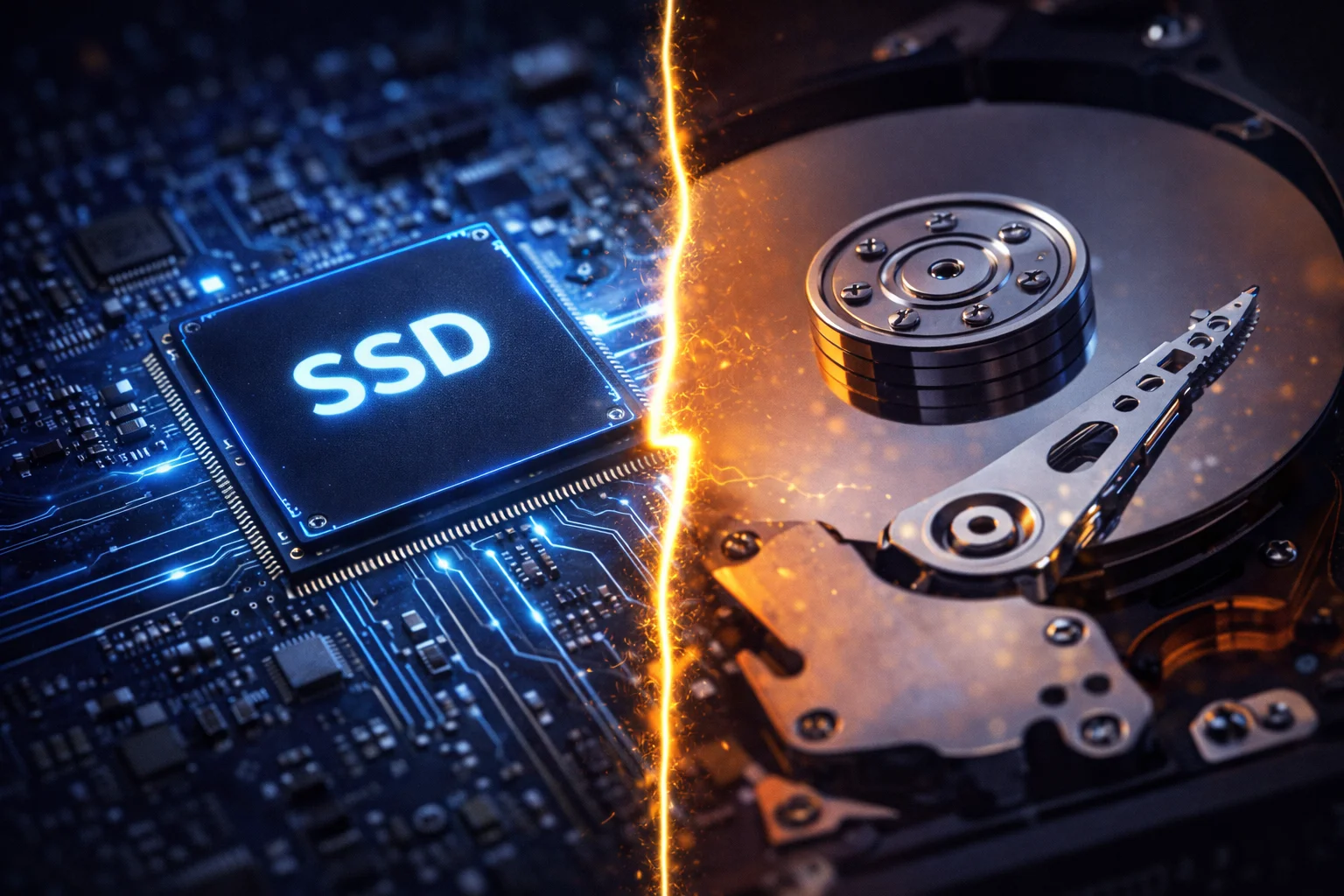
Should you buy an SSD or HDD for your next storage upgrade? It’s a question with a surprisingly nuanced answer in 2026.
While SSDs have dominated the conversation for years with their speed advantages, HDDs haven’t disappeared—and for good reason. Understanding when each technology excels helps you make smarter storage decisions and potentially save hundreds of dollars.
This guide breaks down the real-world differences between SSDs and HDDs, with current pricing and practical recommendations for every use case.
Quick Answer: SSD vs HDD at a Glance
| Factor | SSD | HDD |
|---|---|---|
| Speed | 500-14,000 MB/s | 80-200 MB/s |
| Price per TB | $50-100 | $15-25 |
| Lifespan | 5-10 years | 3-6 years |
| Durability | Excellent (no moving parts) | Fragile (mechanical) |
| Power Usage | Low (2-5W) | Higher (6-15W) |
| Noise | Silent | Audible spinning/clicking |
| Best For | OS, applications, gaming | Bulk storage, backups, archives |
Bottom line: Use an SSD for your operating system and frequently-used applications. Use HDDs for bulk storage where speed doesn’t matter but capacity and cost do.
How SSDs and HDDs Work (The Fundamentals)
Understanding the underlying technology explains why these drives perform so differently.
Hard Disk Drives (HDDs)
HDDs store data on spinning magnetic platters. A mechanical arm with a read/write head moves across the platters to access data—similar to a record player needle.
Key characteristics:
- Platters spin at 5,400-7,200 RPM (or 10,000+ RPM in enterprise drives)
- Data access requires physical movement, creating latency
- Sequential reads (large files) are reasonably fast
- Random reads (small scattered files) are slow due to seek time
- Moving parts create vibration, heat, and potential failure points
Solid State Drives (SSDs)
SSDs store data in NAND flash memory cells using electrical charges. There are no moving parts—data is accessed electronically.
Key characteristics:
- Data access is nearly instantaneous (no physical movement)
- Excellent at both sequential and random reads/writes
- No vibration or noise
- Lower power consumption generates less heat
- Flash cells have limited write cycles (though modern drives last years)
Why the speed difference matters: When you boot your computer or launch an application, the system reads thousands of small files scattered across your drive. HDDs must physically seek each file, taking milliseconds per operation. SSDs access any location almost instantly, which is why they make systems feel dramatically faster.
Speed Comparison: Real-World Benchmarks
The speed gap between SSDs and HDDs is substantial—and getting wider.
Sequential Speed (Large Files)
Sequential speed measures how fast drives read/write large continuous data blocks, like copying a video file.
| Drive Type | Read Speed | Write Speed |
|---|---|---|
| HDD (5,400 RPM) | 80-120 MB/s | 80-100 MB/s |
| HDD (7,200 RPM) | 150-200 MB/s | 130-180 MB/s |
| SATA SSD | 500-560 MB/s | 450-530 MB/s |
| NVMe Gen 3 SSD | 2,500-3,500 MB/s | 2,000-3,000 MB/s |
| NVMe Gen 4 SSD | 5,000-7,500 MB/s | 4,000-7,000 MB/s |
| NVMe Gen 5 SSD | 10,000-14,000 MB/s | 10,000-12,000 MB/s |
Practical example: Copying a 50GB game folder:
- HDD (7,200 RPM): ~4-5 minutes
- SATA SSD: ~1.5 minutes
- NVMe Gen 4 SSD: ~10 seconds
Random Speed (Small Files)
Random performance measures how quickly drives access small, scattered data—critical for operating system responsiveness.
| Drive Type | Random Read (IOPS) | Random Write (IOPS) |
|---|---|---|
| HDD (7,200 RPM) | 75-100 | 75-100 |
| SATA SSD | 90,000-100,000 | 80,000-90,000 |
| NVMe SSD | 400,000-1,000,000 | 400,000-800,000 |
This is where SSDs truly shine. A typical SSD delivers 1,000x more random operations per second than an HDD. This explains why an SSD makes your entire computer feel faster, not just file transfers.
Boot Time Comparison
Real-world Windows 11 boot times on identical systems:
| Drive Type | Cold Boot | Wake from Sleep |
|---|---|---|
| HDD (7,200 RPM) | 45-90 seconds | 5-10 seconds |
| SATA SSD | 15-25 seconds | 2-3 seconds |
| NVMe SSD | 8-15 seconds | 1-2 seconds |
For a deeper dive into SSD technologies, see our NVMe vs SATA comparison.
Price Comparison: Cost per Terabyte in 2026
Price has always been HDDs’ strongest advantage, though the gap continues to narrow.
Current Pricing (February 2026)
| Capacity | HDD Price | SSD (SATA) | SSD (NVMe) |
|---|---|---|---|
| 1TB | $40-50 | $60-80 | $70-100 |
| 2TB | $55-70 | $100-130 | $120-180 |
| 4TB | $80-100 | $200-280 | $250-350 |
| 8TB | $110-150 | $450-600 | $550-800 |
| 12TB | $180-220 | N/A | N/A |
| 16TB | $250-350 | N/A | N/A |
| 20TB | $350-450 | N/A | N/A |
Price per terabyte:
- HDD: ~$15-25/TB
- SATA SSD: ~$50-70/TB
- NVMe SSD: ~$60-100/TB
Best value strategy: Pair a smaller SSD (500GB-1TB) for your OS and applications with a large HDD (4TB+) for media storage. This hybrid approach delivers SSD speed where it matters while keeping bulk storage affordable.
Price Trends
SSD prices have dropped dramatically over the past five years:
- 2021: NVMe SSDs averaged $100-120/TB
- 2023: Prices dropped to $60-80/TB
- 2026: Quality NVMe drives now available at $50-70/TB
HDD prices have remained relatively stable, with most cost reductions coming from higher-capacity models.
Lifespan and Reliability
Both drive types can fail, but they fail differently.
HDD Lifespan
HDDs typically last 3-6 years under normal use, though many run longer. Failure is usually gradual, with warning signs:
Common failure indicators:
- Clicking or grinding noises
- Increasing bad sectors
- Slower read/write speeds
- SMART errors
What causes HDD failure:
- Mechanical wear (bearings, motor, heads)
- Shock damage (drops, impacts)
- Heat degradation
- Power surges
Backblaze’s 2025 report shows HDD annualized failure rates of 1.5-3%, increasing with age. Drives over 4 years old fail at significantly higher rates.
SSD Lifespan
SSDs typically last 5-10 years, often outliving the systems they’re installed in. Flash cells have limited write cycles, but modern drives handle this well.
SSD endurance metrics:
- TBW (Terabytes Written): Total data you can write before cells wear out
- DWPD (Drive Writes Per Day): For enterprise drives, writes per day over warranty
Typical consumer SSD endurance:
| Capacity | TBW Rating | Years at 50GB/day |
|---|---|---|
| 500GB | 300 TBW | 16+ years |
| 1TB | 600 TBW | 32+ years |
| 2TB | 1,200 TBW | 65+ years |
Most users will never approach these limits. Backblaze’s SSD failure data shows rates around 0.6% annually—roughly half that of HDDs.
Data recovery consideration: When HDDs fail, data recovery is often possible (though expensive). SSD failures can be more catastrophic, with encrypted controller chips making recovery difficult or impossible. Always maintain backups regardless of drive type.
Which Lasts Longer?
SSDs generally last longer due to:
- No mechanical wear
- Better shock resistance
- Lower operating temperatures
- No degradation from spin-up/down cycles
However, both drive types can fail unexpectedly. The most reliable storage strategy is redundancy and regular backups, not relying on any single drive.
Gaming: SSD vs HDD Performance
Gaming showcases the SSD advantage clearly.
Game Load Times
| Game | HDD | SATA SSD | NVMe SSD |
|---|---|---|---|
| GTA V | 90 seconds | 35 seconds | 25 seconds |
| Cyberpunk 2077 | 75 seconds | 28 seconds | 18 seconds |
| Baldur’s Gate 3 | 85 seconds | 30 seconds | 20 seconds |
| Call of Duty MW3 | 60 seconds | 22 seconds | 15 seconds |
| Starfield | 95 seconds | 38 seconds | 22 seconds |
DirectStorage and Modern Games
Windows DirectStorage technology allows games to load assets directly from NVMe SSDs to the GPU, bypassing traditional CPU bottlenecks. Games optimized for DirectStorage can show even larger improvements on NVMe drives.
PS5 and Xbox Series X/S both use custom NVMe SSDs, and many modern PC games are designed with SSD storage in mind. Some games (like Starfield) now require an SSD for installation.
Gaming Recommendation
Minimum: SATA SSD for your game library Recommended: NVMe SSD for the best experience Budget option: Install your most-played games on an SSD, archive rarely-played titles on an HDD
For specific gaming SSD recommendations, see our Best PS5 SSD guide.
Use Case Recommendations
When to Choose an SSD
Always use an SSD for:
- Operating system (Windows, macOS, Linux)
- Applications and programs
- Games you play regularly
- Video editing projects (active work)
- Virtual machines
- Databases
- Any workload where speed matters
When to Choose an HDD
HDDs still make sense for:
- Mass media storage (movies, music, photos)
- Backup drives
- Archive/cold storage
- NAS systems for bulk data
- Budget builds where capacity matters more than speed
- Surveillance systems (continuous recording)
Hybrid Strategy (Best of Both)
For most users, the optimal setup combines both technologies:
Desktop PC:
- 500GB-1TB NVMe SSD for OS and applications (~$70-100)
- 4-8TB HDD for media storage (~$100-150)
- Total: ~$170-250 for 5-9TB of optimized storage
Laptop:
- 1-2TB NVMe SSD only (limited bays)
- External HDD for backup and overflow
NAS/Home Server:
- SSD cache for frequently-accessed data
- Large HDDs for bulk storage
- See our NAS drives guide for recommendations
SSD Types Explained
Not all SSDs are created equal. Here’s a quick overview:
By Interface
| Type | Max Speed | Use Case |
|---|---|---|
| SATA SSD | 560 MB/s | Older systems, budget builds |
| NVMe Gen 3 | 3,500 MB/s | General use, gaming |
| NVMe Gen 4 | 7,500 MB/s | Professional work, enthusiast |
| NVMe Gen 5 | 14,000 MB/s | Cutting-edge, specific workloads |
By Flash Type
| Type | Endurance | Speed | Price |
|---|---|---|---|
| SLC | Highest | Fastest | Enterprise only |
| MLC | High | Fast | Some enterprise |
| TLC | Good | Good | Most consumer SSDs |
| QLC | Lower | Adequate | Budget drives |
For most users, TLC drives offer the best balance of performance, endurance, and price.
For more details, see our SATA SSD and NVMe SSD guides.
Frequently Asked Questions
Yes, for your operating system and applications. The speed difference is immediately noticeable—boot times drop from over a minute to under 15 seconds, and everything feels more responsive. For bulk storage where speed doesn’t matter, HDDs remain cost-effective.
In most cases, yes. 2.5″ SATA SSDs fit in standard laptop drive bays. For desktops, you may need a mounting bracket. M.2 NVMe SSDs require a compatible motherboard slot (most systems from 2018+ have one).
Modern SSDs typically outlast HDDs, averaging 5-10 years versus 3-6 years. SSDs have no mechanical parts to wear out, and write endurance exceeds what most users will ever need.
SSDs can fail suddenly, though most show SMART warning signs first. The more significant concern is that SSD data recovery is often more difficult than HDD recovery. Regular backups are essential regardless of drive type.
For general use, the difference is less noticeable than HDD to SATA SSD. NVMe shines in large file transfers, video editing, and games with DirectStorage support. If your system supports NVMe and prices are similar, choose NVMe for future-proofing.
No, never defragment an SSD. Defragmentation causes unnecessary writes that wear flash cells and provides no benefit. Modern operating systems disable defragmentation automatically for SSDs and use TRIM instead.
For most users: 500GB minimum, 1TB recommended, 2TB for comfortable headroom. Modern games average 50-100GB each, and Windows itself uses 30-40GB. For help calculating your needs, see how much storage do I need.
The Bottom Line
SSD wins on: Speed, reliability, durability, power efficiency, noise HDD wins on: Cost per terabyte, maximum capacity, data recovery
In 2026, the question isn’t really “SSD or HDD”—it’s “how much of each?” The ideal storage strategy for most users combines a fast SSD for active use with a large HDD for archives and backups.
If you must choose one:
- Choose SSD if you value speed and reliability
- Choose HDD if you need maximum capacity on a tight budget
For specific drive recommendations, check our HDD prices and SSD prices comparison pages.
Related guides:
- NVMe vs SATA SSD — Comparing SSD interfaces
- How Much Storage Do I Need? — Calculate your requirements
- Best Hard Drive for PC — Top picks for every use case