Synology 2-Bay vs 4-Bay NAS: Which Should You Buy?

Quick Answer+
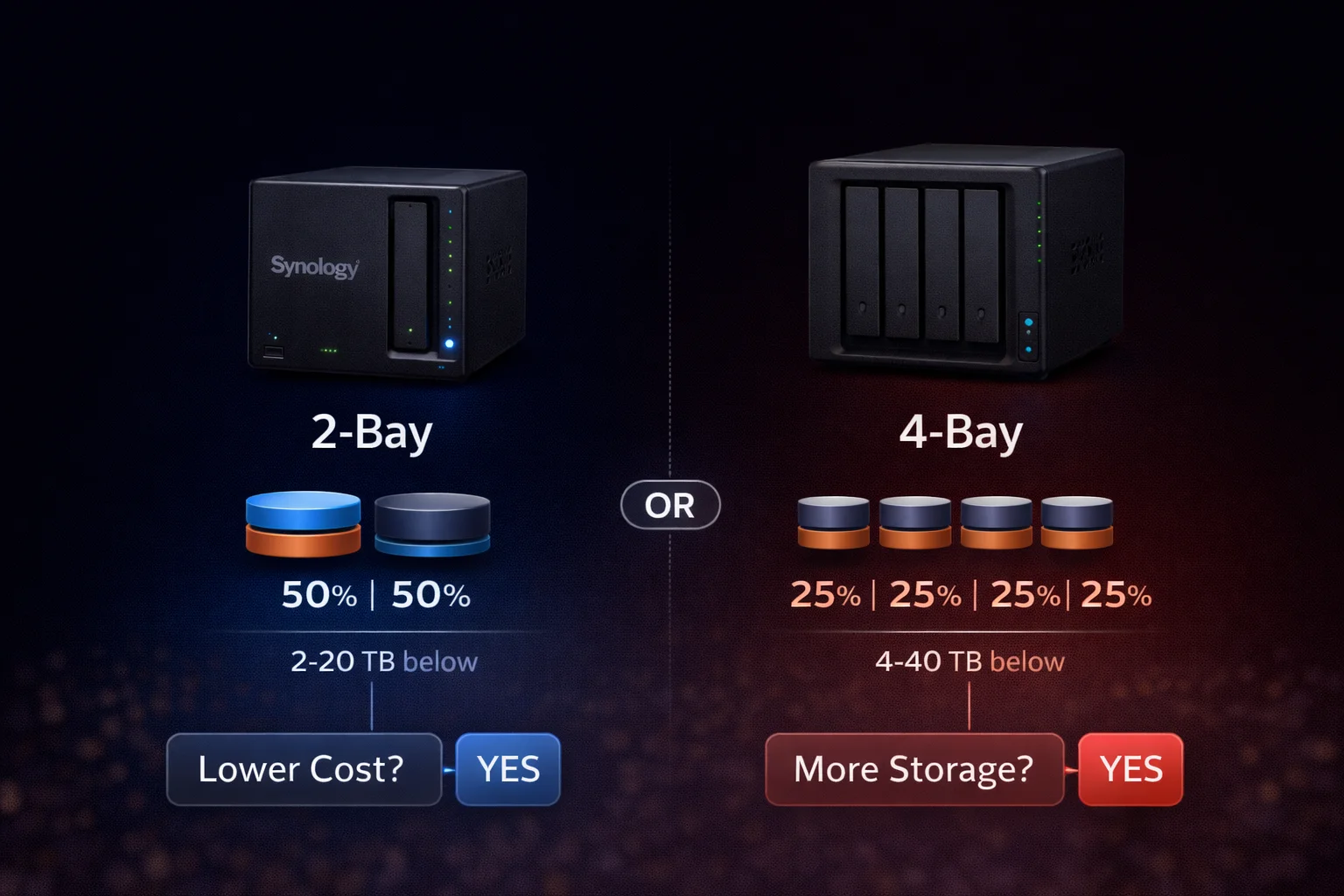
Quick Answer: Choose 2-bay (DS225+ ~$340) if you need ≤12TB usable storage and want the lowest cost. Choose 4-bay (DS423 ~$380 or DS923+ ~$960) if you need >12TB storage, want better RAID efficiency, or plan to expand over time. The key difference: 2-bay uses 50% of capacity for redundancy (RAID 1), while 4-bay uses only 25-33% (RAID 5/SHR), giving you more usable space per dollar spent on drives.
One of the most common questions when buying a Synology NAS: how many drive bays do I need? The answer isn’t as straightforward as “more is better.” Your optimal choice depends on storage requirements, budget constraints, expansion plans, and how you value upfront cost versus long-term efficiency.
This comprehensive guide breaks down every aspect of the 2-bay versus 4-bay decision, including real-world cost calculations, RAID efficiency analysis, use case recommendations, and specific model comparisons to help you make the right choice.
2-Bay vs 4-Bay: Quick Comparison
| Factor | 2-Bay NAS | 4-Bay NAS |
|---|---|---|
| NAS Price Range | $340-520 | $380-960 |
| Max Raw Capacity | 48TB (2× 24TB) | 96TB (4× 24TB) |
| RAID Efficiency | 50% (RAID 1/SHR) | 75% (RAID 5/SHR) |
| Max Usable Storage | ~24TB | ~72TB |
| Drive Failure Protection | 1 drive | 1-2 drives |
| Expansion Flexibility | Limited | Excellent |
| Physical Size | Compact | Larger |
| Power Consumption | Lower | Higher |
| Best For | Individuals, small homes | Families, SMB, power users |
Understanding RAID Efficiency: The Critical Factor
RAID (Redundant Array of Independent Disks) protects your data by spreading it across multiple drives so that if one drive fails, your data remains intact. However, this protection comes at a cost: you sacrifice some storage capacity for redundancy.
The number of bays in your NAS dramatically affects how much capacity you “lose” to redundancy. This is the single most important factor in the 2-bay vs 4-bay decision.
2-Bay NAS: RAID 1 / SHR (Mirroring)
With only two bays, your RAID options are limited to mirroring configurations:
- How it works: Both drives contain identical copies of your data
- Usable capacity: 50% of total raw capacity (equivalent to 1 drive)
- Example: 2× 8TB drives = 8TB usable storage
- Protection level: Survives 1 drive failure
- Rebuild time: Fast (only copying to new drive)
The advantage of mirroring is simplicity and fast rebuild times. If a drive fails, replacing it only requires copying data from the surviving drive. The disadvantage is efficiency—you’re essentially paying for twice the storage you can actually use.
4-Bay NAS: RAID 5 / SHR (Distributed Parity)
With four bays, you unlock more efficient RAID configurations:
- How it works: Parity data (used for recovery) is distributed across all drives
- Usable capacity: 75% of total raw capacity (equivalent to N-1 drives)
- Example: 4× 8TB drives = 24TB usable storage
- Protection level: Survives 1 drive failure
- Rebuild time: Longer (recalculating parity across all drives)
RAID 5/SHR offers the same single-drive failure protection as RAID 1, but with significantly better storage efficiency. The trade-off is longer rebuild times and slightly more complex recovery processes.
4-Bay Bonus: RAID 6 / SHR-2 Option
With 4+ bays, you can also use RAID 6 or SHR-2, which survives two simultaneous drive failures:
- Usable capacity: 50% of total (same as RAID 1 efficiency)
- Example: 4× 8TB drives = 16TB usable storage
- Protection level: Survives 2 drive failures
SHR-2 is recommended for very large drives (16TB+) where the probability of a second drive failing during rebuild increases. With 4 bays, you get the same 50% efficiency as 2-bay RAID 1, but with dual-drive protection.
Storage Efficiency Comparison Table
| Configuration | Raw Capacity | 2-Bay Usable (RAID 1) | 4-Bay Usable (RAID 5) | Efficiency Gain |
|---|---|---|---|---|
| 2× 4TB | 8TB | 4TB | N/A | — |
| 4× 4TB | 16TB | N/A | 12TB | — |
| 2× 8TB | 16TB | 8TB | 8TB* | 0% |
| 4× 8TB | 32TB | N/A | 24TB | — |
| 2× 12TB | 24TB | 12TB | 12TB* | 0% |
| 4× 12TB | 48TB | N/A | 36TB | — |
| 2× 16TB | 32TB | 16TB | 16TB* | 0% |
| 4× 16TB | 64TB | N/A | 48TB | — |
| 2× 20TB | 40TB | 20TB | 20TB* | 0% |
| 4× 20TB | 80TB | N/A | 60TB | — |
*With only 2 drives in a 4-bay NAS, you get the same usable capacity as a 2-bay, but retain the ability to add more drives later without rebuilding.
Real-World Cost Analysis
Let’s compare the true cost of 2-bay vs 4-bay configurations using current 2026 pricing.
Scenario 1: I Need 8TB Usable Storage
| Option | Configuration | NAS Cost | Drives Cost | Total | Cost/TB |
|---|---|---|---|---|---|
| 2-Bay | DS225+ + 2× 8TB | $340 | $320 | $660 | $82.50 |
| 4-Bay | DS423 + 2× 8TB | $380 | $320 | $700 | $87.50 |
Winner: 2-Bay — Saves $40 for identical usable storage. The 4-bay only makes sense here if you plan to add drives later.
Scenario 2: I Need 16TB Usable Storage
| Option | Configuration | NAS Cost | Drives Cost | Total | Cost/TB |
|---|---|---|---|---|---|
| 2-Bay | DS225+ + 2× 16TB | $340 | $560 | $900 | $56.25 |
| 4-Bay | DS423 + 4× 8TB | $380 | $640 | $1,020 | $63.75 |
Winner: 2-Bay — Still cheaper at this capacity. However, 2-bay is now using large 16TB drives while 4-bay uses more economical 8TB drives. The 4-bay configuration also offers room to grow.
Scenario 3: I Need 24TB Usable Storage
| Option | Configuration | NAS Cost | Drives Cost | Total | Cost/TB |
|---|---|---|---|---|---|
| 2-Bay | DS225+ + 2× 24TB | $340 | $800 | $1,140 | $47.50 |
| 4-Bay | DS423 + 4× 8TB | $380 | $640 | $1,020 | $42.50 |
Winner: 4-Bay — Saves $120 AND uses more affordable 8TB drives. This is the crossover point where 4-bay becomes more economical.
Scenario 4: I Need 36TB Usable Storage
| Option | Configuration | NAS Cost | Drives Cost | Total | Cost/TB |
|---|---|---|---|---|---|
| 2-Bay | Not possible | — | — | — | — |
| 4-Bay | DS423 + 4× 12TB | $380 | $800 | $1,180 | $32.78 |
Winner: 4-Bay — 2-bay simply cannot reach this capacity with current drive sizes. Even with the largest 24TB drives, 2-bay maxes out at 24TB usable.
The Crossover Point
Based on current pricing, the 4-bay NAS becomes more cost-effective when you need approximately 20TB or more of usable storage. Below that threshold, 2-bay typically costs less. Above that threshold, 4-bay’s superior RAID efficiency pays for the higher NAS price.
2-Bay NAS: Best Models
Synology DS225+ — Best 2-Bay Value
Synology DS225+
Intel Celeron | 2GB RAM (6GB max) | 2 Bays | Hardware Transcoding | 2× 1GbE
The best 2-bay NAS for most home users. Intel CPU enables Plex hardware transcoding, keeping CPU usage low during media playback. Up to 48TB raw storage with latest drives. Compact, quiet, and affordable.
The DS225+ is Synology’s latest mainstream 2-bay NAS, replacing the popular DS224+. The Intel Celeron processor provides excellent media server performance with hardware transcoding support, making it ideal for Plex or Jellyfin users. The 6GB maximum RAM limits heavy Docker use, but it handles typical home NAS workloads effortlessly.
Best for: Home users who need file storage, backup, and a media server with transcoding. Limited Docker users running 5-10 lightweight containers.
Limitations: Cannot add more bays without buying a new NAS. No 10GbE option. RAM maxes out at 6GB.
Synology DS725+ — 2-Bay Power User
Synology DS725+
AMD Ryzen R1600 | 2GB RAM (32GB max) | 2 Bays | 10GbE Option | NVMe Cache | Expandable to 7 Drives
The power user’s 2-bay NAS. Same AMD Ryzen CPU and expansion capabilities as the 4-bay DS923+, but in a compact 2-bay form factor. Add a DX517 expansion unit later for up to 7 total drive bays.
The DS725+ bridges the gap between entry-level and professional NAS. You get the same powerful AMD Ryzen R1600 CPU found in the DS923+, support for up to 32GB RAM, NVMe cache slots for SSD acceleration, and optional 10GbE networking. Most importantly, it’s expandable—add a DX517 unit later for up to 7 total drive bays without migrating data.
Best for: Power users who want premium features but prefer starting small. Docker enthusiasts who need more RAM and CPU power. Users who might expand storage in the future but don’t want to commit to 4 bays now.
Trade-off: No hardware transcoding (AMD CPU). More expensive than DS225+ with fewer bays than DS923+.
4-Bay NAS: Best Models
Synology DS423 — Best 4-Bay Budget
Synology DS423
Intel Celeron J4125 | 2GB RAM (6GB max) | 4 Bays | Hardware Transcoding | 2× 1GbE
Outstanding value for a 4-bay NAS. Same Intel CPU as DS225+ with double the bays for only $40 more. Best 4-bay choice for Plex users. Up to 96TB raw storage, 72TB usable with SHR/RAID 5.
The DS423 offers exceptional value: for just $40 more than the 2-bay DS225+, you get double the drive bays. This makes it an easy recommendation for anyone who might need more than 12TB of usable storage now or in the future. The Intel Celeron J4125 processor provides reliable hardware transcoding for media servers.
Best for: Budget-conscious users who want 4-bay efficiency. Plex/media server users who need transcoding. Growing families with expanding storage needs.
Limitations: No NVMe cache slots. No 10GbE option. RAM limited to 6GB. Cannot expand beyond 4 bays.
Synology DS923+ — Best 4-Bay Overall
Synology DS923+
AMD Ryzen R1600 | 4GB RAM (32GB max) | 4 Bays | 10GbE Option | NVMe Cache | Expandable to 9 Drives
The most versatile 4-bay NAS available. AMD Ryzen for Docker/VMs, dual NVMe cache slots, optional 10GbE networking, and expansion to 9 drives with DX517 units. The enthusiast’s choice for a do-everything NAS.
The DS923+ is Synology’s flagship 4-bay NAS for enthusiasts and small businesses. The AMD Ryzen R1600 CPU excels at multi-threaded workloads like Docker containers and virtual machines. Dual M.2 NVMe slots allow SSD caching for dramatically improved random I/O performance. The optional 10GbE network adapter enables multi-gigabit transfers for video editing or large file workflows.
Expandability is a key advantage: add one or two DX517 expansion units for up to 9 total drive bays without migrating data. This makes the DS923+ a long-term investment that grows with your needs.
Best for: Docker power users. Small businesses needing room to grow. Video editors and creative professionals. Anyone who wants the best 4-bay NAS regardless of price.
Trade-off: No hardware transcoding (use Jellyfin instead of Plex, or accept software transcoding). Significantly more expensive than DS423.
Head-to-Head Model Comparison
| Feature | DS225+ | DS725+ | DS423 | DS923+ |
|---|---|---|---|---|
| Price | $340 | $520 | $380 | $960 |
| Bays | 2 | 2 (exp. to 7) | 4 | 4 (exp. to 9) |
| CPU | Intel Celeron | AMD Ryzen R1600 | Intel J4125 | AMD Ryzen R1600 |
| Max RAM | 6GB | 32GB | 6GB | 32GB |
| NVMe Cache | ❌ | ✅ | ❌ | ✅ |
| 10GbE Option | ❌ | ✅ | ❌ | ✅ |
| HW Transcode | ✅ | ❌ | ✅ | ❌ |
| Expandable | ❌ | ✅ (DX517) | ❌ | ✅ (DX517) |
| Best For | Budget home | Power user 2-bay | Budget 4-bay | Enthusiast/SMB |
Expansion and Future-Proofing
2-Bay Expansion Options
Standard 2-bay units (DS225+) have limited expansion options:
- Upgrade drive sizes: Replace both drives with larger ones. Requires rebuilding the array, which takes hours to days depending on capacity.
- USB expansion: Add external USB drives for non-critical data. Not recommended for primary storage.
- Buy a new NAS: The nuclear option—migrate everything to a larger unit.
The DS725+, however, supports DX517 expansion units, adding up to 5 more bays (7 total) without replacing the NAS. This makes it uniquely future-proof among 2-bay models.
4-Bay Expansion Options
4-bay units offer much better expansion flexibility:
- Add drives: Start with 2 drives, add 2 more later. SHR automatically incorporates new drives into the storage pool.
- Upgrade drives one at a time: Replace drives sequentially with larger ones. Array expands after all drives are upgraded.
- DX517 expansion: DS923+ supports expansion units for up to 9 total bays.
The ability to add drives incrementally is a significant advantage. You can start with a minimal investment and expand as budget allows, without any downtime or data migration.
Synology Hybrid RAID (SHR) and Mixed Drive Sizes
Synology’s SHR technology allows mixing different drive sizes in the same array—a major advantage over traditional RAID. In a 4-bay configuration:
- Start with 2× 8TB drives (8TB usable)
- Add 1× 12TB drive later (12TB usable)
- Add another 12TB drive (28TB usable)
SHR intelligently maximizes usable capacity from mixed drive sizes, something traditional RAID 5 cannot do (it would waste the extra capacity on larger drives).
Use Case Recommendations
Choose 2-Bay (DS225+) If:
- You need ≤12TB usable storage and don’t expect significant growth
- Budget is the primary concern
- Physical space is limited (apartment, small office)
- You want the simplest possible setup
- Plex transcoding is important (Intel Quick Sync)
- You’re a solo user or small household
Choose 2-Bay Power (DS725+) If:
- You want 2-bay compactness but need expansion options
- Docker/containers are a priority
- You need more than 6GB RAM
- 10GbE networking is required
- You want NVMe cache for performance
- You might expand to 7 bays eventually
Choose 4-Bay Budget (DS423) If:
- You need 12-36TB usable storage
- You want better cost-per-TB on drives
- You expect storage needs to grow over time
- Plex transcoding is important
- Family or multi-user environment
- You want to add drives incrementally
Choose 4-Bay Power (DS923+) If:
- Docker, VMs, or heavy multitasking is planned
- You need 10GbE for video editing or large transfers
- NVMe cache performance is valuable
- You want expansion beyond 4 bays
- Small business or professional use
- You want the best regardless of cost
Decision Flowchart
How much usable storage do you need?
- ≤8TB: → DS225+ (unless you need Docker, then DS725+)
- 8-12TB: → DS225+ (or DS423 if expansion is likely)
- 12-20TB: → DS423 (most cost-effective)
- >20TB: → DS423 or DS923+ (4-bay required)
Do you plan to expand storage significantly?
- No: → Size for current needs
- Maybe: → 4-bay (add drives without rebuilding)
- Definitely: → DS725+ or DS923+ (expandable with DX517)
Is Plex hardware transcoding important?
- Yes: → DS225+ or DS423 (Intel CPU)
- No: → Any model works; consider Jellyfin for AMD units
Do you need Docker with >6GB RAM?
- Yes: → DS725+ or DS923+ (32GB max RAM)
- No: → Any model works
Do you need 10GbE or NVMe cache?
- Yes: → DS725+ (2-bay) or DS923+ (4-bay)
- No: → DS225+ or DS423
Frequently Asked Questions
Choose 2-bay (DS225+ ~$340) if you need ≤12TB usable storage and want lowest cost. Choose 4-bay (DS423 ~$380 or DS923+ ~$960) if you need more storage, want better RAID efficiency (75% vs 50% usable), or plan to expand. The 4-bay becomes more cost-effective at approximately 20TB+ usable storage due to better RAID efficiency.
With 2-bay RAID 1/SHR: You get 50% usable (1 drive’s worth). With 4-bay RAID 5/SHR: You get 75% usable (3 drives’ worth). Example: 2× 8TB = 8TB usable. 4× 8TB = 24TB usable. The 4-bay gives you 3× more usable storage from the same total drive capacity.
Yes! This is an excellent strategy. Start with 2 drives in SHR, then add drives as your budget allows. The storage pool expands automatically without rebuilding. You can even mix drive sizes with SHR—it intelligently maximizes usable capacity from different-sized drives.
They have similar Plex performance with Intel CPUs supporting hardware transcoding. Choose DS225+ (~$340) to save money if you need ≤12TB storage. Choose DS423 (~$380) for more storage capacity and room to grow. Both handle 2-4 simultaneous 1080p transcodes comfortably.
Options are limited: (1) Replace both drives with larger ones and rebuild the array (time-consuming, old drives become spares), (2) Add external USB drives for non-critical data, or (3) Buy a larger NAS and migrate. This is why 4-bay is recommended if you expect storage needs to grow beyond 12TB.
DS725+ (~$520) is ideal for users who want a compact 2-bay now but may expand later with DX517 units (up to 7 bays total). DS923+ (~$960) is better if you need 4 bays immediately or will eventually use 5-9 bays. Both have identical CPU, RAM support, and features—the only difference is starting bay count.
RAID 5 with very large drives (16TB+) has increased risk during rebuilds—if a second drive fails during the lengthy rebuild process, you lose everything. For large drives, consider RAID 6/SHR-2 (requires 4+ bays) which survives two simultaneous failures, or maintain good backups regardless of RAID level.
Yes. Synology NAS works with any compatible 3.5″ SATA drives. You can mix brands (WD, Seagate, Toshiba) in the same array when using SHR. For best reliability, use NAS-rated drives (WD Red Plus, Seagate IronWolf) designed for 24/7 operation in multi-drive enclosures.
Conclusion
The 2-bay vs 4-bay decision ultimately comes down to three factors: how much storage you need, whether you expect to grow, and your budget constraints.
For most home users with modest storage needs (≤12TB): The DS225+ (~$340) provides excellent value. It’s compact, affordable, and handles typical home NAS workloads including Plex with hardware transcoding. You’ll pay a premium for large drives to maximize capacity, but the lower NAS cost offsets this for smaller deployments.
For growing households or users who want flexibility: The DS423 (~$380) is a remarkable value at just $40 more than the 2-bay. You get double the bays, better RAID efficiency, and the ability to add drives incrementally. It’s the sweet spot for most users who think they might need more than 12TB eventually.
For power users who prioritize performance and expandability: The DS725+ (~$520) or DS923+ (~$960) offer premium features including AMD Ryzen CPUs, 32GB RAM support, NVMe cache, and 10GbE options. Choose DS725+ for a compact starting point that can grow to 7 bays, or DS923+ if you need 4+ bays from day one.
Remember: RAID is not a backup. Regardless of which configuration you choose, maintain off-site backups of irreplaceable data. A 4-bay RAID 5 array protects against drive failure, but not against theft, fire, ransomware, or accidental deletion.
Related Resources
- Best Synology NAS 2026
- Synology RAID & SHR Guide
- Best NAS Hard Drives 2026
- DS225+ Review
- DS423 Review
- DS923+ Review
- RAID Calculator
- Synology Docker Guide
Last Updated: February 2026