Synology Docker Guide: Complete Setup & Best Containers (2026)

Quick Answer+
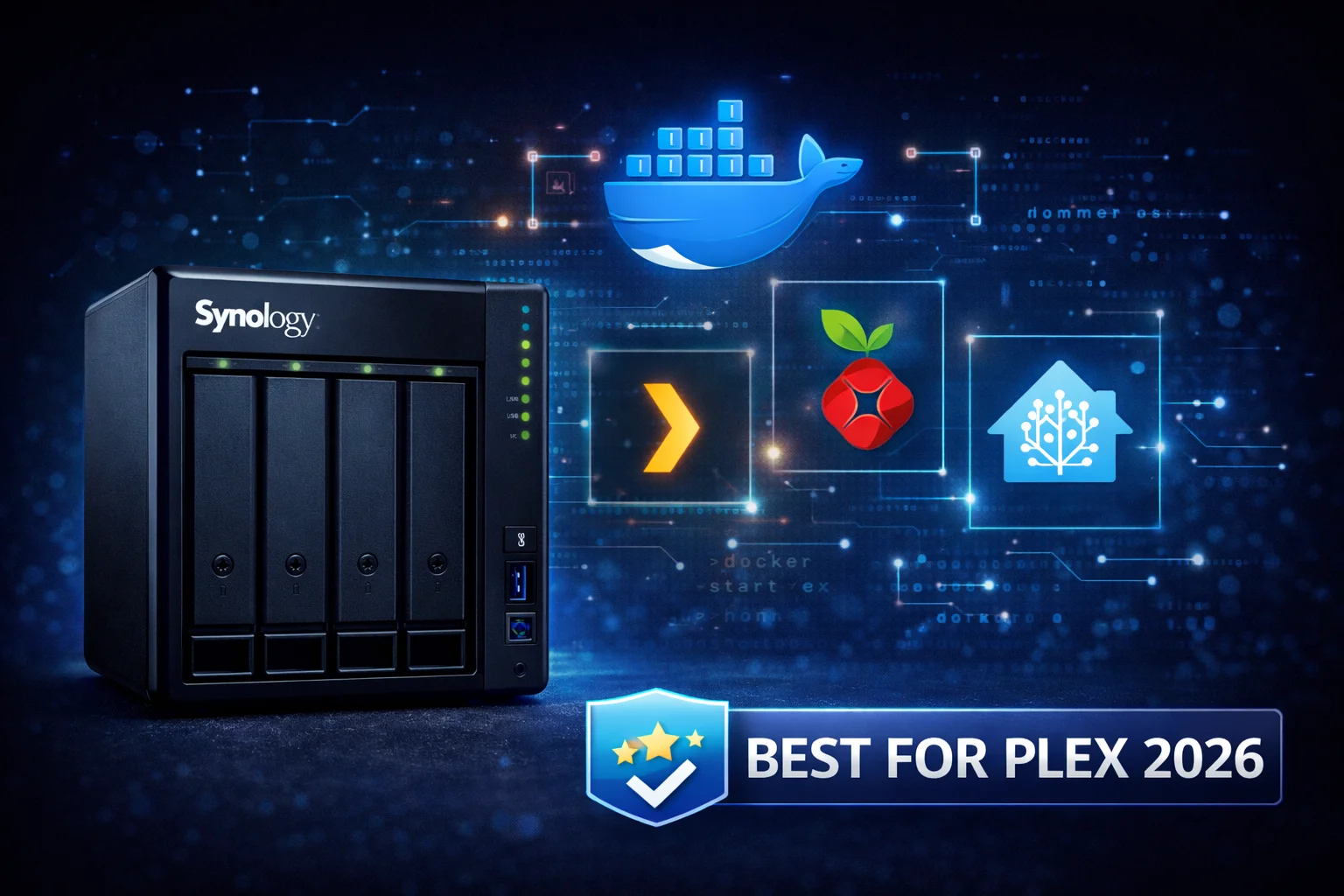
Quick Answer: Docker on Synology (called Container Manager in DSM 7.2+) lets you run thousands of applications on your NAS. Supported models: DS225+, DS423, DS725+, DS923+, DS1522+, and other Plus/xs models with x86 processors. Not supported: DS223, DS220j, and other ARM-based “value” models. For best Docker performance, choose DS923+ (~$960) with NVMe cache and 16GB+ RAM.
Docker transforms your Synology NAS from a simple file server into a powerful home server capable of running dozens of applications simultaneously. From Pi-hole ad blocking to Home Assistant home automation, Plex media streaming to self-hosted password managers, Docker containers provide isolated, easy-to-manage services without complex installation procedures or dependency conflicts.
This comprehensive guide covers everything you need to know about running Docker on Synology: which models support it, how to set up Container Manager, the best containers to install, performance optimization strategies, and troubleshooting common issues.
What is Docker and Why Use It on Synology?
Docker is a containerization platform that packages applications with all their dependencies into isolated units called containers. Unlike traditional software installation, containers run independently of the host system, making them portable, consistent, and easy to manage.
Benefits of Docker on Synology NAS
Isolation: Each container runs in its own environment, preventing conflicts between applications. You can run multiple versions of the same software or applications with incompatible dependencies without issues.
Easy Updates: Updating a containerized application is as simple as pulling a new image and recreating the container. Your data persists in mapped volumes, so updates don’t affect your settings or files.
Portability: Docker Compose files define your entire setup in a single YAML file. You can backup, share, and recreate your configuration on any Docker-compatible system.
Resource Efficiency: Containers share the host OS kernel, using far less resources than virtual machines. A NAS with 16GB RAM can comfortably run 20+ containers.
Vast Application Library: Docker Hub hosts hundreds of thousands of pre-built images for virtually any application you can imagine—media servers, databases, development tools, home automation, and more.
Which Synology Models Support Docker?
Docker requires an x86/x64 processor. Synology models with ARM processors cannot run Docker. This is a hardware limitation, not a software restriction, so there’s no workaround for unsupported models.
Docker Supported Models ✅
| Model | CPU | Max RAM | Docker Performance |
|---|---|---|---|
| DS225+ | Intel Celeron | 6GB | Good (light containers) |
| DS423 | Intel Celeron J4125 | 6GB | Good (light containers) |
| DS725+ | AMD Ryzen R1600 | 32GB | Very Good |
| DS923+ | AMD Ryzen R1600 | 32GB | Very Good |
| DS1522+ | AMD Ryzen R1600 | 32GB | Very Good |
| DS1823xs+ | Intel Xeon D-1531 | 64GB | Excellent |
| RS series | Various x86 | Varies | Good to Excellent |
Docker NOT Supported ❌
- DS223, DS223j — ARM Realtek RTD1619B processor
- DS220j, DS218 — ARM Realtek RTD1296 processor
- DS120j — ARM Marvell processor
- Any model with “j” suffix — Value line, always ARM-based
- Older “play” and “slim” models — ARM processors
If you’re planning to buy a NAS specifically for Docker, ensure you select a Plus (+), xs, or xs+ model. The “j” value series and standard non-plus models use ARM processors that cannot run Docker.
Best Synology NAS for Docker
Best Overall: Synology DS923+
Synology DS923+
AMD Ryzen R1600 | 4GB RAM (32GB max) | 4 Bays | NVMe Cache | 10GbE Option
The best NAS for serious Docker use. AMD Ryzen handles multiple containers with ease, NVMe cache slots accelerate database I/O, and 32GB max RAM provides ample headroom for complex deployments. Recommended: upgrade to 16GB RAM for heavy Docker use.
The DS923+ stands out as the optimal Docker NAS for several reasons. The AMD Ryzen R1600 dual-core processor delivers significantly better multi-threaded performance than Intel Celeron alternatives, which matters when running 10+ containers simultaneously. The two M.2 NVMe slots allow you to add SSD cache, dramatically improving performance for database-heavy containers like Home Assistant, Nextcloud, or any application with frequent small reads/writes.
Perhaps most importantly, the DS923+ supports up to 32GB of ECC RAM. While the stock 4GB is adequate for basic use, upgrading to 16GB or 32GB transforms Docker performance. Containers can use available RAM for caching, and you’ll have headroom to run memory-hungry applications like Plex with thumbnail generation, multiple databases, or even virtual machines alongside Docker.
Best Budget: Synology DS225+
Synology DS225+
Intel Celeron | 2GB RAM (6GB max) | 2 Bays | Hardware Transcoding
Good for light Docker use with 5-10 simple containers. The 6GB RAM limit restricts heavy workloads, but it’s perfect for essential self-hosted services. Best for: Pi-hole, Portainer, Watchtower, and lightweight home automation.
The DS225+ offers Docker capability at a much lower price point, making it ideal for users who want to experiment with containers or run a handful of lightweight services. The Intel Celeron processor handles basic containers well, and the hardware transcoding capability means you can run Plex or Jellyfin natively while Docker handles other services.
The main limitation is RAM: with a maximum of 6GB, you’ll need to be selective about which containers you run. Stick to lightweight services like Pi-hole (50MB), Watchtower (50MB), Portainer (100MB), and similar applications. Avoid memory-hungry containers like Nextcloud with preview generation or large databases.
Mid-Range Option: Synology DS725+
Synology DS725+
AMD Ryzen R1600 | 2GB RAM (32GB max) | 2 Bays | NVMe Cache | 10GbE Option | Expandable
The power user’s 2-bay NAS. Same AMD Ryzen CPU and 32GB RAM support as DS923+, but in a compact 2-bay form factor. Expandable to 7 drives with DX517 unit.
The DS725+ bridges the gap between budget and premium. You get the same powerful AMD Ryzen R1600 CPU and 32GB RAM support as the DS923+, but in a smaller 2-bay enclosure. This is ideal for users who prioritize Docker performance over storage capacity, or who plan to expand storage later with a DX517 expansion unit.
RAM Recommendations for Docker
| Use Case | Example Containers | Container Count | RAM Needed |
|---|---|---|---|
| Light | Pi-hole, Watchtower, Portainer | 3-5 | 4GB |
| Moderate | Above + Home Assistant, Grafana | 5-10 | 8GB |
| Heavy | Above + Nextcloud, databases, Plex | 10-20 | 16GB |
| Power User | Above + VMs, development environments | 20+ | 32GB |
These are general guidelines—actual RAM usage depends on specific containers and their configurations. Use DSM’s Resource Monitor to track memory usage and upgrade if you consistently exceed 80% utilization.
Setting Up Docker on Synology (Container Manager)
Synology renamed the Docker package to “Container Manager” in DSM 7.2. The underlying technology is still Docker, but the interface has been redesigned with better Docker Compose support.
Step 1: Install Container Manager
- Open Package Center in DSM
- Search for “Container Manager”
- Click Install
- Once installed, launch Container Manager from the main menu
If you don’t see Container Manager in Package Center, your NAS model doesn’t support Docker (ARM processor). There’s no workaround for this limitation.
Step 2: Create Docker Shared Folder
Before deploying containers, create a dedicated shared folder for Docker data:
- Open Control Panel → Shared Folder
- Click Create
- Name it “docker”
- Select your storage volume
- Skip encryption (unless specifically needed)
- Complete the wizard
This folder will store persistent data for your containers at /volume1/docker/. Keeping all Docker data in one location simplifies backups and management.
Step 3: Understanding Container Manager Interface
Container Manager has four main sections:
Overview: Dashboard showing running containers, resource usage, and system health.
Container: List of individual containers. You can start, stop, restart, and view logs here.
Project: Docker Compose deployments. This is the recommended way to manage multi-container applications.
Registry: Search Docker Hub and other registries for images.
Image: Downloaded container images stored locally.
Network: Docker networks for container communication.
Step 4: Deploying Your First Container (Pi-hole Example)
Let’s deploy Pi-hole, a network-wide ad blocker, using Docker Compose:
- Go to Project → Create
- Name it “pihole”
- Set path to
/volume1/docker/pihole - Paste the following Docker Compose configuration:
version: "3" services: pihole: container_name: pihole image: pihole/pihole:latest ports: - "53:53/tcp" - "53:53/udp" - "8080:80/tcp" environment: TZ: 'America/New_York' WEBPASSWORD: 'your-secure-password' volumes: - './etc-pihole:/etc/pihole' - './etc-dnsmasq.d:/etc/dnsmasq.d' restart: unless-stopped- Click Next, review settings, then Done
- Access Pi-hole at
http://your-nas-ip:8080/admin
Best Docker Containers for Synology NAS
Essential Containers (Start Here)
Portainer — Docker management GUI that makes container administration much easier than the command line. View logs, manage volumes, and deploy new containers through a web interface.
version: "3" services: portainer: container_name: portainer image: portainer/portainer-ce:latest ports: - "9000:9000" volumes: - /var/run/docker.sock:/var/run/docker.sock - ./portainer_data:/data restart: unless-stoppedWatchtower — Automatically updates your Docker containers when new images are available. Set it and forget it—your containers stay current without manual intervention.
version: "3" services: watchtower: container_name: watchtower image: containrrr/watchtower:latest volumes: - /var/run/docker.sock:/var/run/docker.sock environment: - WATCHTOWER_CLEANUP=true - WATCHTOWER_SCHEDULE=0 0 4 * * * restart: unless-stoppedNetwork & Security
Pi-hole — Network-wide ad blocking. Configure your router to use your NAS as DNS server, and all devices on your network get ad-free browsing without installing anything.
AdGuard Home — Alternative to Pi-hole with a more modern interface and additional features like DNS-over-HTTPS. Slightly easier to configure for beginners.
WireGuard — Fast, modern VPN server. Connect to your home network securely from anywhere. Much simpler to configure than OpenVPN with better performance.
Traefik — Reverse proxy that routes traffic to your containers and handles SSL certificates automatically. Essential for exposing multiple services through a single domain.
Authelia — Single sign-on and two-factor authentication for your self-hosted services. Add authentication to any container without modifying the application itself.
Home Automation
Home Assistant — The most popular home automation platform. Control smart devices, create automations, and integrate hundreds of services. Runs great on Synology with adequate RAM (2GB+ for Home Assistant alone).
version: "3" services: homeassistant: container_name: homeassistant image: homeassistant/home-assistant:stable volumes: - ./config:/config - /etc/localtime:/etc/localtime:ro network_mode: host restart: unless-stoppedNode-RED — Flow-based programming for IoT. Create complex automations visually by connecting nodes. Excellent companion to Home Assistant.
Mosquitto — MQTT broker for IoT device communication. Many smart devices and sensors use MQTT protocol.
Media & Entertainment
Jellyfin — Free, open-source media server. Alternative to Plex without any premium features locked behind subscription. Excellent for movies, TV shows, and music.
Plex — While Synology offers native Plex, running it in Docker gives you more control over updates and configuration. Note: Hardware transcoding requires additional setup in Docker.
*arr Stack — Sonarr (TV), Radarr (Movies), Lidarr (Music), Prowlarr (Indexers). Automated media management that integrates with your download clients and media servers.
Tautulli — Plex monitoring and statistics. Track who’s watching what, get playback notifications, and analyze your media server usage.
Productivity & Self-Hosted Services
Nextcloud — Self-hosted cloud storage, calendar, contacts, and collaboration suite. Replace Google Drive, Dropbox, and Google Calendar with your own private cloud.
Vaultwarden — Lightweight Bitwarden-compatible password manager. Uses minimal resources (~50MB RAM) while providing full Bitwarden functionality including browser extensions and mobile apps.
Paperless-ngx — Document management system with OCR. Scan documents, automatically organize them, and make everything searchable.
Immich — Self-hosted Google Photos alternative. Automatic backup from mobile devices, facial recognition, location mapping, and beautiful web interface.
Mealie — Recipe manager and meal planner. Import recipes from any website, plan meals, generate shopping lists.
Monitoring & Utilities
Uptime Kuma — Beautiful uptime monitoring for your services. Get notifications when websites or services go down.
Grafana + Prometheus — Advanced monitoring and visualization. Create dashboards showing NAS performance, Docker statistics, and more.
Homepage — Customizable dashboard for all your self-hosted services. One page to access everything with real-time status indicators.
Container Resource Usage Reference
| Container | Purpose | RAM Usage | CPU Impact |
|---|---|---|---|
| Portainer | Docker management | ~100MB | Low |
| Watchtower | Auto-updates | ~50MB | Very Low |
| Pi-hole | Ad blocking | ~100MB | Low |
| Home Assistant | Home automation | ~500MB-2GB | Low-Medium |
| Jellyfin | Media server | ~500MB | Medium-High |
| Nextcloud | Cloud storage | ~300MB | Low-Medium |
| Vaultwarden | Password manager | ~50MB | Very Low |
| Uptime Kuma | Monitoring | ~100MB | Very Low |
| Paperless-ngx | Document management | ~300MB | Low |
| MariaDB | Database | ~200MB | Low |
| Traefik | Reverse proxy | ~100MB | Low |
| Immich | Photo management | ~1GB | Medium-High |
Docker Performance Optimization
1. Add NVMe Cache
SSD cache is the single most impactful upgrade for Docker performance on Synology NAS. Docker containers perform many small, random read/write operations—exactly the workload that benefits most from SSD caching.
With NVMe cache enabled, you’ll notice significantly faster container startup times, more responsive databases, and snappier web interfaces for applications like Home Assistant and Nextcloud.
For Docker use, a read-write cache provides the best performance improvement. Use two identical NVMe drives in RAID 1 for data protection. A single 500GB-1TB NVMe is sufficient for most Docker workloads.
Models with NVMe slots: DS725+, DS923+, DS1522+, DS1823xs+
2. Upgrade RAM
Default RAM configurations (2-4GB) are insufficient for running more than a few containers. DSM itself uses 1-2GB, leaving limited headroom for Docker.
Upgrading RAM provides two benefits: containers have more memory to work with, and the system can cache more data in RAM, reducing disk I/O. For Docker-focused use:
- 8GB: Comfortable for 5-10 containers
- 16GB: Recommended for 10-20 containers or memory-hungry apps
- 32GB: Power users, VMs alongside Docker, or development work
Use third-party RAM for significant savings—Synology-branded RAM costs 3-4x more with no performance difference. Crucial and Kingston modules work reliably in most Synology models.
3. Use Docker Compose (Projects)
Docker Compose offers significant advantages over managing individual containers:
Reproducibility: Your entire configuration lives in a single YAML file. If something breaks, you can recreate the exact setup instantly.
Multi-container applications: Many applications require multiple containers (app + database + cache). Compose manages them as a unit.
Easy backups: Backup your docker-compose.yml files and volume directories—that’s your entire configuration.
Version control: Store Compose files in Git to track changes over time.
4. Proper Volume Management
Always map container data to persistent volumes on your NAS. Never store important data inside the container itself—it will be lost when the container is recreated.
Best practices for volume organization:
/volume1/docker/ ├── appname1/ │ ├── config/ │ └── data/ ├── appname2/ │ ├── config/ │ └── data/ └── shared/ └── media/This structure keeps each application’s data isolated while allowing shared folders (like media libraries) to be accessed by multiple containers.
5. Network Configuration
Docker provides several networking modes:
Bridge (default): Containers get their own IP and communicate through port mapping. Best for most applications.
Host: Container shares the NAS network stack. Required for some applications (Home Assistant, Pi-hole) that need to see actual network traffic.
Macvlan: Container gets its own IP address on your LAN. Useful for applications that need to appear as separate devices.
For inter-container communication, create custom Docker networks. Containers on the same network can communicate using container names as hostnames.
Troubleshooting Common Docker Issues
Container Won’t Start
Check container logs in Container Manager or run docker logs containername via SSH. Common causes include port conflicts (another service using the same port), permission issues on mapped volumes, or missing environment variables.
Permission Denied Errors
Docker containers run as specific users (often root or user ID 1000). If the container can’t write to mapped volumes, you may need to adjust folder permissions or specify the correct PUID/PGID environment variables.
High Memory Usage
Some containers have memory leaks or simply use more RAM than expected. Set memory limits in your Compose file to prevent runaway containers from affecting system stability:
services: appname: mem_limit: 512m mem_reservation: 256mSlow Container Performance
If containers feel sluggish, check Resource Monitor for CPU or memory bottlenecks. Common solutions: add NVMe cache, upgrade RAM, or move database files to SSD if available.
Frequently Asked Questions
Docker requires x86/x64 processors. Supported models include: DS225+, DS423, DS725+, DS923+, DS1522+, and other Plus/xs models. Not supported: DS223, DS220j, and any model with “j” suffix (ARM-based value line). Check Synology’s compatibility list for your specific model.
The DS923+ (~$960) is best for serious Docker use with AMD Ryzen CPU, NVMe cache support, and 32GB max RAM. For light Docker use (5-10 simple containers), the DS225+ (~$340) works but is limited to 6GB RAM. The DS725+ (~$520) offers a middle ground with full DS923+ capabilities in a 2-bay form factor.
Minimum 4GB for basic use (3-5 containers). Recommend 8GB for moderate use (5-10 containers), 16GB for heavy use (10-20 containers), and 32GB for power users running VMs alongside Docker. DSM itself uses 1-2GB, so factor that into your calculations.
Yes. In DSM 7.2+, Synology renamed the Docker package to Container Manager. It still runs Docker underneath but with a redesigned interface that includes better Docker Compose support (called “Projects”). Existing Docker setups continue to work after the update.
Yes. Docker containers run isolated from each other and from native Synology apps. You can run Pi-hole in Docker alongside the native Plex package, or run both in Docker. Just ensure you have enough RAM (8GB+ recommended) and no port conflicts between services.
Yes, significantly. NVMe cache accelerates database reads/writes, container image loading, and application responsiveness. It’s one of the best upgrades for Docker-heavy NAS use. A single 500GB NVMe can dramatically improve performance for containers like Home Assistant, Nextcloud, and database-backed applications.
Docker Compose (Projects in Container Manager) is strongly recommended. It stores your entire configuration in a single YAML file, making backups trivial, updates easier, and multi-container applications manageable. Individual containers work but become difficult to manage as your setup grows.
If Docker/Container Manager doesn’t appear in Package Center, your NAS model has an ARM processor that doesn’t support Docker. This affects all “j” models (DS220j, DS223j), standard non-plus models (DS223, DS218), and older budget models. The only solution is to upgrade to a Plus (+) or xs model with an x86 processor.
Conclusion
Docker on Synology NAS opens up a world of self-hosted applications that transform your NAS from simple storage into a powerful home server. With the right hardware and configuration, you can run dozens of services—ad blocking, home automation, media management, cloud storage, and more—all on a single device that’s always on and always available.
For the best Docker experience, choose the DS923+ (~$960) with 16GB RAM and NVMe cache. This combination handles virtually any Docker workload you can throw at it. If budget is a concern, the DS225+ (~$340) works well for lightweight containers, while the DS725+ (~$520) offers full performance capabilities in a compact 2-bay form factor.
Start with essential containers—Portainer for management, Watchtower for updates, and Pi-hole for ad blocking—then expand based on your needs. The beauty of Docker is that adding new services is as simple as creating a new Compose file and clicking deploy.
Related Resources
- Synology SSD Cache Setup Guide
- Synology RAM Upgrade Guide
- Synology DS923+ Review
- Best Synology NAS 2026
- Synology Plex Setup Guide
- Home Assistant on Synology Guide
Last Updated: February 2026