
Quick Answer+
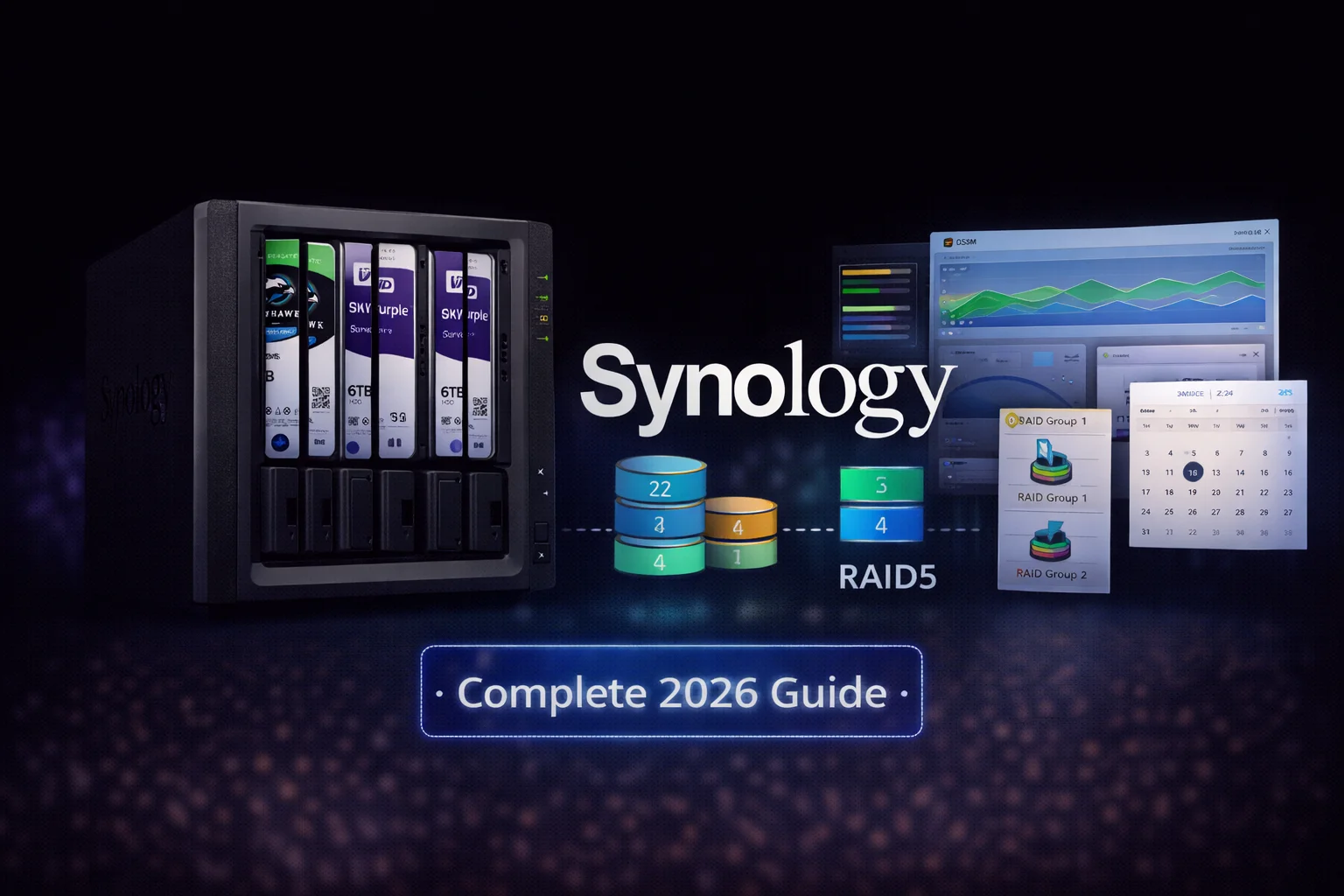
Quick Answer: Synology NAS systems work best with NAS-optimized drives like WD Red Plus, Seagate IronWolf, or Toshiba N300. After the October 2025 DSM 7.3 update, third-party drives are fully supported again on 2025 models (DS925+, DS1525+, etc.). For most home users, the DS923+ or DS925+ with 8TB drives in SHR provides the best balance of capacity, redundancy, and value. For surveillance, use WD Purple or Seagate SkyHawk drives.
WD Red Plus 8TB (WD80EFPX)
8TB Capacity | 5640 RPM | CMR | 256MB Cache | 180TB/year Workload | 24/7 NAS Optimized | 3-Year Warranty
The most popular NAS drive for Synology systems. CMR technology ensures reliable 24/7 operation without the write slowdowns of SMR drives. Fully compatible with all Synology models after DSM 7.3.
Synology has earned its reputation as the gold standard in network-attached storage, combining powerful hardware with the industry-leading DiskStation Manager (DSM) software. Whether you’re setting up your first home NAS, building a small business file server, running a Plex media library, or deploying a professional surveillance system, this comprehensive guide covers everything you need to know about Synology storage in 2026.
This guide serves as your central resource for Synology NAS storage, with detailed links to specific topics including drive compatibility, RAID configuration, model comparisons, and troubleshooting.
Table of Contents
- Drive Compatibility After DSM 7.3
- Best Drives for Synology NAS
- RAID & SHR Setup Guide
- Synology Model Buying Guide
- Use Cases: Surveillance, Plex, Backup
- Troubleshooting Common Issues
- Frequently Asked Questions
The 2025 Drive Compatibility Saga (And What It Means for You)
If you’ve been following Synology news, you know 2025 was turbulent. Understanding what happened helps you make informed purchasing decisions today.
Timeline of Events
| Date | Event | Impact |
|---|---|---|
| April 2025 | Synology announces 2025 Plus series will only support Synology-branded drives | DS925+, DS1525+, DS725+ blocked third-party HDDs |
| April-Sept 2025 | Massive user backlash, poor sales, community workarounds emerge | Users couldn’t initialize DSM with WD, Seagate, or Toshiba drives |
| October 2025 | Synology releases DSM 7.3, reversing the policy | Third-party drives work again without warnings |
| February 2026 | Policy reversal fully in effect across all 2025 models | All major NAS drives now compatible |
What This Means for You Today
Good news: As of DSM 7.3 (October 2025), you can use third-party drives from WD, Seagate, Toshiba, and others on ALL Synology models, including the newest 2025 series.
The only caveat: Synology’s technical support may limit assistance for issues proven to be caused by non-listed hardware. In practice, this rarely matters — NAS drives from major manufacturers work flawlessly.
Our recommendation: Use quality NAS drives from established brands. You’ll save money compared to Synology-branded drives (HAT3300/HAT5300) while getting identical performance and reliability.
Drive Compatibility Quick Reference
| Drive Type | Pre-DSM 7.3 (2025 Models) | Post-DSM 7.3 | Recommendation |
|---|---|---|---|
| Synology HAT3300/HAT5300 | ✓ Full support | ✓ Full support | Premium price, guaranteed support |
| WD Red Plus/Pro | ✗ Blocked | ✓ Works perfectly | Recommended |
| Seagate IronWolf/Pro | ✗ Blocked | ✓ Works perfectly | Recommended |
| Toshiba N300 | ✗ Blocked | ✓ Works perfectly | Recommended |
| WD Purple (Surveillance) | ✗ Blocked | ✓ Works perfectly | Best for Surveillance Station |
| Seagate SkyHawk | ✗ Blocked | ✓ Works perfectly | Best for Surveillance Station |
| Desktop drives (WD Blue, Barracuda) | ✗ Blocked | ⚠ Works but not recommended | Not designed for 24/7 NAS use |
Related Guide:Synology HDD Compatibility 2026: Complete Drive Guide
Best Drives for Synology NAS (2026)
Choosing the right drives is the most important decision after selecting your NAS model. Here’s our comprehensive recommendation matrix based on use case and budget.
Best NAS Drives for General Use
Browse all NAS-compatible drives with current pricing:
Best Overall: WD Red Plus
WD Red Plus 8TB (WD80EFPX)
8TB | 5640 RPM | CMR | 256MB Cache | 180TB/year | 3-Year Warranty
The industry standard for home and small business NAS. CMR technology provides consistent write performance without SMR slowdowns. Optimized for 24/7 operation in 1-8 bay NAS systems.
Why WD Red Plus:
- CMR recording — No write slowdowns like SMR drives
- NASware 3.0 firmware — Optimized for RAID environments
- 3D Active Balance Plus — Reduces vibration in multi-drive systems
- 180TB/year workload — Sufficient for most home/SMB use
- Excellent Synology compatibility — Tested across all models
Best Value: Seagate IronWolf
Seagate IronWolf 8TB (ST8000VN004)
8TB | 7200 RPM | CMR | 256MB Cache | 180TB/year | 3-Year Warranty + Rescue
Excellent NAS drive with included Rescue Data Recovery service worth $500+. AgileArray technology optimizes for multi-drive NAS environments. Slightly lower price than WD Red Plus.
Why Seagate IronWolf:
- Rescue Data Recovery included — 3-year in-house recovery service
- AgileArray technology — Dual-plane balancing for vibration tolerance
- IronWolf Health Management — Integrates with Synology DSM
- 7200 RPM — Faster than WD Red Plus (5640 RPM)
- Lower price — Often $10-20 cheaper per drive
Best Budget: Toshiba N300
Toshiba N300 8TB (HDWG480XZSTA)
8TB | 7200 RPM | CMR | 256MB Cache | 180TB/year | 3-Year Warranty
Reliable NAS drive at a competitive price point. Built-in RV sensors handle multi-bay vibration. Often available at discount during sales events.
Best for Business: WD Red Pro
WD Red Pro 12TB (WD121KFBX)
12TB | 7200 RPM | CMR | 256MB Cache | 300TB/year | 5-Year Warranty
Enterprise-class NAS drive for demanding workloads. Higher workload rating (300TB/year) and 5-year warranty make it ideal for business-critical systems with 8-24 bays.
Best Drives for Synology Surveillance Station
Running Surveillance Station? You need surveillance-optimized drives, not standard NAS drives.
Best Surveillance: WD Purple
WD Purple 8TB (WD85PURZ)
8TB | 5640 RPM | CMR | 256MB Cache | 360TB/year | AllFrame Technology | 3-Year Warranty
Purpose-built for surveillance systems including Synology Surveillance Station. AllFrame technology prevents dropped frames during continuous recording. The 8TB+ models have double the workload rating (360TB/year) of smaller capacities.
Why surveillance drives for Surveillance Station:
- AllFrame/ImagePerfect firmware — Prevents dropped frames
- Higher workload ratings — Handles constant write operations
- Optimized for sequential writes — Video recording is sequential, not random
- Lower cost per TB — Surveillance drives are often cheaper than NAS drives
Related Guides:
Synology-Branded Drives: Worth the Premium?
Synology sells their own rebranded drives (HAT3300 Plus series, HAT5300 Enterprise series). Here’s an honest assessment:
| Drive | Origin | Price (8TB) | Premium vs Third-Party |
|---|---|---|---|
| Synology HAT3310 8TB | Rebranded Toshiba | ~$200 | +18% vs WD Red Plus |
| Synology HAT5300 8TB | Rebranded Toshiba Enterprise | ~$320 | +88% vs WD Red Plus |
| WD Red Plus 8TB | Western Digital | ~$170 | Baseline |
| Seagate IronWolf 8TB | Seagate | ~$160 | -6% vs WD Red Plus |
When Synology drives make sense:
- You need guaranteed Synology support with no limitations
- Enterprise environments requiring vendor accountability
- You’re buying from Synology reseller with package deals
When third-party drives make sense:
- Home and small business use (99% of users)
- Budget-conscious builds
- You want flexibility in drive choice
Drive Recommendations by Synology Model
| Model | Bays | Recommended Drives | Total Capacity (SHR) |
|---|---|---|---|
| DS224+ | 2 | 2x WD Red Plus 8TB | 8TB usable |
| DS423+ | 4 | 4x Seagate IronWolf 8TB | 24TB usable |
| DS723+ | 2 | 2x WD Red Plus 12TB | 12TB usable |
| DS923+ | 4 | 4x WD Red Plus 8TB | 24TB usable |
| DS925+ | 4 | 4x Seagate IronWolf 12TB | 36TB usable |
| DS1522+ | 5 | 5x WD Red Pro 12TB | 48TB usable |
| DS1525+ | 5 | 5x WD Red Pro 16TB | 64TB usable |
RAID & SHR Setup Guide
Understanding RAID is essential for protecting your data. Synology makes this easier with SHR (Synology Hybrid RAID), but knowing your options helps you make the right choice.
SHR vs Traditional RAID: Which Should You Choose?
| Feature | SHR/SHR-2 | RAID 5/6 | Winner |
|---|---|---|---|
| Mixed drive sizes | ✓ Maximizes capacity | ✗ Wastes space | SHR |
| Easy expansion | ✓ Add drives anytime | ⚠ More complex | SHR |
| Setup simplicity | ✓ Automatic | ⚠ Manual config | SHR |
| Performance | Equal to RAID 5/6 | Equal to SHR | Tie |
| Redundancy | SHR-1: 1 drive, SHR-2: 2 drives | RAID 5: 1 drive, RAID 6: 2 drives | Tie |
| Drive migration | ✓ To other Synology | ✓ To any RAID controller | RAID (portability) |
| Rebuild time | Similar | Similar | Tie |
Our recommendation: Use SHR for home and small business. Use RAID 5/6 only if you need drive portability to non-Synology systems.
SHR Explained: How It Works
SHR (Synology Hybrid RAID) is Synology’s proprietary RAID system that automatically manages storage across drives of different sizes.
Key benefits:
- Mixed drive sizes: A 4TB + 8TB + 8TB setup gives you 16TB usable (RAID 5 would waste 8TB)
- Easy expansion: Add a larger drive anytime; SHR uses the extra space automatically
- 1-click setup: DSM handles all configuration automatically
- Same redundancy: SHR-1 protects against 1 drive failure (like RAID 5)
SHR Storage Calculator Example
| Configuration | SHR Usable | RAID 5 Usable | SHR Advantage |
|---|---|---|---|
| 4x 8TB drives | 24TB | 24TB | Equal |
| 2x 8TB + 2x 4TB | 20TB | 12TB | +8TB (67% more) |
| 1x 12TB + 3x 8TB | 28TB | 24TB | +4TB (17% more) |
| 2x 16TB + 2x 8TB | 40TB | 24TB | +16TB (67% more) |
Tip: Use Synology’s official RAID Calculator to plan your storage configuration.
SHR-2 vs RAID 6: When You Need Two-Drive Redundancy
For larger arrays (5+ drives) or critical data, consider SHR-2 or RAID 6:
| Feature | SHR-1 / RAID 5 | SHR-2 / RAID 6 |
|---|---|---|
| Drives that can fail | 1 | 2 |
| Minimum drives | 3 | 4 |
| Capacity lost to redundancy | 1 drive worth | 2 drives worth |
| Best for | Home, small arrays | Business, 5+ drives |
| Rebuild safety | Vulnerable during rebuild | Protected during rebuild |
When to use SHR-2/RAID 6:
- Arrays with 5 or more drives
- Large capacity drives (12TB+) with long rebuild times
- Business-critical data that can’t be lost
- You want peace of mind during drive failures
Step-by-Step: Setting Up Storage in DSM
- Install drives — Insert drives in bays (power off NAS first)
- Boot and access DSM — Navigate to find.synology.com or your NAS IP
- Open Storage Manager — Main Menu > Storage Manager
- Create Storage Pool — Select drives, choose SHR or RAID type
- Create Volume — Choose Btrfs (recommended) or ext4 file system
- Configure shared folders — Create folders for different purposes
File system recommendation: Choose Btrfs for snapshots, data integrity checks, and compression. Only use ext4 if you have specific compatibility requirements.
Related Guide:Synology RAID Complete Guide: SHR, RAID 5/6, Calculator
Synology Model Buying Guide (2026)
Synology’s lineup can be confusing. Here’s a clear breakdown of current models and who they’re best for.
2025/2026 Model Overview
| Model | Bays | CPU | RAM | Network | Price | Best For |
|---|---|---|---|---|---|---|
| DS224+ | 2 | Intel J4125 | 2GB | 2x 1GbE | ~$300 | Entry-level home |
| DS225+ | 2 | Intel J4125 | 2GB | 2x 2.5GbE | ~$320 | Entry-level (2025) |
| DS423+ | 4 | Intel J4125 | 2GB | 2x 1GbE | ~$450 | Home/SMB, Plex |
| DS425+ | 4 | Intel J4125 | 2GB | 2x 2.5GbE | ~$480 | Home/SMB (2025) |
| DS723+ | 2 | AMD R1600 | 2GB | 2x 1GbE | ~$400 | Power users, VMs |
| DS725+ | 2 | AMD R1600 | 2GB | 2x 2.5GbE | ~$420 | Power users (2025) |
| DS923+ | 4 | AMD R1600 | 4GB | 2x 1GbE | ~$600 | Best all-around |
| DS925+ | 4 | AMD V1500B | 4GB | 2x 2.5GbE | ~$640 | Best 2025 model |
| DS1522+ | 5 | AMD R1600 | 8GB | 4x 1GbE | ~$700 | Small business |
| DS1525+ | 5 | AMD V1500B | 8GB | 2x 2.5GbE | ~$750 | Business (2025) |
| DS1621+ | 6 | AMD V1500B | 4GB | 4x 1GbE | ~$900 | Power users, expansion |
DS923+ vs DS925+: Which Should You Buy?
This is the most common question in 2026. Here’s our analysis:
| Feature | DS923+ | DS925+ | Better? |
|---|---|---|---|
| Price | ~$600 (often discounted) | ~$640 | DS923+ |
| CPU | AMD R1600 (2C/4T, 3.1GHz boost) | AMD V1500B (4C/8T, 2.2GHz) | DS925+ (multi-thread) |
| Network | 2x 1GbE | 2x 2.5GbE | DS925+ |
| 10GbE upgrade | ✓ PCIe slot | ✗ No PCIe | DS923+ |
| Expansion | eSATA (DX517) | USB-C (DX525) | Tie |
| Support timeline | ~8 years remaining | ~10 years | DS925+ |
| Hardware transcoding | ✗ No | ✗ No | Tie (neither) |
Buy DS923+ if:
- You want 10GbE upgrade capability (PCIe slot)
- You find it discounted below $550
- You don’t need 2.5GbE networking
Buy DS925+ if:
- You want the latest model with longest support
- 2.5GbE networking is important to you
- You run many Docker containers or VMs (more CPU threads)
Related Guides:
Recommendations by Use Case
Home User (Photos, Documents, Basic Backup)
Recommended: DS224+ or DS423+
- 2-4 bays sufficient for most families
- Intel CPU supports Plex hardware transcoding
- Lower power consumption
- Budget: $300-$450 + drives
Plex/Media Server
Recommended: DS423+ (with Intel CPU for transcoding)
- Intel J4125 supports hardware transcoding
- 4 bays for large media libraries
- Note: AMD-based models (DS923+, DS925+) do NOT have hardware transcoding
- Alternative: Use Plex Pass with client-side direct play
Small Business / Power User
Recommended: DS923+ or DS925+
- AMD CPU better for virtualization and Docker
- ECC RAM support for data integrity
- 10GbE upgrade option (DS923+ only)
- M.2 NVMe slots for SSD cache
Surveillance System
Recommended: DS923+ or DS423+ (depends on camera count)
- Both include 2 free Surveillance Station licenses
- Additional licenses: ~$50 per camera
- Use surveillance drives (WD Purple, SkyHawk)
- 4 cameras: 4TB sufficient; 16 cameras: 8-12TB recommended
Heavy Workloads / Enterprise
Recommended: DS1621+ or DS1821+
- 6-8 bays for large storage pools
- PCIe slot for 10GbE
- AMD V1500B CPU with ECC RAM
- Supports expansion units (up to 16+ bays total)
Use Cases: Surveillance, Plex, Backup
Synology for Surveillance (Surveillance Station)
Synology Surveillance Station is a professional-grade video management system included free with every Synology NAS.
Key features:
- Free 2-camera licenses included (additional licenses ~$50/camera)
- H.265 support for bandwidth efficiency
- AI-powered motion detection (requires compatible cameras)
- Mobile app for remote viewing
- Integration with major IP camera brands
Drive recommendations for Surveillance Station:
| Cameras | Resolution | Retention | Storage Needed | Recommended Drive |
|---|---|---|---|---|
| 2-4 | 1080p | 30 days | 2-3TB | WD Purple 4TB |
| 4-8 | 1080p | 30 days | 4-6TB | WD Purple 8TB |
| 8-16 | 1080p | 30 days | 8-12TB | WD Purple 12TB |
| 4-8 | 4K | 30 days | 8-12TB | SkyHawk 12TB |
| 16+ | 4K | 30 days | 20TB+ | WD Purple Pro 18TB |
Related Guide:Synology Surveillance NAS Complete Setup Guide
Synology for Plex/Media Server
Synology NAS is popular for Plex, Jellyfin, and Emby media servers.
Important consideration: Hardware transcoding
| Model | CPU | Hardware Transcoding | Plex Rating |
|---|---|---|---|
| DS423+, DS224+ | Intel J4125 | ✓ Yes (Quick Sync) | Excellent |
| DS923+, DS925+ | AMD Ryzen | ✗ No | Good (direct play) |
| DS1522+, DS1525+ | AMD Ryzen | ✗ No | Good (direct play) |
If transcoding is important: Choose Intel-based models (DS423+, DS224+, DS420+)
If transcoding isn’t needed: AMD models work fine with direct play (no transcoding)
Synology for Backup
Synology excels at backup with multiple built-in solutions:
- Hyper Backup: Backup to cloud (S3, Backblaze, Google Drive) or external drives
- Active Backup for Business: Backup Windows PCs, servers, VMs
- Snapshot Replication: Point-in-time recovery for Btrfs volumes
- Cloud Sync: Sync with Dropbox, OneDrive, Google Drive
- USB Copy: One-touch backup from USB drives
Backup drive tip: Use any quality NAS drive for backup purposes. Surveillance drives are unnecessary for backup-only Synology NAS units.
Troubleshooting Common Issues
Drive Not Detected or Initialization Failed
Symptoms:
- Drive doesn’t appear in Storage Manager
- “Initialization failed” error
- “Unsupported drive” warning (pre-DSM 7.3)
Solutions:
- Update to DSM 7.3+: This resolved most 2025 model drive compatibility issues
- Check SATA connections: Reseat drive in bay, check cables
- Try different bay: Rule out bay-specific issues
- Test drive in PC: Verify drive works outside NAS
- Check compatibility list: Verify drive capacity is supported by your model
Related Guide:Synology Drive Initialization Failed: Complete Fix Guide
Slow Transfer Speeds
Symptoms:
- Transfer speeds below expected (e.g., 50MB/s on 1GbE instead of 110MB/s)
- File copies take longer than expected
Solutions:
- Check network cable: Use Cat 5e or Cat 6 for reliable gigabit
- Verify switch speed: Ensure switch supports gigabit (or 2.5GbE for newer models)
- Enable SMB3: DSM > Control Panel > File Services > SMB > Advanced > SMB3
- Check drive health: Storage Manager > HDD/SSD > Health Info
- Disable thumbnail generation: For large photo libraries during transfers
- Consider SSD cache: Add NVMe cache for random I/O improvement
Drive Clicking or Making Noise
Symptoms:
- Clicking, grinding, or unusual sounds from drive bay
- Drive showing SMART errors
Action:
- Back up immediately if drive is still accessible
- Check SMART status in Storage Manager > HDD/SSD
- Plan replacement — clicking usually indicates imminent failure
- Replace with quality NAS drive like WD Red Plus or Seagate IronWolf
Related Guides:
Capacity Planning: How Much Storage Do You Really Need?
One of the most common mistakes is underestimating storage needs. Here’s a detailed breakdown to help you plan.
Storage Consumption by Use Case
| Use Case | Typical Data | Growth Rate | Recommended Capacity |
|---|---|---|---|
| Family Photos/Videos | 500GB-2TB existing | 200-500GB/year | 8-16TB (room for 10+ years) |
| Document Storage | 50-200GB | 10-50GB/year | 2-4TB sufficient |
| Music Library | 100-500GB | Minimal | 2TB sufficient |
| Movie Collection (1080p) | 5-20TB | 2-5TB/year | 20-40TB |
| Movie Collection (4K) | 20-100TB | 10-20TB/year | 40-80TB+ |
| Surveillance (8 cams, 1080p) | 2-4TB/month rolling | N/A (overwrites) | 4-8TB |
| Surveillance (16 cams, 4K) | 8-16TB/month rolling | N/A (overwrites) | 16-24TB |
| PC Backup (per computer) | 200-500GB | 100-200GB/year | 1-2TB per machine |
| Time Machine (Mac) | 2-3x Mac storage | Moderate | 2-4TB per Mac |
The 50% Rule
Never fill your NAS beyond 80% capacity. Here’s why:
- Performance degrades as drives fill up
- No room for snapshots (Btrfs needs free space)
- Can’t replace failed drive if replacement has slightly less usable space
- Future growth requires expensive expansion
Planning formula: Calculate your needs, then buy 50% more capacity than you think you need.
Cost-Effective Expansion Strategies
Start small, grow smart:
- Buy a 4-bay NAS even if you only need 2 drives now
- Start with 2 drives in SHR (leave 2 bays empty)
- Add drives later as needs grow (SHR expands automatically)
- Upgrade drive sizes by replacing one at a time
Example growth path:
- Year 1: DS923+ with 2x 8TB = 8TB usable (~$900 total)
- Year 2: Add 1x 8TB = 16TB usable (~$170 more)
- Year 3: Add 1x 12TB = 22TB usable (~$200 more)
- Year 4: Replace oldest 8TB with 16TB = 30TB usable (~$280 more)
DSM Software: Getting the Most from Your Synology
Synology’s DiskStation Manager (DSM) is arguably the best NAS operating system available. Here are the essential packages and features.
Essential DSM Packages
| Package | Purpose | Best For |
|---|---|---|
| Synology Drive | Dropbox-like sync and sharing | Everyone |
| Synology Photos | Photo management and sharing | Families |
| Hyper Backup | Backup to cloud/external | Everyone |
| Surveillance Station | Video surveillance | Security |
| Container Manager | Docker containers | Power users |
| Virtual Machine Manager | Run VMs on NAS | IT professionals |
| Active Backup for Business | PC/server backup | Business |
| Download Station | Torrent/download management | Media collectors |
| Audio Station | Music streaming | Music lovers |
| Video Station | Video streaming | Basic media (use Plex instead) |
DSM 7.3 Key Features
- Third-party drive support restored (October 2025)
- Improved Storage Manager with better drive health reporting
- Enhanced security features including 2FA enforcement options
- WriteOnce (WORM) folders for compliance
- Improved Docker/Container support
- Better Active Directory integration
Security Best Practices
Your NAS holds your most important data. Protect it:
- Enable 2-Factor Authentication for all admin accounts
- Disable default admin account (create a new admin user)
- Use strong, unique passwords
- Enable auto-block for failed login attempts
- Keep DSM updated with automatic updates enabled
- Use HTTPS only for web access
- Disable services you don’t use (FTP, Telnet, SSH if not needed)
- Set up Synology firewall rules
- Use QuickConnect or VPN instead of port forwarding
- Regular backups to external/cloud (RAID is not backup!)
NVMe SSD Cache: Is It Worth It?
Synology Plus models include M.2 NVMe slots for SSD caching. Here’s when it helps:
SSD cache helps with:
- Random I/O workloads (databases, VMs, Docker)
- Frequently accessed files (“hot” data)
- Photo thumbnail generation
- Multiple simultaneous users
SSD cache doesn’t help with:
- Large sequential transfers (video files)
- Single-user file access
- Surveillance recording (sequential writes)
- Backup operations
Recommended cache SSDs:
- Synology SNV3400 (officially supported)
- WD Red SN700 NVMe
- Seagate IronWolf 525
Cache configuration:
- Read cache (1 SSD): Improves read performance
- Read/Write cache (2 SSDs in RAID 1): Improves both, with redundancy
10GbE Networking: Worth the Upgrade?
For models with PCIe slots (DS923+, DS1522+, DS1621+), 10GbE is an attractive upgrade.
When 10GbE makes sense:
- Large file transfers (video editing, photography)
- Multiple simultaneous users
- iSCSI for VMs
- You already have 10GbE infrastructure
When 1GbE/2.5GbE is fine:
- Home use with occasional file access
- Streaming media (even 4K only needs ~25Mbps)
- Backup operations (overnight is fine)
- Surveillance recording
Upgrade options:
- Synology E10G22-T1-Mini (~$110) — For DS923+, DS1522+ mini PCIe slot
- Synology E10G18-T1 (~$150) — For full PCIe slot
Frequently Asked Questions
After the DSM 7.3 update (October 2025), all major NAS drives work with Synology — including WD Red Plus, Seagate IronWolf, Toshiba N300, and surveillance drives like WD Purple and SkyHawk. Synology-branded HAT drives are optional premium alternatives. Avoid desktop drives (WD Blue, Barracuda) as they’re not designed for 24/7 NAS use.
Use SHR (Synology Hybrid RAID) for most situations. It offers the same redundancy as RAID 5 but maximizes capacity when using mixed drive sizes and makes expansion easier. Only use traditional RAID 5/6 if you need to migrate drives to non-Synology systems in the future.
Both are excellent. The DS925+ has 2.5GbE networking and more CPU threads (better for Docker/VMs). The DS923+ has a PCIe slot for 10GbE upgrades and is often discounted. Choose DS923+ if you want 10GbE capability; choose DS925+ for longest support timeline and built-in 2.5GbE.
Yes, especially for Surveillance Station. Surveillance drives like WD Purple and Seagate SkyHawk work perfectly in Synology NAS. They’re actually better than NAS drives for surveillance because they’re optimized for constant write operations and won’t drop frames.
For home use, start with 2x 4-8TB drives in a 2-bay NAS (4-8TB usable with SHR). For media servers, 4x 8-12TB drives provide 24-36TB usable. For surveillance, plan ~2TB per 8 cameras with 30-day retention at 1080p. Always leave room for growth.
No. Synology-branded drives are rebranded Toshiba drives with a premium price (20-80% more than equivalents). After DSM 7.3, third-party drives like WD Red Plus and Seagate IronWolf work identically. Only buy HAT drives if you need guaranteed Synology support or have enterprise compliance requirements.
For Plex with transcoding, choose Intel-based models like the DS423+ or DS224+ (Intel Quick Sync supports hardware transcoding). AMD-based models (DS923+, DS925+) work but only with direct play — they cannot transcode efficiently. With Plex Pass and modern clients, direct play is often sufficient.
Quality NAS drives typically last 3-5 years in 24/7 Synology operation. Monitor SMART data in DSM’s Storage Manager for early warning signs. Replace proactively after 4 years for critical systems. Using proper NAS drives (not desktop drives) significantly improves lifespan compared to consumer drives.
Related Guides
Drive Longevity and Maintenance
Your NAS drives are the heart of your storage system. Proper care extends their lifespan significantly.
Expected Drive Lifespan in Synology NAS
| Drive Type | Expected Lifespan | Warranty | Replacement Strategy |
|---|---|---|---|
| WD Red Plus | 3-5 years | 3 years | Replace at 4 years proactively |
| Seagate IronWolf | 3-5 years | 3 years | Replace at 4 years proactively |
| WD Red Pro | 4-6 years | 5 years | Replace at 5 years proactively |
| Seagate IronWolf Pro | 4-6 years | 5 years | Replace at 5 years proactively |
| WD Purple (Surveillance) | 3-5 years | 3 years | Replace at 4 years for critical footage |
| Desktop drives (WD Blue, etc.) | 1-2 years in 24/7 use | 2 years | Don’t use in NAS |
Monitoring Drive Health in DSM
DSM includes excellent drive health monitoring. Check regularly:
- Storage Manager > HDD/SSD — Overall health status
- Health Info — Detailed S.M.A.R.T. data
- IronWolf Health Management — Additional monitoring for Seagate drives
- Notifications — Set up email/SMS alerts for drive issues
Key S.M.A.R.T. attributes to watch:
- Reallocated Sector Count — Any value > 0 is concerning
- Current Pending Sector — Sectors waiting to be reallocated
- Uncorrectable Sector Count — Failed reads/writes
- Temperature — Keep below 45°C for optimal lifespan
Temperature Management
Heat is the enemy of hard drives. Synology NAS units are generally well-cooled, but:
- Optimal temperature: 25-40°C
- Acceptable: 40-45°C
- Concerning: 45-50°C
- Dangerous: 50°C+ sustained
Cooling tips:
- Ensure adequate ventilation around NAS (don’t enclose it)
- Keep in air-conditioned room if possible
- Consider fan speed settings in DSM (Hardware & Power > General)
- Clean dust from vents periodically
- Replace thermal pads on older units if needed
The 3-2-1 Backup Rule
RAID is NOT backup. RAID protects against drive failure, not against:
- Ransomware/malware
- Accidental deletion
- Fire/flood/theft
- Corrupted files (replicated across RAID)
- User error
Follow the 3-2-1 rule:
- 3 copies of your data
- 2 different storage media (NAS + external drive)
- 1 offsite copy (cloud or second location)
Synology backup options:
- Hyper Backup to cloud: Backblaze B2, AWS S3, Google Cloud, Azure
- Hyper Backup to USB: External drive for local backup
- Snapshot Replication: Point-in-time recovery (Btrfs only)
- Synology C2: Synology’s own cloud backup service
Power Protection
Power issues can corrupt data and damage drives. Protect your investment:
- UPS (Uninterruptible Power Supply): Essential for any NAS
- Synology UPS support: DSM can communicate with UPS for safe shutdown
- Recommended UPS: APC Back-UPS or CyberPower with USB connectivity
- Size your UPS: NAS + drives typically need 50-100W; get 300-500VA UPS minimum
Configure UPS in DSM:
- Connect UPS via USB to Synology NAS
- Control Panel > Hardware & Power > UPS
- Enable “UPS support” and configure safe shutdown threshold
- Set to shut down when battery reaches 20-30%
Synology vs. Alternatives: Is Synology Still Worth It?
After the 2025 drive policy controversy, many questioned whether Synology is still the right choice. Here’s an honest assessment.
Synology Strengths
- DSM software: Still the best NAS OS for most users
- 10-year software support: Longer than any competitor
- Ecosystem: Mobile apps, packages, integration
- Reliability: Hardware quality is excellent
- Community: Large user base, extensive documentation
- Drive policy reversal: Third-party drives work again (DSM 7.3)
Synology Weaknesses
- Premium pricing: Hardware costs more than competitors
- Slow hardware updates: CPUs often lag 2-3 years behind
- No hardware transcoding on AMD models: Intel models only
- 2025 trust damage: The drive policy reversal helped, but trust was affected
- Limited PCIe on newer models: DS925+ lacks 10GbE upgrade path
Alternatives to Consider
| Alternative | Pros | Cons | Best For |
|---|---|---|---|
| QNAP | Better hardware specs, more ports | Software less polished, security history | Power users |
| UGREEN NASync | Modern hardware, competitive price | New brand, unproven long-term | Tech enthusiasts |
| TrueNAS | Free, ZFS, enterprise features | Steeper learning curve | IT professionals |
| Asustor | Good value, decent software | Smaller ecosystem | Budget builds |
| DIY (Unraid/TrueNAS) | Ultimate flexibility, any hardware | Requires technical knowledge | Tinkerers |
Our verdict: Synology remains the best choice for most home and small business users who want a reliable, polished experience. The DSM 7.3 drive policy reversal addressed the biggest concern. Power users might prefer QNAP or DIY solutions for more hardware flexibility.
Related Guides
Drive Compatibility & Reviews
- Synology HDD Compatibility 2026: Complete Drive Guide
- Synology Compatible Hard Drives Database
- WD Purple Synology Compatibility Guide
- Seagate SkyHawk Synology Guide
Model Buying Guides
- Best Synology NAS 2026: Complete Buying Guide
- DS925+ vs DS923+ Comparison
- Synology DS923+ Review
- Synology DS925+ Review
- Best Synology NAS for Plex
RAID & Setup
- Synology RAID Guide: SHR vs RAID 5/6
- SHR (Synology Hybrid RAID) Explained
- Synology RAID Calculator Guide
Use Cases
Troubleshooting
Surveillance Drive Guides
- Complete Surveillance Drives Guide
- WD Purple Complete Guide
- Seagate SkyHawk Complete Guide
- Surveillance Storage Calculator
Last updated: February 2026. This guide is updated regularly as Synology releases new DSM updates and hardware.
Quick Start Checklist: Setting Up Your First Synology NAS
New to Synology? Here’s your complete setup checklist:
Before You Buy
- ☐ Determine your storage needs (use tables above)
- ☐ Choose model based on use case (Plex = Intel, VMs = AMD)
- ☐ Select drives (WD Red Plus or Seagate IronWolf recommended)
- ☐ Purchase UPS for power protection
- ☐ Ensure gigabit (or better) network switch
Hardware Setup
- ☐ Unbox and place NAS in well-ventilated location
- ☐ Install drives in drive trays (tool-free on most models)
- ☐ Connect Ethernet cable to router/switch
- ☐ Connect power cable (through UPS if available)
- ☐ Power on NAS
Initial DSM Configuration
- ☐ Navigate to find.synology.com or [NAS IP]:5000
- ☐ Install DSM (follow wizard)
- ☐ Create admin account (don’t use “admin” as username)
- ☐ Enable 2-Factor Authentication
- ☐ Configure network settings (static IP recommended)
- ☐ Update DSM to latest version
Storage Configuration
- ☐ Open Storage Manager
- ☐ Create Storage Pool (SHR recommended)
- ☐ Create Volume (Btrfs recommended)
- ☐ Create shared folders for different purposes
- ☐ Set up user accounts and permissions
Essential Packages
- ☐ Install Synology Drive (file sync)
- ☐ Install Synology Photos (if storing photos)
- ☐ Install Hyper Backup (critical!)
- ☐ Install other packages based on your needs
Backup Configuration
- ☐ Set up Hyper Backup to cloud (Backblaze B2 recommended)
- ☐ Configure snapshot schedule (if using Btrfs)
- ☐ Test backup restoration
- ☐ Document your backup strategy
Security Hardening
- ☐ Disable default admin account
- ☐ Enable auto-block for failed logins
- ☐ Configure firewall rules
- ☐ Enable HTTPS only
- ☐ Set up QuickConnect (or VPN) for remote access
- ☐ Configure notification settings (email alerts)
Ongoing Maintenance
- ☐ Check drive health monthly
- ☐ Verify backups quarterly
- ☐ Update DSM when updates available
- ☐ Monitor storage capacity
- ☐ Plan drive replacement at 4-5 years
Glossary of Synology Terms
| Term | Definition |
|---|---|
| DSM | DiskStation Manager — Synology’s operating system |
| SHR | Synology Hybrid RAID — Flexible RAID with mixed drive sizes |
| SHR-2 | SHR with 2-drive redundancy (like RAID 6) |
| Storage Pool | Collection of drives configured in RAID |
| Volume | Usable storage space created from a storage pool |
| Btrfs | Modern file system with snapshots and data integrity |
| ext4 | Traditional Linux file system (no snapshots) |
| QuickConnect | Synology’s relay service for remote access without port forwarding |
| Hyper Backup | Synology’s backup application |
| HAT | Synology-branded hard drives (HAT3300, HAT5300) |
| Package | Applications installable through Package Center |
| Container Manager | Docker container management (formerly “Docker” package) |
| NVMe Cache | SSD caching using M.2 slots to accelerate HDD performance |
| CMR | Conventional Magnetic Recording — preferred for NAS drives |
| SMR | Shingled Magnetic Recording — avoid for NAS use |
Last updated: February 2026. This guide is updated regularly as Synology releases new DSM updates and hardware. Bookmark this page and check back for the latest recommendations and compatibility information.