
Quick Answer+
Quick Answer: For most Synology home users, use SHR — it provides RAID 5 protection with easier expansion and better capacity from mixed drives. Use SHR-2 for 6+ drives or 12TB+ capacities. Use RAID 1 for 2-bay NAS. Use RAID 5/6 only if you need to move drives to non-Synology systems. Never use RAID 0 for important data (no protection).
Choosing the right RAID level for your Synology NAS determines how your data is protected, how much usable storage you get, and how your system performs. This guide explains every RAID option and helps you choose the best configuration.
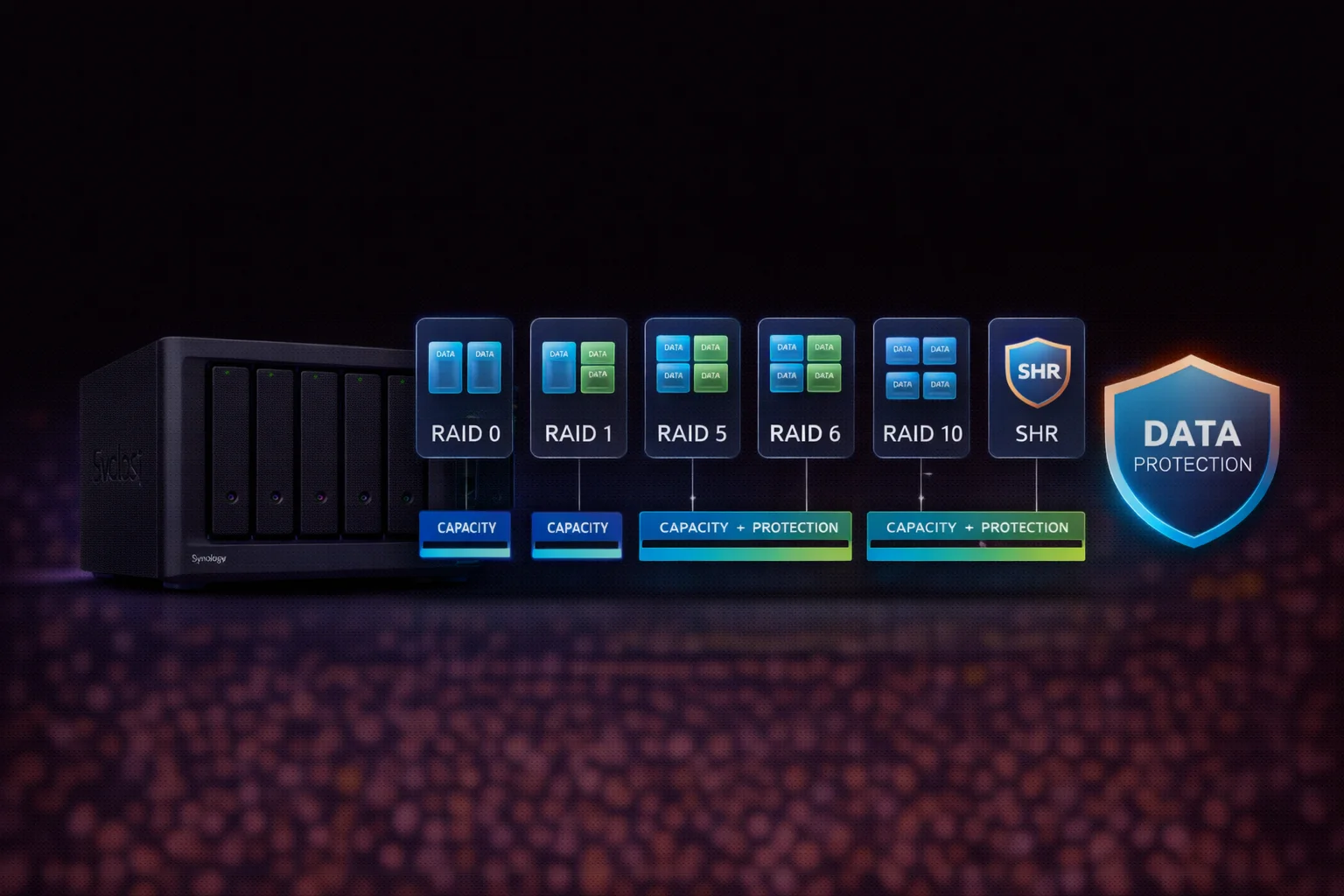
RAID Levels at a Glance
| RAID | Min Drives | Fault Tolerance | Usable Capacity | Best For |
|---|---|---|---|---|
| RAID 0 | 2 | ❌ None | 100% | Scratch/temp only |
| RAID 1 | 2 | 1 drive | 50% | 2-bay NAS |
| RAID 5 | 3 | 1 drive | (N-1) drives | Balanced |
| RAID 6 | 4 | 2 drives | (N-2) drives | Large arrays |
| RAID 10 | 4 | 1 per pair | 50% | Performance |
| SHR | 2 | 1 drive | Optimized | Home users |
| SHR-2 | 4 | 2 drives | Optimized | Critical data |
RAID Calculator
Use our RAID Calculator to estimate usable capacity for any configuration. Select your RAID level, number of drives, and drive capacity to see results instantly.
RAID 0: Maximum Speed, Zero Protection
RAID 0 stripes data across all drives with no redundancy. If any drive fails, ALL data is lost.
| Spec | Value |
|---|---|
| Minimum drives | 2 |
| Usable capacity | 100% |
| Fault tolerance | None |
| Read performance | Excellent |
| Write performance | Excellent |
Use RAID 0 only for: Scratch disks, cache, temporary files, data you can re-download
Never use RAID 0 for: Photos, documents, anything irreplaceable
RAID 1: Simple Mirroring
RAID 1 creates an exact copy across two drives. If one fails, the other has complete data.
| Spec | Value |
|---|---|
| Minimum drives | 2 |
| Usable capacity | 50% |
| Fault tolerance | 1 drive |
| Read performance | Good |
| Write performance | Standard |
Best for: 2-bay NAS (DS223, DS224+), simple home setups
Example: 2× 8TB in RAID 1 = 8TB usable
RAID 5: Balanced Protection
RAID 5 stripes data with distributed parity. One drive’s worth stores parity for recovery.
| Configuration | Raw | Usable | Efficiency |
|---|---|---|---|
| 3× 4TB | 12TB | 8TB | 67% |
| 4× 4TB | 16TB | 12TB | 75% |
| 4× 8TB | 32TB | 24TB | 75% |
| 5× 8TB | 40TB | 32TB | 80% |
Best for: 3-5 drive arrays, home media servers, general storage
⚠️ Caution: With 12TB+ drives, rebuild times exceed 24 hours. Consider RAID 6 or SHR-2.
RAID 6: Dual Protection
RAID 6 uses dual parity — survives two simultaneous drive failures.
| Configuration | Raw | Usable | Efficiency |
|---|---|---|---|
| 4× 8TB | 32TB | 16TB | 50% |
| 6× 8TB | 48TB | 32TB | 67% |
| 8× 8TB | 64TB | 48TB | 75% |
Best for: 6+ drive arrays, 12TB+ drives, business-critical data
RAID 10: Performance + Protection
RAID 10 combines mirroring (RAID 1) with striping (RAID 0). Excellent performance with redundancy.
| Spec | Value |
|---|---|
| Minimum drives | 4 (even number) |
| Usable capacity | 50% |
| Fault tolerance | 1 drive per mirror |
| Read performance | Excellent |
| Write performance | Excellent |
Best for: Databases, virtual machines, heavy write workloads
Example: 4× 8TB in RAID 10 = 16TB usable with excellent I/O
SHR & SHR-2: Synology Hybrid RAID
SHR is Synology’s smart RAID that maximizes capacity from mixed drive sizes. See our detailed SHR Explained Guide.
| Configuration | SHR | RAID 5 | SHR Advantage |
|---|---|---|---|
| 4× 8TB (identical) | 24TB | 24TB | None |
| 2× 8TB + 2× 4TB | 16TB | 12TB | +4TB (33%) |
| 3× 8TB + 1× 4TB | 20TB | 12TB | +8TB (67%) |
SHR: 1-drive fault tolerance (like RAID 5)
SHR-2: 2-drive fault tolerance (like RAID 6)
Limitation: SHR only works on Synology. Drives can’t be read on other systems.
Which RAID Should You Choose?
By NAS Type
| NAS Model | Recommended RAID | Why |
|---|---|---|
| DS223, DS224+ | SHR or RAID 1 | 2-bay only supports mirroring |
| DS423, DS423+ | SHR | Flexible for 4 drives |
| DS723+, DS923+ | SHR or RAID 5 | SHR for home, RAID 5 for portability |
| DS1522+, DS1621+ | SHR-2 or RAID 6 | 5-6 bays need dual parity |
| DS1823xs+ | RAID 6 or SHR-2 | Enterprise needs dual protection |
By Use Case
| Use Case | Recommended | Why |
|---|---|---|
| Home media/Plex | SHR | Easy expansion, good protection |
| Home office backup | SHR or RAID 5 | Reliable, efficient capacity |
| Small business files | RAID 5 or SHR | Balance of protection/capacity |
| Surveillance (24/7) | RAID 5 or SHR | Continuous writes, 1-drive protection |
| Virtual machines | RAID 10 | Best random I/O performance |
| Large drives (12TB+) | SHR-2 or RAID 6 | Long rebuilds need 2-drive tolerance |
| Need portability | RAID 5 or RAID 6 | Standard RAID works on any system |
Recommended Drives for RAID
NAS Drives (24/7 Operation)
| Product | Capacity | Price | $ / TB | Price Drop | Brand | Interface |
|---|
| Product | Capacity | Price | $ / TB | Price Drop | Brand | Interface |
|---|---|---|---|---|---|---|
| Seagate 6TB IronWolf NAS SATA 6Gb/s NCQ 128MB Cache 3.5-Inch Internal Hard Drive (ST6000VN0041) (Renewed) | 6.00 TB | $169.99 | $28.33 | +0% | Seagate | SATA |
Always use NAS-rated drives (WD Red, IronWolf) for RAID arrays. Desktop drives (WD Blue, Barracuda) aren’t designed for 24/7 multi-drive operation. See our Synology Compatible Drives Database.
RAID Setup on Synology DSM
- Open Storage Manager in DSM
- Click Storage Pool → Create
- Choose RAID type (SHR, RAID 5, etc.)
- Select drives to include
- Run drive check (recommended for new drives)
- Create volume with Btrfs file system (recommended)
Common RAID Mistakes
1. RAID Is NOT Backup
RAID protects against drive failure only — not deletion, ransomware, fire, or theft. Always maintain separate backups.
2. Using Desktop Drives
WD Blue and Seagate Barracuda aren’t built for NAS. Use WD Red or IronWolf for reliability.
3. RAID 5 with Large Drives
12TB+ drives have 24+ hour rebuild times. A second failure during rebuild = total loss. Use RAID 6 or SHR-2.
4. Ignoring S.M.A.R.T. Warnings
Replace drives showing warnings proactively — don’t wait for failure.
Frequently Asked Questions
For most home users, SHR provides the best balance of protection, capacity, and flexibility. For 2-bay NAS, use SHR or RAID 1. For 4+ bays, SHR works well. For 6+ bays or large drives (12TB+), use SHR-2 or RAID 6.
Some conversions work: RAID 1 to RAID 5 (add drives), RAID 5 to RAID 6 (add drive). But SHR to RAID or vice versa requires backup, deletion, and recreation. Always backup before RAID changes.
Yes, RAID 5 is safe for home use with drives under 8TB. With larger drives (12TB+), rebuild times increase risk. For critical data or large drives, RAID 6 or SHR-2 is safer.
RAID generally improves read performance. Write varies: RAID 0/10 are fastest, RAID 5 has slight parity overhead, RAID 6 more overhead. For typical home use, differences are negligible.
In traditional RAID, all drives are treated as the smallest size — extra capacity is wasted. SHR solves this by optimizing mixed sizes. For mixed drives, always use SHR.
Rebuild time depends on drive size and activity: 4TB ≈ 8-12 hours, 8TB ≈ 16-24 hours, 12TB+ ≈ 24-48 hours. The NAS remains usable but slower during rebuild.
Summary: Quick RAID Selection
| Priority | Best RAID |
|---|---|
| Simplicity + flexibility | SHR |
| 2-drive protection | RAID 1 or SHR |
| Balanced capacity + protection | RAID 5 or SHR |
| Maximum protection | RAID 6 or SHR-2 |
| Best performance | RAID 10 |
| Need portability | RAID 5/6 |
| Maximum capacity (no protection) | RAID 0 (not recommended) |
Our recommendation:SHR for most Synology home users. It provides RAID 5-level protection with easier expansion and better capacity from mixed drives. Upgrade to SHR-2 for 6+ drives or 12TB+ capacities.
Related Resources
- RAID Calculator — Calculate capacity for any RAID level
- SHR Explained — Deep dive into Synology Hybrid RAID
- SHR vs RAID 5 — Detailed comparison
- Synology Compatible Drives — Full database
- Best Synology NAS 2026 — Buying guide
- Fix Drive Initialization Failed
Last Updated: February 2026 | Technical details verified against DSM 7.3