
Quick Answer+
Quick Answer:Synology Hybrid RAID (SHR) is Synology’s smart RAID system that maximizes storage when using different-sized drives. Unlike RAID 5, which wastes capacity from larger drives, SHR intelligently combines them for up to 33% more usable space. Use SHR for home NAS with mixed or future-mixed drives. Use SHR-2 (2-drive fault tolerance) for 6+ drives or 12TB+ capacities. Use standard RAID 5/6 only if you need to move drives to non-Synology systems.
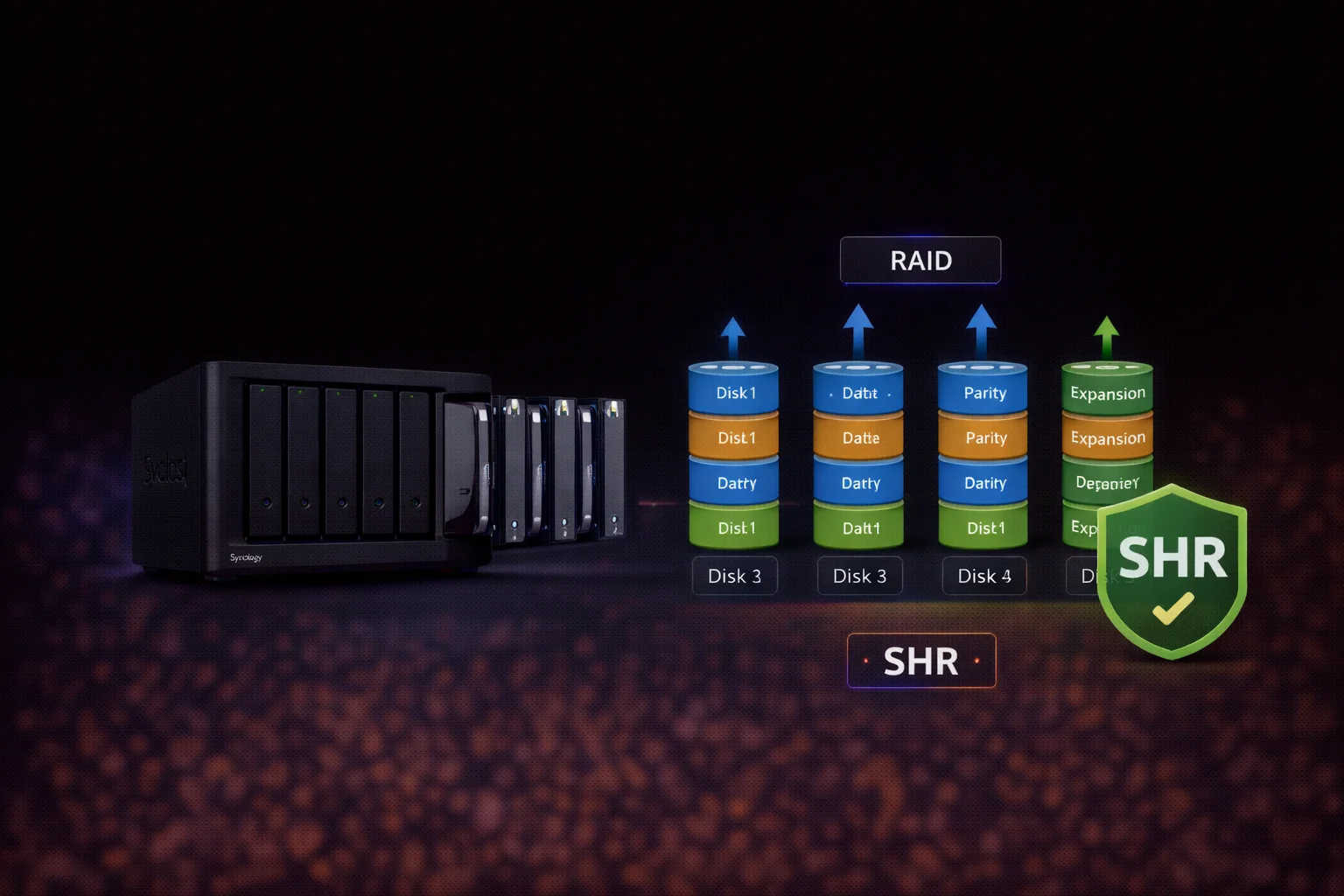
Synology Hybrid RAID (SHR) is Synology’s proprietary RAID system designed to simplify storage management while maximizing usable capacity. Unlike traditional RAID levels that require identical drives, SHR intelligently combines drives of different sizes to optimize storage efficiency.
This guide explains how SHR works, compares it to traditional RAID, and helps you decide when to use SHR vs other options.
What Is Synology Hybrid RAID (SHR)?
SHR is an automated RAID management system that optimizes storage capacity when using drives of different sizes. It provides the same data protection as RAID 5 (single-drive fault tolerance) or RAID 6 (two-drive fault tolerance with SHR-2) while eliminating the wasted space that occurs with traditional RAID.
The Problem SHR Solves
Traditional RAID uses the smallest drive as the baseline for all drives. Here’s what happens with mixed drives:
| Configuration | RAID 5 Usable | SHR Usable | SHR Advantage |
|---|---|---|---|
| 3× 8TB + 1× 4TB | 12TB | 20TB | +8TB (67%) |
| 2× 8TB + 2× 4TB | 12TB | 16TB | +4TB (33%) |
| 4× 8TB (identical) | 24TB | 24TB | None |
With identical drives, SHR and RAID 5 provide the same capacity. The magic happens when drives differ.
How SHR Works Technically
SHR divides drives into partitions and creates multiple RAID arrays:
Example: 2× 8TB + 2× 4TB drives
- First, SHR creates a RAID 5 array using 4TB from each drive (4 × 4TB = 12TB usable)
- Then, SHR creates a RAID 1 array using the remaining 4TB from each 8TB drive (2 × 4TB = 4TB usable)
- Total: 12TB + 4TB = 16TB usable
Traditional RAID 5 with these drives would only provide 12TB usable—SHR gives you 4TB more.
SHR vs SHR-2: Which Should You Use?
| Feature | SHR | SHR-2 |
|---|---|---|
| Fault Tolerance | 1 drive | 2 drives |
| Minimum Drives | 2 | 4 |
| Equivalent To | RAID 5 | RAID 6 |
| Best For | Home, 2-4 drives | Business, 5+ drives |
| Rebuild Risk | Higher with large drives | Lower (survives 2 failures) |
When to Use SHR-2
The larger your drives and array, the more important SHR-2 becomes:
- Large capacity drives (12TB+): Rebuild times can exceed 24 hours, during which another failure would cause data loss
- 6+ drive arrays: More drives = higher probability of multiple failures
- Critical data: Business files, irreplaceable media
- Older drives: 3+ year old drives have higher concurrent failure risk
SHR vs Traditional RAID: Complete Comparison
| Feature | SHR | RAID 5 | RAID 6 |
|---|---|---|---|
| Mixed drive sizes | ✅ Optimized | ❌ Truncated | ❌ Truncated |
| Easy expansion | ✅ Add any drive ≥ smallest | ⚠️ Same size recommended | ⚠️ Same size recommended |
| Fault tolerance | 1 drive (SHR-2: 2) | 1 drive | 2 drives |
| Minimum drives | 2 (SHR-2: 4) | 3 | 4 |
| Performance | Comparable | Comparable | Slightly slower writes |
| Portability | ❌ Synology only | ✅ Universal | ✅ Universal |
| Complexity | Automatic | Manual | Manual |
When to Use SHR
Choose SHR when:
- You have or plan to have mixed drive sizes
- You want to upgrade drives incrementally over time
- You’re a home user prioritizing simplicity
- You’ll stay with Synology for the foreseeable future
Choose traditional RAID when:
- All your drives are identical (no SHR advantage)
- You need to move drives to non-Synology systems
- Corporate policy requires standard RAID levels
Expanding Storage with SHR
One of SHR’s biggest advantages is flexible expansion:
Method 1: Add a New Drive
If you have empty bays, insert a new drive ≥ the smallest in your array. SHR automatically integrates it.
Method 2: Replace with Larger Drives
Upgrade path example (4× 4TB → 4× 8TB):
| Step | Action | Usable Capacity |
|---|---|---|
| Start | 4× 4TB in SHR | 12TB |
| 1 | Replace one 4TB → 8TB, rebuild | 12TB (no change yet) |
| 2 | Replace second 4TB → 8TB, rebuild | 16TB (+4TB) |
| 3 | Replace third 4TB → 8TB, rebuild | 20TB (+4TB) |
| 4 | Replace fourth 4TB → 8TB, rebuild | 24TB (+4TB) |
With traditional RAID 5, you’d need to replace ALL four drives before gaining any capacity.
SHR Capacity Calculator
Use our RAID Calculator to estimate SHR capacity with your specific drive configuration. Select “SHR” or “SHR-2” and enter your drive sizes.
Quick Reference: SHR Capacity
| Configuration | SHR Usable | SHR-2 Usable |
|---|---|---|
| 2× 4TB | 4TB | N/A |
| 4× 4TB | 12TB | 8TB |
| 4× 8TB | 24TB | 16TB |
| 2× 8TB + 2× 4TB | 16TB | 8TB |
| 4× 12TB | 36TB | 24TB |
| 2× 16TB + 2× 12TB | 40TB | 24TB |
Recommended Drives for SHR
Best NAS Drives for SHR Arrays
| Product | Capacity | Price | $ / TB | Price Drop | Brand | Interface |
|---|
| Product | Capacity | Price | $ / TB | Price Drop | Brand | Interface |
|---|---|---|---|---|---|---|
| Seagate 6TB IronWolf NAS SATA 6Gb/s NCQ 128MB Cache 3.5-Inch Internal Hard Drive (ST6000VN0041) (Renewed) | 6.00 TB | $169.99 | $28.33 | +0% | Seagate | SATA |
For SHR arrays, use NAS-rated drives like WD Red Plus or Seagate IronWolf. These are designed for 24/7 operation in multi-drive enclosures. See our full Synology Compatible Drives Database.
SHR Limitations
Synology Lock-In
SHR is proprietary to Synology. If you move drives to a QNAP, TrueNAS, or PC, you cannot read SHR arrays. Your data is locked to Synology hardware.
Mitigation: Maintain backups on standard formats (external drives, cloud) so you’re not dependent on SHR.
No Advantage with Identical Drives
If all drives are the same size, SHR provides identical capacity to RAID 5. You only benefit when using mixed sizes or planning incremental upgrades.
Not Available on All Models
Some entry-level Synology models don’t support SHR. Check your model’s specifications.
Setting Up SHR on Synology DSM
- Open Storage Manager in DSM
- Click Storage Pool → Create
- Select SHR or SHR-2 as RAID type
- Select drives to include
- Create volume and select file system (Btrfs recommended)
Note: You cannot convert from RAID to SHR without backup/restore. Choose wisely during initial setup.
Frequently Asked Questions
SHR offers the same protection as RAID 5 with added flexibility for mixed drive sizes and easier expansion. If you have identical drives, capacity is identical. SHR is better for home users upgrading drives over time; RAID 5 is better for enterprise environments needing portability.
Technically yes, but not recommended. The SSD’s speed advantage is wasted as the array performs at HDD speeds. SSDs also wear faster under parity calculations. Use SSDs for cache instead, or create a separate all-SSD storage pool.
Rebuild time depends on drive size: 4TB ≈ 8-12 hours, 8TB ≈ 16-24 hours, 12TB+ ≈ 24-48 hours. The NAS remains accessible during rebuild but with reduced performance and no fault tolerance until complete.
No. SHR uses a proprietary structure that requires Synology DSM. If your NAS fails, you need another Synology NAS to recover data. Always maintain backups on standard formats.
Use SHR for 2-4 drive arrays with drives under 8TB. Use SHR-2 for 5+ drives, large capacity drives (12TB+), or critical business data. SHR-2 protects against two simultaneous drive failures.
No direct conversion is possible. To switch from RAID to SHR, you must: backup all data, delete the storage pool, create new SHR pool, and restore data. Plan for significant downtime.
Summary: SHR Decision Guide
| Situation | Recommendation |
|---|---|
| Home user, 2-4 bay NAS | SHR |
| Planning to upgrade drives over time | SHR |
| Mixed drive sizes now or future | SHR |
| All identical drives, no expansion planned | SHR or RAID 5 (equal) |
| 6+ drives or 12TB+ drives | SHR-2 |
| Need to move drives to non-Synology | RAID 5/6 |
| Enterprise with RAID requirements | RAID 5/6 |
Our recommendation: For most Synology home users, SHR is the right choice. It provides RAID 5-level protection with the flexibility to grow your storage organically as your needs—and budget—allow.
Related Resources
- RAID Calculator — Calculate SHR, SHR-2, and RAID capacity
- Synology RAID Guide — Complete RAID level comparison
- SHR vs RAID 5 — Detailed comparison
- Synology Compatible Drives — Full database
- Best Synology NAS 2026 — Buying guide
- Fix Drive Initialization Failed
Last Updated: February 2026 | Technical details verified against DSM 7.3