Valorant Best Settings 2026: Ultimate FPS & Competitive Guide

Quick Answer+
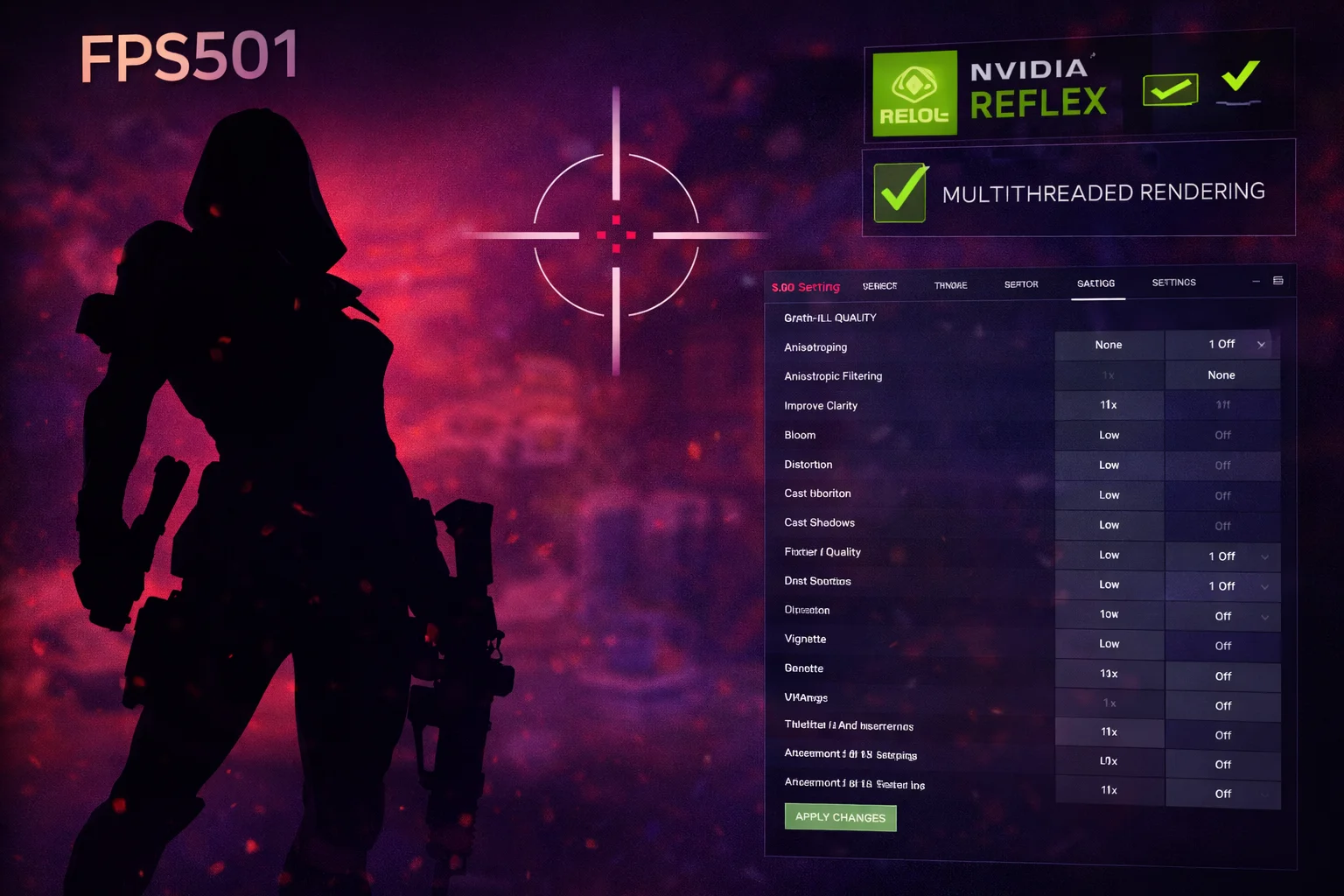
Quick Answer: For maximum Valorant FPS, set all graphics to Low/Off, enable Multithreaded Rendering, use NVIDIA Reflex On+Boost, and set Anti-Aliasing to None or MSAA 2x. Cap FPS slightly below your monitor’s refresh rate. Valorant is CPU-intensive—even budget GPUs can achieve 300+ FPS with proper settings.
Valorant is designed to run on almost any hardware, but achieving the high frame rates required for competitive play demands proper optimization. In a game where one-tap headshots decide rounds, every millisecond of input lag matters. The difference between 144 FPS and 300+ FPS is tangible when you’re holding angles or flicking to enemies.
Riot Games built Valorant to be accessible, but that doesn’t mean performance is automatic. With the right settings, you can achieve 400+ FPS on mid-range hardware or push 600+ FPS on high-end systems. These frame rates translate to lower input latency, smoother tracking, and faster reaction times—measurable advantages that compound over thousands of rounds.
This guide covers the absolute best Valorant settings for maximum FPS, including professional player configurations, hardware-specific optimizations, and the exact settings used by Radiant players. Use our FPS Calculator to estimate your frame rates, or check our Bottleneck Calculator to ensure your system is balanced.
Recommended Hardware for Valorant
Valorant is CPU-intensive, but a balanced system delivers the best results. Here are the best value options for competitive play:
AMD Ryzen 7 7800X3D
8 Cores | 16 Threads | 96MB L3 Cache | 5.0 GHz Boost | 120W TDP
The ultimate CPU for Valorant and competitive FPS games. The massive 96MB 3D V-Cache delivers exceptional single-threaded performance, pushing 600+ FPS in Valorant.
AMD Ryzen 5 7600X
6 Cores | 12 Threads | 5.3 GHz Boost | 32MB L3 | 105W TDP
Excellent budget option for high-FPS Valorant gaming. Delivers 400-500+ FPS at competitive settings, perfect for 240Hz monitors. Outstanding price-to-performance.
Intel Arc B580
12GB GDDR6 | 192-bit | XeSS | PCIe 4.0 | 190W TDP
Outstanding budget GPU for Valorant. The 12GB VRAM and strong efficiency deliver 380+ FPS when paired with a capable CPU. Best value under $300.
Valorant FPS by Hardware Tier
Valorant is CPU-bound at high frame rates. Here’s what FPS you can expect at 1080p Low settings:
| Hardware Combo | Average FPS | 1% Low FPS | Recommended For |
|---|---|---|---|
| RTX 5080 + 9800X3D | 800+ FPS | 600+ FPS | 500Hz display |
| RTX 5070 + 7800X3D | 650+ FPS | 500+ FPS | 360Hz competitive |
| RTX 4070 Super + 7800X3D | 600+ FPS | 450+ FPS | 360Hz competitive |
| RTX 4060 Ti + 7600X | 450+ FPS | 350+ FPS | 240Hz gaming |
| RTX 4060 + i5-12400F | 380+ FPS | 280+ FPS | 240Hz gaming |
| RX 7800 XT + 7600X | 500+ FPS | 380+ FPS | 240Hz competitive |
| RX 7600 + 5600 | 350+ FPS | 260+ FPS | 165Hz gaming |
| Arc B580 + i5-12400F | 380+ FPS | 290+ FPS | 240Hz gaming |
| RTX 3060 + 5600 | 320+ FPS | 240+ FPS | 144Hz gaming |
| GTX 1650 + i5-10400 | 180+ FPS | 130+ FPS | 144Hz gaming |
Notice that CPU matters more than GPU for Valorant. A high-end GPU with a budget CPU will bottleneck hard, while a mid-range GPU with a gaming CPU excels.
Best Valorant Graphics Settings
These settings maximize FPS while maintaining the visual clarity needed for competitive play.
General Settings
| Setting | Recommended | Explanation |
|---|---|---|
| Resolution | 1920×1080 | Native for clarity; lower for FPS boost |
| Display Mode | Fullscreen | Lowest input lag |
| Limit FPS on Battery | Off | Desktop PC setting |
| Limit FPS in Menus | 60 | Saves GPU when idle |
| Limit FPS in Background | 30 | Saves resources when alt-tabbed |
| Limit FPS Always | Off or Monitor Hz – 3 | See frame rate strategy below |
| NVIDIA Reflex Low Latency | On + Boost | Reduces input lag significantly |
Graphics Quality Settings
| Setting | Competitive | Balanced | FPS Impact |
|---|---|---|---|
| Multithreaded Rendering | On | On | +30-50% FPS |
| Material Quality | Low | Medium | Medium |
| Texture Quality | Low | Medium | Low-Medium |
| Detail Quality | Low | Low | Medium |
| UI Quality | Low | Medium | Very Low |
| Vignette | Off | Off | Low |
| VSync | Off | Off | Adds input lag |
| Anti-Aliasing | None | MSAA 2x | Medium |
| Anisotropic Filtering | 1x | 4x | Very Low |
| Improve Clarity | Off | On | Low |
| Experimental Sharpening | Off | Off | Very Low |
| Bloom | Off | Off | Low |
| Distortion | Off | Off | Low |
| Cast Shadows | Off | Off | Medium-High |
Critical Settings Explained
Multithreaded Rendering (On – CRITICAL): This is the single most important performance setting. It distributes rendering work across multiple CPU cores, providing 30-50% higher FPS on modern processors. Never disable this unless troubleshooting crashes.
NVIDIA Reflex Low Latency (On + Boost): Reduces system latency by 15-25ms. In Valorant’s precise gunplay, this translates to more responsive aim and faster reaction to peeking enemies. Essential for competitive play.
Anti-Aliasing (None or MSAA 2x): None provides maximum FPS. MSAA 2x smooths jagged edges with minimal performance cost. Avoid MSAA 4x—the visual improvement doesn’t justify the FPS loss.
Material/Texture Quality (Low): Low settings load faster and use less VRAM. In a competitive shooter, you’re focused on heads, not wall textures. Low maintains all gameplay-relevant visual information while reducing memory bandwidth requirements that could cause stuttering.
Detail Quality (Low): Controls environmental detail density. Lower settings can actually improve visibility by reducing visual clutter around enemy models. Props and decorative elements are simplified, making enemy silhouettes stand out more clearly.
UI Quality (Low): Affects the resolution and complexity of UI elements. Low setting has almost no visual impact during gameplay but saves a small amount of GPU resources. Set to Low for consistency.
Vignette (Off): Darkens screen edges for “cinematic” effect. Provides zero competitive benefit and slightly reduces visibility of enemies in peripheral vision. Always disable for competitive play.
Bloom (Off): Adds glow effects around lights and bright surfaces. Can obscure vision when peeking around corners with bright backgrounds, and provides no competitive advantage. Disable for cleaner visuals and better enemy visibility.
Distortion (Off): Creates visual warping effects from explosions and abilities like Breach’s Flashpoint or Fade’s Prowler. These effects are intentionally disorienting—turning them off makes recovering from these abilities easier. Disable for clearer post-ability vision.
Cast Shadows (Off): Enemy player shadows can theoretically provide useful information, such as seeing someone around a corner before they peek. However, the FPS cost isn’t worth the inconsistent benefit. Most professional players disable shadows for maximum performance and consistency. The small competitive edge from shadows is outweighed by the frame rate gains.
Pro Player Settings
Understanding what professional players use provides insight into optimal competitive configurations. Here are the graphics settings used by top Valorant professionals in 2026:
| Player | Team | Resolution | Graphics Preset |
|---|---|---|---|
| TenZ | SEN | 1920×1080 | All Low, AA None |
| yay | – | 1920×1080 | All Low, AA MSAA 2x |
| Demon1 | EG | 1920×1080 | All Low, AA None |
| Aspas | LEV | 1920×1080 | All Low, AA None |
| Chronicle | FNC | 1920×1080 | All Low, AA MSAA 2x |
| Derke | FNC | 1920×1080 | All Low, AA None |
| cNed | – | 1920×1080 | All Low, AA None |
| Marved | SEN | 1920×1080 | All Low, AA None |
The pattern is unanimous: all professional players use Low settings across the board. The only variation is Anti-Aliasing preference (None vs MSAA 2x). Resolution is always native 1920×1080—stretched resolutions don’t provide the same advantages as in CS2.
Why Pros Don’t Use Higher Settings
Professional players prioritize three things: consistency, visibility, and response time. Higher graphics settings introduce variability—frame drops during ability usage or crowded fights can cost crucial duels. Low settings ensure stable frame rates regardless of on-screen chaos.
Additionally, lower settings often improve visibility. Effects like bloom, distortion, and high detail levels can obscure enemy outlines or create visual noise that makes target acquisition harder. Professionals want clean, readable gameplay where every pixel serves a purpose.
Pro Hardware Specs
Most professional Valorant players use high-end hardware to ensure maximum frame rates and minimum latency:
- CPU: AMD Ryzen 9 7950X3D, Ryzen 7 7800X3D, or Intel Core i9-14900K
- GPU: NVIDIA RTX 4080 Super, RTX 4090, or RTX 5080 (for NVIDIA Reflex)
- RAM: 32GB DDR5-6000+ CL30 or better
- Monitor: 360Hz or 500Hz displays (ASUS ROG Swift 360Hz, ViewSonic XG272-2K-OLED)
- Mouse: Lightweight gaming mice under 60g with high polling rates (4000Hz+)
Frame Rate Strategy
To Cap or Not to Cap
Frame rate limiting in Valorant is debated among pros. Here are both approaches:
Uncapped FPS:
- Lowest possible input lag
- GPU runs at maximum (higher temps/power)
- Frame times may vary more
- Best if NVIDIA Reflex is enabled
Capped FPS (Monitor Hz – 3):
- Consistent frame times
- Prevents frame queue buildup
- Lower GPU temps and power
- Eliminates screen tearing
Recommendation: With NVIDIA Reflex On + Boost, leave FPS uncapped. Reflex manages the frame queue automatically, so you get the lowest latency possible. Without Reflex, cap at your monitor’s refresh rate minus 3.
Target FPS by Monitor
| Monitor Refresh Rate | Minimum Target FPS | Ideal FPS |
|---|---|---|
| 60Hz | 60 FPS | 120+ FPS (for Reflex benefit) |
| 144Hz | 144 FPS | 200+ FPS |
| 165Hz | 165 FPS | 250+ FPS |
| 240Hz | 240 FPS | 300+ FPS |
| 360Hz | 360 FPS | 400+ FPS |
Higher FPS than your refresh rate still provides benefits: NVIDIA Reflex works more effectively, and your displayed frames are more recent.
NVIDIA Control Panel Settings
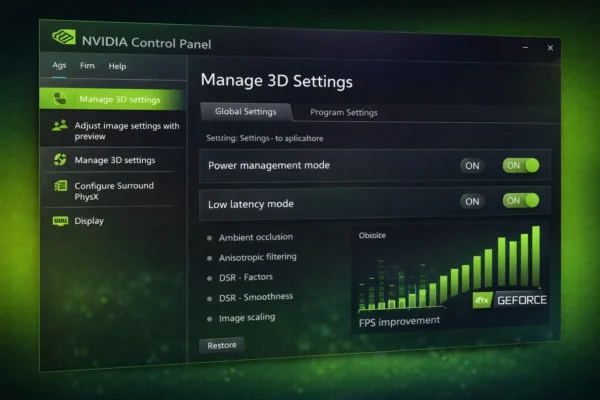
Optimize NVIDIA Control Panel for Valorant specifically. These settings work alongside in-game options to maximize performance and minimize latency.
Manage 3D Settings (Valorant Profile)
Create a program-specific profile for Valorant to ensure optimal settings without affecting other games:
| Setting | Value | Explanation |
|---|---|---|
| Low Latency Mode | Off | NVIDIA Reflex handles this better in-game |
| Max Frame Rate | Off | Let in-game settings control this |
| Power Management Mode | Prefer Maximum Performance | Prevents GPU downclocking during gameplay |
| Preferred Refresh Rate | Highest Available | Ensures maximum monitor refresh rate |
| Texture Filtering – Quality | High Performance | Slight FPS boost with minimal quality loss |
| Threaded Optimization | On | Better multi-core utilization |
| Triple Buffering | Off | Adds latency; not needed without V-Sync |
| Vertical Sync | Off | Always disable for competitive gaming |
| Shader Cache Size | Unlimited | Prevents stuttering from shader compilation |
| Anisotropic Filtering | Application-controlled | Let Valorant handle this setting |
Important: Set Low Latency Mode to Off when using NVIDIA Reflex in-game. Having both enabled can cause conflicts and actually increase latency. NVIDIA Reflex is more sophisticated and provides better results.
G-Sync/FreeSync Considerations
If you have a G-Sync or FreeSync monitor, the optimal configuration for Valorant depends on your frame rate:
- If FPS > Monitor Hz consistently: Disable G-Sync/FreeSync and let NVIDIA Reflex handle latency. Adaptive sync adds minimal latency overhead that’s unnecessary at high frame rates.
- If FPS fluctuates around Monitor Hz: Enable G-Sync/FreeSync and cap FPS 3 below your refresh rate. This prevents tearing while maintaining low latency.
- If FPS < Monitor Hz: Enable G-Sync/FreeSync for smoothest experience. Focus on increasing FPS through settings optimization.
AMD Radeon Settings
For AMD GPU users, configure Radeon Software for Valorant:
| Setting | Value |
|---|---|
| Radeon Anti-Lag | Enabled |
| Radeon Chill | Disabled |
| Radeon Boost | Disabled |
| Wait for Vertical Refresh | Always Off |
| Anti-Aliasing | Use Application Settings |
| Texture Filtering Quality | Performance |
| Surface Format Optimization | Enabled |
Radeon Anti-Lag is AMD’s equivalent to NVIDIA Reflex. Always enable it for competitive shooters.
Windows Optimization
Windows settings play a crucial role in achieving stable, high frame rates. These optimizations reduce background processes and ensure maximum resources are dedicated to Valorant.
Essential Windows Settings
| Setting | Value | Location |
|---|---|---|
| Game Mode | On | Settings > Gaming > Game Mode |
| Hardware-accelerated GPU scheduling | On | Settings > Graphics Settings |
| Variable Refresh Rate | On | Settings > Graphics Settings |
| Game DVR/Captures | Off | Settings > Gaming > Captures |
| Xbox Game Bar | Off | Settings > Gaming > Xbox Game Bar |
| Background Apps | Disable unnecessary | Settings > Apps > Startup |
Power Plan
Use “High Performance” or “Ultimate Performance” power plan to prevent CPU throttling. Enable Ultimate Performance (hidden by default) with this command in elevated PowerShell:
powercfg -duplicatescheme e9a42b02-d5df-448d-aa00-03f14749eb61Then select “Ultimate Performance” in Control Panel > Power Options. This prevents CPU frequency scaling and maintains maximum clock speeds during gameplay.
Valorant-Specific Windows Settings
Valorant’s anti-cheat (Vanguard) runs at kernel level and has specific requirements:
- Secure Boot: Must be enabled in BIOS (required by Vanguard)
- TPM 2.0: Must be enabled (required by Vanguard on Windows 11)
- Windows Updates: Keep Windows current for compatibility
- Antivirus: Whitelist Vanguard and Valorant folders
- System Restart: Vanguard requires restart after installation
Background Applications to Close
Close these applications before playing competitive Valorant:
- Discord (use web version or disable hardware acceleration)
- Chrome/browsers with multiple tabs
- Spotify/music applications
- RGB control software
- Wallpaper engines or animated desktop software
- Unnecessary overlay software (Xbox, Origin, etc.)
Resolution Considerations
Native 1920×1080
1080p is the competitive standard for Valorant. Unlike CS2, stretched resolutions don’t provide wider player models in Valorant—the game stretches everything equally. Stick to native 1080p for the clearest image.
Lower Resolutions
If you need more FPS on older hardware:
- 1600×900: ~25% more FPS, slightly blurrier
- 1280×960: ~40% more FPS, noticeably blurrier
Lower resolutions are acceptable if they help you consistently hit your monitor’s refresh rate.
Higher Resolutions
1440p and 4K are viable for casual play but not recommended competitively. The FPS cost outweighs visual benefits in a game where reaction time is critical.
CPU vs GPU: What Matters More
Valorant is uniquely CPU-intensive compared to other games. Understanding this helps you optimize correctly and make smart upgrade decisions.
CPU Impact on Valorant FPS
| CPU | Paired with RTX 4070 Super | Bottleneck Status |
|---|---|---|
| Ryzen 9 9800X3D | 750+ FPS | GPU limited |
| Ryzen 7 7800X3D | 650+ FPS | GPU limited |
| i7-14700K | 580+ FPS | Balanced |
| Ryzen 5 7600X | 480+ FPS | Balanced |
| i5-14400F | 420+ FPS | Slight CPU limit |
| i5-12400F | 380+ FPS | CPU limited |
| Ryzen 5 5600 | 350+ FPS | CPU limited |
Notice the massive FPS differences between CPUs with the same GPU. The X3D processors excel in Valorant thanks to their large L3 cache, which keeps frequently accessed game data readily available.
GPU Impact on Valorant FPS
| GPU | Paired with 7800X3D | Value Assessment |
|---|---|---|
| RTX 5080 | 680+ FPS | Overkill for Valorant |
| RTX 4070 Super | 650+ FPS | Excellent value |
| RTX 4060 Ti | 620+ FPS | Great value |
| RTX 4060 | 580+ FPS | Good value |
| RX 7600 | 540+ FPS | Budget champion |
| RTX 3060 | 500+ FPS | Still viable |
GPU differences are much smaller. A mid-range GPU paired with a great CPU outperforms a flagship GPU with a budget CPU in Valorant. This is why CPU should be your priority upgrade for this game.
Upgrade Priority for Valorant
If you’re planning hardware upgrades specifically for Valorant, prioritize in this order:
- 1. CPU: Biggest impact on FPS. X3D processors are worth the premium.
- 2. Monitor: 240Hz or 360Hz display lets you see the FPS benefit.
- 3. RAM Speed: Fast DDR5 (6000+ MT/s) helps at extreme FPS levels.
- 4. GPU: Mid-range is sufficient; only upgrade if bottlenecking.
- 5. Storage: NVMe SSD helps load times, not FPS.
Troubleshooting Common Issues
Even with optimized settings, you may encounter performance issues. Here are solutions to the most common problems:
Low FPS Despite Good Hardware
- Enable Multithreaded Rendering: This is the most common oversight—it provides 30-50% FPS boost
- Check CPU thermals: Throttling reduces FPS dramatically; ensure adequate cooling
- Update GPU drivers: Use latest Game Ready or Adrenalin drivers
- Close background applications: Especially browsers with many tabs
- Verify Valorant files: Through Riot Client to fix corrupted installation
- Reinstall Vanguard: Corrupted anti-cheat can cause performance issues
Stuttering During Matches
Stuttering is often caused by background processes or driver issues rather than hardware limitations:
- Disable Windows Game DVR: This causes micro-stutters in many games
- Add Valorant to antivirus exclusions: Real-time scanning causes hitching
- Enable XMP/EXPO for RAM: Running RAM at stock speed hurts performance
- Check disk space: Keep 20%+ free on game drive
- Clean reinstall GPU drivers with DDU: Removes corrupted driver remnants
- Check for overheating: Both CPU and GPU throttling cause stutters
High Input Lag
- Enable NVIDIA Reflex On + Boost
- Use Fullscreen (not Windowed Fullscreen)
- Disable V-Sync everywhere
- Check monitor is at maximum refresh rate
- Ensure monitor is in “Game” or low-latency mode
Frequently Asked Questions
Set all graphics to Low, enable Multithreaded Rendering, use NVIDIA Reflex On+Boost, and disable Bloom/Distortion/Vignette. These settings maximize FPS while maintaining competitive visibility.
Valorant is CPU-intensive at high frame rates. CPU choice matters more than GPU for achieving 300+ FPS. A mid-range GPU with a strong CPU outperforms a flagship GPU with a budget CPU.
With NVIDIA Reflex enabled, leave FPS uncapped for lowest latency. Without Reflex, cap FPS at your monitor’s refresh rate minus 3 to prevent frame queue buildup.
Most Valorant pros play at 300-600+ FPS on 240Hz or 360Hz monitors. They use all Low settings with NVIDIA Reflex enabled to minimize input lag.
Yes, significantly. NVIDIA Reflex reduces system latency by 15-25ms, making the game feel more responsive. Always use On+Boost for competitive play.
Multithreaded Rendering distributes rendering work across multiple CPU cores. It provides 30-50% higher FPS on modern processors and should always be enabled.
No. Unlike CS2, stretched resolution doesn’t make player models wider in Valorant—everything stretches equally. Stick to native 1920×1080 for the clearest image.
Check: V-Sync is off, frame rate limit isn’t set to 60, monitor is at correct refresh rate in Windows display settings, and laptop isn’t on battery power mode.
Conclusion
Optimizing Valorant for maximum FPS is straightforward: use Low settings across the board, enable Multithreaded Rendering, and activate NVIDIA Reflex. These settings are used universally by professional players because they provide the competitive edge that matters at the highest level of play.
Remember that Valorant is CPU-intensive—if you’re not hitting your FPS targets, your CPU is likely the limiting factor, not your GPU. The AMD Ryzen 7 7800X3D remains the best gaming CPU for competitive shooters thanks to its massive 96MB L3 cache, but even the budget Ryzen 5 7600X delivers excellent results for most players.
Use our FPS Calculator to estimate your performance with specific hardware combinations, and prioritize CPU upgrades for Valorant performance. With proper optimization, even mid-range hardware can achieve the 240+ FPS needed for competitive 240Hz gaming.
The key takeaways for Valorant optimization are:
- Enable Multithreaded Rendering (30-50% FPS boost)
- Use NVIDIA Reflex On+Boost for lowest latency
- Set all graphics to Low for competitive play
- Run Fullscreen mode (not Windowed Fullscreen)
- Disable V-Sync everywhere
- Prioritize CPU upgrades over GPU for high FPS
Related Resources
- FPS Calculator
- Bottleneck Calculator
- Fortnite Best Settings Guide
- CS2 FPS Boost Guide
- NVIDIA Control Panel Best Settings
- Best CPU for Gaming 2026
Last Updated: February 2026