How to Backup WD My Cloud (And Backup TO Your My Cloud)

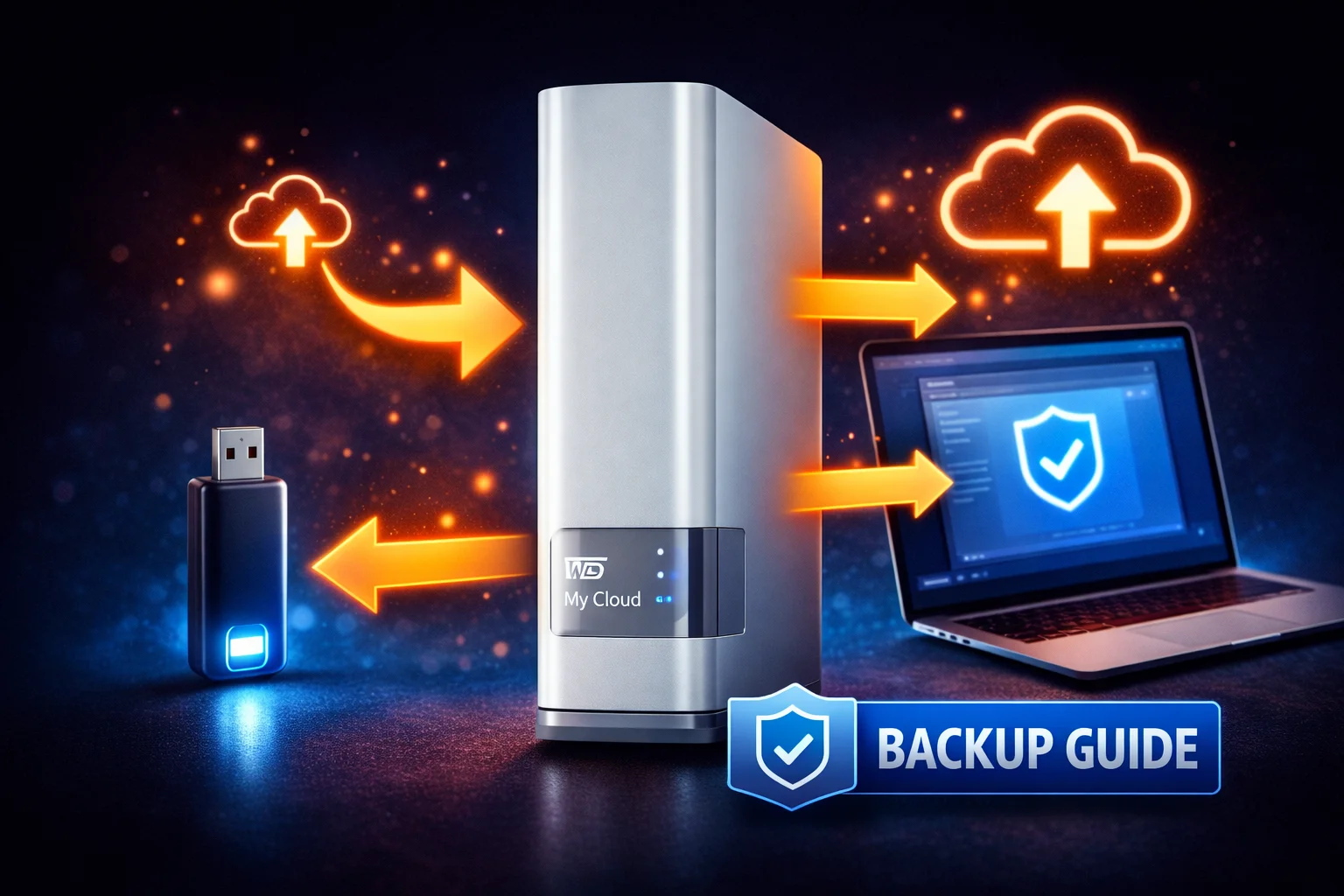
A NAS without a backup strategy is a disaster waiting to happen. Your WD My Cloud stores important files, but what happens if it fails? This guide covers both directions: backing up your My Cloud itself, and using your My Cloud as a backup destination for your computers.
The 3-2-1 Backup Rule
Before diving into methods, understand the golden rule of backup:
- 3 copies of your data
- 2 different storage types (NAS + USB, NAS + cloud, etc.)
- 1 copy offsite (cloud or at another location)
RAID is NOT a backup. RAID 1 or RAID 5 protects against drive failure, but not against accidental deletion, ransomware, fire, theft, or firmware corruption. You still need a separate backup.
Part 1: Backing Up Your WD My Cloud
Your My Cloud stores valuable data. Here’s how to protect it.
Method 1: USB Drive Backup (Recommended)
The simplest and most reliable backup method. Connect an external USB drive and let the My Cloud copy everything automatically.
What You Need:
- USB external hard drive (equal or larger than your used storage)
- Formatted as NTFS, HFS+, or exFAT (not FAT32 — 4GB file limit)
Setup Steps (EX2 Ultra / PR Series):
- Connect USB drive to the My Cloud’s USB port
- Wait for the drive to mount (check Dashboard → USB)
- Go to Backups → USB Backup
- Click Create Job
- Configure:
- Name: Give it a descriptive name
- Source: Select shares to backup (or all)
- Destination: Your USB drive
- Schedule: Daily, weekly, or manual
- Type: Copy (full) or Sync (mirror)
- Click Save
- Click Start to run the first backup
Setup Steps (My Cloud Home):
- Connect USB drive to the My Cloud Home
- Open the My Cloud Home mobile app
- Go to Settings → Backup
- Configure backup to USB drive
- Start the backup
Best Practices:
- Use a dedicated backup drive (not shared with other uses)
- Run backups weekly at minimum, daily for critical data
- Periodically verify the backup by checking files
- Store one USB backup offsite (rotate two drives)
Method 2: Cloud Backup
Backup your My Cloud to cloud storage for offsite protection. This protects against physical disasters (fire, flood, theft).
Supported Cloud Services (varies by model):
- Amazon S3
- ElephantDrive (WD partner)
- Dropbox (sync, not true backup)
- Google Drive (sync)
- OneDrive (sync)
Setup (ElephantDrive — Built-in):
- Go to Dashboard → Backups → Cloud Backup
- Select ElephantDrive
- Create an ElephantDrive account or sign in
- Select folders to backup
- Configure schedule
- Start initial backup (may take days for large libraries)
Alternative: Backblaze B2 (Manual Setup)
For power users, Backblaze B2 offers cheap cloud storage (~$6/TB/month):
- Create Backblaze B2 account
- Create a bucket for your backup
- Install rclone on a computer
- Configure rclone to sync My Cloud → B2
- Schedule via Task Scheduler or cron
Cloud Backup Considerations:
- Initial upload takes time — days or weeks for large libraries
- Bandwidth costs — check your ISP’s data caps
- Monthly fees — factor ongoing costs
- Restore time — downloading 10TB takes a long time
Method 3: NAS-to-NAS Backup (Remote Backup)
Backup your My Cloud to another My Cloud at a different location (friend’s house, office, family member). This provides offsite protection without cloud fees.
Requirements:
- Two WD My Cloud devices (same or different models)
- Both connected to the internet
- Remote access enabled on destination NAS
Setup (EX2 Ultra / PR Series):
- Go to Backups → Remote Backup
- Click Create Job
- Enter the remote My Cloud’s address:
- If on same network: IP address
- If remote: Public IP or DDNS hostname
- Enter credentials for the remote NAS
- Select source folders and destination
- Schedule and save
Tip: Use rsync over SSH for secure transfers. The EX2 Ultra and PR series support rsync.
Method 4: Safepoint (Legacy)
Safepoint was WD’s built-in backup feature on older My Cloud devices. It creates a snapshot of your entire NAS.
Note: Safepoint is being phased out in newer firmware. Use USB Backup instead.
If your device still has Safepoint:
- Go to Backups → Safepoint
- Connect a USB drive or specify a network location
- Create a new Safepoint
- Schedule regular updates
Part 2: Backing Up TO Your WD My Cloud
Your My Cloud can serve as the backup destination for your computers and devices.
Windows PC Backup
Option A: WD SmartWare (Included)
WD provides SmartWare software for backing up Windows PCs to your My Cloud:
- Download WD SmartWare from support.wdc.com
- Install on your Windows PC
- Open SmartWare and select your My Cloud as the backup target
- Choose files/folders to backup:
- Category-based (Documents, Photos, Music, etc.)
- Or specific folders
- Enable continuous backup or schedule
- Run initial backup
Option B: Windows File History
Use Windows’ built-in backup to your My Cloud:
- Map your My Cloud as a network drive
- Open Settings → Update & Security → Backup
- Click Add a drive
- Select your mapped My Cloud share
- Turn on Automatically back up my files
- Click More options to configure frequency and folders
Option C: Third-Party Software
- Acronis True Image — Full system image backup (free version included with some WD drives)
- Veeam Agent — Free, powerful backup software
- Macrium Reflect — Free edition available
- SyncBack — Flexible sync/backup utility
Mac Backup (Time Machine)
Time Machine is Mac’s built-in backup solution. WD My Cloud devices support it natively.
Enable Time Machine Support on My Cloud:
- Access the My Cloud dashboard
- Go to Settings → General
- Enable Mac Backup (Time Machine)
- Optionally, create a dedicated share for Time Machine
Configure Time Machine on Mac:
- Open System Preferences → Time Machine
- Click Select Backup Disk
- Choose your My Cloud from the list
- Enter your My Cloud credentials
- Optionally enable Encrypt backups
- Click Use Disk
Time Machine will now backup automatically hourly.
Time Machine Best Practices:
- Create a dedicated share with a quota (prevents Time Machine from filling the entire NAS)
- Enable encryption for sensitive data
- Periodically verify backups actually work (restore a test file)
- For multiple Macs, create separate shares for each
See our detailed WD My Cloud Time Machine Guide for complete setup instructions.
Mobile Device Backup (iPhone/Android)
Automatically backup photos and videos from your phone to your My Cloud.
Using WD My Cloud App:
- Open the My Cloud app on your phone
- Go to Settings → Auto Backup
- Enable Photo Backup and/or Video Backup
- Choose backup conditions:
- Wi-Fi only (recommended)
- While charging
- Any time
- Select destination folder on your My Cloud
Photos/videos will now backup automatically when conditions are met.
Camera/SD Card Backup
Import photos directly from cameras or SD cards:
- Connect camera or USB card reader to My Cloud’s USB port
- Press the USB Copy button on the front of the device (if equipped)
- Files automatically copy to a dated folder
Or configure automatic import in the dashboard under Settings → USB → Auto Import.
Backup Schedule Recommendations
| Data Type | Backup Frequency | Recommended Method |
|---|---|---|
| Work documents | Daily or continuous | Windows File History / SmartWare |
| Personal photos | As they’re taken | Mobile auto-backup |
| Entire NAS | Weekly | USB drive backup |
| Critical data | Daily + offsite | USB + cloud backup |
| Mac system | Hourly (automatic) | Time Machine |
Verifying Your Backups
A backup you haven’t tested isn’t a backup. Periodically verify:
Monthly Verification Checklist
- ☐ Check backup job logs for errors
- ☐ Browse backup destination — are recent files there?
- ☐ Open several random files to verify they’re not corrupted
- ☐ Verify backup sizes are reasonable (not suspiciously small)
- ☐ Test restore a few files to a different location
Annual Full Restore Test
Once a year, test a complete restore scenario:
- Pretend your My Cloud died
- Attempt to access critical files from backup only
- Restore a subset of files to verify the process works
- Document any issues or missing files
- Adjust backup strategy as needed
Disaster Recovery: Restoring from Backup
Restore from USB Backup
- Connect the USB backup drive to your My Cloud (or replacement device)
- Go to Backups → USB Backup
- Create a new job with:
- Source: USB drive
- Destination: My Cloud shares
- Run the restore job
Or manually copy files from the USB drive via File Explorer.
Restore from Cloud Backup
- Configure cloud backup service on new/repaired device
- Initiate restore from cloud provider’s interface
- Be patient — large restores take days over internet
Restore Time Machine Backup
- Boot Mac while holding Command + R (Recovery Mode)
- Select Restore from Time Machine Backup
- Connect to your network
- Select your My Cloud Time Machine backup
- Choose backup date to restore
- Complete the restore
Frequently Asked Questions
No! RAID protects against drive failure only. It doesn’t protect against accidental deletion, ransomware, theft, fire, or NAS failure. If you delete a file, RAID deletes it from all drives instantly. You need a separate backup in addition to RAID.
Your backup drive should be at least as large as your used storage, ideally larger. If you have 4TB of data, get a 6TB or 8TB backup drive. This gives room for growth and allows versioning (keeping multiple copies of changed files).
Yes. WD My Cloud supports remote backup to another My Cloud device over the network or internet. This is called NAS-to-NAS or remote backup. It’s great for offsite protection by placing the second NAS at a friend’s or family member’s location.
Backup copies files to a separate location, preserving history. Sync keeps two locations identical — if you delete from one, it deletes from both. Sync (Dropbox, Google Drive) is NOT a backup because deletions propagate. True backup preserves deleted files.
Weekly minimum for complete NAS backup. Daily for critical business data. Continuous for work-in-progress files. The question to ask: ‘How much work can I afford to lose?’ If losing a week’s work is unacceptable, backup more frequently.
Yes, especially for offsite backups. If your backup drive is stolen or your cloud account is compromised, encryption protects your data. Most backup software supports encryption. For Time Machine, enable the ‘Encrypt backups’ option.
Backup Strategy Summary
| Protection Level | Strategy | Protects Against |
|---|---|---|
| Basic | USB backup (weekly) | Drive failure, NAS failure |
| Better | USB + Cloud backup | Above + fire, theft, flood |
| Best | USB + Cloud + Offsite NAS | All disasters, fast local restore |
At minimum, implement weekly USB backup. For irreplaceable data like family photos, add cloud or offsite backup. The cost of backup is always less than the cost of data loss.
Related Resources
- WD My Cloud Time Machine Setup — Detailed Mac backup guide
- WD My Cloud Setup Guide — Initial configuration
- WD My Cloud RAID Configuration — RAID setup guide
- WD My Cloud Remote Access — Access files anywhere
- WD My Cloud Security Guide — Protect your NAS
- WD My Cloud Compatible Drives — Backup drive recommendations
- Best WD My Cloud 2026 — Buying guide
Last Updated: February 2026