
Quick Answer+
Quick Answer: To connect Mac to WD My Cloud: Open Finder, press Cmd + K (Connect to Server), enter smb://wdmycloud or smb://[IP address], click Connect, and choose Guest or enter your credentials. For Time Machine: Go to System Settings > General > Time Machine > Add Backup Disk, select the TimeMachineBackup share on your My Cloud. Important: Modern macOS requires SMB protocol (not AFP) — ensure your My Cloud firmware is current. If Time Machine shows “backup disk not available,” verify the share is using SMB and set backup size to 100%.
Connecting Your Mac to WD My Cloud
Method 1: Connect via Finder (Recommended)
- Open Finder
- Press Cmd + K (or click Go > Connect to Server)
- Enter one of these addresses:
smb://wdmycloud(uses device name)smb://wdmycloudex2ultra(for EX2 Ultra)smb://192.168.x.x(use your device’s actual IP)
- Click Connect
- Choose Guest for public shares, or Registered User and enter your My Cloud credentials
- Select which shares to mount (Public, TimeMachineBackup, etc.)
The mounted share appears in Finder’s sidebar under “Locations.”
Method 2: Browse Network
- Open Finder
- In the sidebar, click Network (under Locations)
- Wait for network devices to appear
- Double-click WDMYCLOUD (or your device’s name)
- Select shares to access
If Network doesn’t appear in sidebar: Finder > Settings > Sidebar > check “Connected servers”
Method 3: Create Permanent Alias (Auto-Mount)
To have your My Cloud automatically available after restart:
- Connect to My Cloud using Method 1
- In Finder, the mounted share appears under Locations
- Drag the share from sidebar to your Desktop to create an alias
- To auto-mount at login: System Settings > General > Login Items > add the share
Setting Up Time Machine Backup
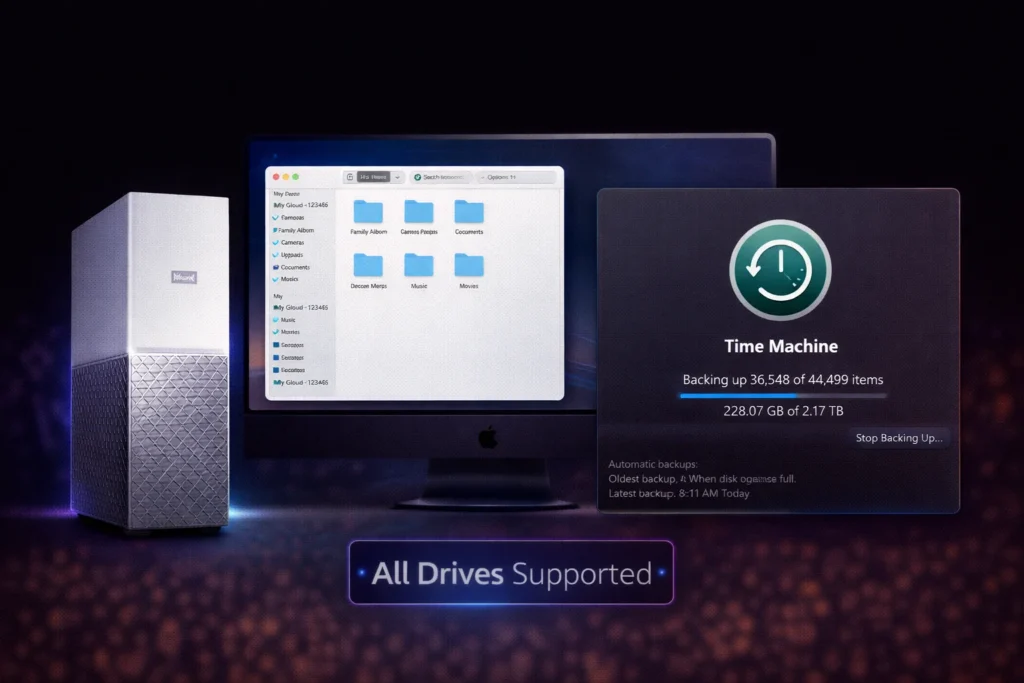
WD My Cloud supports Time Machine backup, letting you wirelessly backup your entire Mac. Setup differs slightly between macOS versions.
macOS Ventura and Later (13+)
- Open System Settings
- Click General in sidebar
- Click Time Machine
- Click Add Backup Disk (or + button)
- Select TimeMachineBackup on [YourMyCloudName]
- Click Set Up Disk
- Choose Guest (for public) or Registered User (for private)
- If prompted, enter My Cloud username and password
- Optional: Enable Encrypt Backup (slower but more secure)
- Click Done
macOS Monterey and Earlier
- Open System Preferences
- Click Time Machine
- Click Select Backup Disk
- Select TimeMachineBackup on [YourMyCloudName]
- Click Use Disk
- Enter credentials if prompted
Important Time Machine Settings on My Cloud
For reliable Time Machine backups, configure these settings on your My Cloud:
My Cloud EX2 Ultra / OS 5 devices:
- Access the My Cloud dashboard
- Go to Settings > General
- Find Mac Backups / Time Machine
- Set Time Machine Backup Maximum Size to 100% (critical!)
- Ensure the TimeMachineBackup share exists
Why 100% matters: If you set a lower percentage, Time Machine may fail once it reaches that limit, reporting “backup disk not available.” Setting 100% lets Time Machine manage its own space, automatically deleting old backups when needed.
First Backup Tips
- Use Ethernet if possible: The first backup transfers your entire Mac — could be 500GB+. WiFi works but takes much longer.
- Keep Mac awake: Disable sleep during the first backup (System Settings > Lock Screen > Turn display off > Never, temporarily)
- Backup overnight: First backup can take 12-24+ hours. Start it in the evening.
- Disable encryption for speed: Encrypted backups are slower. You can enable encryption after initial backup if desired.
- Turn off Cloud Access on the share: Cloud indexing slows backup. Dashboard > Shares > TimeMachineBackup > disable Mobile & Web Cloud Access.
Time Machine Troubleshooting
“Backup Disk Not Available” Error
The most common Time Machine error. Solutions:
1. Verify SMB Protocol (Not AFP)
Modern macOS (Catalina+) requires SMB, not the older AFP protocol:
- Ensure My Cloud firmware is OS 5.19.197 or later (AFP was deprecated)
- Connect using
smb://prefix, notafp:// - In My Cloud dashboard, verify SMB is enabled (Settings > Network > Windows File Sharing)
2. Set Backup Size to 100%
In My Cloud dashboard: Settings > General > Time Machine Backup Maximum Size > 100%
3. Remove and Re-add the Backup Disk
- System Settings > General > Time Machine
- Select your backup disk and click the minus (-) button to remove
- Click Add Backup Disk and re-select your My Cloud
- Choose to use existing backups when prompted
4. Reset SMB Connection
Disconnect and reconnect via Finder:
- In Finder sidebar, click the eject icon next to your My Cloud
- Press Cmd + K and reconnect using
smb://[IP address] - Try Time Machine backup again
“Connection Interrupted” During Backup
- WiFi instability: Use Ethernet cable if possible
- Mac sleeping: Disable sleep during backup
- My Cloud overloaded: Check if other users/processes are active
- Router issues: Restart your router
- Network congestion: Try backing up when network is less busy
Time Machine Not Finding My Cloud
If your My Cloud doesn’t appear in Time Machine’s disk selection:
- First, verify you can connect via Finder (Cmd + K > smb://[IP])
- Ensure TimeMachineBackup share exists on My Cloud
- Check that the share has read/write permissions for your user (or is public)
- Try mounting the TimeMachineBackup share specifically:
smb://[IP]/TimeMachineBackup - On My Cloud dashboard, verify Time Machine is enabled
Backup Taking Extremely Long
Network backups are slower than direct-attached drives. Expected times:
- First backup (500GB over WiFi): 12-24+ hours
- First backup (500GB over Gigabit Ethernet): 2-4 hours
- Incremental backups: 5-30 minutes typically
Speed improvements:
- Use wired Ethernet (biggest improvement)
- Disable backup encryption
- Disable DLNA/media indexing on My Cloud
- Ensure no one else is heavily using the My Cloud
General Mac Connection Troubleshooting
Can’t Find My Cloud on Network
- Use direct IP connection: Cmd + K >
smb://192.168.x.x(check router for IP) - Verify My Cloud is on: Check LED is solid (not flashing or red)
- Check same network: Ensure Mac is on same network as My Cloud
- Restart My Cloud: Unplug power, wait 30 seconds, reconnect
- Check router: Verify My Cloud appears in router’s connected devices
“Connection Failed” Error
Usually a credentials or protocol issue:
- Try connecting as Guest instead of Registered User
- If the share is private, ensure you’re using correct My Cloud credentials (not your Mac login)
- Verify using SMB (
smb://), not AFP - Check My Cloud firmware is up to date
Slow Transfer Speeds
Expected speeds on Mac:
- Gigabit Ethernet: 80-110 MB/s
- WiFi 5 (good signal): 20-50 MB/s
- WiFi (poor signal): 5-20 MB/s
Improve speeds with this Terminal command to optimize SMB on Mac:
# Create/edit SMB configuration file sudo nano /etc/nsmb.conf # Add these lines:
[default]
signing_required=no streams=yes # Save with Ctrl+O, exit with Ctrl+X # Restart Mac for changes to take effect
See our slow speed troubleshooting guide for more optimization tips.
Mount Disappears After Sleep/Restart
Network shares don’t automatically reconnect on Mac by default:
- Connect to My Cloud via Finder (Cmd + K)
- Once connected, go to System Settings > General > Login Items
- Click + under “Open at Login”
- Navigate to the mounted share in /Volumes/ and add it
Alternatively, save credentials in Keychain:
- When connecting, check “Remember this password in my keychain”
- This allows auto-reconnection when you access the share
Advanced Mac Configuration
Terminal Commands for Diagnostics
Use these Terminal commands to diagnose connection issues:
Check if My Cloud is reachable:
# Ping the device ping 192.168.1.x # Replace with your My Cloud's IP # Check if SMB port is open nc -zv 192.168.1.x 445
View current SMB connections:
smbutil statshares -a
List mounted network volumes:
mount | grep smbfs
Reset Keychain Credentials
If you’re having authentication issues, try removing saved credentials:
- Open Keychain Access (search in Spotlight)
- Search for your My Cloud’s name or IP address
- Delete any related entries
- Try connecting again and enter fresh credentials
Check DNS Resolution
If connecting by name fails but IP works, DNS may be the issue:
# Check if name resolves dscacheutil -q host -a name wdmycloud # Try mDNS resolution dns-sd -q wdmycloud.local
If these fail, either use the IP address directly or check your router’s local DNS settings.
Firewall Configuration
macOS firewall shouldn’t block outgoing connections by default, but verify:
- Open System Settings > Network > Firewall
- Click Options
- Ensure “Block all incoming connections” is off
- Verify Finder isn’t in the blocked applications list
Using Bonjour for Discovery
If you’re having trouble discovering your My Cloud on the network, use a Bonjour browser to check if the device is advertising itself:
- Install Discovery – DNS-SD Browser from the App Store (free)
- Browse for SMB services to see if My Cloud is advertising itself
- This helps determine if the issue is discovery vs. connection
My Cloud and iCloud Integration
While My Cloud and iCloud serve different purposes, you can use them together effectively:
Backup iCloud Photos to My Cloud
Download your iCloud Photos library to My Cloud for local backup:
- Open Photos app on Mac
- Go to Photos > Settings > iCloud
- Enable Download Originals to this Mac
- Your Photos library (in ~/Pictures) will now contain full-resolution images
- Set up Time Machine to My Cloud (this backs up your Photos library)
- Or manually copy your Photos library to My Cloud for additional backup
Use My Cloud for Large Files
iCloud has storage limits and sync overhead. Use My Cloud for:
- Video projects and raw footage
- Large archives you don’t need on every device
- Files you want to keep private from cloud services
- Media libraries for Plex or other streaming
Frequently Asked Questions
My Cloud Home has limited Time Machine support. It doesn’t have a dedicated TimeMachineBackup share like EX2 Ultra. You can create a folder and point Time Machine to it, but reliability is inconsistent. For robust Time Machine backup, My Cloud EX2 Ultra or Pro series are better choices. Alternatively, consider using My Cloud Home for file storage and a separate USB drive for Time Machine.
Apple deprecated AFP in favor of SMB starting with macOS Catalina. AFP (Apple Filing Protocol) was the Mac standard for decades, but Apple now recommends SMB for all network file sharing. WD has followed suit — My Cloud OS 5 firmware 5.19.197+ no longer supports AFP. SMB3 offers better performance, security, and compatibility. Always connect using smb:// prefix.
Yes, multiple Macs can use Time Machine on one My Cloud. Each Mac creates its own backup file (sparse bundle). For best results, create separate user accounts on My Cloud for each Mac, with each having a private TimeMachineBackup share. This prevents one Mac’s backup from being accessible to another and allows setting individual quotas. Performance will suffer if multiple Macs backup simultaneously — stagger backup schedules.
Start a fresh backup — don’t try to repair network Time Machine backups. Corruption often happens when connection interrupts during backup. Delete the old backup file (.backupbundle) from your My Cloud, then start a new backup. To prevent future corruption: use wired Ethernet during backups, don’t let Mac sleep during backup, ensure stable network, and don’t access the TimeMachineBackup share with any other user or application while backups run.
It depends on your security needs. Encrypted backups protect your data if someone accesses your My Cloud. However, encryption significantly slows backup and restore operations — especially on network storage. For home use where the My Cloud is physically secure, unencrypted backups are often fine. For laptops with sensitive data, encryption adds valuable protection. You can enable encryption when setting up Time Machine or by starting a new encrypted backup.
Related Guides
- WD My Cloud Overview
- Setup Guide
- Troubleshooting Guide
- Fix Slow Speeds
- Windows Setup
- Plex Setup
- NAS Drives
- All WD Products
Last updated: February 2026. Complete Mac connection and Time Machine guide for WD My Cloud.