WD My Cloud Not Working: Complete Troubleshooting Guide (2026)

Quick Answer+
Quick Answer: WD My Cloud “not working” usually means connection or access issues. Quick fixes to try first: (1) Restart the My Cloud device by unplugging power for 30 seconds, (2) restart your router, (3) verify the Ethernet cable is securely connected, (4) check the LED status light for error indicators. If the device shows solid white/blue LED but you can’t access it from your computer, the issue is likely network discovery settings — especially on Windows 10/11 where SMB and guest access settings often need adjustment. For remote access issues, check WD’s service status at status.westerndigital.com.
Step 1: Identify Your Specific Problem
“My Cloud not working” can mean many different things. Identify which situation matches yours:
| Symptom | Likely Cause | Solution |
|---|---|---|
| LED is off or red | Power or hardware issue | See Hardware Issues below |
| LED is solid but device not found on network | Network discovery settings | See Network Discovery below |
| Can see device but can’t access files | Permissions or SMB settings | See Access Denied below |
| Remote access not working | Cloud service or account issue | See Remote Access below |
| Extremely slow or freezing | Performance or drive issue | See Slow Speed Guide |
| App can’t connect | App or account issue | See App Issues below |
Hardware and Power Issues
LED Status Indicators
The front LED tells you the device’s status. Here’s what each state means:
My Cloud Home / Home Duo:
- No light: No power — check power adapter connection and outlet
- Solid white: Normal operation, ready to use
- Blinking white: Starting up, updating, or processing — wait for solid
- Solid yellow/amber: Standby or sleep mode — access the device to wake it
- Blinking yellow: Firmware update in progress — do not unplug
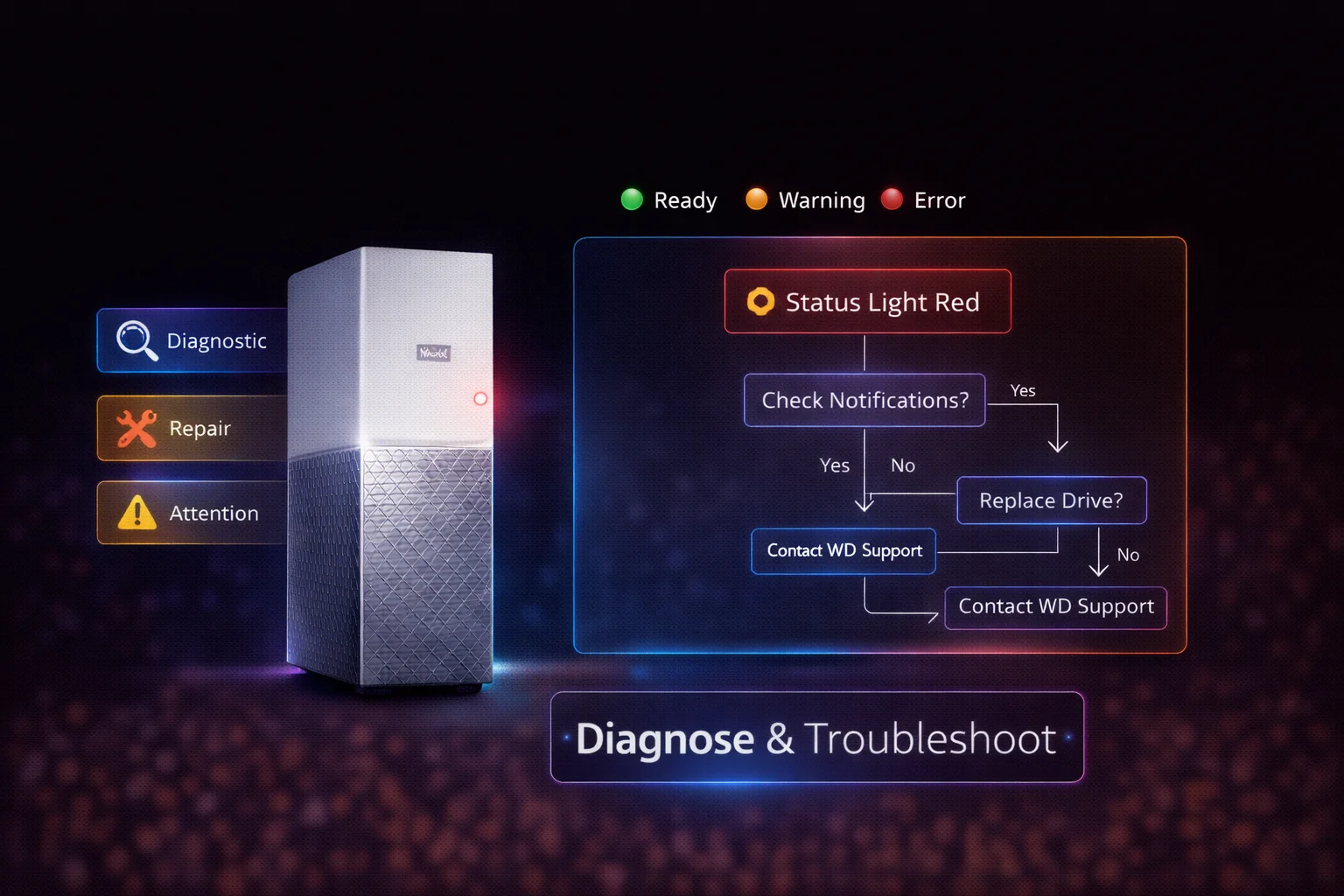
- Solid red: Error condition — see troubleshooting below
- Blinking red: Critical error — contact WD support
My Cloud EX2 Ultra:
- No light: No power
- Solid blue: Normal operation
- Blinking blue: Network activity (normal during transfers)
- Solid red: System alert or error
- Blinking red: Drive failure — check dashboard immediately
Power Cycling (Restart)
A simple restart fixes many temporary issues:
- Unplug the power cable from the back of My Cloud
- Wait 30 seconds
- Reconnect power and wait 3-5 minutes for full startup
- LED should turn solid white (Home) or blue (EX2 Ultra) when ready
Check Physical Connections
Verify all connections are secure:
- Power adapter: Firmly connected to both device and outlet; try a different outlet
- Ethernet cable: Click should be heard when fully inserted; try a different cable
- Router port: Try a different port on your router; check router’s port LED lights up
Red LED Troubleshooting
Solid or blinking red typically indicates:
- Overheating: Ensure adequate ventilation; device should be upright with clear airflow
- Drive failure: (EX2 Ultra) Check dashboard for drive status; one drive failing in RAID 1 still allows access
- Firmware corruption: May require factory reset or WD support intervention
Device Not Found on Network
If your My Cloud’s LED shows normal status but you can’t find it on your network, the issue is usually network discovery settings on your computer.
Windows 10/11: Enable Network Discovery
- Open Settings > Network & Internet > Advanced network settings
- Click Advanced sharing settings
- Expand Private networks
- Enable Network discovery
- Enable File and printer sharing
- Click Save changes
Windows: Enable Required Services
Windows needs certain services running to discover network devices:
- Press Windows + R, type
services.msc, press Enter - Find and start these services (right-click > Start):
- Function Discovery Provider Host
- Function Discovery Resource Publication
- SSDP Discovery
- UPnP Device Host
- Set each to Automatic startup type
Access by IP Address Directly
If network discovery fails, access My Cloud directly by IP address:
- Log into your router’s admin page (usually 192.168.1.1 or 192.168.0.1)
- Find connected devices list — look for “WDMyCloud” or similar
- Note the IP address (e.g., 192.168.1.50)
- In Windows Explorer address bar, type:
\\192.168.1.50(replace with your IP) - On Mac Finder, press Cmd+K and enter:
smb://192.168.1.50
Mac: Connect to Server
- In Finder, press Cmd + K (or Go > Connect to Server)
- Enter:
smb://wdmycloudorsmb://[IP address] - Click Connect
- Choose Guest or enter your My Cloud credentials
For detailed Mac setup, see our Mac connection guide.
Can See Device But Can’t Access Files
If you can see My Cloud in network but get “Access Denied” or credentials errors, the issue is usually SMB settings or missing credentials.
Windows: Add Credentials
Windows 10/11 often blocks access without saved credentials:
- Open Control Panel > User Accounts > Credential Manager
- Click Windows Credentials
- Click Add a Windows credential
- Enter:
- Network address:
WDMYCLOUDor your device’s IP - Username: Your My Cloud username (or leave blank for guest access)
- Password: Your My Cloud password (or leave blank)
- Network address:
- Click OK
Windows: Enable Guest Access
Microsoft disabled guest access to network shares by default. To re-enable (for public shares):
Method 1 – Group Policy (Windows Pro/Enterprise):
- Press Windows + R, type
gpedit.msc, press Enter - Navigate to: Computer Configuration > Administrative Templates > Network > Lanman Workstation
- Double-click Enable insecure guest logons
- Select Enabled, click OK
- Restart your computer
Method 2 – Registry (All Windows versions):
- Press Windows + R, type
regedit, press Enter - Navigate to:
HKEY_LOCAL_MACHINE\SYSTEM\CurrentControlSet\Services\LanmanWorkstation\Parameters - Right-click in right pane > New > DWORD (32-bit) Value
- Name it
AllowInsecureGuestAuth - Double-click it and set Value data to
1 - Restart your computer
Windows 11 24H2: SMB Signing Issue
Windows 11 version 24H2 requires SMB signing, which older My Cloud firmware doesn’t support. Solutions:
- Update My Cloud firmware to version 5.31.101 or later (adds SMB signing support)
- Or disable SMB signing requirement in Windows (less secure but functional)
To disable SMB signing in Windows 11:
# Run PowerShell as Administrator Set-SmbClientConfiguration -RequireSecuritySignature $false -Confirm:$false
For comprehensive Windows troubleshooting, see our Windows connection guide.
Remote Access Not Working
Remote access (from outside your home network) requires WD’s cloud services to function properly.
Check WD Service Status
First, verify WD’s servers are operational:
- Visit status.westerndigital.com
- Check for any reported outages or maintenance
- If services are down, wait for WD to resolve — nothing you can do locally
Verify Cloud Access is Enabled
My Cloud Home: Cloud access is always enabled and can’t be disabled.
EX2 Ultra: Dashboard > Settings > General > Cloud Access — ensure it’s turned On.
Check Your Account
- Try logging into mycloud.com directly
- If login fails, reset your WD account password
- Ensure your device is linked to your account in My Cloud app settings
Network/Firewall Issues
Some network configurations block remote access:
- Double NAT: If your ISP uses carrier-grade NAT, remote access may not work
- Corporate networks: Office firewalls often block the required ports
- Router firewall: Ensure your router isn’t blocking outbound connections
Re-link Your Device
If remote access stopped working after working previously:
- Open the My Cloud app on your phone while on the same local network
- Go to Settings > Device
- Remove the device and re-add it
- This re-establishes the cloud connection
Mobile App Issues
App Can’t Find Device
- Ensure your phone is on the same WiFi network as your My Cloud’s router
- Force close and reopen the app
- Check that your device has a solid LED (not starting up)
- Restart your router
App Updates
Outdated apps cause connection issues:
- Update to the latest My Cloud app version from App Store / Google Play
- Note: There are different apps for different products:
- My Cloud Home app — for Home and Home Duo
- My Cloud OS 5 app — for EX2 Ultra and other Expert/Pro series
Clear App Cache
Android: Settings > Apps > My Cloud > Storage > Clear Cache
iOS: Delete and reinstall the app (iOS doesn’t allow manual cache clearing)
Factory Reset (Last Resort)
If nothing else works, a factory reset can resolve software corruption. Warning: This may erase all data — backup first if possible.
Soft Reset (Keeps Data)
Resets settings while preserving data:
- Locate the reset button on the back of your My Cloud
- Use a paperclip to press and hold for 4-5 seconds
- Release when LED starts blinking
- Wait for device to restart (5-10 minutes)
Full Factory Reset (Erases Everything)
Only if soft reset doesn’t work and you’ve backed up all data:
- Press and hold the reset button for 40+ seconds
- Release and wait for device to fully restart
- You’ll need to set up the device again from scratch
When to Contact WD Support
Contact Western Digital support if:
- LED shows solid red even after power cycling and reset
- Device makes unusual clicking or grinding noises (drive failure)
- Device doesn’t power on at all with verified good power adapter
- Factory reset doesn’t resolve the issue
- You see “No healthy drive found” errors
WD Support: support.wdc.com
Advanced Diagnostics
Check My Cloud Dashboard Access
Even if file sharing isn’t working, you may still be able to access the device’s dashboard:
- Find your My Cloud’s IP address from your router’s admin page
- Open a web browser and enter the IP address directly
- If the dashboard loads, file sharing is the issue — not the device itself
- If dashboard doesn’t load, there’s a deeper connectivity problem
Test Network Connectivity
On Windows (Command Prompt):
ping 192.168.x.x # If ping fails, the device isn't reachable on your network
On Mac (Terminal):
ping 192.168.x.x nc -zv 192.168.x.x 445 # Tests both basic connectivity and SMB port
Check My Cloud Storage Status
A full or nearly full drive causes many issues:
- Uploads fail silently
- Indexing crashes and restarts repeatedly
- Performance degrades dramatically
- Dashboard may become unresponsive
Free up at least 10% of capacity by deleting unnecessary files or moving them to another location.
Firmware Recovery Mode
If your My Cloud is stuck in a boot loop or won’t complete startup:
- Power off the device completely
- Hold the reset button while connecting power
- Continue holding for 40 seconds
- Release and wait 10+ minutes for recovery
This initiates firmware recovery mode. The device will attempt to restore factory firmware. Note: This typically erases all data.
Frequently Asked Questions
Common causes of sudden failures: Windows Update changed network settings (very common), router firmware updated, IP address changed (device got a new IP from router), power interruption corrupted settings, or WD cloud service temporary outage. Start by restarting both your router and My Cloud, then verify you can access by IP address directly.
It depends on whether the drive or enclosure failed. For EX2 Ultra with RAID 1: if one drive failed, your data is on the surviving drive. For single-drive My Cloud Home: if the enclosure failed but drive is OK, professional data recovery services can often retrieve data (expensive). If the drive itself failed, recovery is difficult and expensive. This is why backups are essential.
Intermittent disconnections suggest network instability. Check for: loose Ethernet cables, failing network switch or router port, IP address conflicts (assign a static IP to My Cloud), sleep/standby settings waking and sleeping the device, or overheating causing thermal shutdowns. Monitor the LED when disconnections happen — if it changes color, that indicates the specific issue.
Yes, a completely full drive can cause issues. The device needs some free space for system operations, database indexing, and temporary files. When 100% full, uploads fail, indexing stalls, and performance degrades severely. Delete files to free up at least 5-10% of capacity, or disable features like media indexing to reduce system storage needs.
Related Guides
Last updated: February 2026. Comprehensive troubleshooting guide for WD My Cloud connection issues.