How to Access WD My Cloud Remotely (From Anywhere)

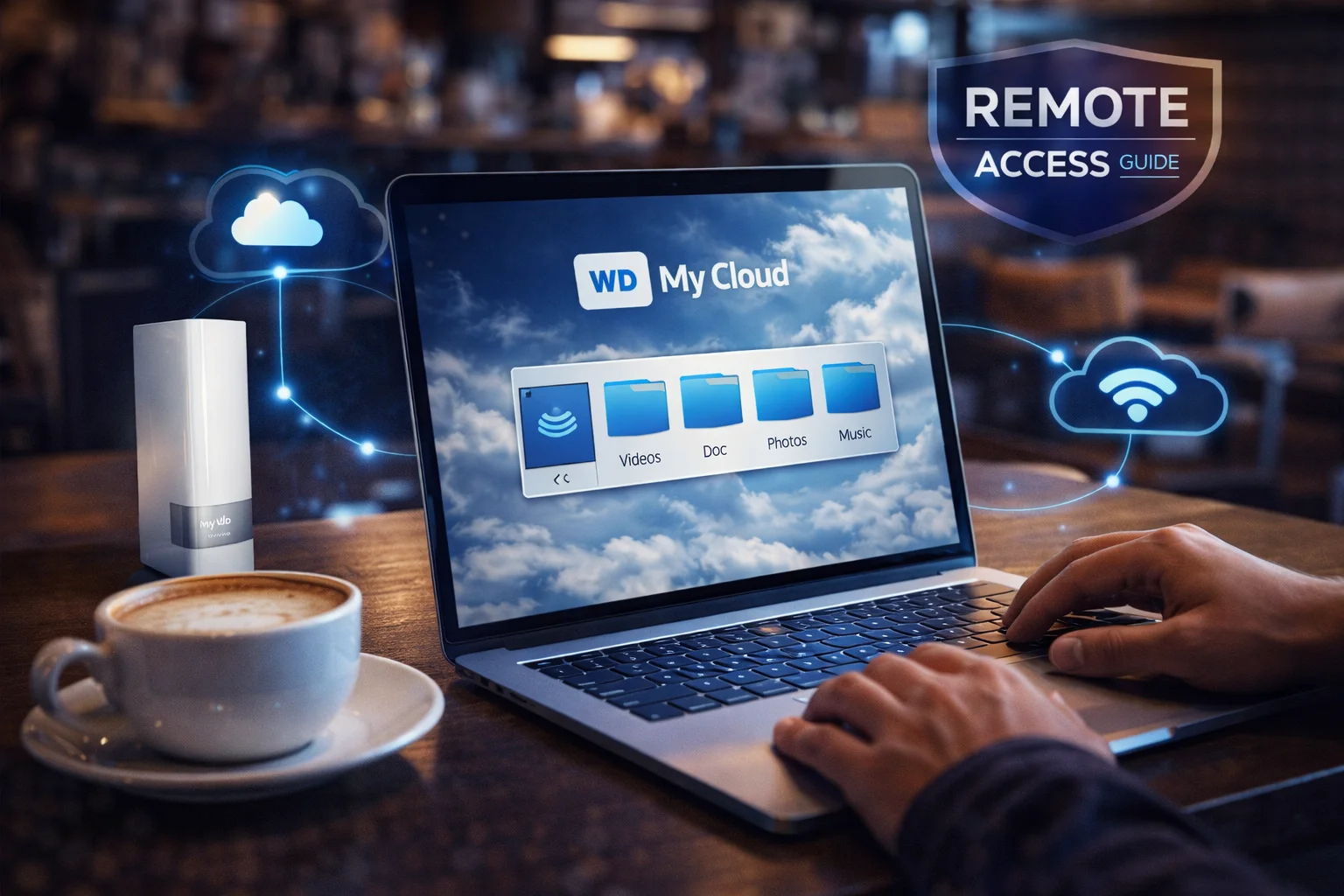
One of the biggest reasons people buy a WD My Cloud is remote access — the ability to reach your files from anywhere with an internet connection. But setting it up correctly can be confusing, and troubleshooting connection issues is frustrating. This guide walks you through every method to access your WD My Cloud remotely, from the simple built-in options to advanced configurations.
Remote Access Methods Overview
WD provides several ways to access your My Cloud remotely. The right method depends on your device type and what you’re trying to accomplish:
| Method | Best For | Requires | Models |
|---|---|---|---|
| My Cloud Mobile App | Phone/tablet access | WD account | All models |
| MyCloud.com Website | Browser access anywhere | WD account | All models |
| WD Discovery Desktop | PC/Mac file sync | WD account | EX2/PR series only* |
| Remote Dashboard | Admin access | Port forwarding | OS 5 devices |
| VPN Connection | Full network access | VPN server/router | All models |
| FTP/SFTP | File transfers | FTP enabled + port forward | EX2/PR series |
*WD discontinued Desktop Discovery for My Cloud Home in 2023. Home/Home Duo users can only use the mobile app and web portal.
Method 1: WD My Cloud Mobile App (Easiest)
The My Cloud mobile app is the simplest way to access files remotely. WD handles all the connection routing through their cloud servers — no port forwarding or network configuration required.
Initial Setup
Step 1: Download the correct app
- My Cloud Home app — For My Cloud Home and Home Duo
- My Cloud OS 5 app — For EX2 Ultra, PR2100, PR4100, and other OS 5 devices
Both apps are available on iOS App Store and Google Play Store.
Step 2: Create a WD account (if you haven’t)
- Open the app and tap “Create Account”
- Enter your email address and create a password
- Verify your email by clicking the link WD sends
- Complete your profile
Step 3: Link your My Cloud device
- Ensure your phone is on the same Wi-Fi network as your My Cloud
- Open the app and sign in
- The app should automatically discover your device
- Tap your device to connect
- Enter your My Cloud user credentials if prompted
Step 4: Enable Cloud Access on the NAS
For EX2 Ultra and PR series devices:
- Access the My Cloud dashboard via web browser
- Navigate to Settings → General → Cloud Access
- Toggle Cloud Service to ON
- Go to Cloud Access in the left menu
- Sign in with your WD account
- Enable cloud access for each user who needs remote access
Using the App Remotely
Once configured, you can access your files from anywhere:
- Open the My Cloud app (on any network — cellular or Wi-Fi)
- Sign into your WD account
- Your device appears in the device list
- Browse, download, upload, and stream files
What you can do remotely:
- Browse and view photos/videos
- Stream media files
- Download files to your device
- Upload files from your phone
- Auto-backup photos and videos
- Share files via links
Method 2: MyCloud.com Web Portal
Access your files through any web browser without installing software.
Setup
- Ensure Cloud Access is enabled on your device (see Method 1)
- Go to mycloud.com in any web browser
- Sign in with your WD account
- Select your device from the list
- Browse your files
Web Portal Features
- Browse folders and files
- Preview photos and documents
- Download individual files or folders
- Upload files (drag and drop)
- Create shareable links
- Play media files in browser
Limitations:
- Cannot map as network drive
- Upload speeds limited by browser
- No Time Machine or backup integration
- Dependent on WD’s cloud servers
Method 3: Remote Dashboard Access (OS 5 Devices)
For EX2 Ultra, PR2100, PR4100 and other My Cloud OS 5 devices, you can access the full admin dashboard remotely — not just files.
Enable Remote Dashboard
Option A: Automatic (UPnP)
- Access the My Cloud dashboard locally
- Go to Settings → Network
- Scroll to Remote Dashboard Access
- Toggle it ON
- If your router supports UPnP, port forwarding configures automatically
Option B: Manual Port Forwarding
If UPnP doesn’t work or you prefer manual configuration:
- Log into your router’s admin page
- Find Port Forwarding settings
- Create a new rule:
- External port: 8543
- Internal port: 8543
- Protocol: TCP
- Internal IP: Your My Cloud’s IP address
- Save the rule
Access the Dashboard Remotely
- Find your home’s public IP address (search “what is my IP” on Google while at home)
- From any remote location, open a browser
- Navigate to:
https://YOUR_PUBLIC_IP:8543 - Accept the security certificate warning
- Log in with your My Cloud admin credentials
Important: Always use HTTPS (port 8543), never HTTP (port 80) for remote access. HTTP transmits your password unencrypted.
Dynamic DNS for Changing IP Addresses
Most home internet connections have dynamic IP addresses that change periodically. Use Dynamic DNS (DDNS) for a consistent address:
- Sign up for a free DDNS service (No-IP, DuckDNS, Dynu)
- Create a hostname (e.g., mycloud.ddns.net)
- Configure DDNS in your router or on the My Cloud:
- Dashboard → Settings → Network → Dynamic DNS
- Access via:
https://mycloud.ddns.net:8543
Method 4: VPN Connection (Most Secure)
A VPN creates an encrypted tunnel to your home network, giving you full access as if you were physically there. This is the most secure method and provides the most functionality.
VPN Advantages
- Full network access: Map drives, use Time Machine, access dashboard
- Encrypted connection: All traffic protected
- No WD account required: Works independently of WD’s servers
- Access everything: Not just the NAS — your whole home network
VPN Setup Options
Option A: Router-Based VPN (Recommended)
Many routers have built-in VPN servers. Check if yours supports OpenVPN or WireGuard:
- Log into your router admin page
- Find VPN Server settings
- Enable OpenVPN or WireGuard server
- Download the configuration file
- Import to OpenVPN Connect or WireGuard app on your device
- Connect to VPN, then access My Cloud normally
Routers with good VPN support: ASUS (most models), Synology Router, UniFi Dream Machine, pfSense/OPNsense
Option B: Dedicated VPN Device
If your router doesn’t support VPN, add a device that does:
- Raspberry Pi running PiVPN
- GL.iNet travel router
- Old PC running pfSense
Option C: Tailscale (Easiest VPN)
Tailscale is a modern VPN that’s incredibly easy to set up:
- Install Tailscale on a computer at home that’s always on
- Enable “subnet routing” to share your home network
- Install Tailscale on your mobile devices
- Connect to your Tailscale network
- Access your My Cloud via its local IP address
Free tier supports up to 100 devices.
Method 5: FTP/SFTP Access (EX2/PR Series)
For large file transfers, FTP/SFTP can be more efficient than web-based access.
Enable FTP on My Cloud
- Access the dashboard
- Go to Settings → Network → FTP
- Enable FTP access
- Configure passive port range (e.g., 50000-50100)
- Enable FTPS (FTP over SSL) for security
Configure Port Forwarding
In your router, forward these ports to your My Cloud:
- Port 21 (FTP control)
- Ports 50000-50100 (passive data, adjust to match your config)
Connect via FTP Client
Use an FTP client like FileZilla:
- Host: Your public IP or DDNS hostname
- Port: 21
- Protocol: FTP or FTPS
- Username/Password: Your My Cloud credentials
Security Warning: Standard FTP is unencrypted. Always use FTPS or SFTP for remote access. Better yet, use FTP only over VPN.
Troubleshooting Remote Access Issues
Problem: Device Shows “Offline” in App
Solutions:
- Verify your My Cloud is powered on and connected to the network
- Check that Cloud Access is enabled in the dashboard
- Sign out and back into your WD account in the app
- Restart the My Cloud device
- Check WD’s service status at status.westerndigital.com
Problem: Can Access Locally But Not Remotely
Solutions:
- Ensure Cloud Service is enabled
- Check your WD account is verified (check email)
- Verify the user has cloud access enabled
- Your ISP might be blocking required ports — try a different network to test
- Check for firewall software blocking the connection
Problem: Double NAT Blocking Connection
If you have two routers (e.g., ISP modem + your own router), you may have “double NAT” which blocks remote access.
Solutions:
- Put ISP modem in “bridge mode” (pass-through)
- Connect My Cloud directly to ISP modem
- Configure port forwarding on BOTH routers
- Use VPN instead (works through double NAT)
Problem: Slow Remote Speeds
Causes and solutions:
- Home upload speed: Remote downloads are limited by your home’s upload bandwidth (check with speed test)
- WD relay servers: WD’s servers relay connections; direct access via VPN is faster
- Distance: Geographic distance adds latency
- Encryption overhead: Normal, minimal impact
Problem: “Connection Refused” Error
For dashboard/FTP access:
- Verify port forwarding is configured correctly
- Check your public IP hasn’t changed
- Ensure the service (FTP, Remote Dashboard) is enabled
- Try accessing from a different network
- Check if ISP blocks the port (try alternate ports)
Security Best Practices
Remote access exposes your NAS to the internet. Follow these practices to stay secure:
Essential Security Steps
- Use strong passwords — 12+ characters, mix of letters, numbers, symbols
- Enable HTTPS only — Never use HTTP for remote access
- Keep firmware updated — Install security patches promptly
- Disable unused services — Turn off FTP, SSH, etc. if not needed
- Use VPN when possible — More secure than direct port forwarding
- Change default ports — Use non-standard ports to avoid automated scans
- Enable account lockout — Lock accounts after failed login attempts
What NOT to Do
- Don’t use default admin passwords
- Don’t expose SSH to the internet without key authentication
- Don’t disable the firewall
- Don’t share your WD account credentials
- Don’t ignore firmware update notifications
Remote Access Comparison: Which Method Is Best?
| Criteria | WD App | Web Portal | VPN | Direct Port Forward |
|---|---|---|---|---|
| Ease of Setup | ★★★★★ | ★★★★★ | ★★★☆☆ | ★★☆☆☆ |
| Security | ★★★☆☆ | ★★★☆☆ | ★★★★★ | ★★☆☆☆ |
| Speed | ★★★☆☆ | ★★★☆☆ | ★★★★☆ | ★★★★★ |
| Functionality | ★★★☆☆ | ★★★☆☆ | ★★★★★ | ★★★★☆ |
| Works Through NAT | ★★★★★ | ★★★★★ | ★★★★☆ | ★★☆☆☆ |
| Requires WD Account | Yes | Yes | No | No |
Recommendation: Use the WD app for casual access, VPN for serious use or when WD’s servers are unreliable.
Frequently Asked Questions
Yes. Remote access works from anywhere with an internet connection. Use the My Cloud mobile app, mycloud.com website, or VPN. Speed will be limited by both your remote connection and your home’s upload bandwidth. Some countries may block certain ports, so VPN access is more reliable internationally.
Remote speed is limited by your home’s upload bandwidth, not download. If you have 100 Mbps download but only 10 Mbps upload, remote access caps at 10 Mbps. WD’s relay servers also add overhead. For faster speeds, use direct port forwarding or VPN instead of WD’s cloud relay.
Only via VPN. Time Machine requires local network access and won’t work through the WD app or web portal. Set up a VPN connection to your home network, connect to it remotely, and Time Machine will see your My Cloud as if you’re home. Note that Time Machine over VPN can be slow.
If WD’s cloud servers are unavailable, the mobile app and mycloud.com will not work. Local access continues normally. This is why VPN access is valuable — it doesn’t depend on WD’s infrastructure. Consider setting up VPN as a backup method for critical access needs.
Reasonably safe with precautions. Use strong passwords, keep firmware updated, and prefer VPN over direct port forwarding. WD’s cloud relay is relatively secure since your NAS isn’t directly exposed to the internet. Avoid enabling services you don’t need (FTP, SSH) for remote access.
Only via VPN. The WD app and web portal don’t support mapping as a network drive. With VPN, you connect to your home network and can map the drive normally using SMB (Windows) or AFP/SMB (Mac). Some third-party apps like Mountain Duck can also mount cloud storage as drives.
Summary
| Method | Best For | Skill Level |
|---|---|---|
| WD Mobile App | Quick file access, photo viewing | Beginner |
| MyCloud.com | Browser-based access, any device | Beginner |
| Remote Dashboard | Admin tasks away from home | Intermediate |
| VPN | Full access, maximum security | Intermediate-Advanced |
| FTP/SFTP | Large file transfers | Advanced |
For most users, the WD mobile app and mycloud.com provide sufficient remote access with zero configuration. Power users who need full functionality — mapping drives, Time Machine, or maximum speed — should set up VPN access.
Related Resources
- WD My Cloud Setup Guide — Initial installation
- How to Find WD My Cloud IP Address — Network troubleshooting
- WD My Cloud Not Working — Troubleshooting — Fix connection issues
- WD My Cloud Security Guide — Protect your NAS
- WD My Cloud Backup Guide — Protect your data
- My Cloud Home End of Support 2027 — Important deadline
- Best WD My Cloud 2026 — Buying guide
Last Updated: February 2026