WD My Cloud Slow: How to Fix Transfer Speed Problems (2026)

Quick Answer+
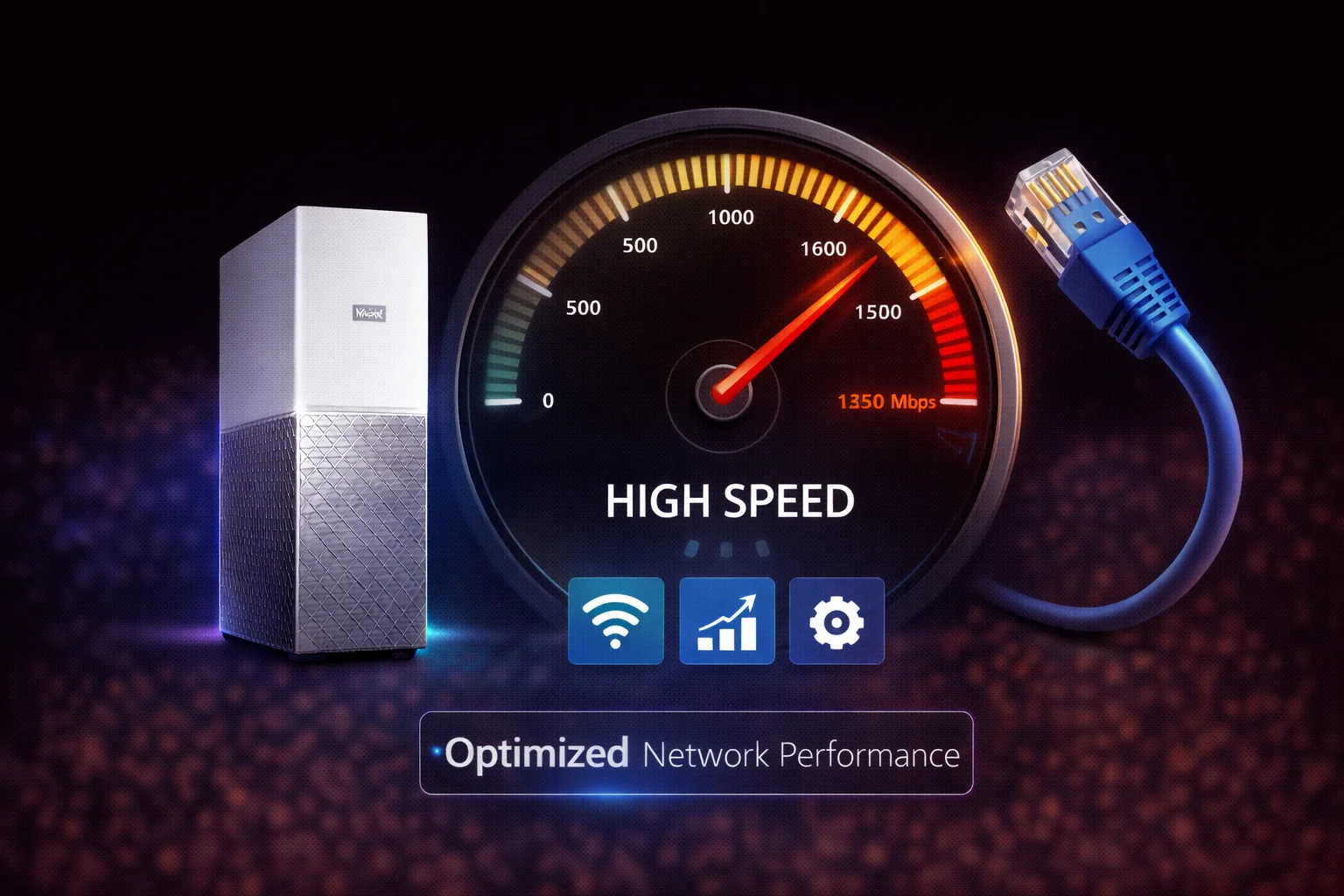
Quick Answer: WD My Cloud slow speeds are almost always network-related, not device problems. Most common fixes: (1) Use wired Ethernet instead of WiFi for file transfers, (2) verify both router and My Cloud have Gigabit Ethernet (not 100Mbps), (3) upgrade old Ethernet cables to Cat5e or Cat6, (4) connect your computer and My Cloud to the same network switch, (5) disable media indexing during large transfers. Expected real-world speeds on Gigabit Ethernet: 80-110 MB/s read, 70-100 MB/s write. If you’re getting under 20 MB/s, something is misconfigured.
What Speeds Should You Expect?
Before troubleshooting, understand what’s realistic for WD My Cloud devices. These are network-attached storage devices limited by network speed, drive speed, and processor capability.
Realistic Speed Expectations
| Connection Type | Theoretical Max | Realistic Speed | Notes |
|---|---|---|---|
| Gigabit Ethernet (1000 Mbps) | 125 MB/s | 80-110 MB/s | Best case with proper setup |
| Fast Ethernet (100 Mbps) | 12.5 MB/s | 8-11 MB/s | Common bottleneck with old equipment |
| WiFi 5 (802.11ac) | Variable | 20-50 MB/s | Heavily dependent on signal quality |
| WiFi 4 (802.11n) | Variable | 5-20 MB/s | Often the hidden bottleneck |
| Remote Access (Internet) | Your upload speed | 1-10 MB/s typical | Limited by home internet upload |
Key insight: If you’re seeing speeds around 10-12 MB/s, you likely have a 100 Mbps connection somewhere in the chain instead of Gigabit. If speeds are under 5 MB/s, WiFi or a major configuration issue is usually the culprit.
Fix 1: Check Your Network Connection (Most Common Issue)
The overwhelming majority of “My Cloud is slow” complaints trace back to network configuration. Work through these checks systematically.
Verify Gigabit Ethernet Connection
Your My Cloud has a Gigabit Ethernet port (1000 Mbps), but it’s only as fast as the slowest link in the chain. Check each component:
1. Router/Switch ports: Log into your router’s admin page and check the port status where My Cloud is connected. It should show “1000 Mbps” or “1 Gbps” — not “100 Mbps” or “10 Mbps”. Older routers often have only 100 Mbps ports.
2. Computer’s Ethernet adapter: On Windows, open Device Manager > Network adapters. Your Ethernet adapter should support Gigabit. On Mac, System Preferences > Network > Ethernet should show “1000baseT” when connected.
3. Ethernet cables: Cat5 cables max out at 100 Mbps. You need Cat5e or Cat6 cables for Gigabit speeds. Check the printing on your cables — if they say “CAT5” without the “e”, replace them.
Stop Using WiFi for Transfers
This is the single biggest speed improvement for most users. WiFi introduces massive overhead and variable performance:
- WiFi shares bandwidth with all devices on your network
- Signal strength varies by location and interference
- WiFi protocols add significant latency to file transfers
- Even fast WiFi 6 rarely matches wired Gigabit for sustained transfers
Solution: For large file transfers, connect your computer directly to your router via Ethernet cable. Even a $15 USB Ethernet adapter for laptops provides dramatically better performance than WiFi.
Use a Network Switch
For best performance, connect both your computer and My Cloud to the same Gigabit network switch, then connect that switch to your router. This keeps file transfer traffic between your computer and My Cloud off the router’s backplane, reducing congestion. A basic 5-port Gigabit switch costs $15-25.
Fix 2: Optimize My Cloud Settings
Disable Media Indexing During Transfers
My Cloud continuously scans files for photos, videos, and music to build searchable libraries. This uses CPU and disk resources, slowing transfers:
My Cloud Home: Indexing runs automatically and can’t be disabled, but you can minimize impact by uploading files when you’re not actively using the device.
My Cloud EX2 Ultra:
- Access the dashboard
- Go to Settings > Media
- Disable Media Serving and DLNA during large transfers
- Re-enable after transfer completes
Disable Cloud Access During Transfers
Remote cloud access uses bandwidth and CPU cycles. For fastest local transfers, temporarily disable it:
EX2 Ultra: Dashboard > Settings > General > Cloud Access > Off
Check for Background Processes
Several background processes can slow My Cloud:
- RAID rebuild: After drive replacement, rebuilding can take hours and slows performance significantly
- Firmware updates: Updates install in background and temporarily affect speed
- Backup jobs: Scheduled backups or cloud sync running in background
- Plex scanning: Media library scans use significant resources
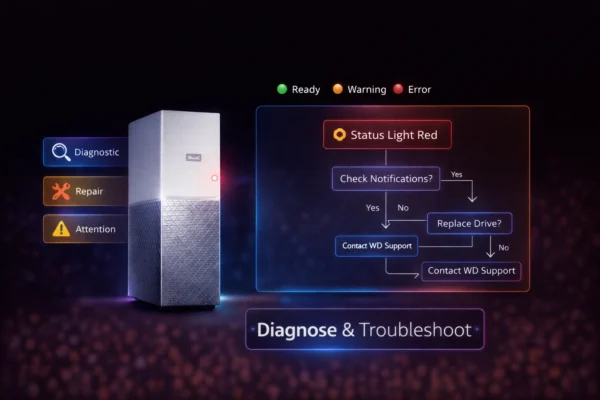
Check the dashboard status for any running tasks before diagnosing slow speeds.
Fix 3: Computer-Side Optimizations
Windows: SMB Protocol Settings
Windows file sharing performance depends on SMB protocol configuration:
Check current SMB connection: Open PowerShell as administrator and run:
Get-SmbConnection
Look for your My Cloud connection and verify it shows “SMB3” — SMB1 is significantly slower.
Enable Large MTU: In PowerShell as administrator:
Set-SmbClientConfiguration -EnableLargeMtu $true
Mac: SMB Performance Tuning
macOS defaults to conservative SMB settings. Create or edit /etc/nsmb.conf:
[default] signing_required=no streams=yes
Restart your Mac after saving the file.
Disable Antivirus Scanning on Network Drives
Real-time antivirus scanning of network files dramatically slows transfers. Exclude your My Cloud’s mapped drive from scanning, or add an exception for the network path.
Transfer Fewer, Larger Files
Transferring thousands of small files is always slower than fewer large files due to per-file overhead. When possible:
- Compress folders into ZIP archives before transfer
- Use robocopy (Windows) or rsync (Mac/Linux) instead of drag-and-drop for better handling of many files
Fix 4: Firmware and Hardware Checks
Update Firmware
Outdated firmware can cause performance issues. Ensure your My Cloud is running the latest version:
My Cloud Home: Updates automatically. Check Settings > About in the app to verify.
My Cloud EX2 Ultra: Dashboard > Settings > Firmware > Check for Updates
Check Drive Health
Failing drives slow down dramatically before complete failure:
EX2 Ultra: Dashboard > Storage > check SMART status for each drive. Look for reallocated sectors, pending sectors, or high temperature warnings.
If SMART shows warnings, backup immediately and replace the drive.
Consider Device Age
Older My Cloud devices have slower processors that limit throughput. The original single-bay My Cloud (circa 2013-2014) has a much slower CPU than current models. If your device is 5+ years old, performance limitations may be hardware-bound.
Factory Reset (Last Resort)
If nothing else works, a factory reset can resolve software corruption issues:
- Backup all data first — factory reset may erase everything
- Hold the reset button for 4-5 seconds for soft reset (keeps data, resets settings)
- Hold for 40+ seconds for full factory reset (erases everything)
Fix 5: Remote Access Speed Issues
Slow remote access (from outside your home) has different causes than local network slowness.
Your Home Internet Upload Speed
Remote access is limited by your home internet’s upload speed, not download. Most home internet plans have asymmetric speeds — for example, 200 Mbps down but only 10 Mbps up. That 10 Mbps upload means maximum 1.25 MB/s remote access speed.
Run a speed test at home to check your actual upload speed. There’s nothing My Cloud can do to exceed this limit.
WD Server Status
Remote access routes through WD’s servers for connection setup. Check status.westerndigital.com for any service issues.
Relay vs Direct Connection
My Cloud can connect remotely via relay (through WD’s servers — slower) or direct (peer-to-peer — faster). Direct connection requires proper port forwarding. Check your My Cloud dashboard for connection type.
How to Test Your Actual Speed
To properly diagnose slowness, measure actual transfer speeds:
Windows Speed Test
# Copy a large file and measure speed copy "C:\testfile.zip" "\\WDMYCLOUD\Public\" /Z
Or use the free tool CrystalDiskMark on a mapped network drive.
Mac Speed Test
# In Terminal, copy a large file and measure time cp /path/to/largefile.zip /Volumes/Public/
Or use Blackmagic Disk Speed Test (free from App Store) on a mounted share.
Interpret Results
- 80-110 MB/s: Excellent — you’re getting near-maximum Gigabit performance
- 50-80 MB/s: Good — some overhead but acceptable
- 20-50 MB/s: WiFi bottleneck or network congestion likely
- 10-12 MB/s: 100 Mbps connection somewhere in chain
- Under 10 MB/s: Significant problem — check cables, router, and settings
Specific Scenarios and Solutions
Slow Photo Backup from Phone
Phone backup speeds are limited by several factors:
- WiFi overhead and signal quality
- Processing each photo individually (thousands of small files)
- My Cloud indexing each photo as it’s uploaded
- Phone battery/thermal management throttling
Solutions:
- Keep phone plugged in and on same WiFi as My Cloud
- Backup overnight when network is idle
- Temporarily disable media indexing on My Cloud during initial backup
- Use WiFi 5GHz band instead of 2.4GHz if your phone supports it
Slow Plex Streaming
Buffering during Plex playback usually indicates:
- Transcoding occurring: Check Plex dashboard — if CPU is at 100%, playback device doesn’t support the format
- Network bottleneck: Use wired Ethernet for streaming devices
- Library scanning: Streaming is slow while Plex scans for new content
See our Plex setup guide for optimization tips.
Slow Time Machine Backup (Mac)
First Time Machine backup to My Cloud is always slow. Expected times:
- 100GB over WiFi: 8-12 hours
- 100GB over Ethernet: 1-2 hours
- 500GB over WiFi: 24-48 hours
- 500GB over Ethernet: 4-6 hours
After initial backup, incremental backups take 5-30 minutes. See our Mac guide for optimization.
Slow After Adding Many Files
My Cloud indexes new files for search, photo galleries, and media serving. Adding thousands of files triggers intensive indexing:
- Performance returns to normal after indexing completes
- Check dashboard for indexing status
- Temporarily disable indexing for faster transfers: Dashboard > Settings > Media > disable services
When to Consider Upgrading
If you’ve optimized everything and speeds still don’t meet your needs, the device may be at its hardware limits:
Consider upgrading if:
- You need consistent 4K streaming to multiple devices
- You require faster than Gigabit speeds (2.5GbE/10GbE)
- You have 5+ users accessing simultaneously
- You need intensive Plex transcoding
Better options for power users:
- Synology DS220+ or DS920+ — better CPU for transcoding
- QNAP with 2.5GbE ports — faster than Gigabit
- Dedicated Plex server — unlimited transcoding capability
Frequently Asked Questions
Background processes cause variable performance. Media indexing, cloud sync, backup jobs, and other users accessing the device all compete for resources. Speed also varies based on what else is happening on your network. For consistent maximum speed, transfer files when the device isn’t doing other tasks and nothing else is heavily using your network.
For single-user transfers, yes. USB 3.0 external drives can reach 150+ MB/s, faster than Gigabit Ethernet’s ~110 MB/s practical maximum. The tradeoff is accessibility — My Cloud can be accessed from any device on your network simultaneously, while USB drives connect to only one computer. For multi-device households, the convenience usually outweighs raw speed.
Network upgrades help most; device upgrades are limited. Upgrading to Gigabit networking throughout your home provides the biggest improvement. My Cloud devices can’t be upgraded internally (RAM, CPU are fixed), but EX2 Ultra users can upgrade to faster drives for slightly better random I/O. If you need significantly faster NAS performance, consider a higher-end device like Synology or QNAP with 2.5 Gigabit or 10 Gigabit Ethernet support.
Phones transfer over WiFi with significant overhead. Each photo requires individual file operations, and WiFi adds latency. Initial backup of thousands of photos takes hours or even days — this is normal. After initial backup, incremental backups of new photos are much faster. For fastest initial backup, stay on the same WiFi network as your My Cloud and keep your phone plugged in overnight.
Related Guides
- WD My Cloud Overview
- Setup Guide
- Troubleshooting Guide
- Windows Setup
- Mac Setup
- Plex Setup
- NAS Drives
- WD Red Plus
Last updated: February 2026. Troubleshooting guide for WD My Cloud transfer speed issues.