WD My Cloud Windows 10/11 Setup – Fix Connection Problems

Quick Answer+
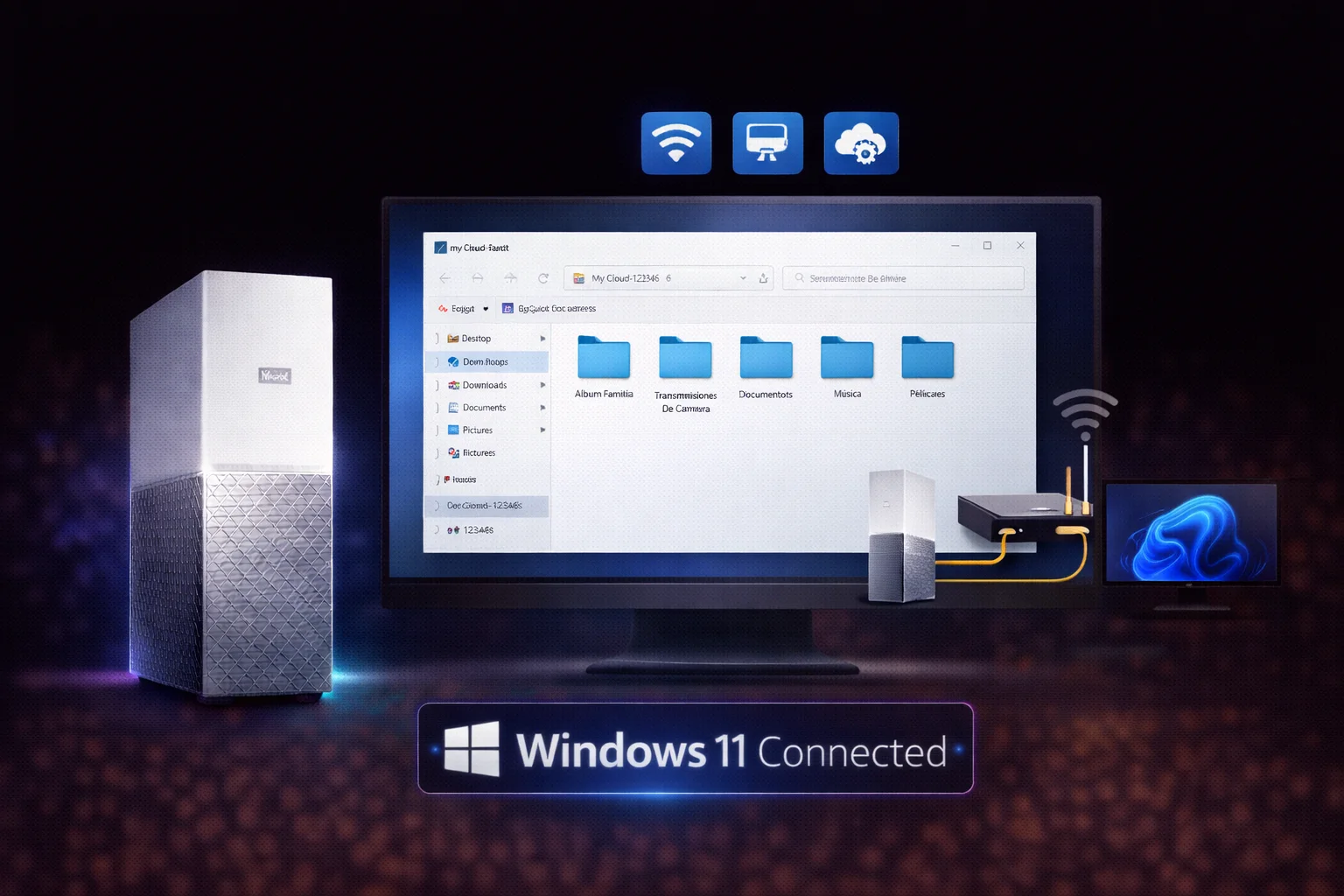
Quick Answer: WD My Cloud connection issues on Windows 10/11 are almost always caused by disabled network discovery or SMB settings. Quick fixes: (1) Enable Network Discovery in Advanced Sharing Settings, (2) start the Function Discovery services, (3) add Windows credentials for your My Cloud, (4) for Windows 11 24H2, update My Cloud firmware to 5.31.101+ or disable SMB signing requirement. If the device still doesn’t appear, access it directly by IP address: open File Explorer and type \\192.168.x.x (your My Cloud’s IP).
How to Connect to WD My Cloud on Windows
There are several ways to access your My Cloud from Windows. If one doesn’t work, try another:
Method 1: Network Discovery (Recommended)
- Open File Explorer
- Click Network in the left sidebar
- Your My Cloud should appear as a computer named “WDMYCLOUD” or similar
- Double-click to access shared folders
If My Cloud doesn’t appear, see the troubleshooting sections below.
Method 2: Direct IP Address Access
This bypasses network discovery entirely — useful for troubleshooting:
- Find your My Cloud’s IP address (check your router’s admin page for connected devices)
- Open File Explorer
- In the address bar, type:
\\192.168.1.50(replace with your actual IP) - Press Enter
Method 3: Map Network Drive
For permanent easy access, map My Cloud as a drive letter:
- Open File Explorer
- Right-click This PC and select Map network drive
- Choose a drive letter (e.g., Z:)
- In Folder, enter:
\\WDMYCLOUD\Publicor\\192.168.x.x\Public - Check Reconnect at sign-in
- Check Connect using different credentials if you have a user account set up
- Click Finish
Fix: My Cloud Not Showing in Network
The most common Windows issue is network discovery being disabled. Here’s how to enable it:
Step 1: Enable Network Discovery
Windows 11:
- Open Settings (Windows + I)
- Go to Network & internet
- Click Advanced network settings
- Click Advanced sharing settings
- Expand Private networks
- Turn on Network discovery
- Turn on File and printer sharing
Windows 10:
- Open Control Panel
- Click Network and Sharing Center
- Click Change advanced sharing settings
- Expand Private
- Select Turn on network discovery
- Select Turn on file and printer sharing
- Click Save changes
Step 2: Verify Network Profile is Private
Network discovery only works on Private networks, not Public:
- Open Settings > Network & internet
- Click on your active connection (Wi-Fi or Ethernet)
- Set Network profile type to Private
Step 3: Start Required Services
Windows needs certain services running to discover network devices:
- Press Windows + R, type
services.msc, press Enter - Find and start each of these services (right-click > Start):
- Function Discovery Provider Host
- Function Discovery Resource Publication
- SSDP Discovery
- UPnP Device Host
- For each service, right-click > Properties > set Startup type to Automatic
Fix: Access Denied or Credentials Error
If you can see My Cloud but can’t access folders, the issue is usually Windows’ security settings for network shares.
Solution 1: Add Windows Credentials
- Open Control Panel
- Click User Accounts > Credential Manager
- Click Windows Credentials
- Click Add a Windows credential
- Enter:
- Network address:
WDMYCLOUD(or your device’s name/IP) - Username: your My Cloud username (or leave empty for guest)
- Password: your My Cloud password (or leave empty)
- Network address:
- Click OK
Solution 2: Enable Guest Access (Windows Pro/Enterprise)
Microsoft disabled guest access to SMB shares by default. To re-enable for public shares:
- Press Windows + R, type
gpedit.msc, press Enter - Navigate to: Computer Configuration > Administrative Templates > Network > Lanman Workstation
- Double-click Enable insecure guest logons
- Select Enabled
- Click OK
- Restart your computer
Solution 3: Enable Guest Access via Registry (All Windows versions)
For Windows Home edition or if Group Policy isn’t available:
- Press Windows + R, type
regedit, press Enter - Navigate to:
HKEY_LOCAL_MACHINE\SYSTEM\CurrentControlSet\Services\LanmanWorkstation\Parameters - Right-click in right pane > New > DWORD (32-bit) Value
- Name it:
AllowInsecureGuestAuth - Double-click it and set Value data to
1 - Click OK and restart your computer
Windows 11 24H2 Specific Issues
Windows 11 version 24H2 introduced stricter SMB security requirements that break compatibility with older My Cloud firmware.
The Problem: SMB Signing Required
Windows 11 24H2 requires SMB signing by default. Older My Cloud firmware doesn’t support this, causing connection failures with errors like “The network path was not found” or immediate disconnection.
Solution 1: Update My Cloud Firmware (Recommended)
WD added SMB signing support in firmware version 5.31.101 (released May 2025):
- Access your My Cloud dashboard
- Go to Settings > Firmware
- Click Check for Updates
- Install the latest firmware
Solution 2: Disable SMB Signing in Windows
If you can’t update firmware, disable the signing requirement (less secure but functional):
Via PowerShell (easiest):
# Run PowerShell as Administrator Set-SmbClientConfiguration -RequireSecuritySignature $false -Confirm:$false
Via Registry:
- Open Registry Editor (
regedit) - Navigate to:
HKEY_LOCAL_MACHINE\SYSTEM\CurrentControlSet\Services\LanmanWorkstation\Parameters - Find or create RequireSecuritySignature (DWORD)
- Set value to
0 - Restart your computer
Solution 3: Disable Guest Access Requirement
24H2 also tightened guest access restrictions. If you’re using public shares:
# Run PowerShell as Administrator Set-SmbClientConfiguration -EnableInsecureGuestLogons $true -Confirm:$false
SMB Protocol Configuration
My Cloud uses SMB (Server Message Block) protocol for Windows file sharing. Understanding SMB versions helps troubleshoot issues.
Check Current SMB Connection
In PowerShell, run:
Get-SmbConnection
This shows connected devices and their SMB versions. Look for your My Cloud — it should show SMB3 for best performance.
Do NOT Enable SMB1 (Usually)
Some older guides suggest enabling SMB1 (SMB 1.0/CIFS). Don’t do this unless absolutely necessary. SMB1 is:
- A major security risk (vulnerable to ransomware like WannaCry)
- Much slower than SMB2/3
- Disabled by Microsoft for good reason
Current My Cloud firmware (OS 5) supports SMB2 and SMB3. Only enable SMB1 for very old devices that have no other option.
If You Must Enable SMB1
- Press Windows + R, type
optionalfeatures, press Enter - Find SMB 1.0/CIFS File Sharing Support
- Check the box and sub-options
- Click OK and restart
Setting Up Windows Backup to My Cloud
File History (Windows 10/11)
- First, map your My Cloud as a network drive (see above)
- Open Settings > System > Storage > Advanced storage settings > Backup options
- Or search for “File History” in Start menu
- Click Add a drive and select your mapped My Cloud drive
- Configure backup frequency and folders to include
Windows Backup (Windows 11)
Windows 11’s newer backup system focuses on OneDrive. For local NAS backup, use File History or third-party tools like:
- WD Discovery (free from WD’s website) — includes WD Backup utility
- Macrium Reflect Free — full system image backup
- Veeam Agent for Windows — professional-grade free backup
WD SmartWare / WD Backup
WD provides free backup software:
- Download WD Discovery from WD’s website
- Install and launch WD Discovery
- It will detect your My Cloud device
- Use the integrated backup feature to configure automatic file backup
Advanced Troubleshooting
Reset Windows Network Stack
If nothing else works, resetting Windows networking can resolve deep configuration issues:
# Run Command Prompt as Administrator netsh winsock reset netsh int ip reset ipconfig /release ipconfig /renew ipconfig /flushdns # Restart your computer after running these commands
Check Firewall Settings
Windows Firewall might be blocking My Cloud connections:
- Open Windows Security (search in Start menu)
- Click Firewall & network protection
- Click Allow an app through firewall
- Ensure File and Printer Sharing is allowed for Private networks
- Temporarily disable firewall to test if it’s causing the issue
Third-Party Antivirus/Security Software
Security software like Norton, McAfee, Bitdefender, or Kaspersky often blocks NAS connections. Try:
- Temporarily disable the security software to test
- Add My Cloud’s IP address to the software’s whitelist or trusted devices
- Check the software’s firewall settings separately from Windows Firewall
- Look for “network protection” or “network attack blocker” features that may interfere
Enable NetBIOS Over TCP/IP
Some network configurations require NetBIOS for device discovery:
- Open Control Panel > Network and Sharing Center
- Click Change adapter settings
- Right-click your network adapter and select Properties
- Select Internet Protocol Version 4 (TCP/IPv4) and click Properties
- Click Advanced > WINS tab
- Select Enable NetBIOS over TCP/IP
- Click OK on all windows
Check Router Configuration
Router settings can affect device discovery and communication:
- AP Isolation: Some routers have “AP Isolation” or “Client Isolation” enabled, which prevents devices from communicating with each other. Disable this feature.
- Guest network: Ensure your computer isn’t connected to a guest network, which typically isolates devices.
- IGMP Snooping: Try enabling or disabling this feature if available — it affects multicast traffic used for device discovery.
- UPnP: Enable UPnP (Universal Plug and Play) on your router for easier device discovery.
Assign Static IP to My Cloud
A changing IP address can cause connection issues. Assign a static IP:
- Access your My Cloud dashboard
- Go to Settings > Network
- Change from DHCP to Static IP
- Enter an IP outside your router’s DHCP range (e.g., 192.168.1.200)
- Enter your router’s subnet mask (usually 255.255.255.0) and gateway (usually 192.168.1.1)
- Save changes
Alternatively, configure your router to always assign the same IP to My Cloud using DHCP reservation (check your router’s admin page for this feature).
Optimizing Performance on Windows
Large MTU for Better Throughput
Enable Large MTU for SMB connections to improve transfer speeds:
# Run PowerShell as Administrator Set-SmbClientConfiguration -EnableLargeMtu $true -Confirm:$false
Disable Offline Files for Network Drives
Windows Offline Files can cause sync issues and slow performance with NAS drives:
- Open Control Panel
- Search for Sync Center
- Click Manage offline files
- Click Disable offline files
- Restart your computer
Disable Windows Search Indexing on Network Drives
Windows trying to index network drives slows both your PC and My Cloud. By default, Windows shouldn’t index network locations, but verify:
- Search for Indexing Options in Start menu
- Click Modify
- Ensure no network locations (mapped drives) are included
Frequently Asked Questions
Windows Updates frequently reset network settings. Updates often disable network discovery, reset SMB settings, or change security policies. After any major Windows Update, re-check: network discovery is enabled, network profile is set to Private, Function Discovery services are running, and SMB signing settings haven’t been reset. This is especially common with Windows 11 feature updates.
Windows isn’t saving your credentials properly. Solutions: (1) When mapping the drive, check ‘Reconnect at sign-in’ AND ‘Connect using different credentials’, then enter your My Cloud login. (2) Save credentials in Credential Manager (Control Panel > User Accounts > Credential Manager > Windows Credentials > Add). (3) If using a Microsoft account to log into Windows, credentials may not persist — try a local Windows account.
Yes, unlimited PCs can access My Cloud simultaneously. Each PC needs network discovery enabled and may need its own saved credentials. For multi-user households, create separate user accounts on My Cloud with individual folders and permissions — each person can have private storage. Performance will decrease if multiple users transfer large files simultaneously due to the shared gigabit connection.
It’s optional but can help. WD Discovery provides automatic device detection, backup utilities, and drive management. It’s not required — you can access My Cloud through standard Windows networking. Install it if: you want automatic backup software, you’re having trouble finding your device, or you want easy access to the dashboard. Skip it if: you prefer minimal software or you’re comfortable with Windows network shares.
Related Guides
- WD My Cloud Overview
- Setup Guide
- Troubleshooting Guide
- Fix Slow Speeds
- Mac Setup
- Plex Setup
- NAS Drives
- All WD Products
Last updated: February 2026. Complete Windows 10/11 connection guide for WD My Cloud.