
Quick Answer+
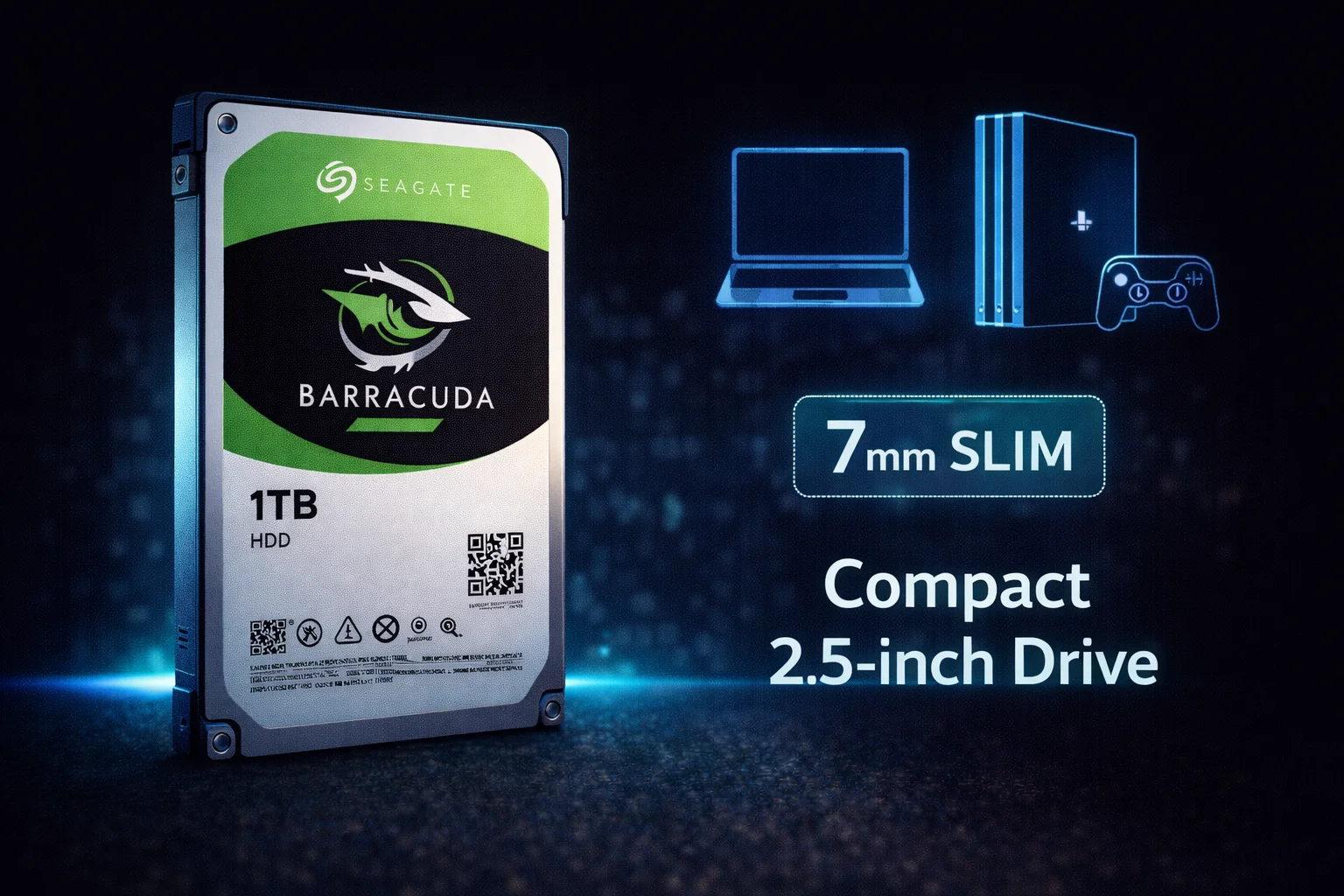
Quick Answer: The Seagate Barracuda 2.5-inch series offers laptop-sized hard drives from 500GB to 5TB. Standard 7mm models (up to 2TB) fit most laptops, while 15mm models (3TB-5TB) are for external enclosures or desktop mounts. All models run at 5400 RPM with 128MB cache and deliver up to 140 MB/s. Important: In 2026, we recommend 2.5″ SATA SSDs for laptop upgrades instead — they’re faster, more durable, and similarly priced. The 2.5″ Barracuda is best for external enclosures, PS4 upgrades, or when you need maximum HDD capacity in a small form factor.
The Seagate Barracuda 2.5-inch series has been a staple of laptop storage for over a decade. These compact drives fit in laptop bays, external enclosures, and gaming consoles like the PS4. While SSDs have largely replaced HDDs for laptop boot drives, the 2.5″ Barracuda still serves important niches where capacity trumps speed.
This guide covers the complete 2.5-inch Barracuda lineup, helping you understand which model fits your needs — and when you should consider alternatives.
Seagate Barracuda 2TB 2.5
2TB Capacity | 2.5-inch 7mm | 5400 RPM | 128MB Cache | SATA 6Gb/s | 2-Year Warranty
Maximum capacity in a slim 7mm form factor. Fits most laptops, PS4/PS4 Pro, and portable enclosures. Ideal for expanding storage where space is limited.
Seagate Barracuda 2.5″ Pricing
Browse current Seagate Barracuda 2.5-inch prices:
| Product | Capacity | Price | $ / TB | Price Drop | Brand | Interface |
|---|---|---|---|---|---|---|
| Seagate BarraCuda 2TB Internal Hard Drive HDD – 2.5 Inch SATA 6 Gb/s 5400 RPM 128MB Cache for PC Laptop (ST2000LM015) | 2.00 TB | $114.99 | $57.50 | +0% | Seagate | SATA |
| Seagate BarraCuda 2TB Internal Hard Drive HDD – 2.5 Inch SATA 6Gb/s 5400 RPM 128MB Cache for Computer Desktop PC – Frustration Free Packaging (ST2000LM015) | 2.00 TB | $125.00 | $62.50 | +0% | Seagate | SATA |
| Seagate BarraCuda 2TB Internal Hard Drive HDD – 2.5 Inch SATA 6 Gb/s 5400 RPM 128MB Cache for PC Laptop (ST2000LM015) (Renewed) | 2.00 TB | $140.00 | $70.00 | +0% | Seagate | SATA |
Barracuda 2.5-Inch Model Lineup
The 2.5″ Barracuda comes in two height categories:
7mm Models (Laptop Compatible)
| Model | Capacity | RPM | Cache | Height | Best For |
|---|---|---|---|---|---|
| ST500LM030 | 500GB | 5400 | 128MB | 7mm | Budget laptops |
| ST1000LM048 | 1TB | 5400 | 128MB | 7mm | Laptop upgrades, PS4 |
| ST2000LM015 | 2TB | 5400 | 128MB | 7mm | Max 7mm capacity |
15mm Models (External/Desktop Only)
| Model | Capacity | RPM | Cache | Height | Best For |
|---|---|---|---|---|---|
| ST3000LM024 | 3TB | 5400 | 128MB | 15mm | External enclosures |
| ST4000LM024 | 4TB | 5400 | 128MB | 15mm | High-capacity portable |
| ST5000LM000 | 5TB | 5400 | 128MB | 15mm | Maximum 2.5″ capacity |
Critical note: The 15mm models are too thick for most laptops. They’re designed for external enclosures, desktop 2.5″ mounts, or specific all-in-one PCs with larger drive bays.
Full Specifications
| Specification | 7mm Models | 15mm Models |
|---|---|---|
| Interface | SATA 6Gb/s | SATA 6Gb/s |
| RPM | 5400 | 5400 |
| Cache | 128MB | 128MB |
| Max Transfer Rate | 140 MB/s | 140 MB/s |
| Recording Technology | SMR | SMR |
| Load/Unload Cycles | 600,000 | 600,000 |
| Workload Rating | 55 TB/year | 55 TB/year |
| Power (Operating) | 1.7W | 1.8W |
| Power (Idle) | 0.5W | 0.5W |
| Warranty | 2 years | 2 years |
7mm vs 15mm: Understanding Drive Heights
Drive height is critical for compatibility:
7mm Drives (Standard Laptop Height)
- Fits virtually all modern laptops with 2.5″ bays
- Compatible with PS4 (original and Slim)
- Works in standard external enclosures
- Maximum capacity: 2TB
15mm Drives (Thick Form Factor)
- Does NOT fit most laptops
- Requires 15mm-compatible enclosures
- Works in desktop 2.5″ mounts with clearance
- Maximum capacity: 5TB
Before buying: Measure your laptop’s drive bay or check your enclosure specs. Installing a 15mm drive in a 7mm bay will damage your laptop.
2.5″ Barracuda vs Alternatives
Barracuda 2.5″ vs SATA SSD
| Feature | Barracuda 2.5″ 1TB | 1TB SATA SSD |
|---|---|---|
| Price | $45-55 | $60-80 |
| Sequential Speed | 140 MB/s | 550 MB/s |
| Random 4K | 1-2 MB/s | 50-100 MB/s |
| Boot Time | 45-60 seconds | 10-15 seconds |
| Durability | Shock-sensitive | Shock-resistant |
| Noise | Audible | Silent |
| Weight | ~95g | ~50g |
| Battery Impact | Higher drain | Lower drain |
Verdict: For laptop upgrades in 2026, SSDs are the clear winner. The $15-25 premium buys dramatically better performance, durability, and battery life. Only choose the Barracuda HDD if you specifically need maximum capacity at minimum cost.
Barracuda 2.5″ vs WD Blue Mobile
| Feature | Seagate Barracuda 2.5″ | WD Blue Mobile |
|---|---|---|
| Capacities | 500GB – 5TB | 500GB – 2TB |
| RPM | 5400 | 5400 |
| Cache | 128MB | 128MB |
| Max Speed | 140 MB/s | 145 MB/s |
| 7mm Options | Up to 2TB | Up to 2TB |
| Recording | SMR | SMR |
Verdict: Nearly identical specs. Barracuda offers higher capacities (3TB-5TB in 15mm). For 7mm laptop drives, buy whichever is cheaper.
Best Use Cases for Barracuda 2.5″
🎮 PS4 Storage Upgrade
The PS4 (original and Slim) accepts 2.5″ drives up to 9.5mm height. The 7mm Barracuda fits perfectly:
- Recommended: ST2000LM015 (2TB) for maximum game storage
- Easy swap — no tools beyond a Phillips screwdriver
- Note: PS4 Pro has the same compatibility
- PS5 uses internal NVMe — Barracuda won’t work internally
💼 External Portable Drive
Building a portable backup drive:
- Pair with a USB 3.0 enclosure ($10-15)
- 15mm models offer up to 5TB portable storage
- Lower cost than pre-built external drives
- Choose your own enclosure quality
💻 Legacy Laptop Upgrade
For older laptops where SSD cost is prohibitive:
- Upgrade from 500GB to 2TB
- Direct swap in most laptops
- Clone existing drive for seamless transition
📦 Cold Storage Archive
For rarely-accessed data:
- Lower power consumption than 3.5″ drives
- Compact storage in enclosure
- Good for backup rotation
What NOT to Use Barracuda 2.5″ For
🚫 Avoid These Use Cases
Laptop Boot Drive (2026): SSDs are too affordable and too much better. Don’t handicap your laptop with HDD boot times.
NAS Systems: 2.5″ Barracudas use SMR and lack NAS optimization. Use IronWolf for NAS.
PS5 Internal: PS5 requires NVMe SSD. Barracuda works only as external USB storage for PS4 games.
Video Editing: 140 MB/s is too slow, and SMR causes write issues. Use SSD or 3.5″ desktop HDD.
Installation Guide
Laptop Installation
- Back up all data from existing drive
- Power off laptop and remove battery (if removable)
- Locate drive bay (usually bottom panel or under keyboard)
- Remove screws securing drive caddy
- Slide out old drive, transfer caddy/brackets to new drive
- Install new Barracuda, secure with screws
- Reinstall OS or restore from backup
PS4 Installation
- Back up PS4 data to external drive or cloud
- Power off PS4 completely
- Remove HDD bay cover (slide off on original PS4)
- Remove mounting screw and slide out drive caddy
- Swap drives, reinstall caddy and cover
- Boot PS4 with USB containing system software
- Initialize and restore data
SMR Considerations for 2.5″ Barracuda
All 2.5″ Barracuda models use SMR technology:
- Read performance: Normal (140 MB/s)
- Write performance: Can degrade during sustained writes
- Best for: Read-heavy workloads (games, media, documents)
- Avoid for: Continuous writing, databases, virtual machines
For most laptop/portable use cases, SMR isn’t a significant issue since these drives typically see light, read-heavy workloads.
External Enclosure Recommendations
For building a portable external drive with a Barracuda 2.5″:
7mm Drive Enclosures
- Most USB 3.0 enclosures work ($10-20)
- Look for UASP support for better performance
- Tool-free designs simplify assembly
- Aluminum enclosures offer better heat dissipation
15mm Drive Enclosures
- Specifically labeled “15mm compatible”
- Less common and slightly more expensive
- Required for 3TB, 4TB, 5TB Barracuda models
- Some docking stations also accommodate 15mm
Power Consumption & Battery Impact
The 2.5″ Barracuda is designed for mobile efficiency:
| State | Power Draw |
|---|---|
| Operating (Read/Write) | 1.7W |
| Idle | 0.5W |
| Standby/Sleep | 0.18W |
Note: SSDs typically use 2-3W active but complete tasks faster, often resulting in better overall battery life despite higher peak draw.
Gaming Console Compatibility Guide
PlayStation 4 (All Models)
- Compatible: Yes, 7mm models up to 2TB
- Recommended: ST2000LM015 (2TB) for maximum storage
- Installation: Easy swap, Phillips screwdriver only
- Requirement: USB drive with PS4 system software for reinstall
PlayStation 5
- Internal expansion: NVMe SSD required (Barracuda won’t work)
- External USB: Barracuda can store PS4 games only
- Note: PS5 games must run from internal/NVMe storage
Xbox One / Xbox Series
- Xbox One: 2.5″ drives work internally (some models)
- Xbox Series: External USB storage for Xbox One games only
- Xbox Series X/S games: Require Seagate Expansion Card
Troubleshooting Common Issues
Drive Not Detected in Laptop
- Verify drive is fully seated in connector
- Check BIOS/UEFI for drive detection
- Try drive in external enclosure to test
- Ensure 7mm drive (15mm won’t fit most laptops)
Slow Performance
- Normal for 5400 RPM HDD — consider SSD upgrade
- Ensure SATA mode is AHCI in BIOS (not IDE)
- Check for background processes/malware
- Defragment if heavily fragmented
Clicking/Grinding Sounds
- Light clicking: Normal head parking
- Loud grinding: Potential failure — back up immediately
- Beeping: Motor failure — professional recovery may be needed
Frequently Asked Questions
The 7mm models (500GB-2TB) fit virtually all laptops with 2.5″ drive bays. The 15mm models (3TB-5TB) will NOT fit most laptops — they’re designed for external enclosures or desktop mounts. Always verify your laptop’s drive bay height before purchasing.
Yes, the 7mm Barracuda models (up to 2TB) work perfectly in PS4, PS4 Slim, and PS4 Pro. The ST2000LM015 (2TB) is the best choice for maximum game storage. Installation is straightforward and well-documented by Sony.
In 2026, buy an SSD. The performance difference is dramatic (140 MB/s vs 550 MB/s), SSDs are more durable for portable use, and prices have dropped significantly. Only choose the Barracuda HDD if you need maximum capacity at absolute minimum cost.
The largest 7mm Barracuda is 2TB (ST2000LM015). Higher capacities (3TB, 4TB, 5TB) require the 15mm height, which won’t fit most laptops. This is a physical limitation of HDD platter technology.
Yes, all current Barracuda 2.5″ models use SMR (Shingled Magnetic Recording). This is fine for typical laptop/portable use (games, documents, media) but not ideal for NAS, continuous backups, or write-heavy workloads.
Data Migration & Cloning Guide
When upgrading to a larger Barracuda 2.5″:
Recommended Cloning Software
- Macrium Reflect (Free): Best free option for Windows
- Seagate DiscWizard: Free for Seagate drives
- Clonezilla: Free, open-source, bootable
- Carbon Copy Cloner: Best for macOS
Cloning Process Overview
- Connect new Barracuda via USB enclosure or adapter
- Initialize and format the new drive
- Run cloning software to copy existing drive
- Physically swap drives in laptop
- Boot and verify operation
- Expand partition to use full capacity (if needed)
Barracuda 2.5″ vs Pre-Built External Drives
| Option | Pros | Cons |
|---|---|---|
| Barracuda + Enclosure | Choose your own enclosure quality, can upgrade later, often cheaper | Assembly required, multiple purchases |
| Pre-built External | Plug and play, single warranty | Fixed enclosure quality, can’t swap drive |
Recommendation: If you want a quality enclosure and flexibility, buy separately. If you just need quick portable storage, pre-built externals are fine.
Long-Term Reliability Considerations
Expected Lifespan
- Typical use: 3-5+ years
- Heavy use: 2-4 years
- Workload limit: 55 TB/year (about 150GB/day)
Signs of Impending Failure
- Increasing bad sectors in S.M.A.R.T. data
- Unusual clicking or grinding sounds
- Frequent read/write errors
- Dramatically slowing performance
- Drive not recognized intermittently
Backup Recommendations
Never rely on a single drive. For important data:
- Maintain at least one backup copy
- Use cloud backup for critical files
- Test backups periodically
- Replace drives proactively after 3-4 years
Related Guides
Seagate Barracuda:
Alternatives:
Technology:
Last updated: February 2026. Prices subject to change. For laptop upgrades, strongly consider SATA SSDs instead.