Surveillance HDD Not Detected: Fix DVR/NVR Drive Issues

Quick Answer+
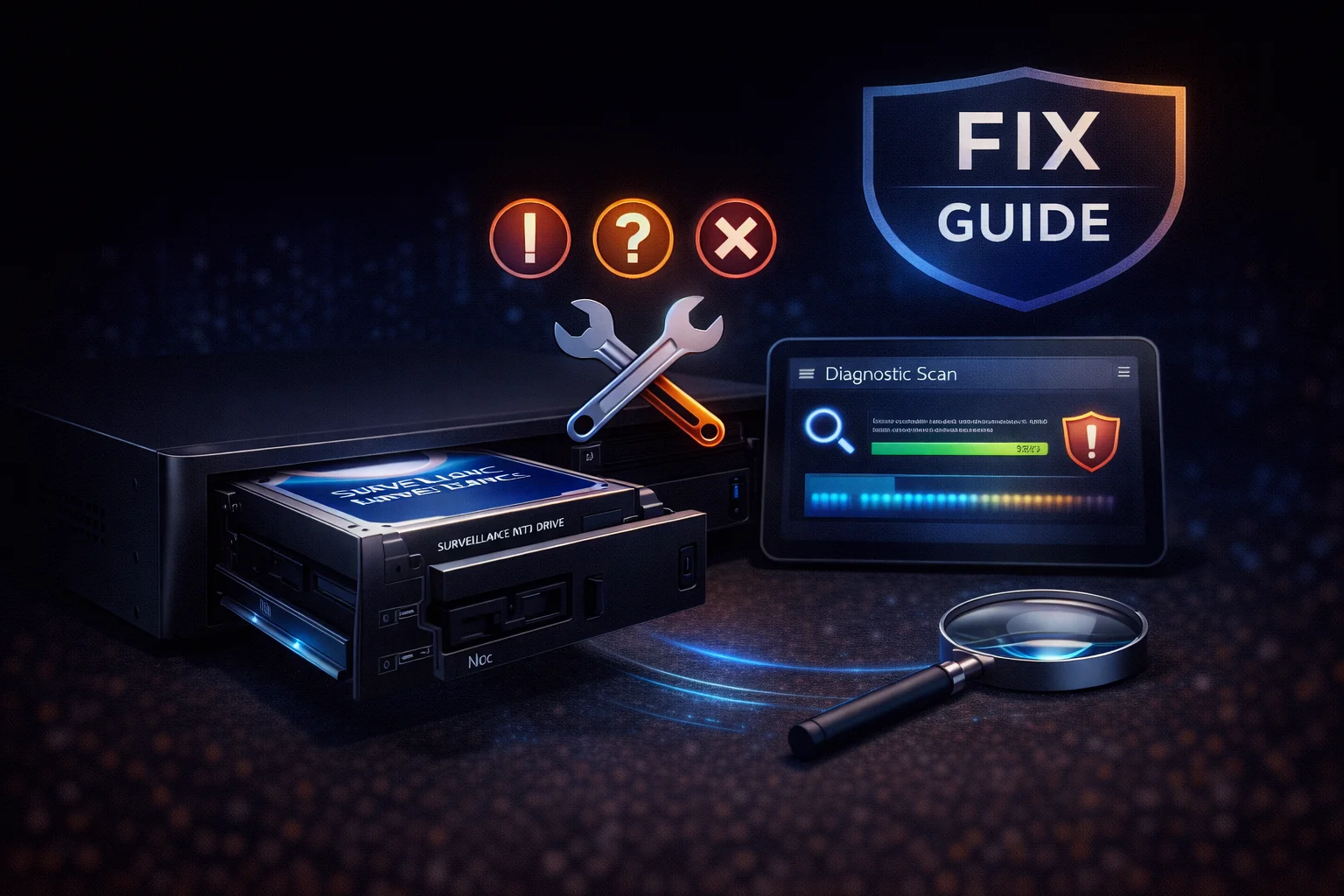
Quick Answer: If your surveillance HDD isn’t detected, start with the basics: (1) Check SATA data and power cable connections, (2) Try a different SATA port, (3) Verify the power supply can handle the drive’s startup current, (4) Test the drive in a PC to confirm it works. Most “not detected” issues are cable or power problems, not drive failures. If the drive clicks or makes unusual sounds, it may have failed and need replacement.
WD Purple 8TB (WD85PURZ)
8TB Capacity | CMR Recording | 360TB/year Workload | AllFrame Technology | Up to 64 Cameras | 3-Year Warranty
If your current drive has failed, the WD Purple 8TB is the most popular replacement. The 360TB/year workload rating handles demanding 24/7 surveillance reliably.
Nothing is more frustrating than installing a new hard drive in your DVR or NVR only to find it’s not detected, or discovering your existing drive has suddenly disappeared. This comprehensive troubleshooting guide walks you through diagnosing and fixing surveillance HDD detection issues, from simple cable problems to drive failures.
Quick Diagnostic Checklist
Before diving deep, run through these quick checks:
| Check | What to Look For | If Problem Found |
|---|---|---|
| Power LED | Does drive spin up? Feel vibration? | Check power cable/PSU |
| Clicking sounds | Repeated clicking = head crash | Drive likely failed |
| SATA cables | Firmly seated on both ends? | Reseat or replace cables |
| Other drives work? | Test port with known-good drive | Port or controller issue |
| Drive works in PC? | Test drive in desktop computer | NVR-specific issue |
| Capacity supported? | Check NVR max drive size | Use smaller drive |
Common Causes and Solutions
Cause 1: Loose or Faulty SATA Cables
The most common cause of detection issues.
Symptoms:
- Drive intermittently appears/disappears
- Drive detected sometimes but not others
- Connection lost during operation
Solution:
- Power off the NVR completely
- Disconnect and firmly reseat the SATA data cable at both ends
- Disconnect and firmly reseat the SATA power cable
- If available, try a different SATA cable
- Avoid cable strain — don’t bend cables sharply
Pro tip: SATA cables can look connected but have poor contact. Always unplug and replug rather than just pushing.
Cause 2: Insufficient Power Supply
Especially common with larger drives or multi-drive systems.
Symptoms:
- Drive spins up briefly then stops
- Drive not detected after adding second drive
- System unstable during startup
- Drive detected in PC but not NVR
Why it happens:
- Hard drives draw 2-3x normal power during spin-up
- 8TB+ drives can draw 2+ amps at startup
- Cheap NVR power supplies may be undersized
Solution:
- Check NVR specifications for power supply capacity
- Calculate total power draw of all drives
- Try disconnecting other drives temporarily
- Consider external powered drive enclosure
- Upgrade NVR power supply if possible
Cause 3: Drive Needs Initialization
New drives must be initialized before use.
Symptoms:
- Drive spins, makes normal sounds
- NVR shows “No HDD” or “Uninitialized”
- Drive appears in some menus but not recording
Solution:
- Access NVR settings menu
- Navigate to Storage > HDD Management (varies by brand)
- Select the uninitialized drive
- Choose “Initialize” or “Format”
- Wait for process to complete (can take 30+ minutes for large drives)
- Verify drive shows “Normal” status
Brand-specific paths:
- Hikvision: Menu > Configuration > Storage > HDD Management > Init
- Dahua: Menu > Storage > HDD Manager > Format
- Lorex: Menu > Device > HDD > Format
- Reolink: Settings > Storage > HDD > Format
Cause 4: Drive Capacity Not Supported
Older NVRs may not support large drives.
Symptoms:
- Large drive (8TB+) not detected
- Smaller drive works in same port
- Drive works fine in PC
Common limitations:
- Older 32-bit systems: 2TB max
- Some budget NVRs: 4TB or 6TB max
- Firmware-dependent: May need update
Solution:
- Check NVR specifications for maximum supported drive size
- Update NVR firmware (may add support for larger drives)
- Use a drive within the supported range
- Consider NVR upgrade if you need more storage
Cause 5: SATA Port or Controller Failure
Hardware failure on the NVR side.
Symptoms:
- Multiple drives fail on same port
- Drive works in different port or PC
- Port worked before, now nothing detected
Solution:
- Test with a known-good drive
- Try a different SATA port if available
- Check for physical damage to port
- If all ports fail, controller may be damaged
- May require NVR repair or replacement
Cause 6: Drive Failure
Sometimes drives simply fail.
Symptoms indicating failure:
- Clicking sounds: Repeated clicking = head crash (fatal)
- Grinding/scraping: Physical damage (fatal)
- Complete silence: Electronics or motor failure
- Beeping: Motor stuck (sometimes recoverable)
- Works briefly then disconnects: Failing electronics
Solution:
- Confirm failure by testing in PC
- Check S.M.A.R.T. data if possible (look for reallocated sectors, pending sectors)
- If under warranty, contact manufacturer for RMA
- Replace with new surveillance drive
- Consider data recovery service if footage is critical
Step-by-Step Troubleshooting Process
Step 1: Listen to the Drive
| Sound | Meaning | Action |
|---|---|---|
| Normal spin-up, quiet operation | Drive is working | Check cables/software |
| No sound at all | No power or dead electronics | Check power cable/PSU |
| Repeated clicking | Head crash — drive failed | Replace drive |
| Grinding/scraping | Physical damage | Replace drive immediately |
| Beeping | Motor stuck | Professional recovery only |
| Spin up, spin down, repeat | Power issue | Check PSU capacity |
Step 2: Check Physical Connections
- Power off the NVR completely (unplug from wall)
- Open the case carefully
- Unplug SATA data cable from drive and motherboard
- Unplug SATA power cable from drive
- Inspect connectors for damage, bent pins, corrosion
- Reconnect firmly — should click into place
- Close case and power on
Step 3: Test with Different Cables/Ports
- If you have spare SATA cables, swap them
- Try a different SATA port on the NVR (if available)
- Try a different power connector (if available)
Step 4: Test Drive in a PC
This is the definitive test:
- Connect drive to a desktop PC (SATA data + power)
- Boot PC and enter Disk Management (Windows) or use GParted (Linux)
- Check if drive appears
Results:
- Drive appears and works: Problem is NVR-side (port, power, settings)
- Drive appears but shows errors: Failing drive, replace it
- Drive doesn’t appear: Drive has failed
Step 5: Check S.M.A.R.T. Data
If the drive appears in a PC, check its health:
Windows: Use CrystalDiskInfo (free)
Linux: Use smartctl command
Warning signs:
- Reallocated Sector Count > 0
- Current Pending Sector Count > 0
- Uncorrectable Sector Count > 0
- Any “Caution” or “Bad” status
Step 6: Initialize in NVR
If the drive passes PC tests, try initializing:
- Reconnect drive to NVR
- Access NVR settings
- Navigate to storage/HDD management
- Look for “Uninitialized” drive
- Select and initialize/format
- Wait for completion
Brand-Specific Troubleshooting
Hikvision NVR
Check HDD status: Menu > Configuration > Storage > HDD Management
Common issues:
- “Uninitialized” — Click Init button
- “Abnormal” — Drive may be failing, check S.M.A.R.T.
- “Not exist” — Connection or power issue
Firmware update: Can fix detection issues with newer/larger drives
Dahua NVR
Check HDD status: Main Menu > Storage > HDD Manager
Common issues:
- “Error” status — Try reformatting
- Not showing — Check SATA connections
- Capacity shows wrong — May need firmware update
Lorex DVR/NVR
Check HDD status: Menu > Device > HDD
Common issues:
- Many Lorex units have strict drive size limits
- Check compatibility list on Lorex website
- Some require specific drive formats
Synology Surveillance Station
Check HDD status: Storage Manager in DSM
Common issues:
- Drive shows as “Crashed” — Check connections, may need rebuild
- Not detected — Check physical connections, try different bay
- Incompatible — Check Synology compatibility list
Preventive Measures
Avoid Future Detection Issues
- Use quality SATA cables — Cheap cables cause intermittent issues
- Ensure adequate power — Don’t overload the PSU
- Proper ventilation — Overheating causes failures
- Use surveillance drives — WD Purple, SkyHawk are designed for 24/7 use
- Monitor S.M.A.R.T. data — Catch failures early
- Replace proactively — After 3-4 years of 24/7 use
Signs a Drive Is Failing
Watch for these warning signs:
- Increasing S.M.A.R.T. errors over time
- Occasional “drive not found” that resolves on reboot
- Slow video playback or export
- Corrupted video files
- Unusual sounds (clicking, grinding)
- NVR reporting drive errors in logs
When to Replace vs Repair
Replace the Drive If:
- Clicking or grinding sounds
- S.M.A.R.T. shows reallocated sectors
- Drive over 4-5 years old
- Multiple detection failures
- Data corruption occurring
Troubleshoot Further If:
- Brand new drive not detected
- Drive works in PC but not NVR
- Multiple drives fail on same NVR
- Issue started after NVR update/change
Recommended Replacement Drives
If your drive has failed, here are proven replacements:
| Drive | Capacity | Price | Best For |
|---|---|---|---|
| WD Purple 8TB | 8TB | ~$145 | Most systems |
| SkyHawk 8TB | 8TB | ~$139 | Budget + Rescue service |
| WD Purple 4TB | 4TB | ~$79 | Smaller systems |
| Toshiba S300 4TB | 4TB | ~$113 | Budget option |
Frequently Asked Questions
The most common causes are: (1) Loose SATA cables — reseat both data and power connections, (2) Insufficient power — larger drives need more startup current, (3) Drive needs initialization — format it in NVR settings, (4) Drive has failed — test in a PC to confirm.
Access your DVR’s settings menu, navigate to Storage or HDD Management, select the uninitialized drive, and choose Initialize or Format . The exact path varies by brand. This process erases all data on the drive.
Usually yes. Repeated clicking sounds indicate a head crash — the read/write heads are hitting the platters or can’t calibrate. This is typically fatal and the drive needs replacement. Do not continue using it, as further use can make data recovery harder.
This usually means the drive is failing or has bad sectors. Check S.M.A.R.T. data by connecting to a PC — look for reallocated sectors or pending sectors. If errors are present, back up any recoverable footage and replace the drive.
You should use surveillance-specific drives like WD Purple or SkyHawk . Desktop drives (WD Blue, Barracuda) aren’t designed for 24/7 operation and will fail prematurely. Also check your NVR’s maximum supported drive size.
If footage is critical, use a professional data recovery service — don’t attempt DIY recovery on a clicking drive. Seagate SkyHawk includes Rescue Data Recovery service. For less critical data, software like R-Studio or GetDataBack may help if the drive is partially functional.
Related Guides
Troubleshooting:
Replacement Drives:
Buying Guides:
Last updated: February 2026. If troubleshooting doesn’t resolve your issue, contact your NVR manufacturer’s support.