Synology SSD Cache Setup Guide: NVMe Installation & Configuration

Quick Answer+
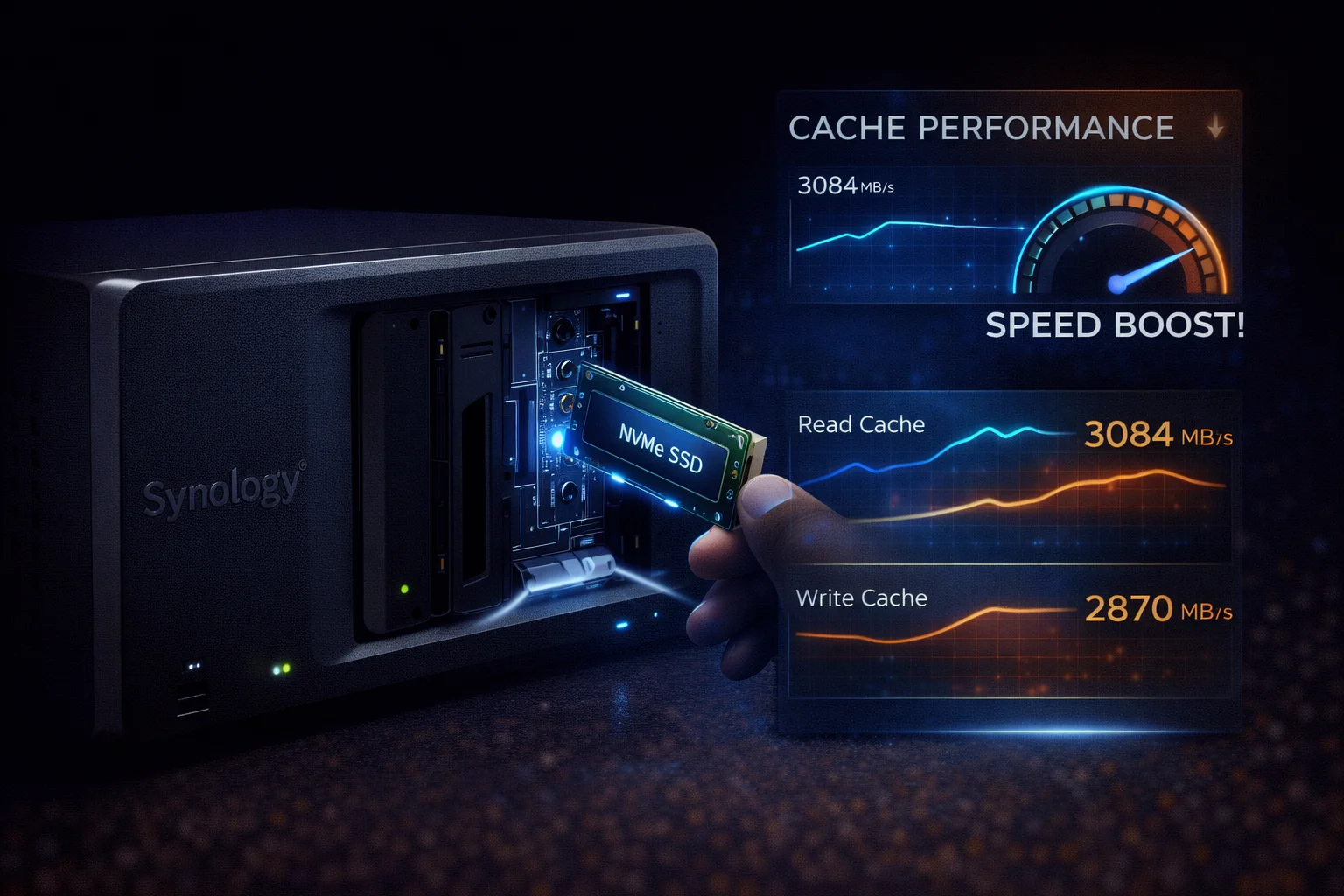
Quick Answer: SSD cache on Synology NAS uses M.2 NVMe drives to accelerate frequently-accessed data. Read cache (1 SSD) improves random reads; Read-Write cache (2 SSDs in RAID 1) improves both reads and writes. Best for: small file workloads, databases, Docker, VMs, multi-user environments. Less beneficial for: large sequential transfers (video editing, backups). Compatible models: DS923+, DS723+, DS1522+, DS1823xs+.
SSD cache is one of the most impactful upgrades for Synology NAS performance. By caching frequently-accessed data on fast NVMe SSDs, your NAS can serve requests much faster than HDDs alone — especially for small, random I/O operations common in office environments.
This guide covers everything you need to know: which models support SSD cache, read vs read-write cache, the best NVMe drives to buy, and step-by-step setup instructions.
Which Synology Models Support SSD Cache?
| Model | M.2 Slots | Cache Support | Storage Pool Support* |
|---|---|---|---|
| DS923+ | 2× M.2 2280 | ✅ Read & Read-Write | ✅ (Synology SSDs only) |
| DS723+ | 2× M.2 2280 | ✅ Read & Read-Write | ✅ (Synology SSDs only) |
| DS1522+ | 2× M.2 2280 | ✅ Read & Read-Write | ✅ (Synology SSDs only) |
| DS1823xs+ | 2× M.2 2280 | ✅ Read & Read-Write | ✅ (Synology SSDs only) |
| DS925+ | 2× M.2 2280 | ✅ Read & Read-Write | ✅ (Synology SSDs only) |
| DS224+ | ❌ None | ❌ No | ❌ No |
| DS423+ | ❌ None | ❌ No | ❌ No |
*NVMe storage pools (using SSDs as primary storage) require Synology-branded SSDs. Third-party NVMe drives work perfectly for caching.
Read Cache vs Read-Write Cache
Read Cache (1 SSD)
- Requires: 1× NVMe SSD
- Improves: Random read performance
- How it works: Frequently-read data is cached on SSD
- Data safety: No risk — cache failure doesn’t affect data
- Best for: Read-heavy workloads, browsing files, Plex library scanning
Read-Write Cache (2 SSDs)
- Requires: 2× NVMe SSDs (configured as RAID 1 mirror)
- Improves: Both random reads AND writes
- How it works: Hot data cached on SSDs, writes buffered and flushed to HDDs
- Data safety: RAID 1 mirror protects against single SSD failure
- Best for: Databases, Docker, VMs, multi-user offices
Which Should You Choose?
| Use Case | Recommendation |
|---|---|
| Home media server (Plex) | Read cache (1 SSD) or skip |
| Photo library (Synology Photos) | Read cache (1 SSD) |
| Small office file sharing | Read-Write cache (2 SSDs) |
| Docker containers | Read-Write cache (2 SSDs) |
| Databases (MariaDB, PostgreSQL) | Read-Write cache (2 SSDs) |
| Virtual machines | Read-Write cache (2 SSDs) |
| Video editing / large files | Skip cache — minimal benefit |
Best NVMe SSDs for Synology Cache
For caching, you don’t need the fastest consumer SSD. Prioritize endurance (TBW) and reliability over raw speed. The NVMe interface is already much faster than HDDs — even budget SSDs provide huge improvements.
Recommended: WD Red SN700
| Product | Capacity | Price | $ / TB | Price Drop | Brand | Interface |
|---|
WD Red SN700 500GB NVMe
500GB | NVMe PCIe 3.0 | 3,430 MB/s Read | 1,000 TBW | 5-Year Warranty
Purpose-built for NAS caching with exceptional endurance (1,000 TBW). The 500GB capacity is ideal for most home and small business cache workloads. WD’s NAS-optimized firmware ensures reliability.
WD Red SN700 1TB NVMe
1TB | NVMe PCIe 3.0 | 3,430 MB/s Read | 2,000 TBW | 5-Year Warranty
For larger deployments or heavy workloads. 2,000 TBW endurance handles years of intensive caching. Recommended for business NAS with 10+ users.
Alternative: Seagate IronWolf 525
Seagate IronWolf 525 500GB NVMe
500GB | NVMe PCIe 4.0 | 5,000 MB/s Read | 700 TBW | 5-Year Warranty
PCIe 4.0 speeds (backward compatible with PCIe 3.0 slots). Integrates with IronWolf Health Management in DSM. Slightly lower endurance than WD Red SN700 but excellent performance.
Budget Option: Samsung 980
Samsung 980 500GB NVMe
500GB | NVMe PCIe 3.0 | 3,100 MB/s Read | 300 TBW | 5-Year Warranty
Consumer SSD that works well for light caching workloads. Lower endurance (300 TBW) means it’s best for home use, not heavy business workloads. DRAMless design keeps costs down.
SSD Cache Sizing Guide
| Total Storage | Recommended Cache Size | Cost (2× for R/W) |
|---|---|---|
| 8-16TB | 250-500GB | ~$50-110 |
| 16-32TB | 500GB | ~$55-120 |
| 32-64TB | 500GB-1TB | ~$55-200 |
| 64TB+ | 1TB-2TB | ~$95-300 |
Rule of thumb: Cache size should be ~5-10% of your working dataset (frequently accessed files), not total storage. 500GB handles most scenarios.
SSD Cache Setup: Step-by-Step
Step 1: Install NVMe SSDs
- Power off your Synology NAS
- Locate M.2 slots — typically on the bottom of the unit (DS923+, DS723+) or inside (DS1522+)
- Insert NVMe SSDs at a 30° angle, then press down and secure with screw
- Power on the NAS
Step 2: Create SSD Cache in DSM
- Open Storage Manager
- Go to Storage → SSD Cache
- Click Create
- Select cache type:
- Read-only cache: Select 1 SSD
- Read-write cache: Select 2 SSDs (RAID 1)
- Select the storage pool/volume to accelerate
- Click Apply
Step 3: Monitor Cache Performance
- Go to Storage Manager → SSD Cache
- View Cache Hit Rate — higher is better (aim for 50%+)
- Monitor Cache Usage — if consistently 100%, consider larger SSDs
- Check SSD Health — wear level and remaining lifespan
SSD Cache Performance Impact
Workloads That Benefit Most
| Workload | Without Cache | With Cache | Improvement |
|---|---|---|---|
| Random 4K Read (IOPS) | ~200 | ~50,000+ | 250× |
| Random 4K Write (IOPS) | ~150 | ~30,000+ | 200× |
| Docker container startup | 30-60 sec | 5-10 sec | 5-6× |
| Database queries | Variable | Consistent | Significant |
| Photo thumbnails (Synology Photos) | Slow first load | Instant after cache | 10×+ |
| VM boot time | 60-120 sec | 15-30 sec | 4× |
Workloads That Don’t Benefit
- Large sequential transfers: Video editing, backups — these bypass cache
- First-time file access: Data must be on HDD first, then cached
- Unique data: Files accessed once and never again
- Streaming media: Plex/Jellyfin playback is sequential, not random
SSD Cache vs NVMe Storage Pool
| Feature | SSD Cache | NVMe Storage Pool |
|---|---|---|
| Purpose | Accelerates HDD storage | Primary SSD-only storage |
| Third-party SSDs | ✅ Supported | ❌ Synology SSDs only |
| Capacity | HDD capacity (cache is temporary) | Limited to SSD capacity |
| Speed | Improved (cached data only) | Full SSD speed always |
| Cost | Lower (smaller SSDs work) | Higher (need large SSDs) |
| Best for | Most users | All-SSD enthusiasts |
Recommendation: For most users, SSD cache with third-party NVMe drives provides the best value. NVMe storage pools are only worthwhile if you need all-SSD performance and are willing to pay for Synology-branded SSDs.
Troubleshooting SSD Cache
Low Cache Hit Rate
- Normal for new cache: Takes time to “warm up” with frequently-accessed data
- Working set too large: If cache is always full, consider larger SSDs
- Wrong workload: Sequential workloads (video) won’t benefit from cache
SSD Not Detected
- Check seating: Ensure SSD is fully inserted and secured
- Compatibility: Use standard M.2 2280 NVMe (not SATA M.2)
- DSM version: Ensure DSM 7.0+ for full NVMe support
SSD Wear Concerns
- Monitor in DSM: Storage Manager shows SSD health and wear level
- Choose high-endurance SSDs: WD Red SN700 (1,000 TBW) lasts years in cache
- Read-write cache wears faster: But RAID 1 protects against failure
Frequently Asked Questions
Yes, for the right workloads. SSD cache dramatically improves random I/O performance (200× faster for small files). Best for: Docker, databases, VMs, Synology Photos, multi-user offices. Not worth it for: video streaming, large file transfers, backup-only use. Cost is low (~$55-120 for 500GB), making it an easy upgrade.
1 SSD provides read-only cache — improves random reads with no data risk. 2 SSDs enable read-write cache — improves both reads and writes using RAID 1 mirror for safety. For home use, 1 SSD is often sufficient. For business or write-heavy workloads (Docker, databases), use 2 SSDs.
500GB handles most workloads. Cache size should be ~5-10% of your frequently-accessed data, not total storage. For 8-32TB NAS, 500GB is ideal. For 64TB+, consider 1TB. Larger cache doesn’t help if your working dataset is small.
Yes. Third-party NVMe SSDs work perfectly for caching — no Synology branding required. Only NVMe storage pools (using SSDs as primary storage) require Synology SSDs. For cache, we recommend WD Red SN700 or Seagate IronWolf 525 for their high endurance ratings.
Minimally. Plex streaming is sequential (reading video files from start to end), which bypasses cache benefits. SSD cache can help with: library scanning, thumbnail generation, and metadata loading. But video playback itself won’t improve. For Plex, invest in Intel CPU for transcoding instead.
For read-only cache (1 SSD): No data loss — cache is just temporary. NAS continues with HDD speed. For read-write cache (2 SSDs): RAID 1 mirror protects against single SSD failure. If both SSDs fail simultaneously, uncommitted writes may be lost, but this is rare.
Conclusion
SSD cache is an affordable upgrade (~$55-120) that dramatically improves Synology NAS performance for small-file workloads. Use read-only cache (1 SSD) for home use or read-write cache (2 SSDs) for business/Docker/VMs. The WD Red SN700 500GB is our top recommendation for its excellent endurance and NAS-optimized design.
Related Resources
- Synology DS923+ Review — NVMe cache compatible
- Best Synology for Business
- Synology Docker Guide — Benefits from SSD cache
- Synology Compatible Drives
Last Updated: February 2026