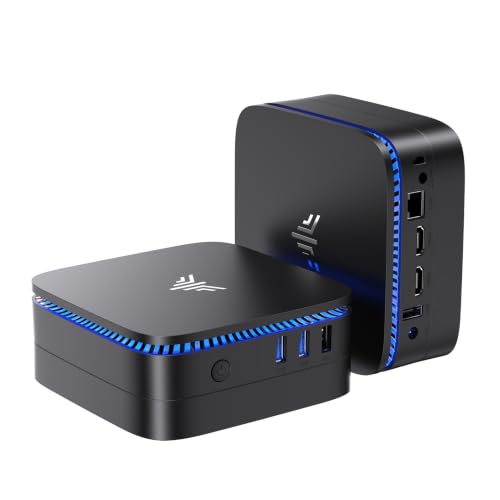
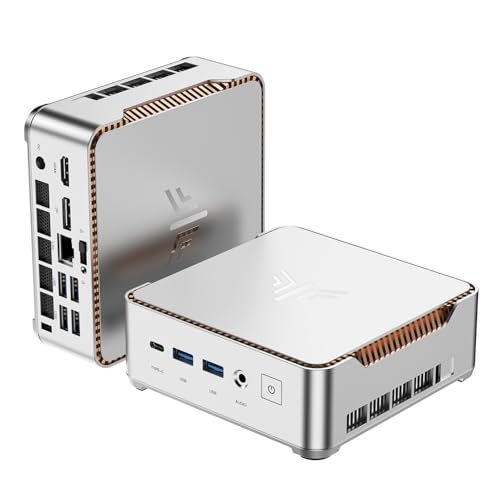
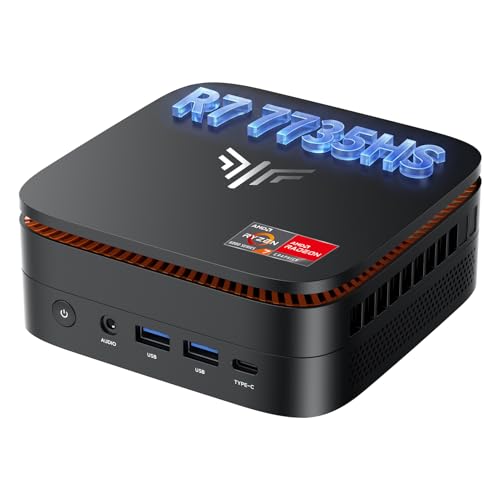
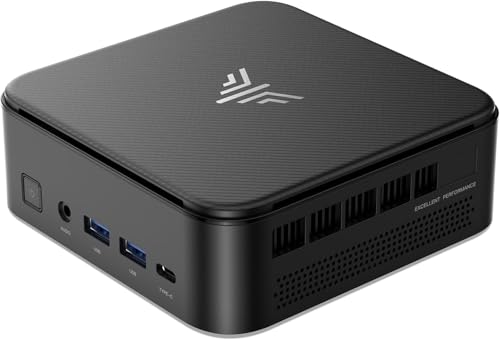
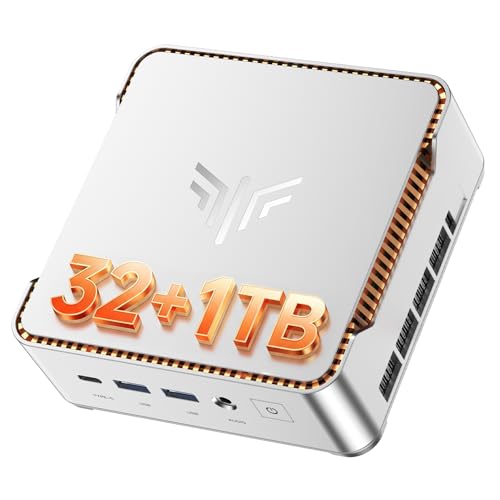
KAMRUI mini PCs offer compact computing for everyday tasks, home entertainment, or office setups. Choosing the right model involves careful attention to processor specs, memory options, upgradability, and connectivity. This guide provides a side-by-side breakdown and offers tips for matching a KAMRUI mini PC to your workflow, desk space, and future upgrades without upselling unnecessary features or underestimating real requirements.
Evaluating KAMRUI Processor and RAM Choices
Processor performance decides if a mini PC feels fast or sluggish. Current KAMRUI models use Intel Celeron, Core i3, or Core i5 CPUs. Celeron chips suit lightweight office, web, and media streaming tasks, but users needing content creation, larger spreadsheets, or multitasking will benefit from Core CPUs. Check official product listings and the detailed KAMRUI model documentation for exact processor model numbers and benchmark performance figures.
KAMRUI mini PCs ship with varying amounts of DDR4 or DDR5 memory, often starting at 8GB. For basic usage, 8GB suffices, but heavy browsing, editing, and virtualization work smoother with 16GB or more. Confirm if the RAM is soldered (non-upgradable) or socketed, as some models allow a cheaper route to upgrades later. Documentation and teardown videos can verify this before buying.
Assessing Storage, Expandability, and Device Fit
Most KAMRUI mini PCs ship with 128GB to 512GB solid-state drives, and some have an empty SATA or M.2 slot for storage expansion. Entry SSDs are fine for light use, but consider at least 256GB capacity for regular work. Fits, interfaces, and supported drive lengths (often 2280 for M.2) must be checked in listings and manuals before assuming compatibility with third-party drives.
Dimensions and mounting options impact desk placement or VESA mounting. KAMRUI cases range from palm-sized to slightly larger, sometimes including a VESA mount in the box. Cross-reference the physical size and supplied mounts against your monitor or workspace. For tight spaces, measure cable port locations to ensure they remain accessible in your planned direction or enclosure.
Comparing Connectivity and Expansion Ports
KAMRUI models commonly offer a mix of USB 2.0, USB 3.0, HDMI, DisplayPort, audio jack, and gigabit Ethernet ports, but not every unit has the same set. Multiple video outputs allow dual monitors for improved productivity. If you use wireless peripherals or need Bluetooth, ensure Bluetooth and Wi-Fi specs match your router and devices by reviewing the full technical sheet.
Some users need legacy connectivity, such as older VGA, serial, or more USB-A ports. Verify which exact ports the mini PC provides, and factor in potential needs for inexpensive USB hubs or adapters. Front-facing USB ports are especially helpful for quick access, while rear ports suit permanently attached devices like monitors and keyboards.
Making the Best Purchase Decision
Before purchase, create a checklist of your use cases: office, playback, light editing, or more demanding work. Match these to CPU, RAM, and storage capacity. For example, a KAMRUI mini PC with a Core i5, 16GB RAM, and a 512GB SSD might suit a multi-tasking home worker, while casual viewers and students may be fine with a Celeron and 8GB.
Consider futureproofing, such as models with accessible RAM and dual storage options. Read verified buyer reviews for notes on noise, thermals, packaging, and warranty response. If a current KAMRUI model meets today's needs but lacks upgradability or crucial ports, weigh the value of waiting for refreshed models or bundles including accessories you might purchase separately.